
Streamline project management by connecting Workflows directly with Monday.com.
Native Monday.com triggers and actions let you create, update, and sync boards, items, and statuses automatically – no Zapier, Make, or webhooks required.
TABLE OF CONTENTS
- What is the Monday.com Integration in Workflows?
- Key Benefits of Monday.com Integration
- Triggers (Monday.com → Workflows)
- Actions (Workflows → Monday.com)
- Getting Started with Monday.com
- How do Monday.com Triggers Work?
- Common Use Cases
- Frequently Asked Questions
What is the Monday.com Integration in Workflows?
The Monday.com integration allows you to automate workflows between Monday boards and CRM, enabling real-time syncing of tasks, statuses, updates, and users.
This integration is ideal for agencies and teams that:
-
Track client onboarding and deliverables in Monday.com
-
Manage internal production or content calendars
-
Want Monday updates to trigger CRM, Slack, email, or reporting workflows
Why It Matters
With the Monday.com integration, you can:
-
Eliminate third-party automation tools like Zapier or Make
-
React instantly to board, item, and status changes
-
Keep CRM, communication, and project tools in sync
-
Reduce manual coordination across teams
Triggers (Monday.com → Workflows)
(Coming soon)
These Monday.com events can initiate a workflow:
Available Triggers
Any Column Value Changed in Board
Fires when a specific column (status, date, owner, etc.) is updated on a board item.
Any Item Moved to a Group
Triggers when an item moves between groups on a board.
New Board
Fires when a new board is created in Monday.com.
New Item in a Board
Triggers when a new item is added to a board.
New Subitem in Board
Fires when a new subitem is created under an item.
New Update in Board
Triggers when a new update or comment is added to an item.
New User
Fires when a new user is added to the Monday.com workspace.
These triggers are designed to support real-time automation for project tracking, onboarding, and delivery workflows.
Actions (Workflows → Monday.com)
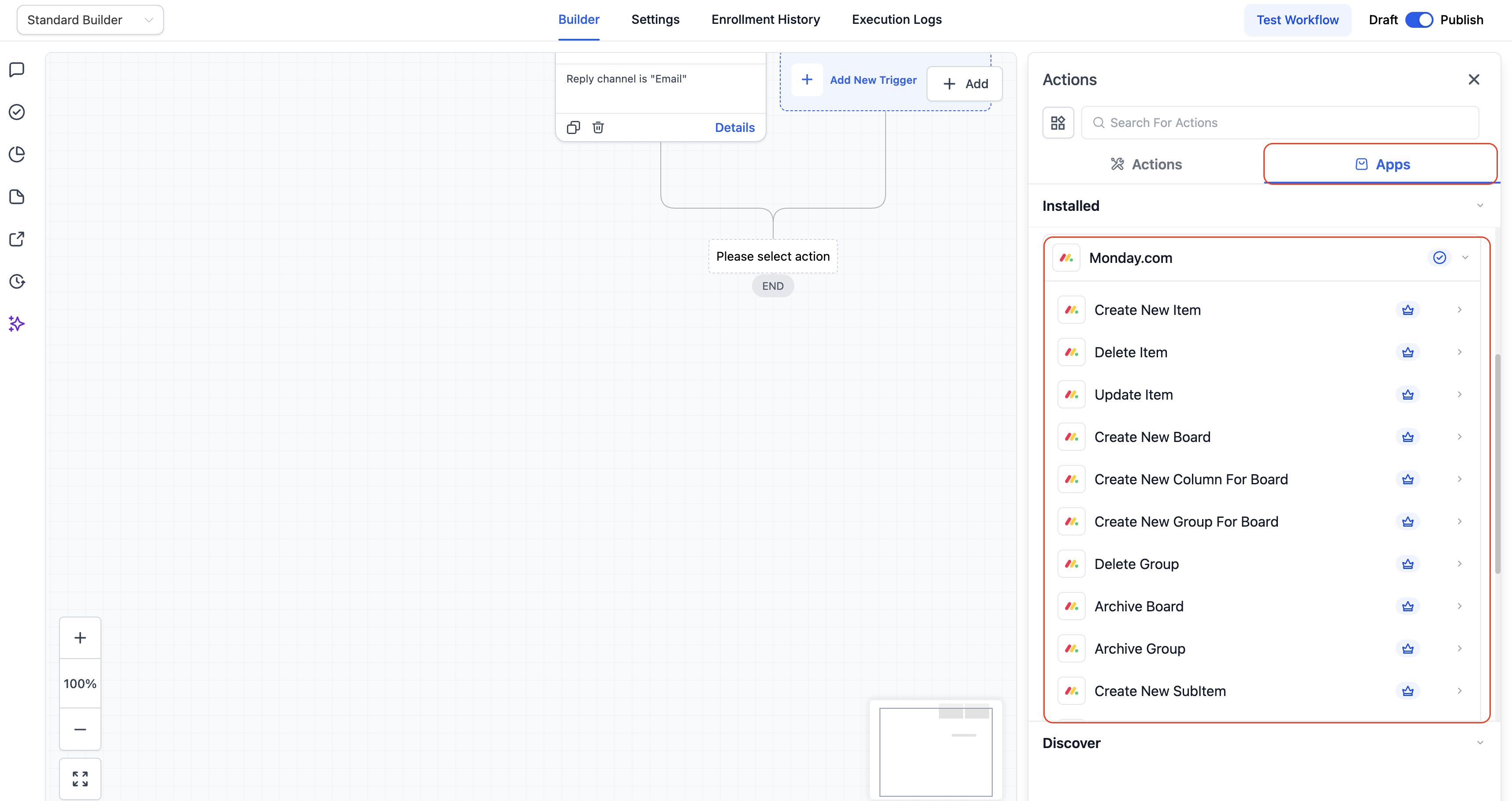
These are actions HighLevel workflows can perform in Monday.com:
Available Actions
Create New Board / Group / Column / Item / Subitem
Dynamically create new structures inside Monday.com from a workflow.
Update Item / Update Subitem
Modify column values such as status, due date, owner, or custom fields.
Archive Board / Archive Group
Archive entire boards or specific groups automatically.
Delete Item / Delete Group
Remove items or groups when they are no longer needed.
Get Board Items
Retrieve all items from a board for syncing or reporting purposes.
Find Items by Column Value
Search items dynamically using status, owner, or custom column values.
Find Items by ID
Locate a specific item using its Monday item ID.
Getting Started with Monday.com
Step 1: Find Monday.com in Workflows
In the Automations Builder, click Add Trigger or Add Action, then search for Monday.com.
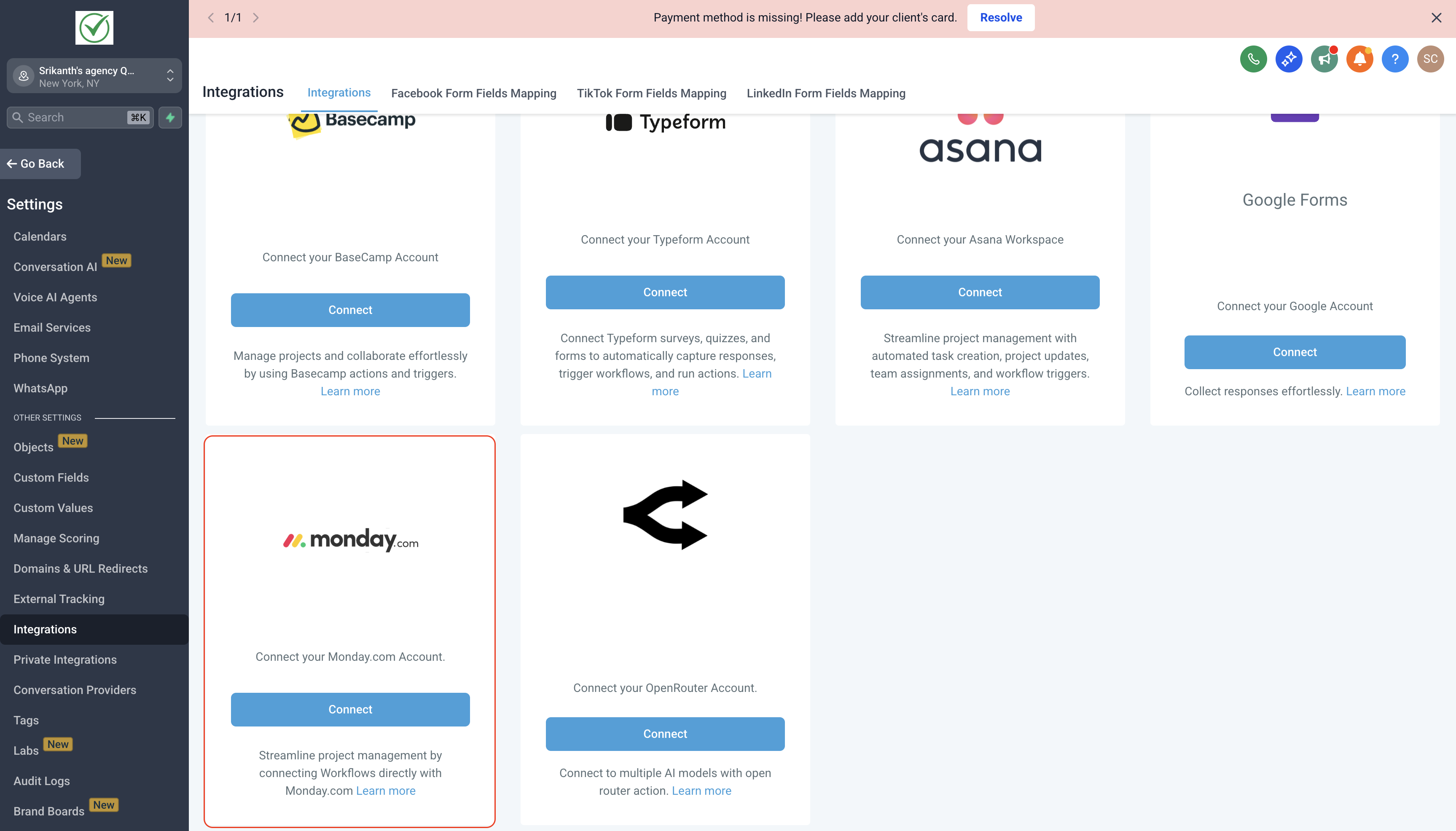
Step 2: Connect Your Monday.com Account
If your account is not connected, click Connect Now and authorize HighLevel using Monday.com API key.
Step 3: Configure Trigger or Action
Select the board, group, or column as required, then test to pull sample data.
How do Monday.com Triggers Work? (Coming soon)
Monday.com triggers are event-based and near real-time.
-
Choose a trigger (e.g., New Item in Board or Column Value Changed).
-
Apply filters (board, column, group) to narrow execution.
-
Test the trigger to fetch live sample data.
-
Use dynamic fields (item name, status, owner, dates) in downstream actions.
Recommendation
For Column Value Changed triggers, always apply column-specific filters (e.g., Status = Completed) to avoid unnecessary executions when unrelated fields change.
Common Use Cases
Use Case 1: Client Onboarding Automation
Goal: Automatically sync new onboarding items with CRM and team notifications.
Workflow Setup
-
Trigger: New Item in Board (“Client Onboarding”)
-
Actions:
-
Create or update contact in HighLevel CRM
-
Send Slack message to account manager
-
Add row to Google Sheets for tracking
-
Update Monday item status to “CRM Synced”
-
Result:
Every new onboarding item instantly updates CRM and notifies the team.
Use Case 2: Project Status → Client Communication
Goal: Notify clients when a project is completed.
Workflow Setup
-
Trigger: Column Value Changed (Status → Completed)
-
Actions:
-
Send Gmail message to client
-
Create CRM note
-
Archive item in Monday.com
-
Send Slack update to #client-updates
-
Result:
Clients and teams are informed automatically—no manual follow-ups.
Use Case 3: Internal Task Sync (Monday → ClickUp)
Goal: Keep Monday and ClickUp tasks aligned across teams.
Workflow Setup
-
Trigger: New Item in Board (“Design Tasks”)
-
Actions:
-
Create task in ClickUp
-
Store Monday item ID in ClickUp custom field
-
Send Slack notification
-
Update Monday item with ClickUp task link
-
Result:
Teams work in their preferred tools without losing visibility.
Frequently Asked Questions
Are Monday.com triggers instant?
Triggers fire near real-time based on board events and updates.
Is this a two-way sync?
Currently, workflows support one-directional execution per trigger (Monday → Workflow → Actions).
Do I need a paid Monday.com plan?
Most actions work on free and paid plans, but advanced board features may require a paid plan.
Are Monday.com triggers and actions billed?
Yes, they are premium workflow actions and triggers, billed at standard automation rates.
Can I update multiple columns at once?
Yes—Update Item and Update Subitem actions support multiple column mappings.