
Overview
Coupons help you offer discounts on your products and increase conversions across your checkouts. You can create coupons that apply to one-time and recurring products and control how, where, and how often they can be used.
Coupons can be used across:
-
Funnels (Order Forms)
-
Stores
-
Websites
-
Payment Links
-
Calendars
-
Services
-
Gift Card Sell Page
-
Business Facing – Create Subscription
⚠️ Coupons are not supported on Estimates and Invoices. Certain types of coupon settings are not supported for subscription payments made with PayPal.
What Does This Feature Do?
Coupons allow you to:
-
Offer percentage or fixed discounts
-
Apply discounts on entire carts or specific products
-
Control usage through limits and restrictions
-
Apply discounts on subscriptions (with duration controls)
-
Track usage and redemption
What Do I Need to Use Coupons?
-
Access to Payments → Coupons
-
A checkout, selling products, where coupons are supported
How to Create a Coupon
Step 1: Navigate to Coupons
Go to:
Payments → Coupons → Create Coupon

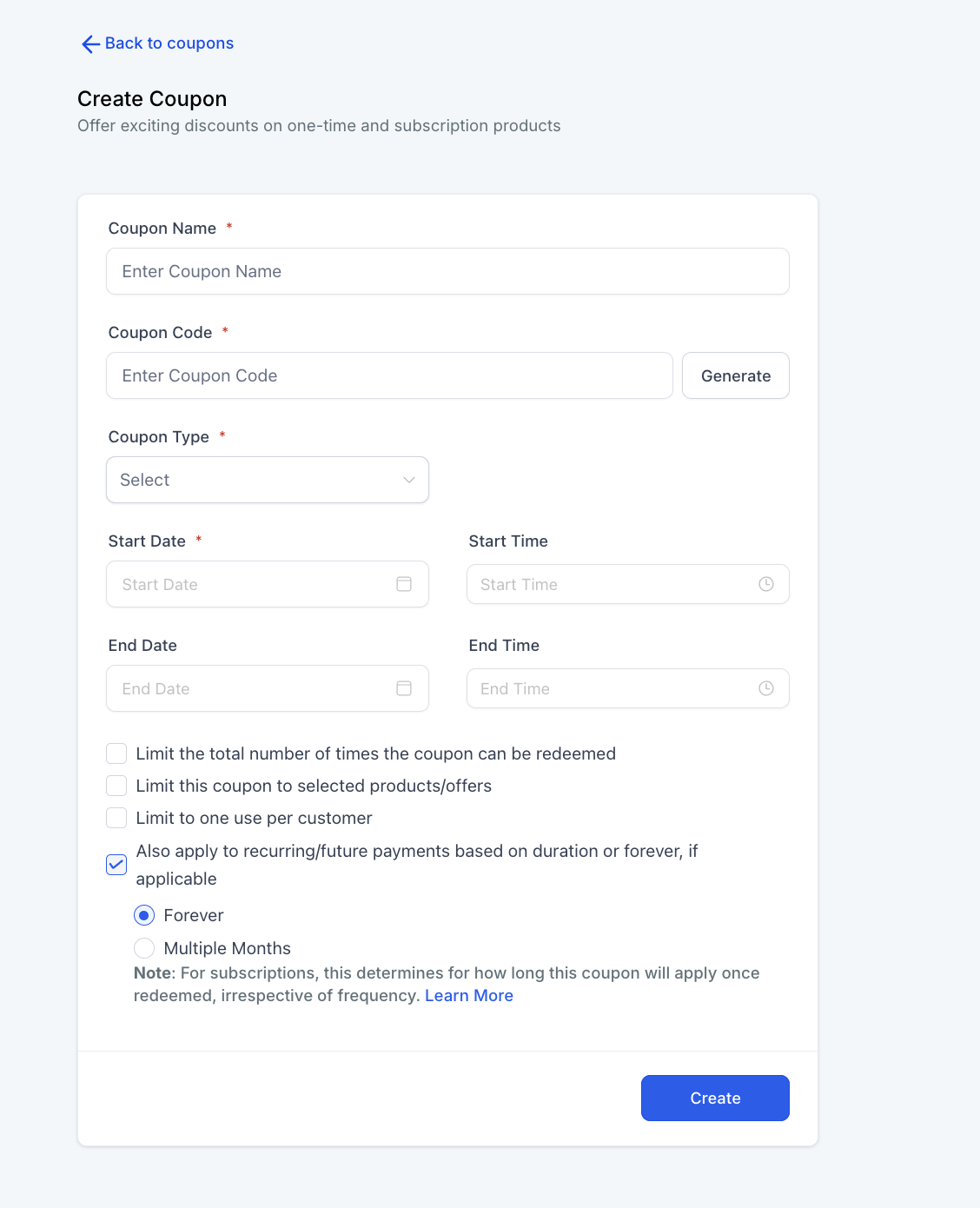
Step 2: Enter Basic Details
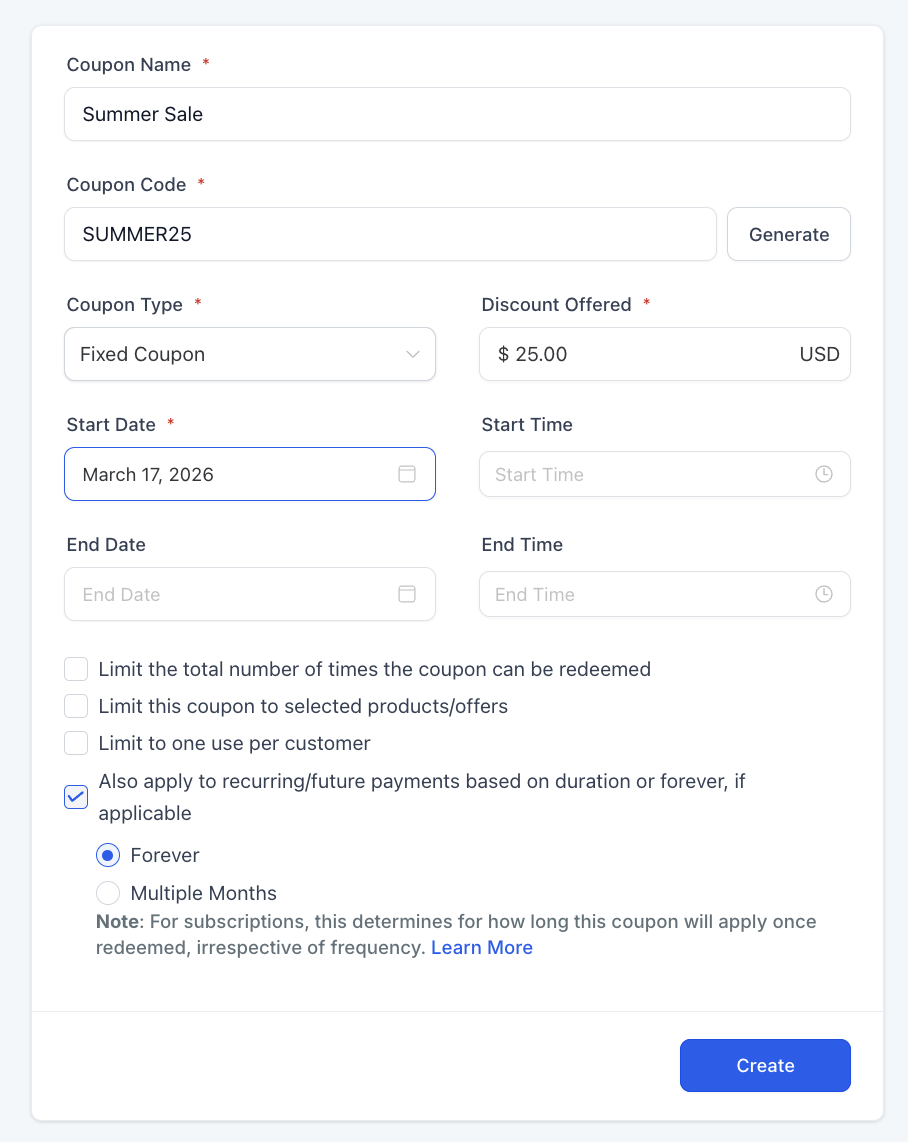
Coupon Name
-
Internal reference for your coupon
-
Example:
SUMMER SALE 2025
Coupon Code
-
The code customers will enter at checkout
-
Must be:
-
Alphanumeric only
-
No spaces or special characters
-
Case-insensitive (automatically converted to uppercase)
-
-
You can also click Generate to auto-create a code
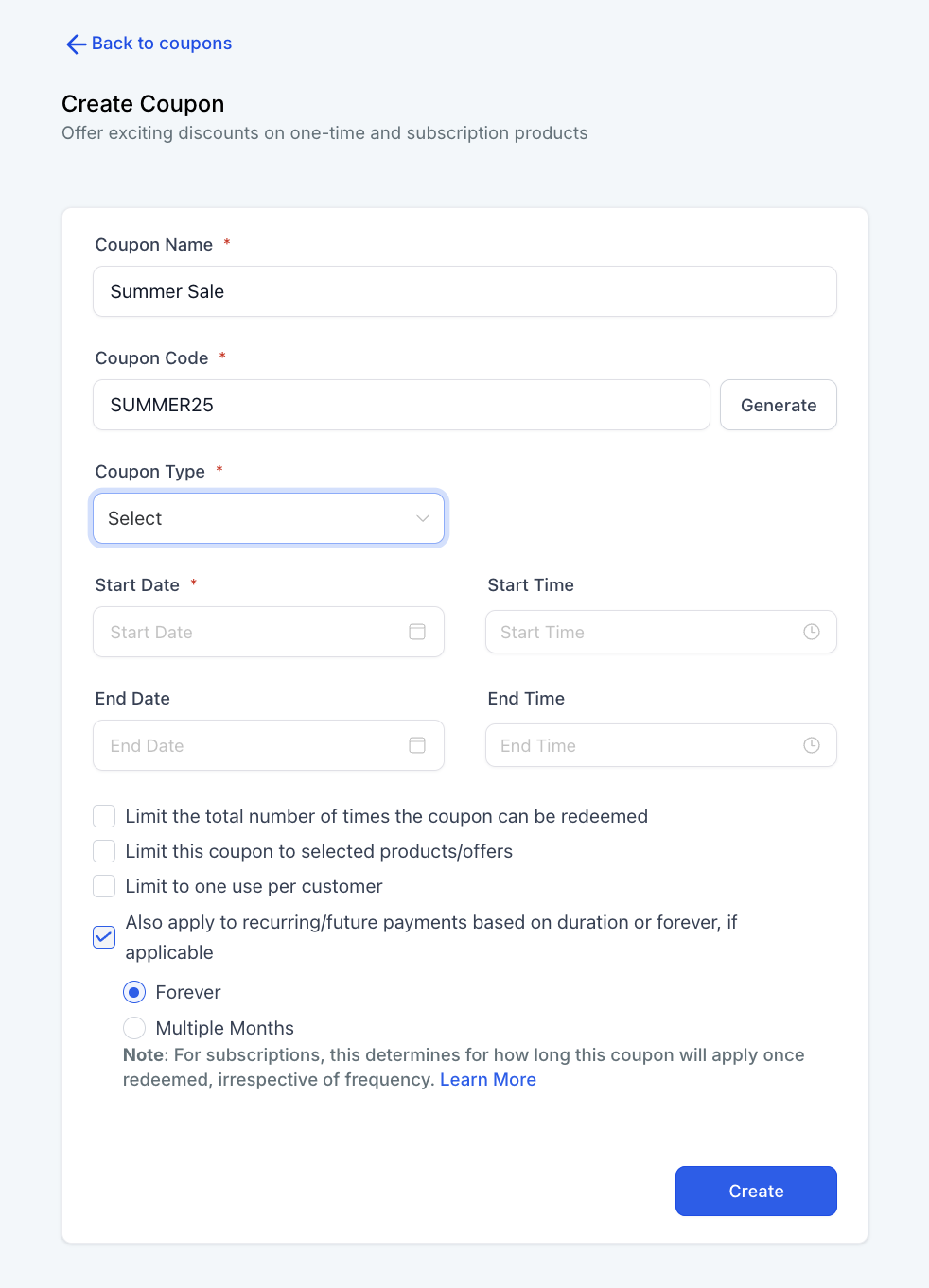
Step 3: Select Coupon Type
You can choose between two types:
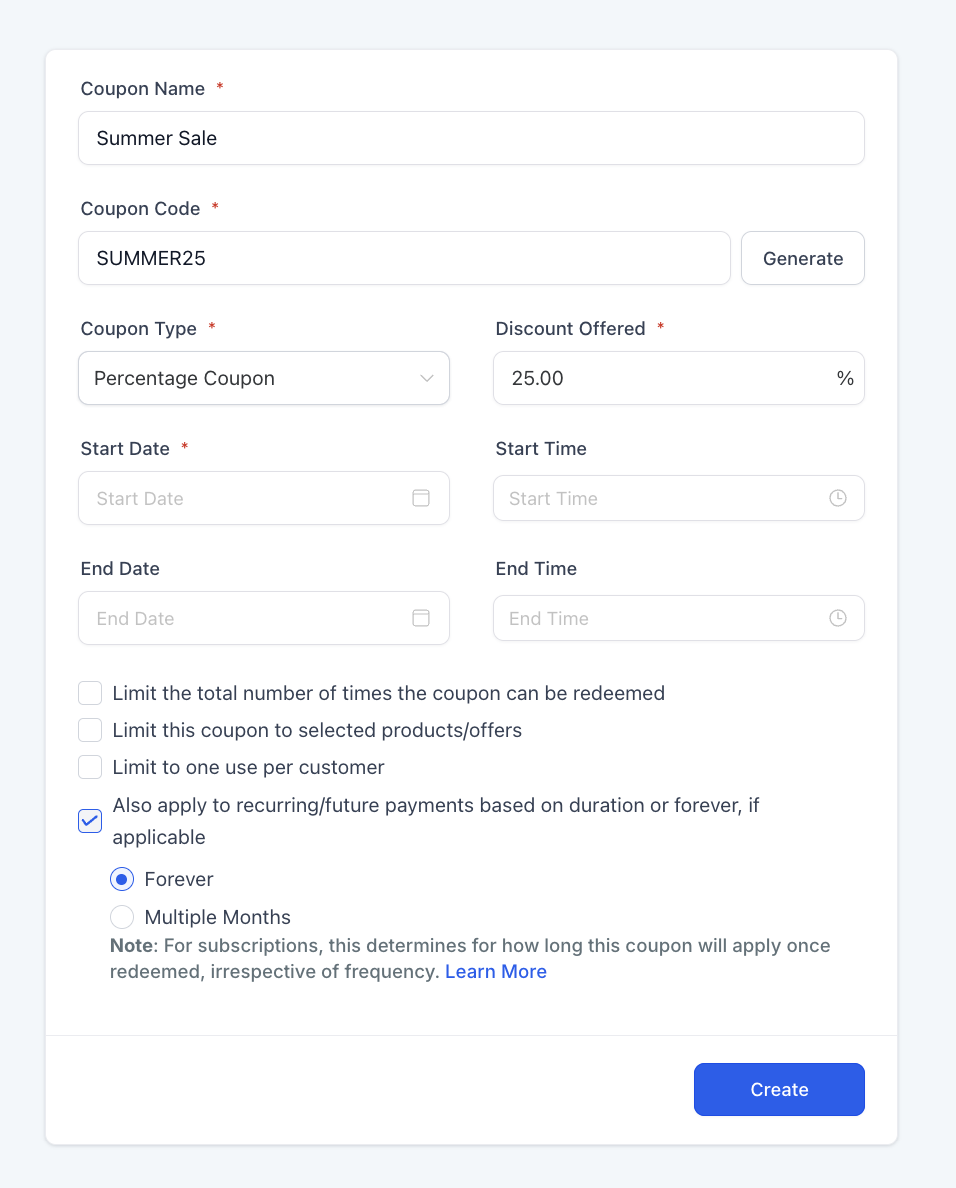
1. Percentage-Based Coupon
-
Applies a percentage discount on the total value
-
Example:
-
Cart = $100
-
Coupon = 20%
-
Final = $80
-
2. Fixed Amount Coupon
-
Applies a fixed discount regardless of order size
-
Example:
-
Cart = $100
-
Coupon = $25
-
Final = $75
-
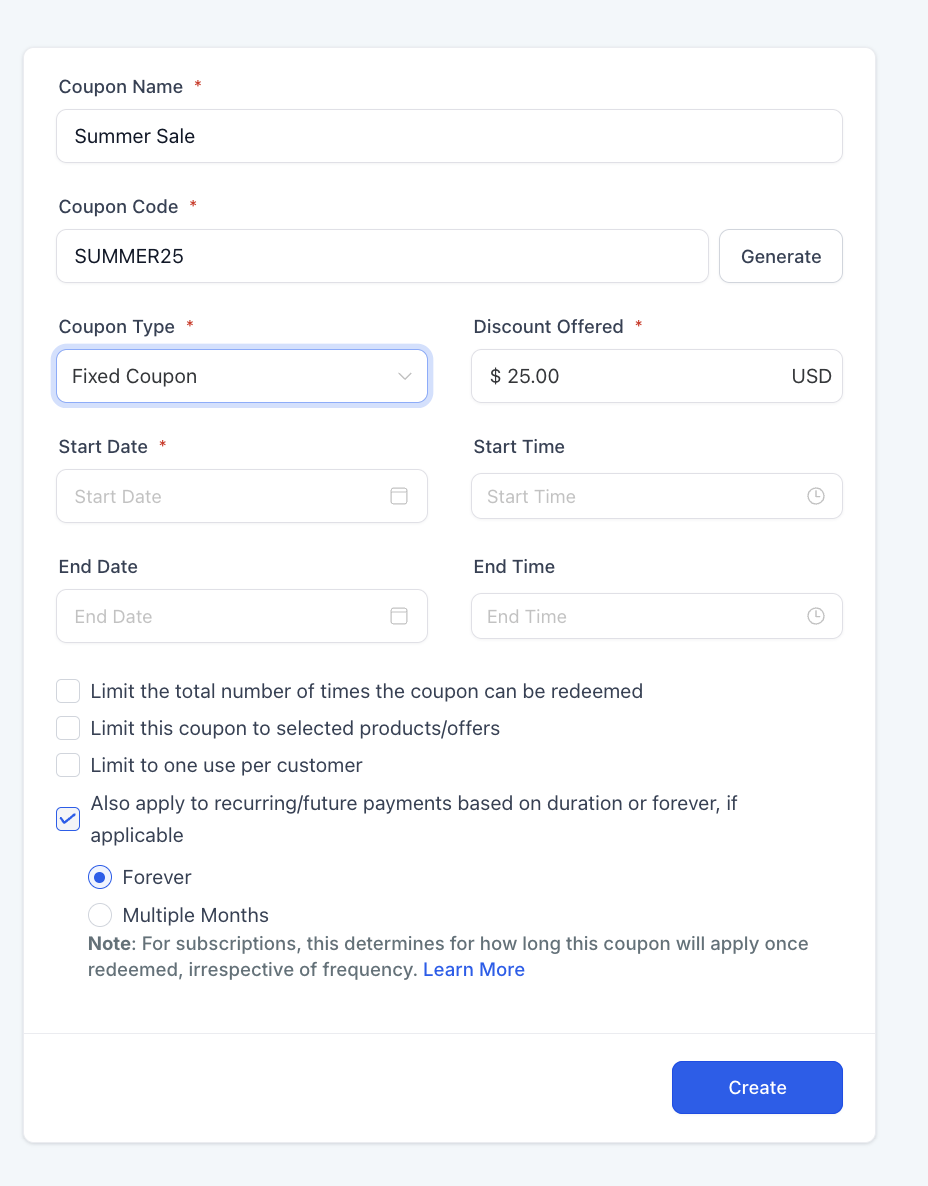
Coupon Currency
-
Coupon currency is automatically set to your sub-account currency
-
It cannot be changed manually
Step 4: Set Validity (Optional)
You can define when the coupon is usable:
-
Start Date & Time → When the coupon becomes active
-
End Date & Time → When the coupon expires
If no end date is set → coupon remains active indefinitely
Step 5: Configure Usage Restrictions
You can apply the following controls:
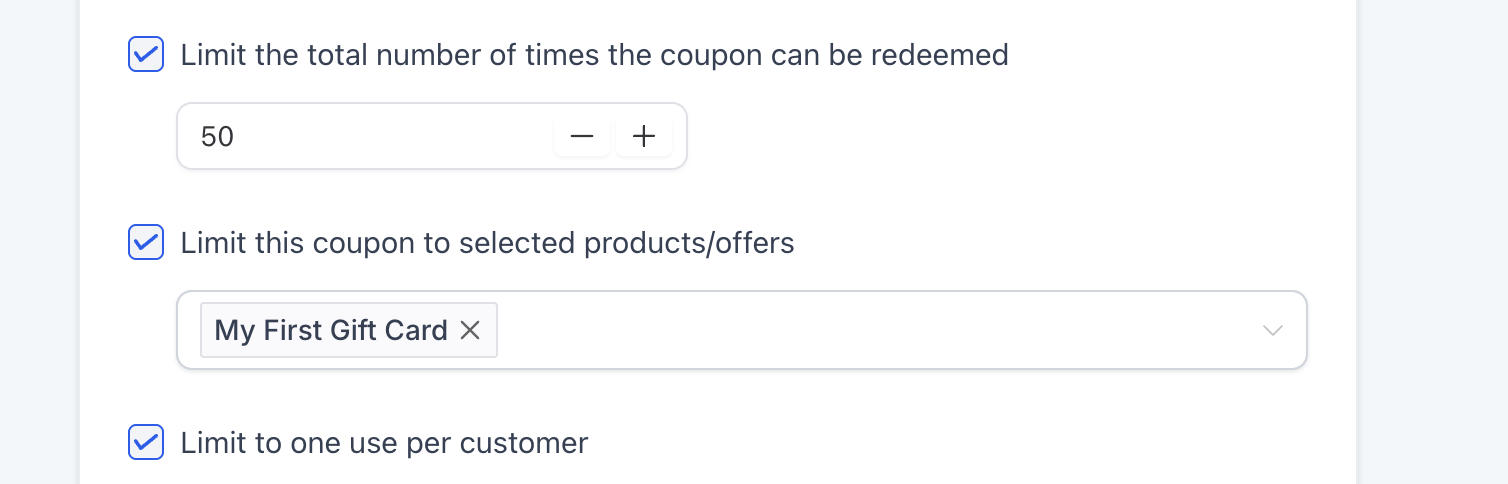
1. Limit Total Redemptions
-
Restrict how many times the coupon can be used
-
Example: Limit to 100 uses
2. Limit to Selected Products
-
Restrict coupon usage to specific products
-
Example:
-
Coupon works only for “Premium Plan”
-
Cannot be used on other products
-
3. Limit to One Use per Customer
-
Prevent a single customer from reusing the coupon
Step 6: Configure Subscription Behavior (If Applicable)
For recurring products, you can control how long the discount applies:
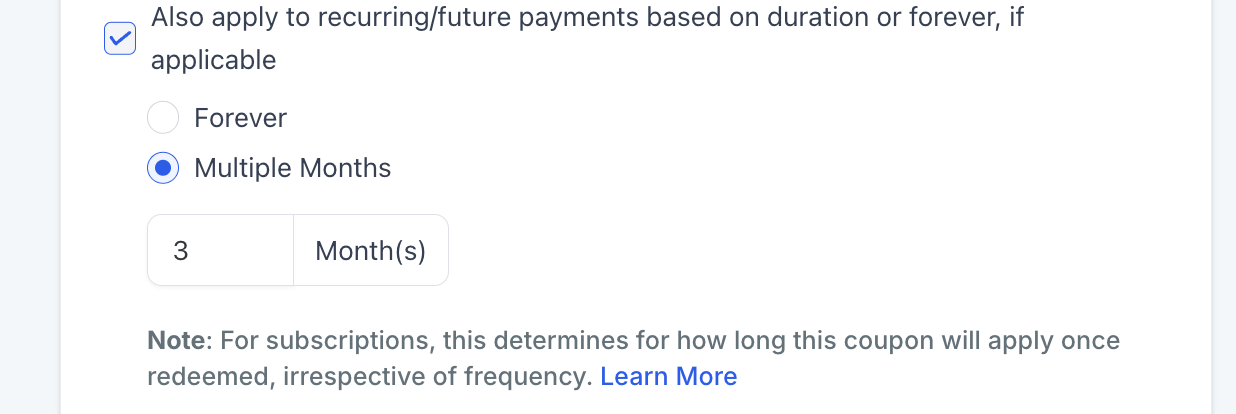
Apply to Future Payments
You can choose:
-
Forever
→ Discount applies to every billing cycle -
Multiple Months
→ Discount applies for a fixed duration
Example:
-
Subscription = $100/month
-
Coupon = 20% for 3 months
-
Customer pays $80/month for first 3 months
-
Then returns to $100/month
Note: This applies regardless of billing frequency
Step 7: Create the Coupon
Click Create
Your coupon is now active (or scheduled based on your settings).
How Coupons Work at Checkout
-
Coupon input field appears only when a valid coupon exists
-
If no applicable coupon → field is hidden automatically
-
Discounts are:
-
Shown in checkout summary
-
Applied across applicable products proportionally
-
Visible in order details
-
-
Many checkouts (Funnels, Payment Links, etc.) have an option on the builder to enable or disable visibility and application of coupons during checkout
Important Behaviors & Limitations
-
Coupons apply to:
-
One-time products
-
Recurring products
-
-
Coupons do not apply to one-click upsells (in case of Funnels)
-
Coupons can reduce cart value to $0
-
Customer still needs to enter card details for verification, if builder level setting for this is checked. If builder doesn’t have setting for managing $0 transactions, card details are always required.
-
-
100% discounts support via most providers except PayPal.
-
Coupon codes are:
-
Case-insensitive
-
Unique
-
-
Discounts are distributed proportionally across products
FAQs
Can I create a free product using coupons?
Yes — use a 100% discount coupon
Can I edit or delete coupons later?
Yes — you can edit, delete, or view usage history anytime