
Importing snapshots in HighLevel lets you bring shared snapshot assets into your agency snapshot library so they can be reused across sub-accounts. The redesigned snapshot import flow gives you more control from the moment you open a Snapshot Share Link, including the ability to rename the snapshot before importing, view import progress, and quickly identify asset-protected snapshots.
This helps agencies stay organized, troubleshoot import issues faster, and move from shared link to usable snapshot with less confusion.
TABLE OF CONTENTS
- What is Snapshot Import?
- Key Benefits of the Redesigned Snapshot Import Flow
- Tracking Snapshot Import Progress
- Understanding Snapshot Import Errors
- How To Import a Snapshot
- Import a Snapshot from a Snapshot Share Link
- Import a Snapshot from Email
- Load the Imported Snapshot Into a Sub-Account
- Frequently Asked Questions
- Related Articles
What is Snapshot Import?
Snapshot import is the process of adding a shared snapshot to your HighLevel agency account using a Snapshot Share Link or email invite. Once imported, the snapshot becomes available in your agency-level snapshot library, where it can be reviewed and loaded into a sub-account when needed.
Importing a snapshot is different from loading a snapshot. Importing adds the shared snapshot to your agency snapshot library, while loading applies the snapshot’s selected assets to a specific sub-account. This distinction helps prevent confusion when working with shared snapshots, imported snapshots, and existing client accounts.
Key Benefits of the Redesigned Snapshot Import Flow
The updated snapshot import experience helps agencies move faster while reducing confusion during setup. Clearer naming, status visibility, and error messages make it easier to understand what is happening at each stage of the import process.
- Better Organization: Rename snapshots during import so they are easy to recognize in your agency snapshot library.
- Faster Setup: Start the import from a Snapshot Share Link and see the snapshot appear in your list right away.
- Clearer Import Visibility: View the snapshot in a greyed-out state while the import is still processing.
- Helpful Error Guidance: See more specific error messages when a share link cannot be used, such as when a link has expired.
- Easier Asset Protection Identification: Look for the shield icon to quickly identify asset-protected snapshots.
- Cleaner User Experience: Use the redesigned import flow to move from shared link to ready-to-use snapshot with fewer steps.
Tracking Snapshot Import Progress
Import progress visibility helps you know whether the snapshot is still processing or ready to use. This prevents duplicate import attempts and reduces confusion after clicking the import button.
After you start the import, the snapshot appears in your snapshot list right away. While the import is still processing, the snapshot appears greyed out. Once the import finishes, the snapshot automatically becomes available and ready to use from your imported snapshots list.
Use the greyed-out state as a visual indicator that the import is still in progress. Avoid loading or relying on the snapshot until it becomes active.
Understanding Snapshot Import Errors
Import error messages help you identify why a snapshot could not be imported and what action to take next. Clearer messages are especially useful when working with shared links that may expire, be restricted, or become unavailable.
Common scenarios include:
- Expired Snapshot Share Link: Request a new share link from the snapshot owner.
- One-Time Link Already Used: Ask the sender to generate a new one-time link.
- Restricted Link: Confirm that the link was intended for your agency or sub-account.
- Unavailable Snapshot: Contact the sender to confirm that the snapshot still exists and is shareable.
- General Import Failure: Retry the import or contact support if the issue continues.
How To Import a Snapshot
A proper import ensures the shared snapshot is added to your agency snapshot library before it is loaded into a sub-account. Follow these steps when importing a snapshot from a Snapshot Share Link or email invite.
Import a Snapshot from a Snapshot Share Link
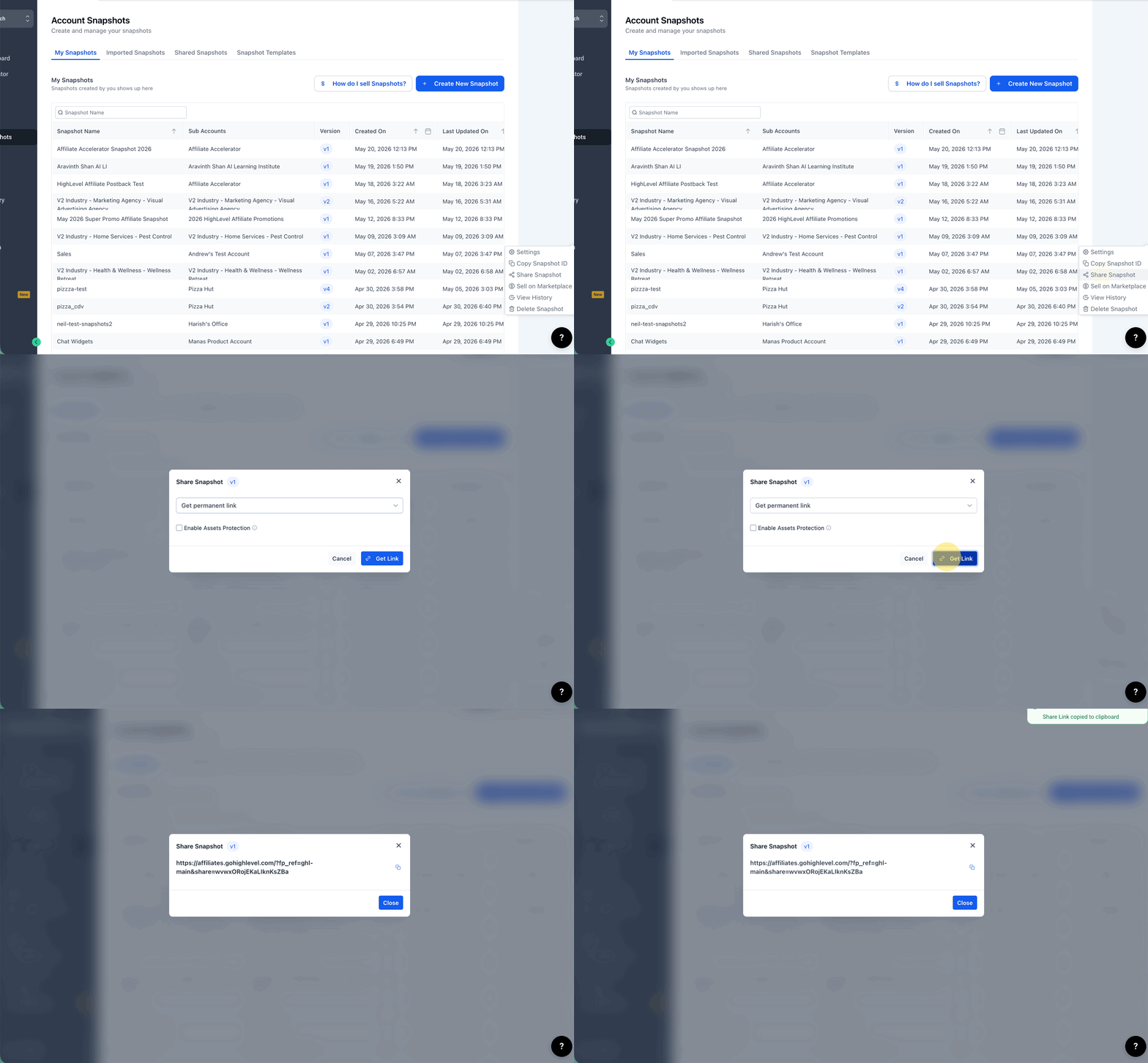
- Log in to the Agency account. Click on Share Snapshot and copy the link.
- Open a new browser tab.
- Paste the Snapshot Share Link into the browser address bar.
- Press Enter.
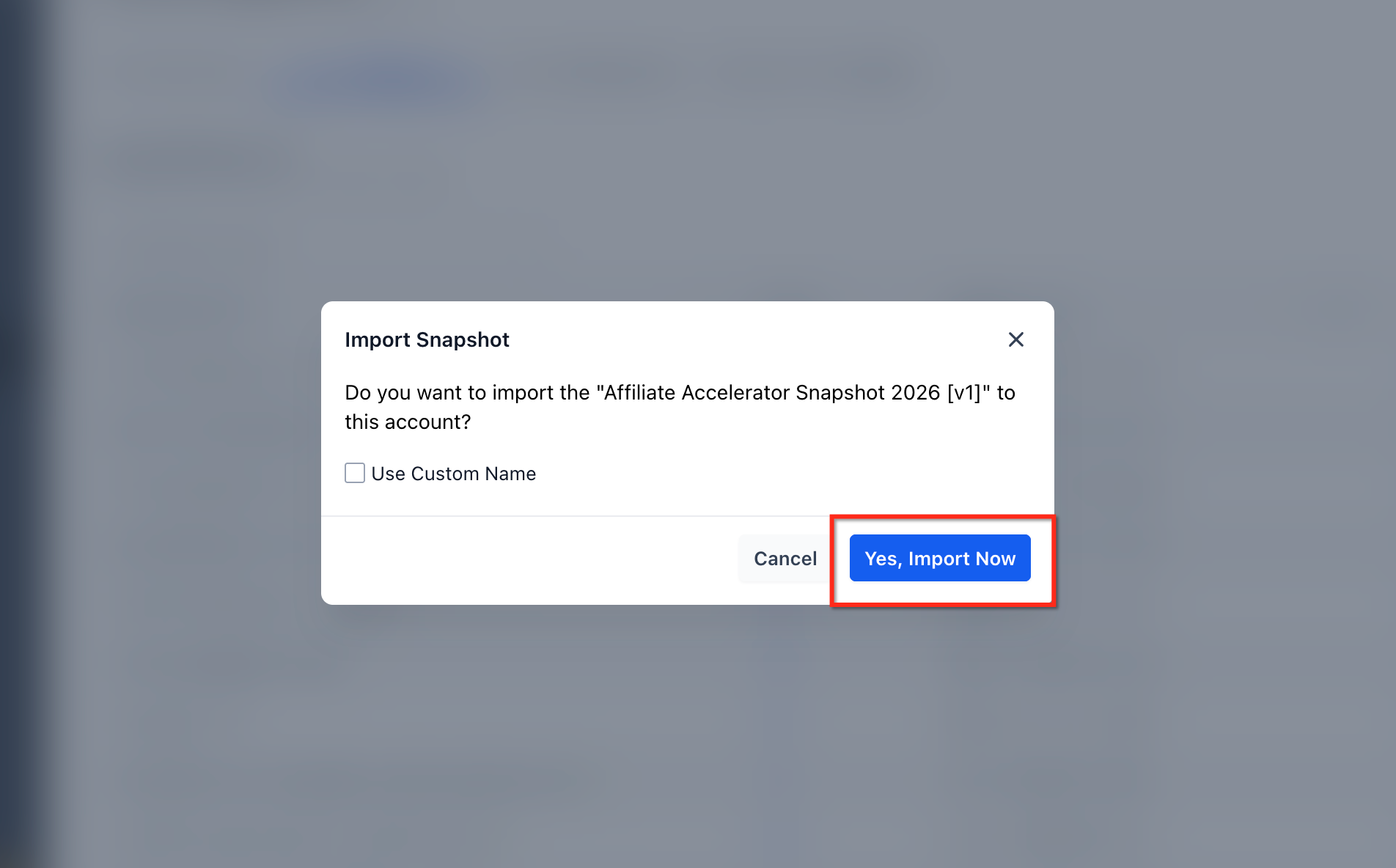
- Review the redesigned snapshot import pop-up.
- Enter a custom snapshot name, if needed.
- Click Import Now.
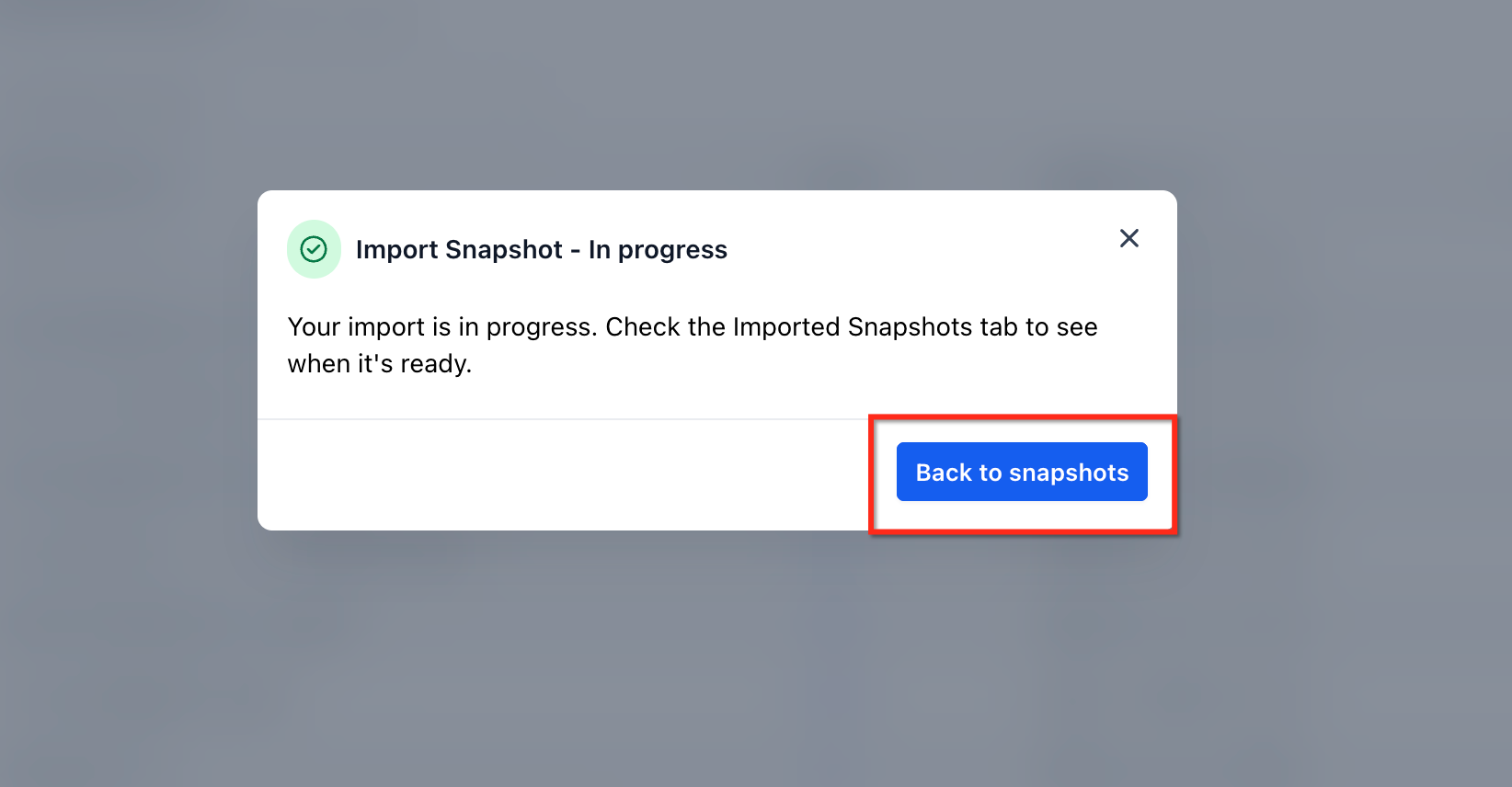
- Watch for the snapshot to appear in your imported snapshots list.
- Wait until the greyed-out importing state changes and the snapshot becomes ready to use.
Import a Snapshot from Email
- Log in to HighLevel from your web browser.
- Open the snapshot invitation email.
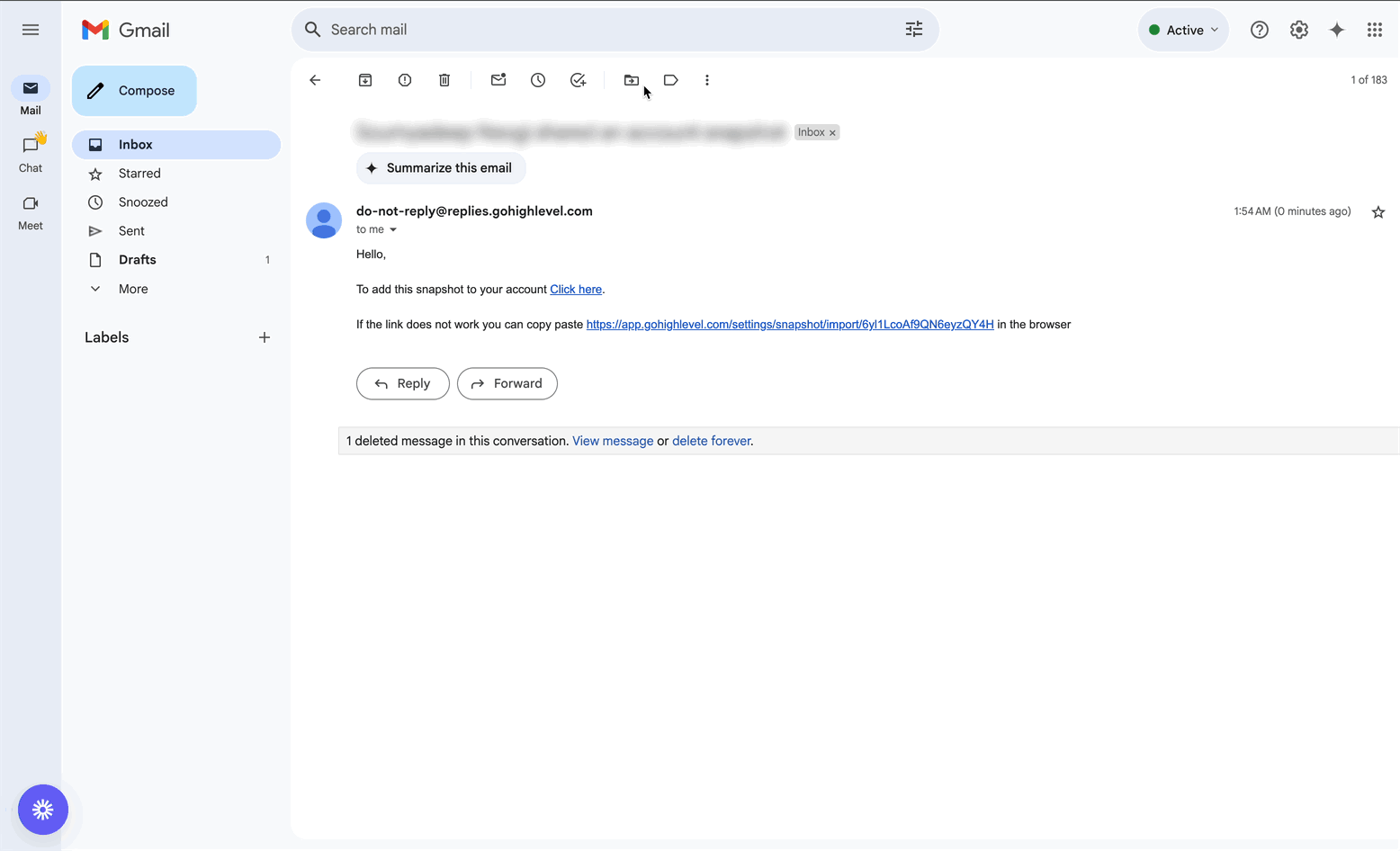
- Click the snapshot import link in the email.
- Review the redesigned snapshot import pop-up.
- Rename the snapshot, if needed.
- Click Import.
- Wait for the snapshot to finish importing.
Load the Imported Snapshot Into a Sub-Account
After the snapshot is imported, it is stored at the agency level. To use it inside a specific sub-account, load the snapshot into that sub-account.
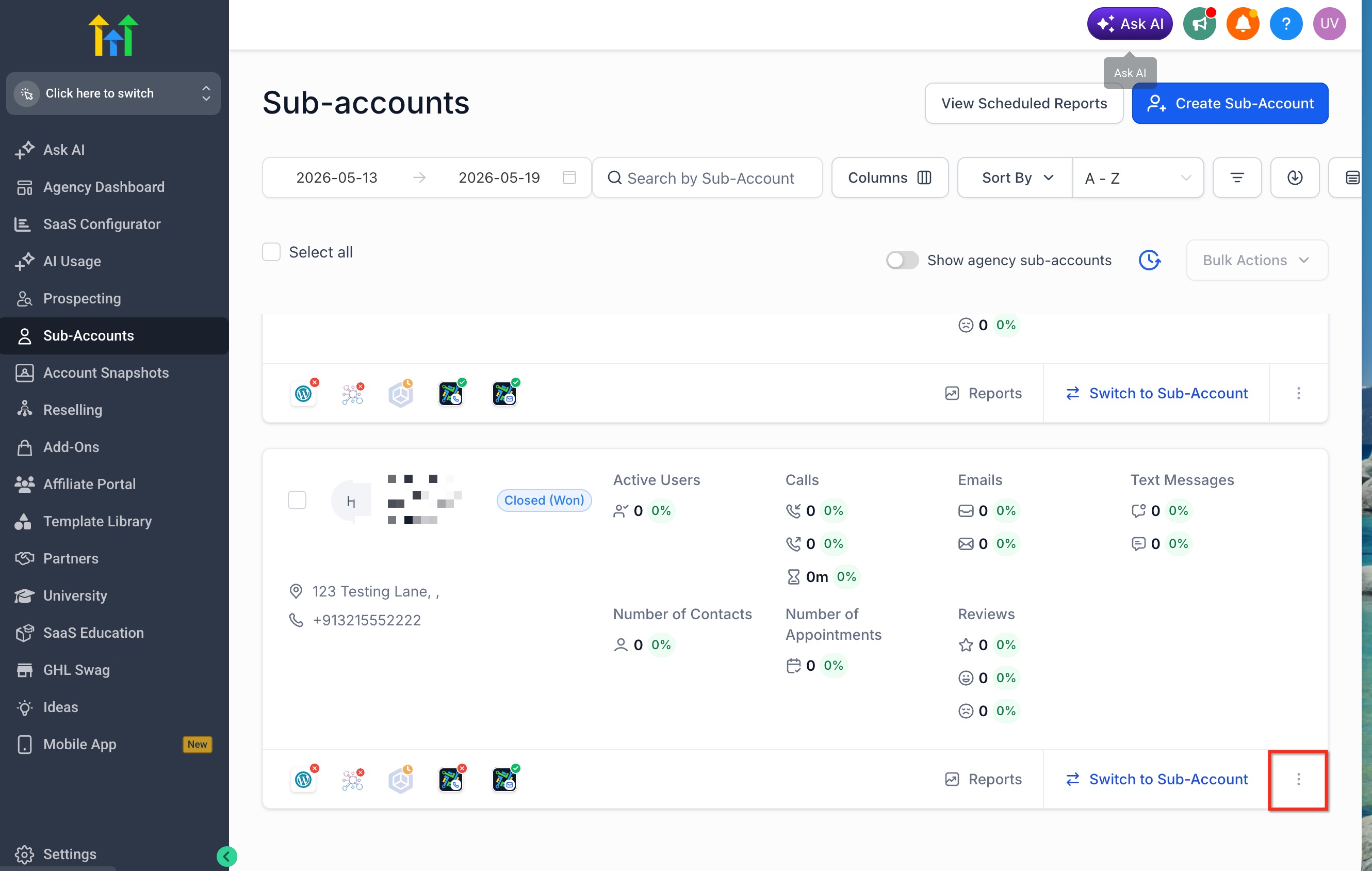
- Go to Agency View.
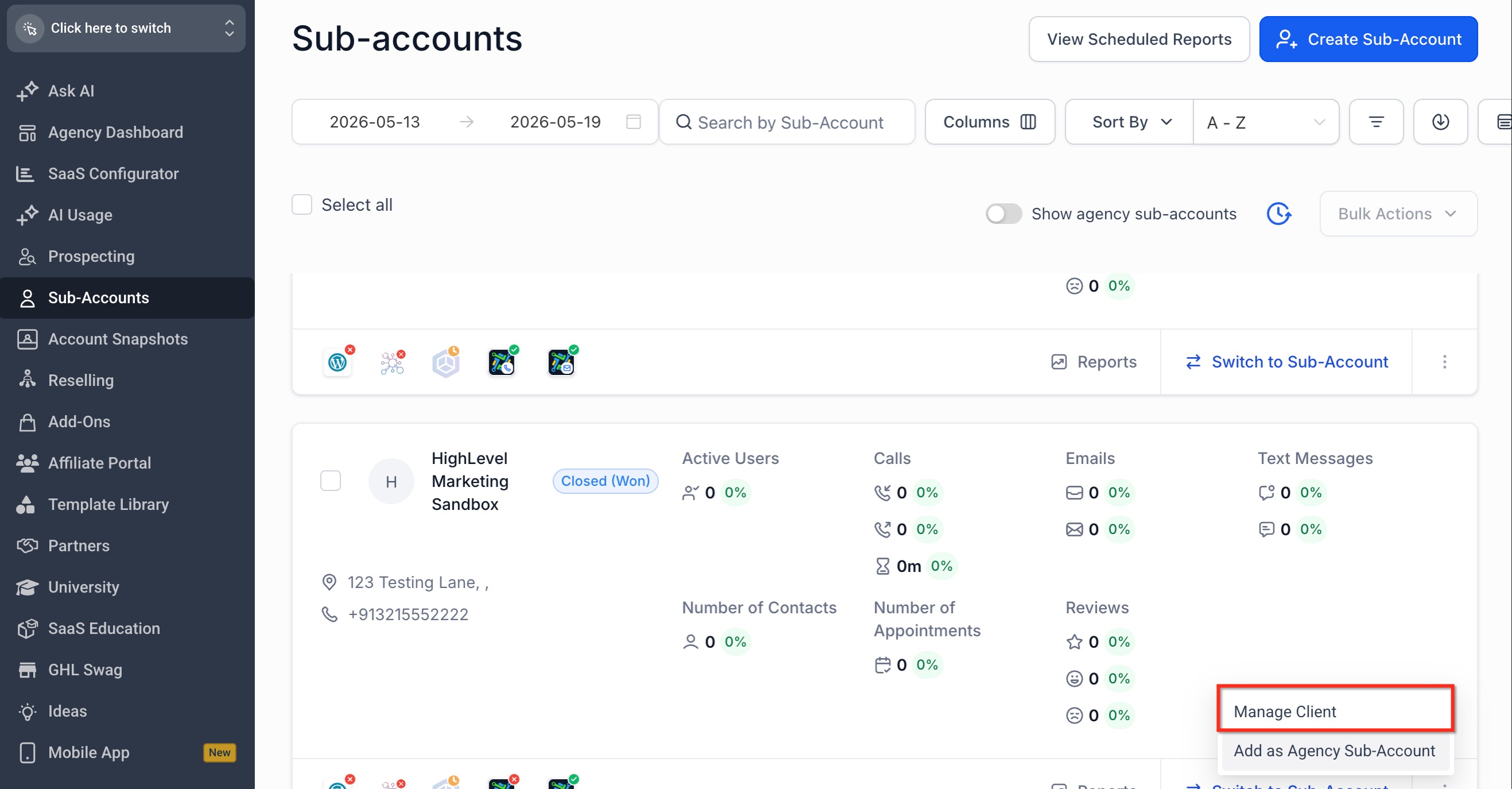
- Locate the sub-account where the snapshot should be loaded. Open the sub-account action menu. Select Manage Client.
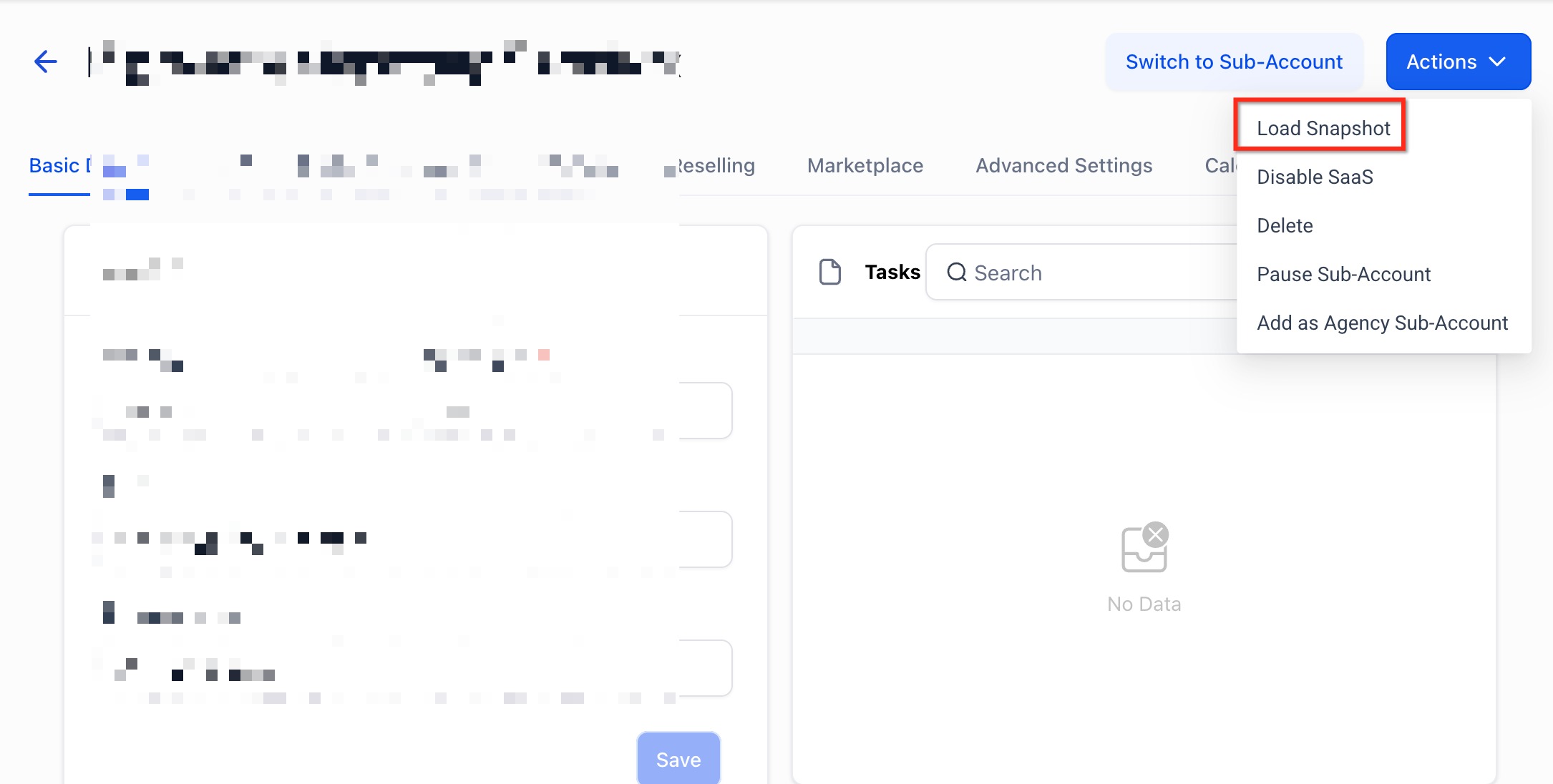
- Click Actions. Select Load Snapshot.
- Choose the imported snapshot.
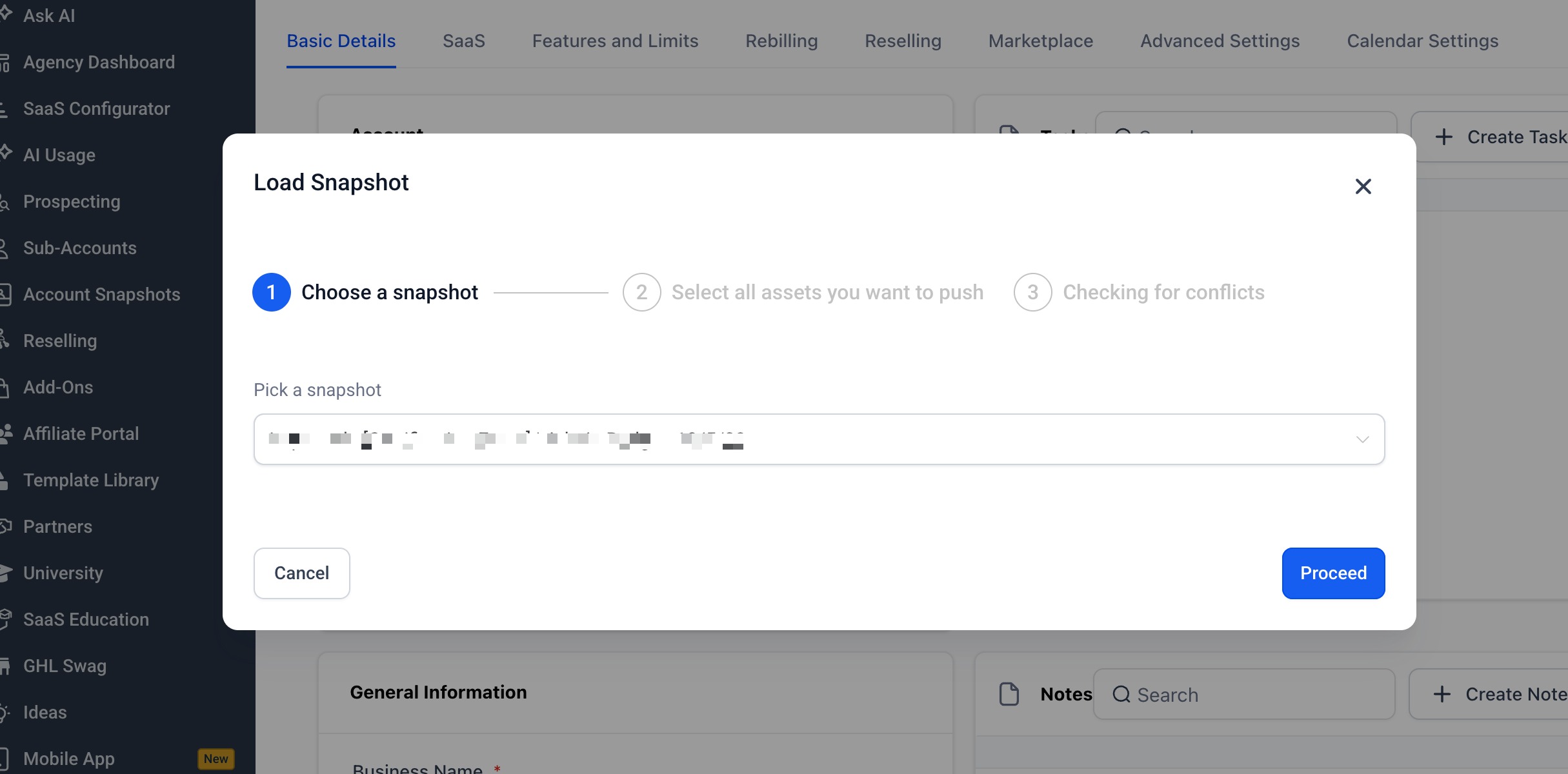
- Select the assets you want to load.
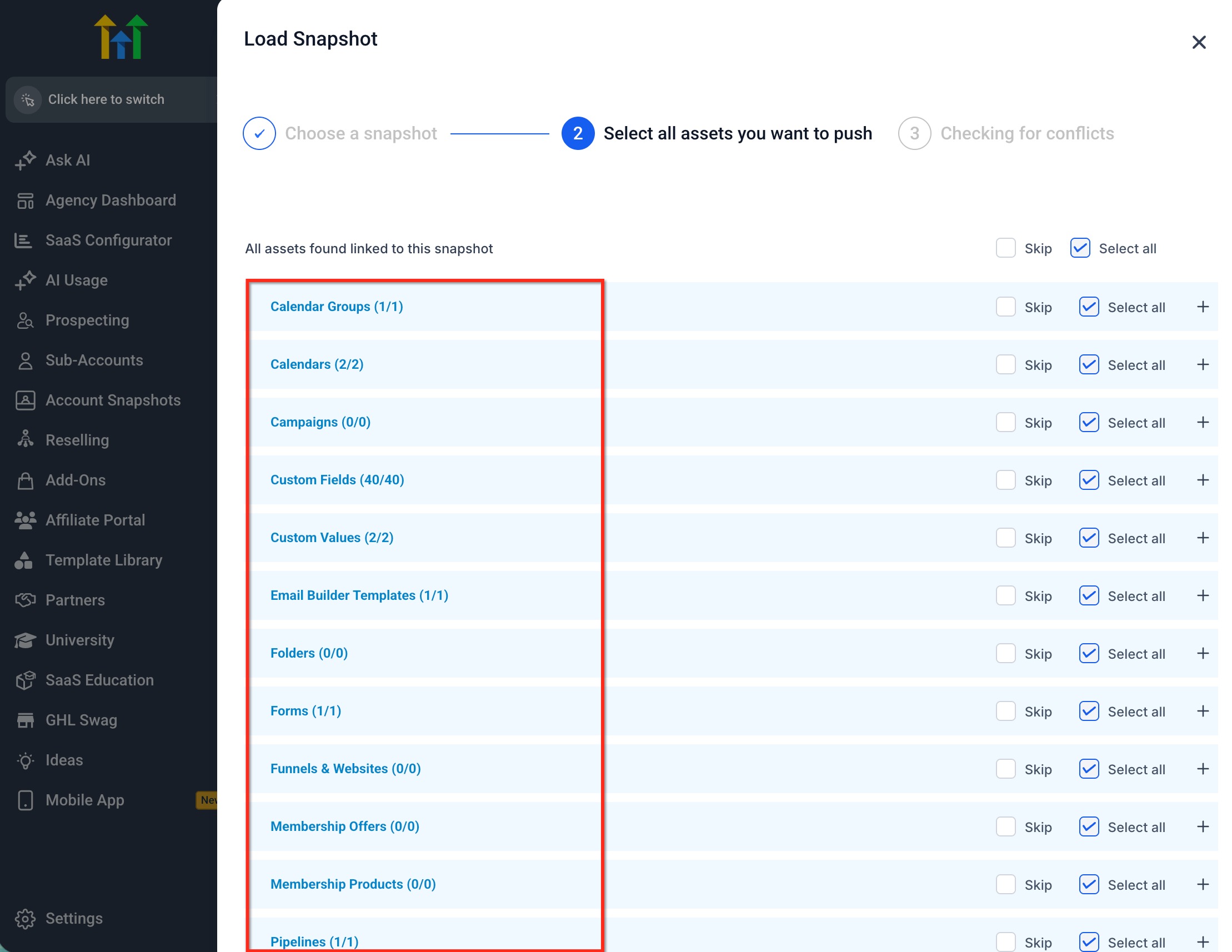
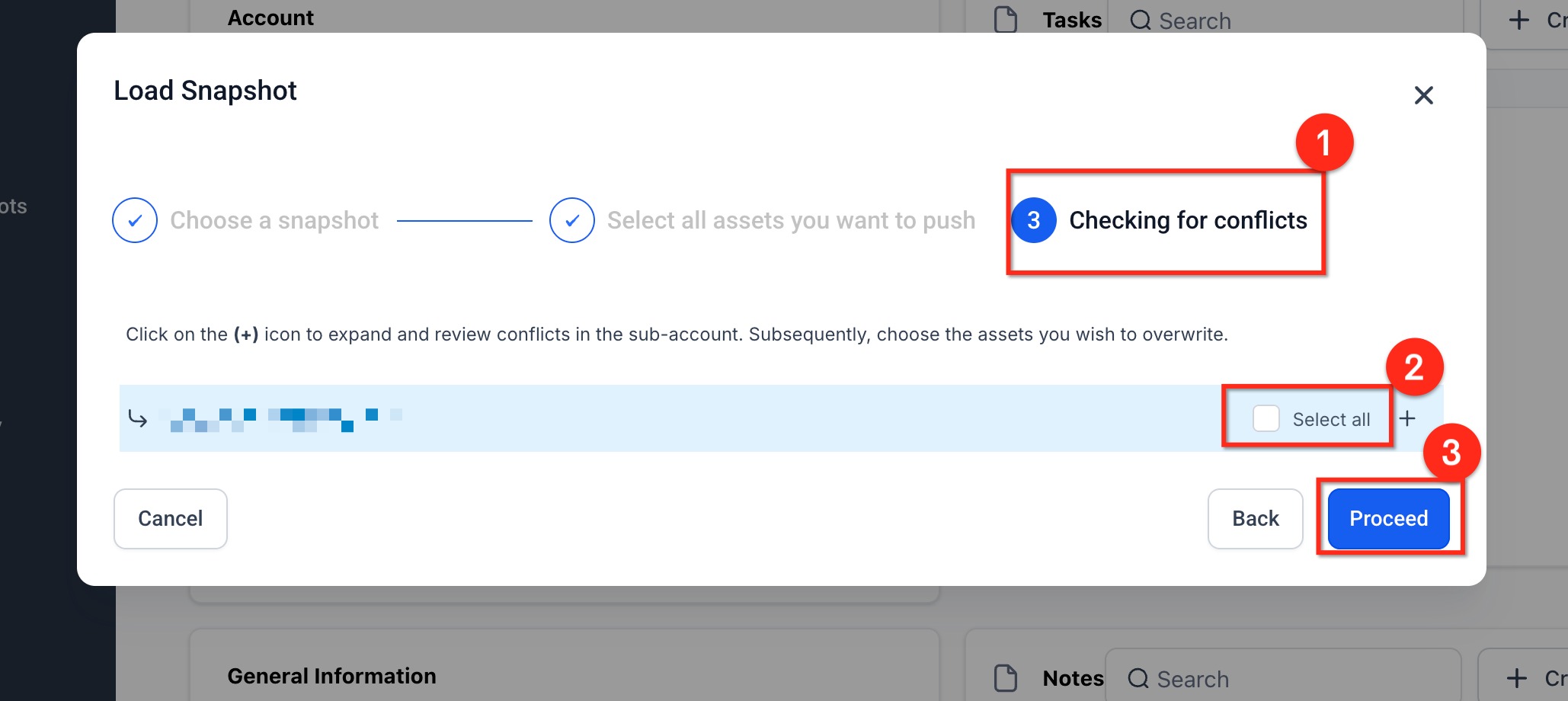
- Review conflicts, if any.
- Confirm the import.
Frequently Asked Questions
Q: Can I rename a snapshot while importing it?
Yes. The redesigned import flow includes a pop-up that allows you to rename the snapshot before completing the import.
Q: Why is my imported snapshot greyed out?
A greyed-out snapshot means the import is still processing. Once the import finishes, the snapshot will automatically become ready to use.
Q: What does the shield icon mean?
The shield icon means the snapshot is asset-protected. Asset-protected snapshots include protections that help prevent protected assets from being duplicated or re-shared.
Q: What should I do if the Snapshot Share Link is expired?
Request a new Snapshot Share Link from the person or agency that shared the snapshot.
Q: Does importing a snapshot automatically add it to a sub-account?
No. Importing adds the snapshot to your agency snapshot library. You still need to load the snapshot into a specific sub-account before the assets are applied.
Q: Can one-time share links be reused?
No. One-time links are intended for a single successful import. Ask the sender to generate a new link if the original link has already been used.