
Rental Listings and Rental Categories are now supported in Snapshots, making it easier to replicate Rentals setups across multiple sub-accounts in HighLevel. Agencies and multi-location businesses can create a reusable Rentals configuration once, then copy selected rental assets into other locations during Snapshot creation or restoration. This helps reduce manual setup work, improve consistency, and speed up onboarding for businesses using Rentals and
Account Snapshots.
TABLE OF CONTENTS
- What is Snapshot Support for Rental Listings and Categories?
- Key Benefits of Snapshot Support for Rentals
- Rental Listings in Snapshots
- How To Setup Snapshot Support for Rental Listings and Categories
- Frequently Asked Questions
- Related Articles
What is Snapshot Support for Rental Listings and Categories?
Snapshot support for Rental Listings and Categories allows agencies to include Rentals assets when creating or loading Snapshots. This gives teams a faster way to duplicate rental setup structures across sub-accounts without rebuilding each listing or category manually.
Rental Listings represent the individual rentable items in a Rentals setup, such as properties, vehicles, rooms, equipment, or other bookable assets. Rental Categories help organize those listings into logical groups so customers and internal teams can navigate rental options more easily. With Snapshot support, these assets can now be selected as part of the Snapshot workflow and added to another destination sub-account.
Key Benefits of Snapshot Support for Rentals
Replicating Rentals assets through Snapshots helps agencies and multi-location teams create consistent rental experiences faster. Instead of recreating listings and categories in every sub-account, teams can start from a proven setup and apply it where needed.
- Faster Onboarding: Copy pre-configured Rental Listings and Categories into new or existing sub-accounts to reduce setup time.
- Consistent Rental Organization: Standardize category structures across locations so customers see a familiar booking experience.
- Less Repetitive Setup Work: Avoid manually recreating the same rental assets for each business or location.
- Flexible Asset Selection: Select Rental Listings and Rental Categories independently when creating or restoring Snapshots.
- Scalable Template Distribution: Build reusable rental templates that can be applied across multiple client accounts or business locations.
Rental Listings in Snapshots
Rental Listings are the core rentable assets inside a Rentals setup. Including Rental Listings in a Snapshot helps teams copy configured rental items from one sub-account into another.
A Rental Listing typically represents a bookable item, such as a car, property, equipment item, room, or other rental asset. Listings may include important setup details such as listing information, pricing, booking options, inventory, variants, and publishing status, depending on how the listing was configured in the source sub-account.
Use Rental Listings in Snapshots when you want to:


Reuse a standard set of rental items across multiple locations.

Create a template sub-account with approved rental configurations.

Avoid manually recreating each listing in every destination sub-account.

Launch similar rental businesses or locations with a consistent starting setup.
Rental Categories organize listings into groups that make rental setups easier to manage and browse. Including Rental Categories in a Snapshot helps preserve the structure used to organize rental inventory across locations.
Categories are useful when a business offers multiple types of rentable items. For example, a vehicle rental business may group listings by cars, trucks, SUVs, or specialty vehicles. A property rental business may organize listings by cabins, apartments, event spaces, or rooms.
Use Rental Categories in Snapshots when you want to:


Copy an existing rental organization structure into another sub-account.

Keep category naming consistent across multiple locations.

Build a reusable Rentals template for agencies or franchises.

Load categories separately from listings when only the organization structure is needed.
How To Setup Snapshot Support for Rental Listings and Categories
Creating a Snapshot with Rental Listings and Categories starts from a source sub-account that already contains the Rentals setup you want to reuse. A clean source setup helps ensure the destination sub-account receives the correct rental assets.
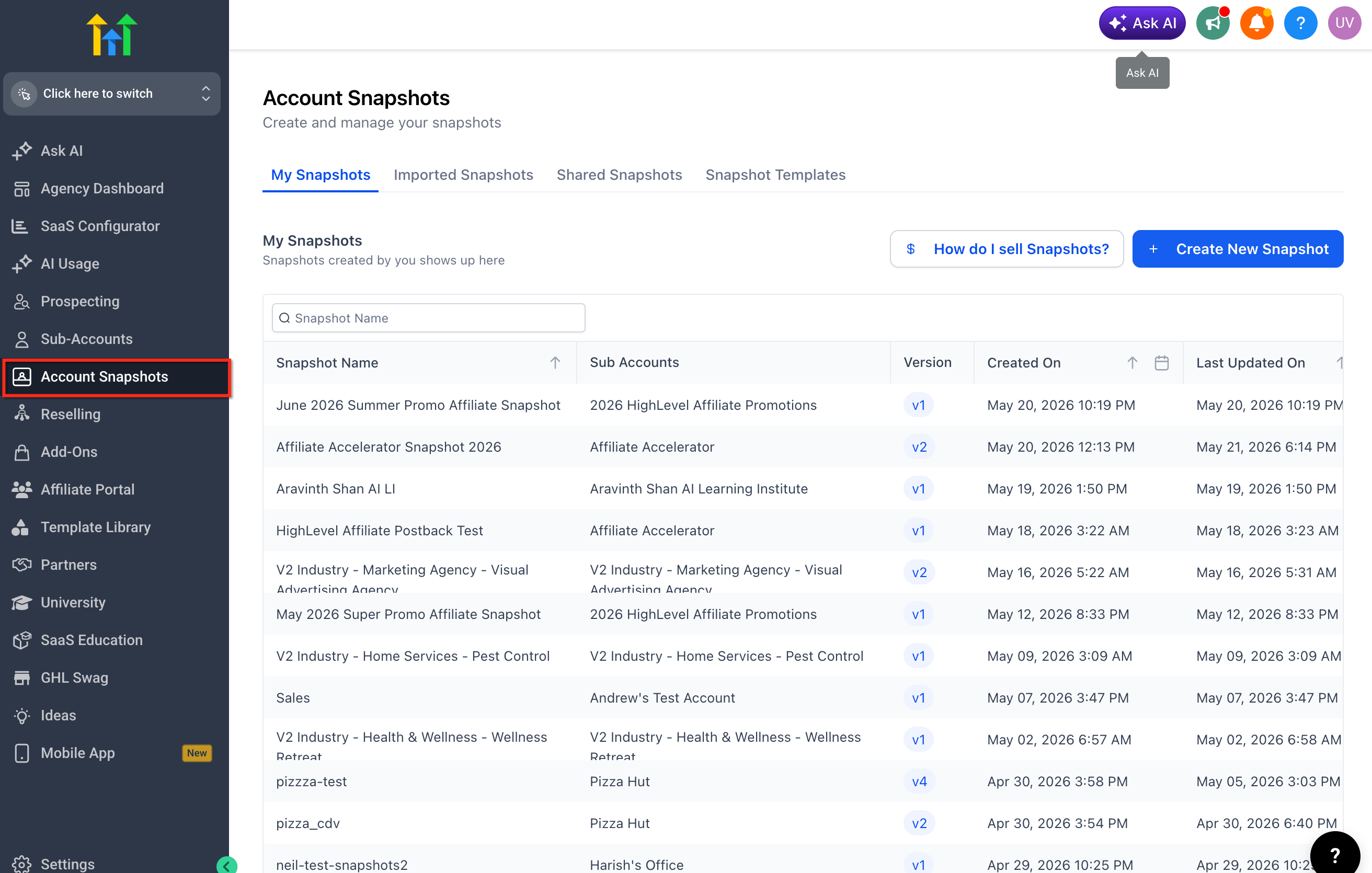
- Navigate to Agency View in HighLevel. Go to Account Snapshots.
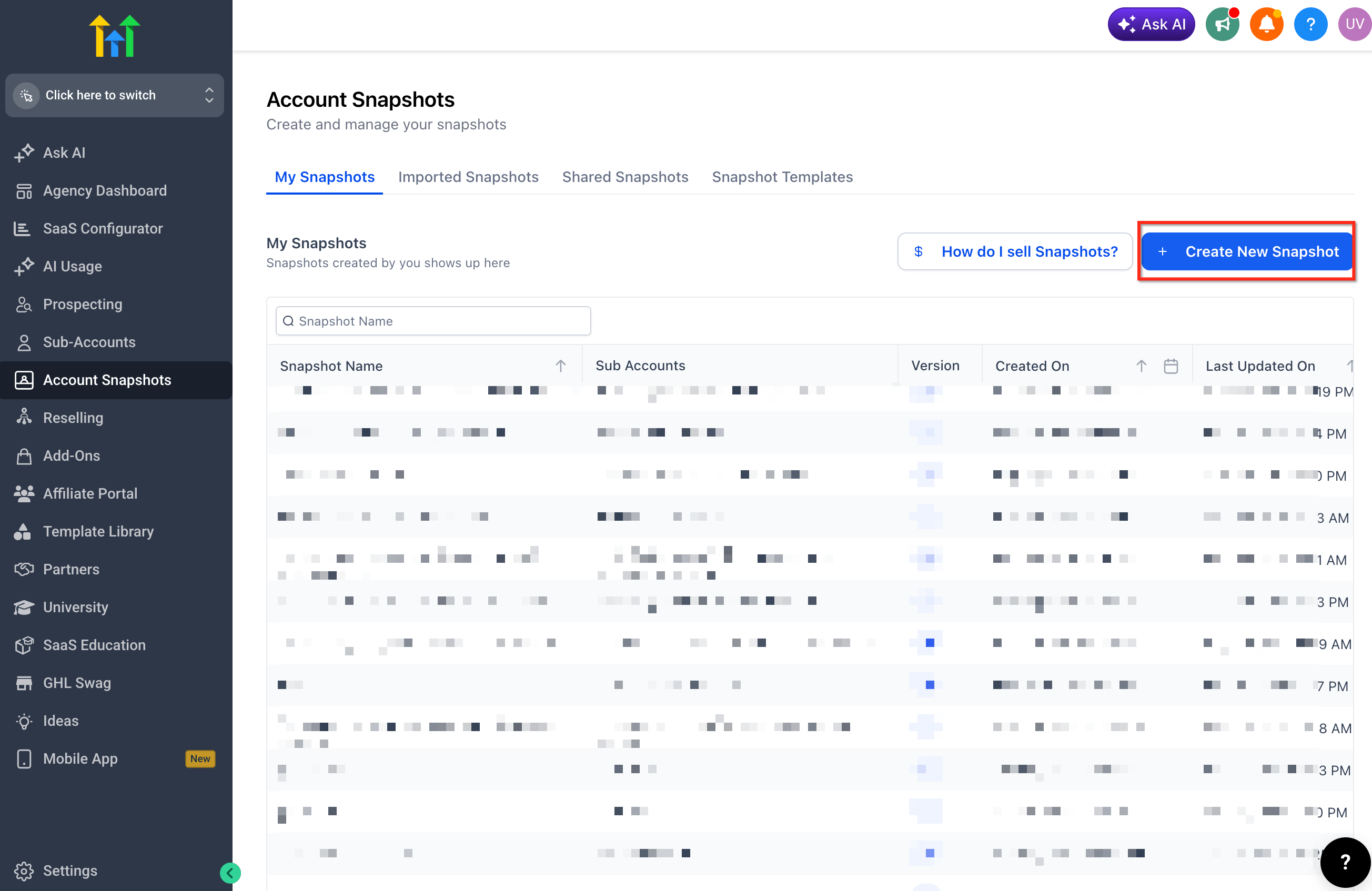
- Create a new Snapshot from the source sub-account that contains the Rental Listings and/or Rental Categories.
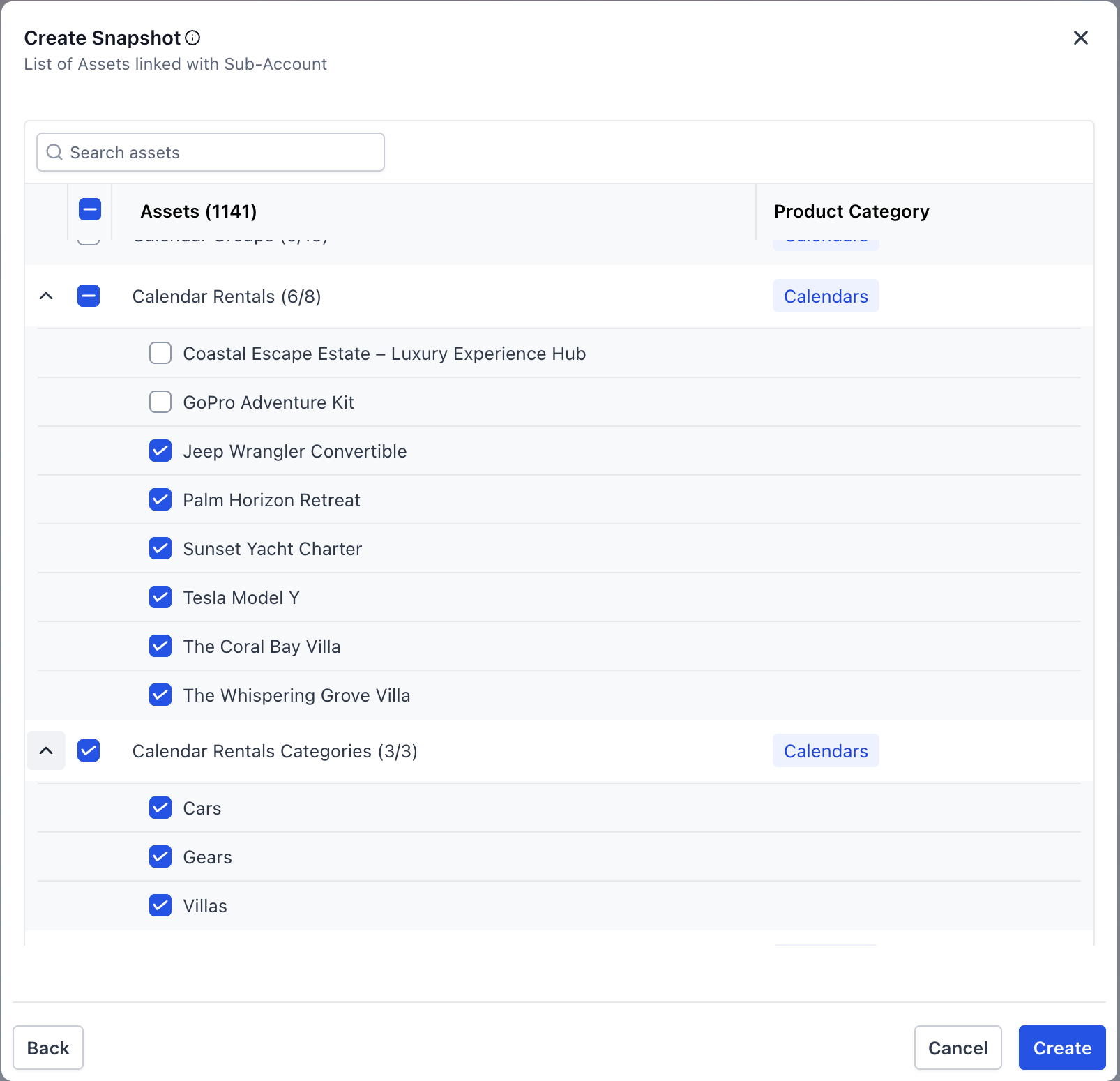
- In the asset selection step, select Rental Listings, Rental Categories, or both.
- Save the Snapshot.
- Load the Snapshot into another location or destination sub-account.
- During the load process, confirm that the Rentals assets you want to copy are selected.
- Complete the Snapshot load.
- Open the destination sub-account and review the copied Rental Listings and Categories.
Note: When loading a Snapshot into an existing sub-account, review any available conflict or asset confirmation screens before proceeding. HighLevel’s Snapshot import process includes asset selection and conflict review guidance for existing sub-accounts.
Frequently Asked Questions
Q: Can I copy Rental Listings and Rental Categories separately?
A: Yes. Rental Listings and Rental Categories can be selected independently while creating or restoring Snapshots.
Q: Do I need to copy both Rental Listings and Rental Categories together?
A: No. You can choose either asset type separately or select both when you want to replicate a more complete Rentals setup.
Q: Will this help agencies onboarding multiple rental clients?
A: Yes. Agencies can build a source sub-account with a reusable Rentals setup, create a Snapshot, and load the selected Rentals assets into other sub-accounts.
Q: Can I use this for multi-location rental businesses?
A: Yes. Multi-location businesses can use Snapshots to keep Rental Listings and Categories consistent across locations.
Q: Are connected workflows, forms, calendars, or payment settings copied with Rental Listings and Categories?
A: Rental Listings and Rental Categories are the supported Rentals assets described in this release. Related assets should be selected separately in the Snapshot workflow if they are available and needed.
Q: Can I use an older Snapshot to copy Rental Listings and Categories?
A: To include Rental Listings and Categories, create or refresh a Snapshot from a source sub-account where those Rentals assets are available and selected.
Q: Where do I find the copied Rentals assets after loading the Snapshot?
A: Open the destination sub-account and navigate to the Rentals area to review the copied Rental Listings and Categories.