
Troubleshooting SMS Delivery Issues
This guide walks you through common SMS delivery issues and their solutions. You’ll learn how to check message statuses, interpret delivery reports, and resolve the most frequent problems that prevent messages from reaching your contacts.
Understanding SMS delivery mechanics helps you maintain reliable communication with your contacts and quickly identify when intervention is needed.
Understanding SMS Delivery Statuses
Venderflow tracks every SMS through multiple stages from send to delivery. Each status provides insight into where your message is in the delivery pipeline and whether any issues have occurred.
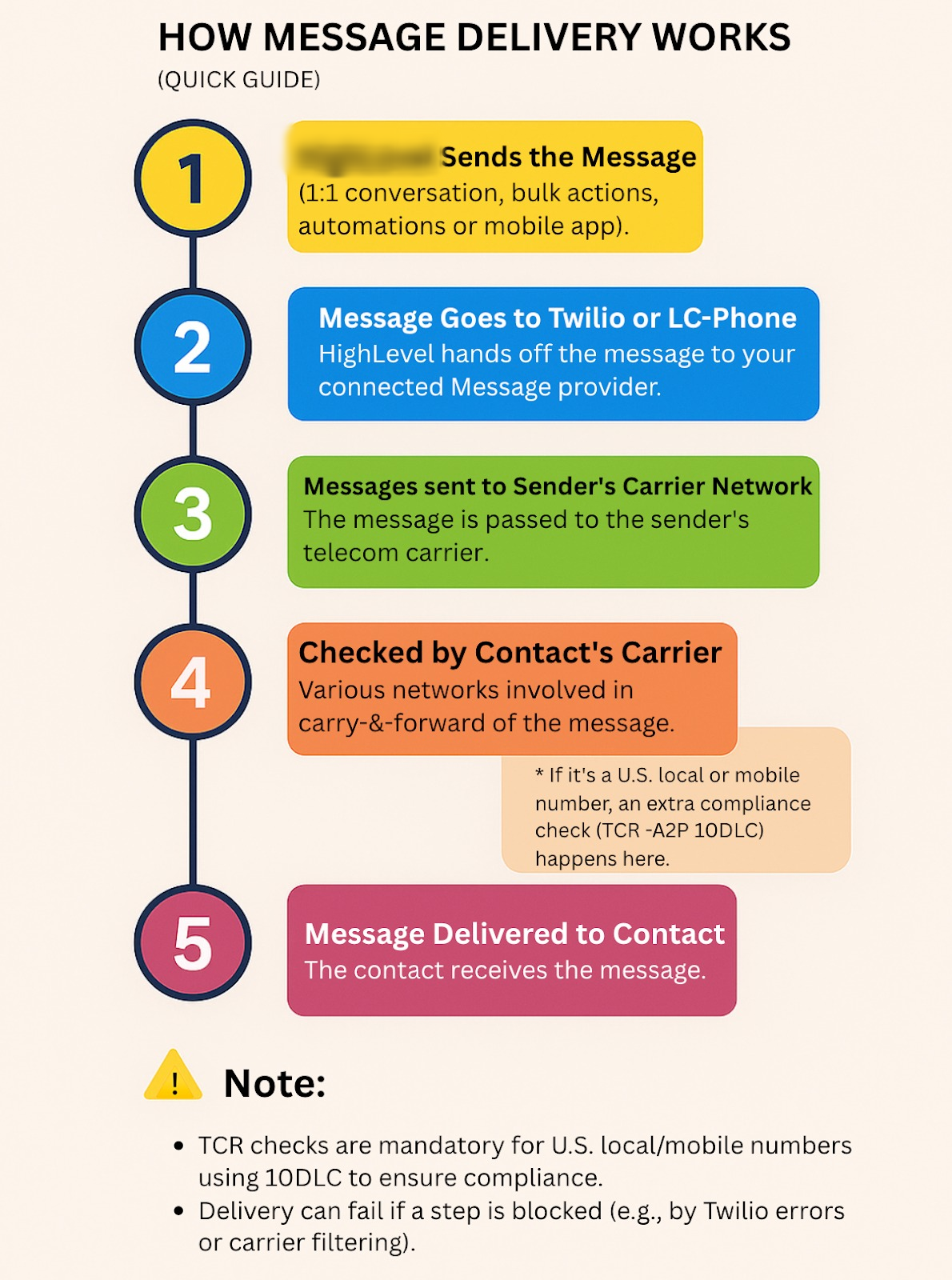
A “Sent” status does not guarantee delivery. Only “Delivered” status confirms the message reached the recipient’s device. Some carriers do not provide delivery receipts, in which case messages may remain in “Sent” status indefinitely.
How to Check SMS Delivery Status
Venderflow provides multiple ways to monitor SMS delivery. Choose the method that best fits your workflow.
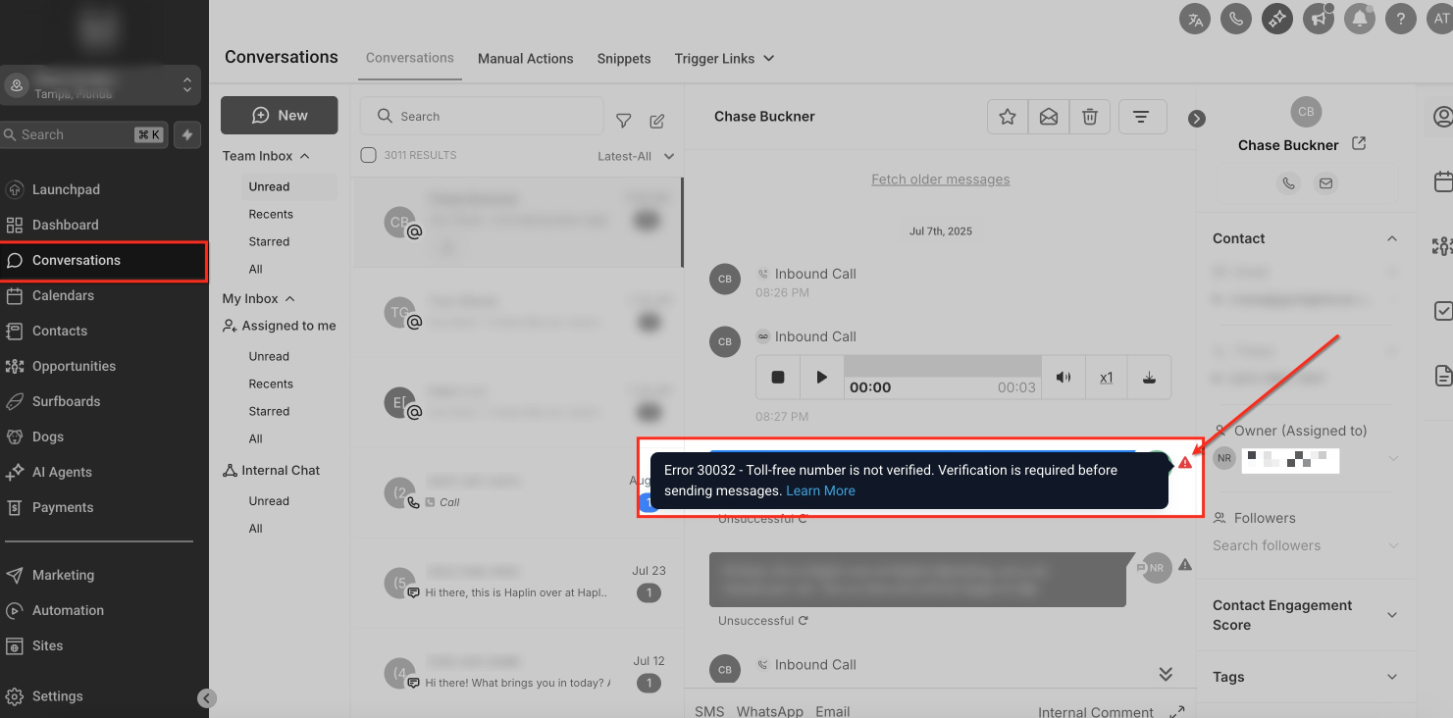
Navigate to the Conversations tab and open the contact’s message thread. Each SMS displays a status indicator below the message bubble showing whether it was delivered, sent, or failed.
Go to Settings → Phone Numbers, select your SMS-enabled number, and click Message Logs. This view shows all sent and received messages with timestamps, statuses, and error codes if applicable.
For bulk SMS campaigns, open the campaign and click View Report. The report displays delivery statistics including successful deliveries, failures, and opt-outs segmented by status.
Common Delivery Issues and Solutions
Most SMS delivery problems fall into a few categories. Understanding the root cause helps you apply the right fix quickly.
Symptoms: Messages show “Failed” status with error code indicating invalid destination.
Solution: Verify the phone number is complete, includes country code (e.g., +1 for US/Canada), and contains no special characters except the leading +. Remove any spaces, parentheses, or dashes. The number should be in E.164 format: +[country code][area code][local number].
Symptoms: Messages fail to send to a specific contact who previously received messages successfully.
Solution: Check the contact’s opt-out status in their profile under Contact Details → SMS Preferences. If they opted out, you cannot send marketing messages unless they opt back in. Transactional messages may still be permitted depending on your compliance settings. To allow the contact to opt back in, provide an alternative communication channel or use a different phone number designated for opt-in requests.
Symptoms: Messages show “Undelivered” or “Failed” with carrier rejection codes. This often happens with mass messaging or content flagged as spam.
Solution: Review your message content for common spam triggers: excessive capitalization, multiple exclamation points, suspicious links, or prohibited keywords. Use a registered 10DLC campaign number for marketing SMS to improve deliverability. Avoid sending identical messages to large groups in rapid succession. If using URL shorteners, ensure they are carrier-approved or use your own branded domain.
Symptoms: Message remains in “Sent” or “Pending” status for an extended period, then changes to “Undelivered”.
Solution: Carriers typically retry delivery for 24-72 hours. If the device remains unreachable, the message expires. No action is needed on your part; the system handles retries automatically. Consider reaching out via email or other channels if urgent. The contact will not receive the message once it expires, even when their device comes back online.
Symptoms: All messages from a specific number fail immediately or are rejected by carriers.
Solution: Verify your phone number is active and properly provisioned for SMS. Go to Settings → Phone Numbers and confirm SMS capability is enabled. If using a toll-free number or 10DLC, ensure your brand and campaign registrations are approved. Newly registered numbers may experience a warm-up period where carrier filters are more aggressive; gradually increase sending volume over 2-4 weeks.
Symptoms: Some messages in a bulk send show “Queued” for extended periods or fail after initial messages succeed.
Solution: Carriers impose sending limits based on number type and reputation. Standard long codes can typically send 1 message per second; toll-free numbers and 10DLC have higher limits but still have caps. Space out large campaigns or use multiple phone numbers to distribute load. Check your number’s rate limit in Settings → Phone Numbers under the number’s details page.
Best Practices for Reliable SMS Delivery
Following these practices reduces delivery issues and maintains strong sender reputation with carriers.
Frequently Asked Questions
If you continue experiencing SMS delivery issues after following this guide, Venderflow support can help investigate carrier-level problems and number configuration.
- Go to Settings → Support in your dashboard
- Provide your phone number, the contact’s number, and example message IDs from the message logs
- Include screenshots of error messages or delivery status reports
- Describe when the issue started and any recent changes to your messaging setup