
Websites let you build, organize, optimize, and publish multi-page sites from your sub-account. You can start from a blank site or template, manage pages from the Pages area, customize layouts in the Website Builder, review mobile behavior, connect a domain, and publish when the site is ready. This overview focuses on the core website workflow and links to dedicated guides for advanced features.
What Are Websites?
Websites are multi-page web experiences you can build and publish from the Sites area of a sub-account. They are designed for use cases such as business homepages, service pages, contact pages, content pages, and other visitor-facing experiences.
Websites use the same core page-building experience as Funnels, including sections, rows, columns, elements, responsive editing, preview, save, and publish controls.
Key Benefits of Websites
Websites combine page creation, site organization, publishing, and performance tools in one place so you can manage the full website lifecycle from the same sub-account.
- Centralized Page Management: Create, preview, edit, organize, and reorder website pages from the Pages area.
- Flexible Page Building: Build layouts with sections, rows, columns, and elements, then adjust styling from the builder settings.
- Responsive Design: Review and customize the visitor experience for desktop and mobile layouts.
- Controlled Publishing: Save changes without immediately updating the live site, preview your work, then publish when it is ready.
- Custom Domains: Connect and assign a branded root domain or subdomain to the website.
- Built-In Performance Data: Review page views, opt-ins, sales, and other website performance data within the platform.
Websites vs. Funnels
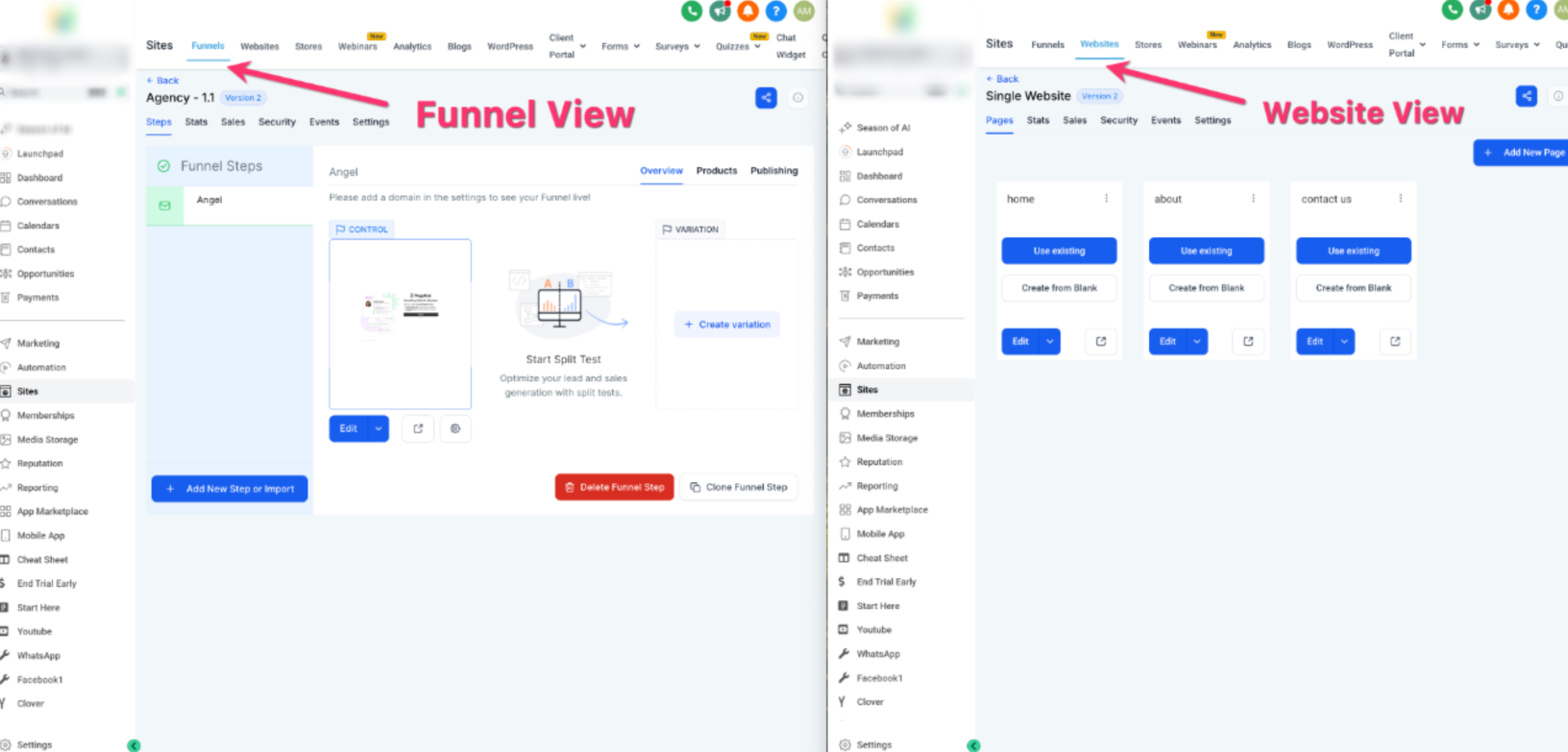
Websites and Funnels use similar building tools, but they are organized for different visitor journeys. Choosing the right structure at the beginning helps keep pages and reporting easier to manage.
| Use | Website | Funnel |
|---|---|---|
| Structure | Multi-page site visitors can navigate more freely | Ordered steps designed around a specific visitor journey |
| Common Use | Business websites, service pages, informational content | Lead capture, booking, sales, and campaign flows |
| Split Testing | Not available in Websites | Available for Funnel pages |
Manage Website Pages
The Pages area keeps your website pages in one place so you can edit, preview, and organize them without searching through the builder.
- Open a page for editing in the Website Builder.
- Preview a page before publishing.
- Manage page-level settings and products where applicable.
- Reorder page cards directly from the Pages grid.
Reorder Website Pages
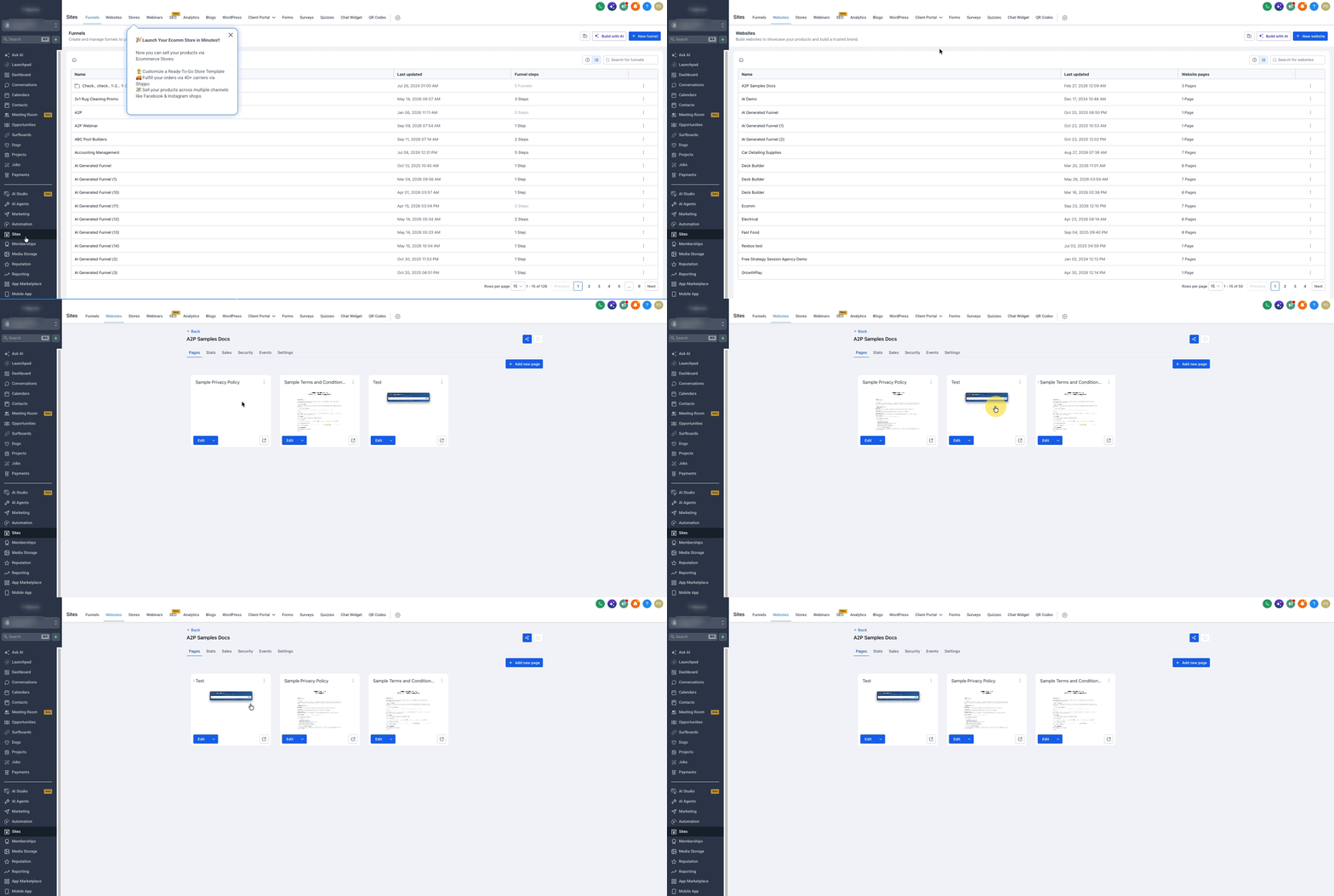
Reordering pages helps you organize the Pages grid without opening the Page Builder. The new order saves automatically when you drop a page into position.
- From the Sub-Account view, select Sites in the left hand menu.
- Select Websites.
- Open the website you want to manage.
- Select the Pages tab.
- Click and hold the page card you want to move.
- Drag the page card to the desired position. A grabbing cursor and drop placeholder show where the page will be placed.
- Release the page card. The new order saves automatically.
If reordering fails: The platform restores the previously saved page order and displays an error.
Website Builder at a Glance
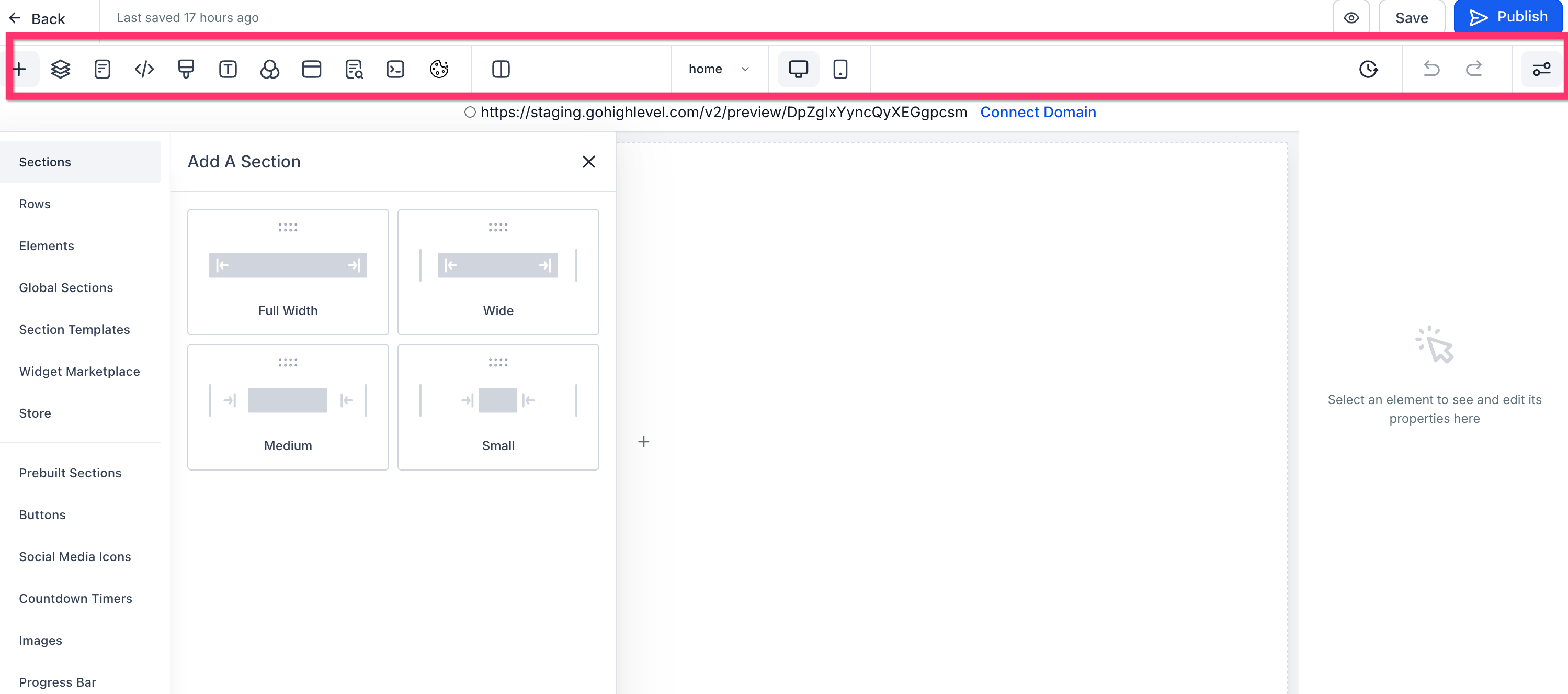
The Website Builder provides the main tools for arranging content, styling the page, reviewing responsive behavior, and preparing changes for publication.
| Builder Area | What It Helps You Do |
|---|---|
| Sections, Rows, Columns, and Elements | Build and arrange page content. Elements can be moved, duplicated, deleted, and customized from their settings. |
| Layers and Pages | Navigate nested page content and move between pages while editing. |
| Typography and Background | Control page-wide font, text, link, color, and background styling. |
| Tracking Code and Custom CSS | Add supported custom tracking or styling when needed. |
| Mobile/Desktop Controls | Review responsive layouts and adjust supported settings or visibility for different devices. |
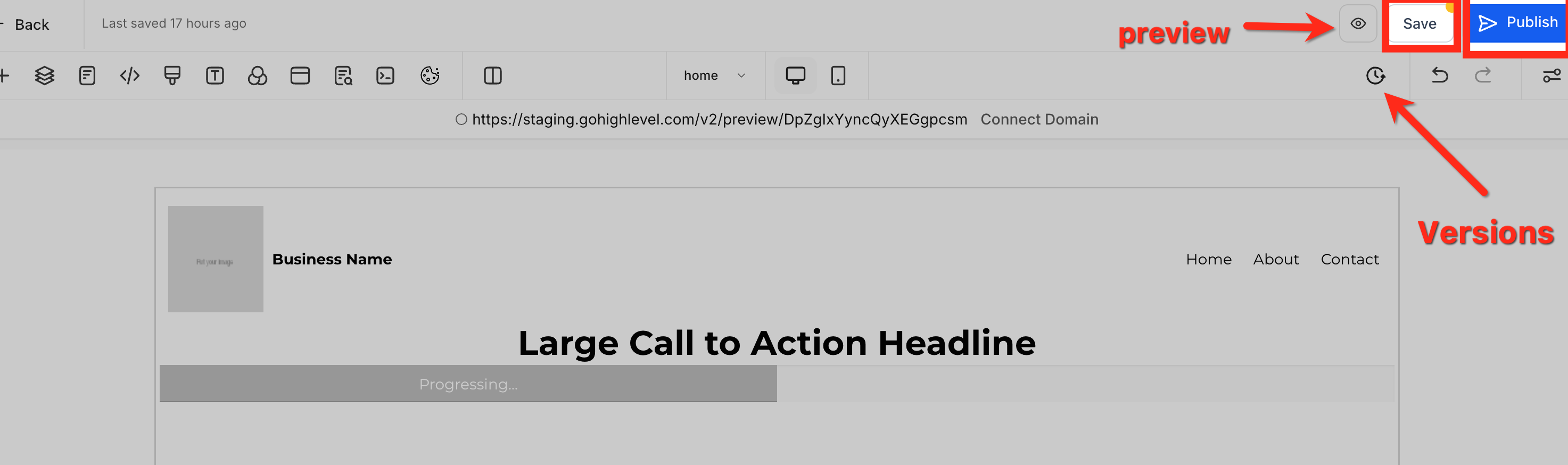
| Versions, Preview, Save, and Publish | Review previous versions, test the page, save draft changes, and publish the current saved version. |
Save vs. Publish: Saving stores your latest changes without replacing the current live version. Publishing makes the saved version live for visitors.
How To Set Up a Website
A simple create → customize → review → connect → publish workflow keeps website setup easier to manage and helps prevent unfinished changes from reaching visitors.
Step 1: Create the Website
Starting with a blank site or template gives you the website workspace and page structure you will customize before launch.
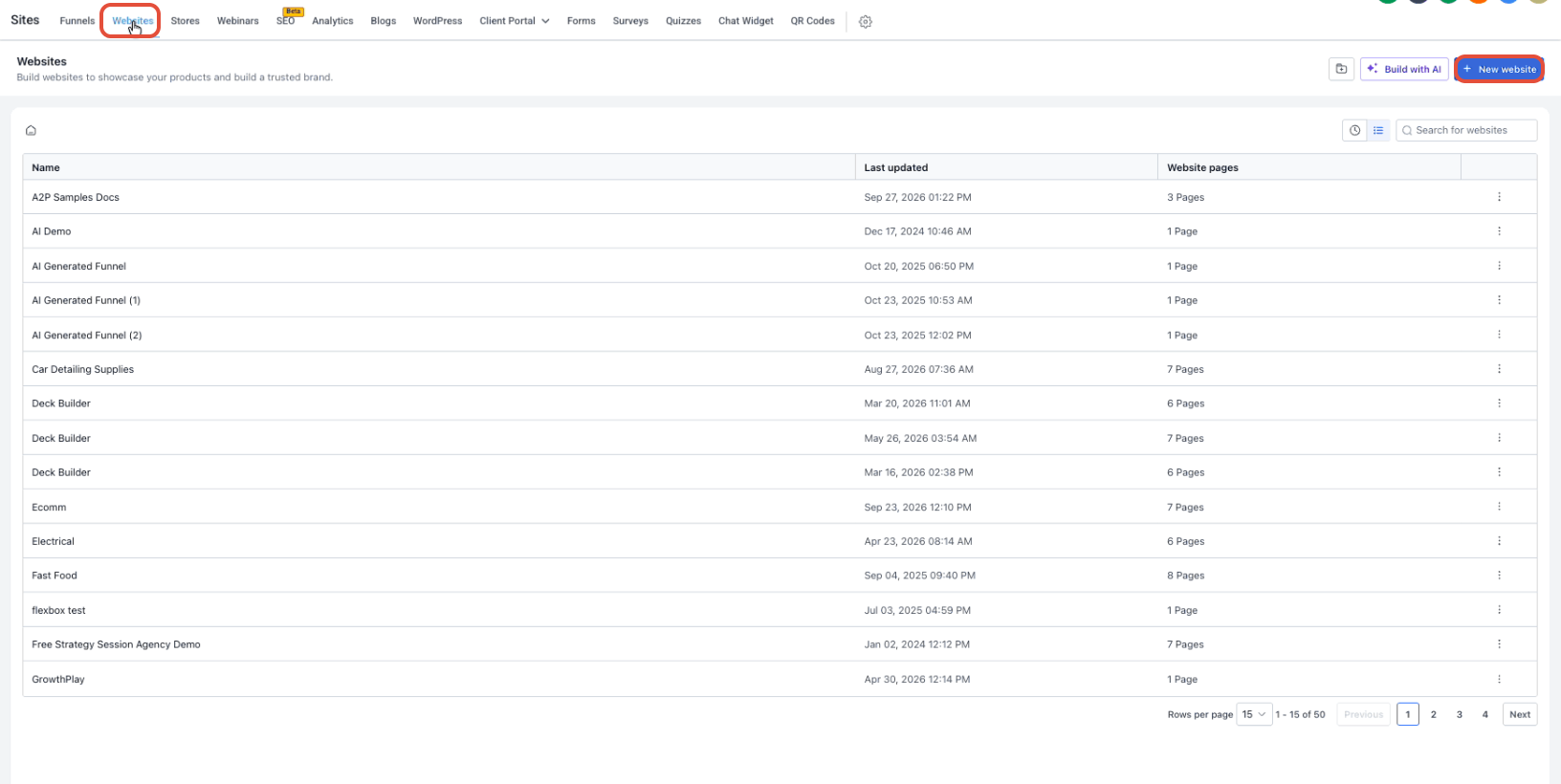
- From the Sub-Account view, go to Sites → Websites.
- Click + New Website.
- Choose From Blank or From Templates.
- Enter the website name.
- Click Create and open the website.
Step 2: Add and Organize Pages
Create the pages the site needs, set clear page names and paths, and use the Pages grid to keep the site organized. You can also create and switch between pages from inside the Page Builder.
Step 3: Build and Customize Each Page
Building each page around its purpose keeps content, navigation, and calls to action easier for visitors to understand and use.
- Add and arrange the sections, rows, columns, and elements needed for the page.
- Update text, images, buttons, forms, navigation, and other content.
- Review typography, spacing, backgrounds, and any global sections used across pages.
- Use Preview to test links and page behavior before publishing.
Step 4: Review Mobile and SEO Settings
Reviewing responsive layouts and page metadata before publishing helps make the site easier to use across devices and prepares each page for sharing and search visibility.
- Switch between desktop and mobile views to review responsive behavior.
- Adjust supported mobile-specific settings or element visibility when needed.
- Add the page title, meta description, and other applicable SEO settings before publishing.
Step 5: Connect the Domain and Publish
Connecting the correct domain and testing the saved version before publishing helps prevent broken navigation, incomplete pages, and domain-routing issues.
- Connect the root domain or subdomain you want to use for the website.
- Confirm the website is assigned to the correct domain and default page.
- Save your latest builder changes.
- Preview the website and test navigation, forms, buttons, and mobile layouts.
- Click Publish when the saved version is ready to go live.
Website Settings, Products, and Performance
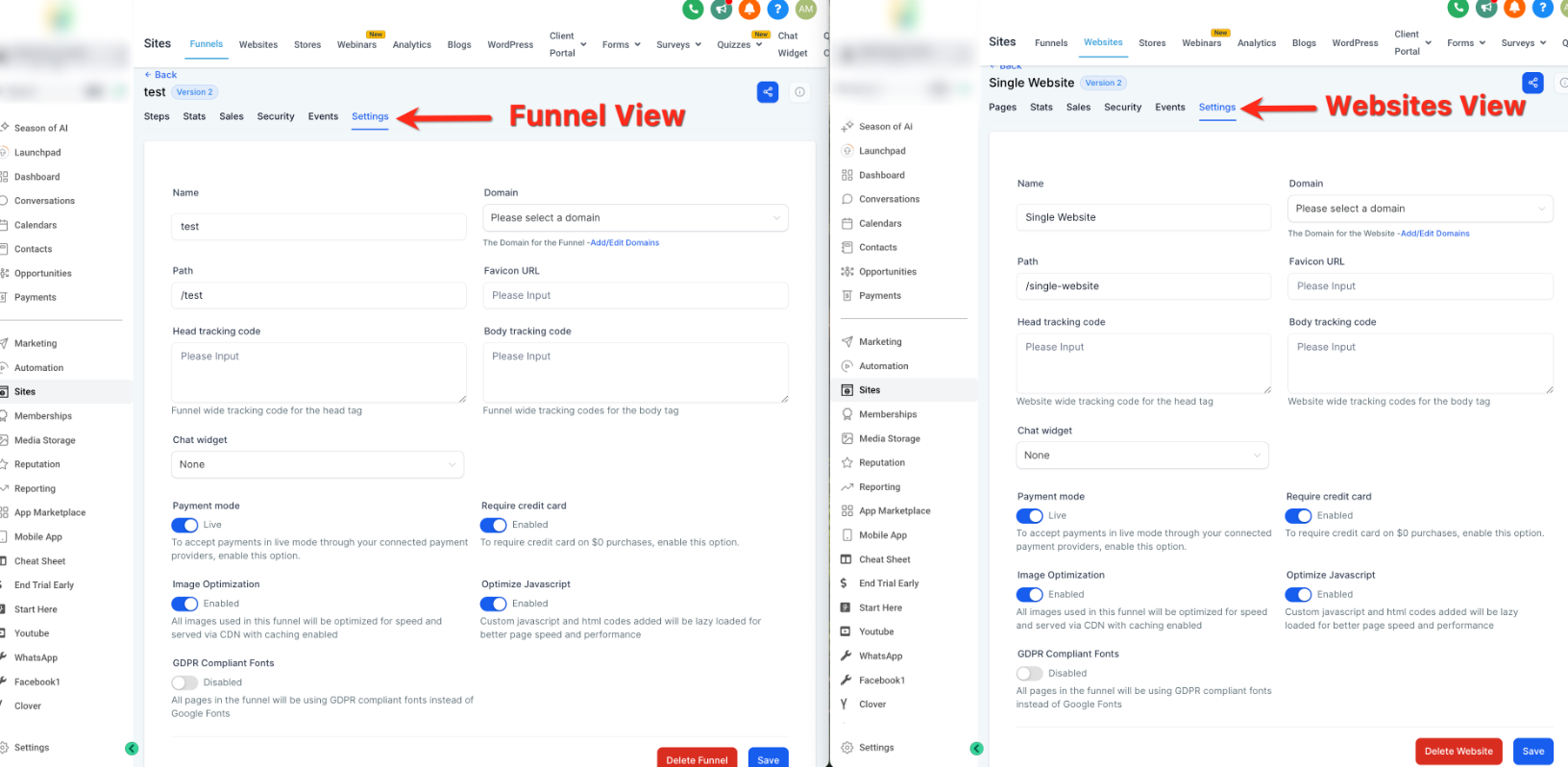
After the page design is in place, use the website’s management tools to control site-level configuration, selling options, and performance data without adding unnecessary builder complexity.
| Area | Use It For |
|---|---|
| Website Settings | Manage items such as the site name, domain, default path, favicon, tracking code, payment mode, image optimization, and other site-level options. |
| Products | Attach products to the applicable page when the website includes an order or checkout experience. |
| Stats | Review website performance such as page views, opt-ins, sales, and earnings. |
| Payments | Review applicable orders and transactions generated from website selling experiences. |
Frequently Asked Questions
Need Help?
- Page order does not save: Review the displayed error and try reordering the page again. If saving fails, the previously saved order is restored automatically.
- Saved changes are not live: Saving stores your edits, but the saved version must be published before visitors see those changes.
- The website opens the wrong page: Confirm that the website is assigned to the intended domain and default page.
- The mobile layout needs adjustment: Review the page in mobile view and update supported responsive settings or element visibility as needed.