
Keeping track of customer conversations across multiple inboxes can be challenging. By connecting your Gmail or Outlook inbox using two-way email sync, all incoming and outgoing emails are automatically captured in one place. This ensures you never miss a follow-up and can manage conversations more efficiently.
TABLE OF CONTENTS
Connect Gmail or Outlook
You can quickly connect your Gmail or Outlook inbox to enable two-way email synchronization. Once connected, emails sent and received are automatically logged and kept up to date.
Steps to connect your email inbox:
-
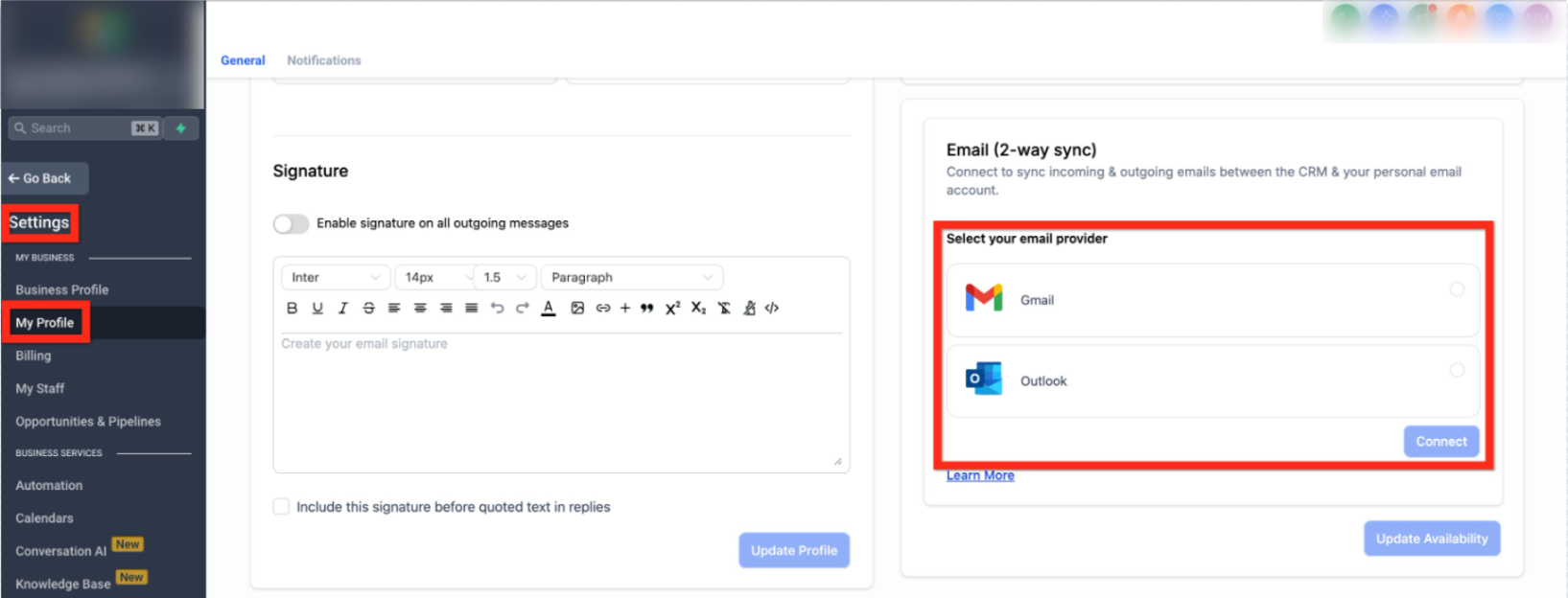
Go to Settings.
-
Select My Profile.
-
Open Email (2-way sync).
-
Choose Gmail or Outlook.
-
Click Connect.
-
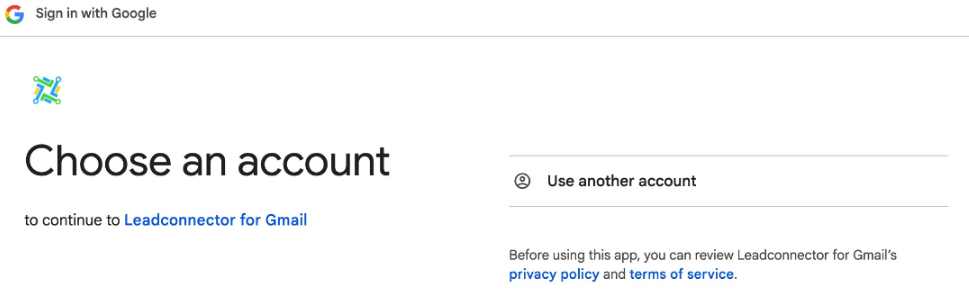
Follow the on-screen prompts to approve permissions.
This process is secure and only grants access needed for syncing messages.
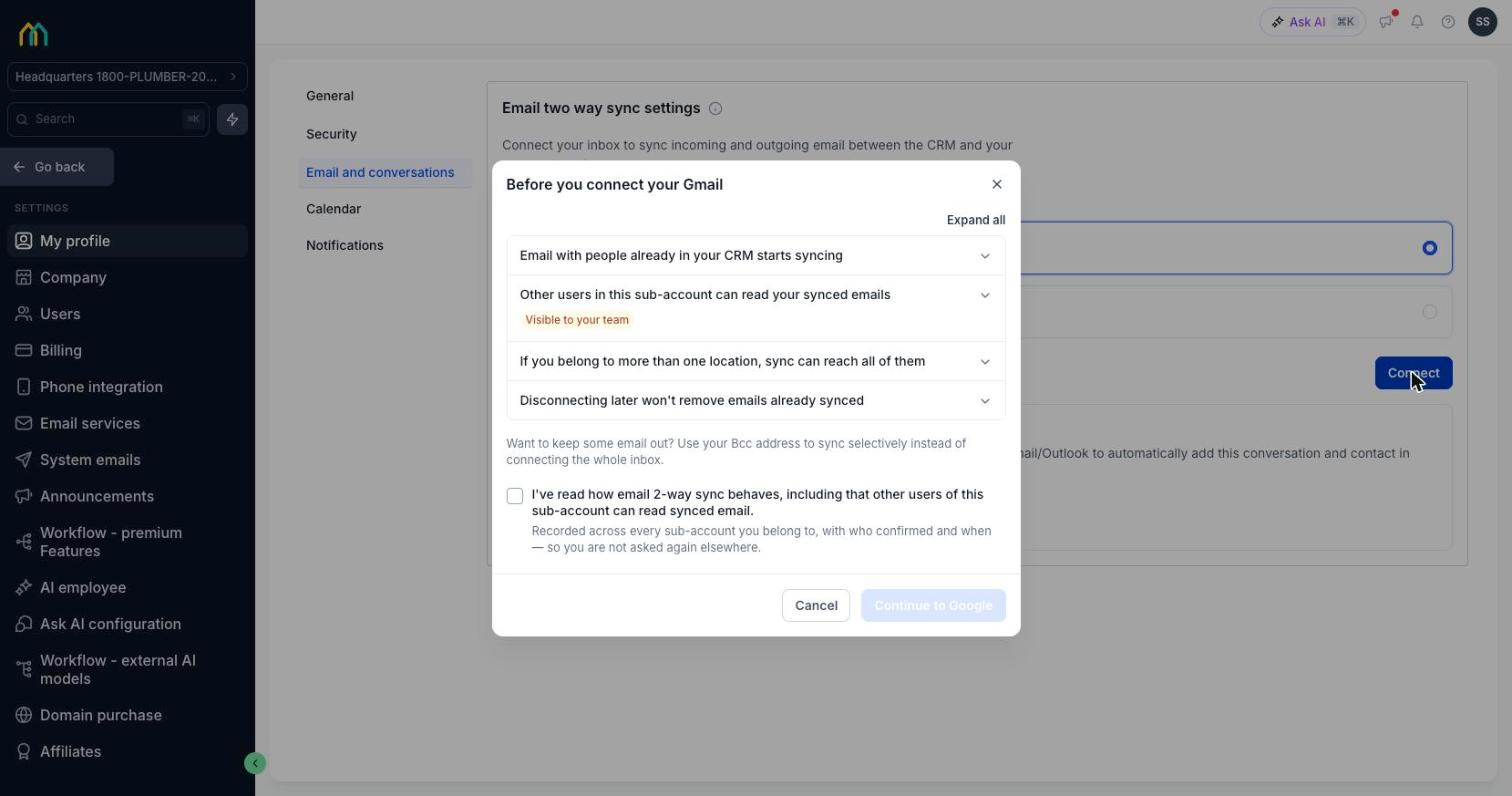
You will see these four points in Before you connect your Gmail or Outlook when you connect, and you can review them at any time from Settings > My Profile > Email and conversations > How email sync works.
What to Expect After You Connect
Connecting your inbox changes what enters the CRM and who can see it. Four things to know:
- Email with people already in your CRM starts syncing. Email with people who are not yet contacts does not sync automatically.
- Other users in this sub-account can read your synced emails. Synced email sits on the contact record, where everyone with Conversations access can open it.
- If you belong to more than one location, sync can reach all of them. Sync follows your user account rather than a single location.
- Disconnecting later will not remove emails already synced. Everything already in the CRM stays there.
Use Your Connected Email
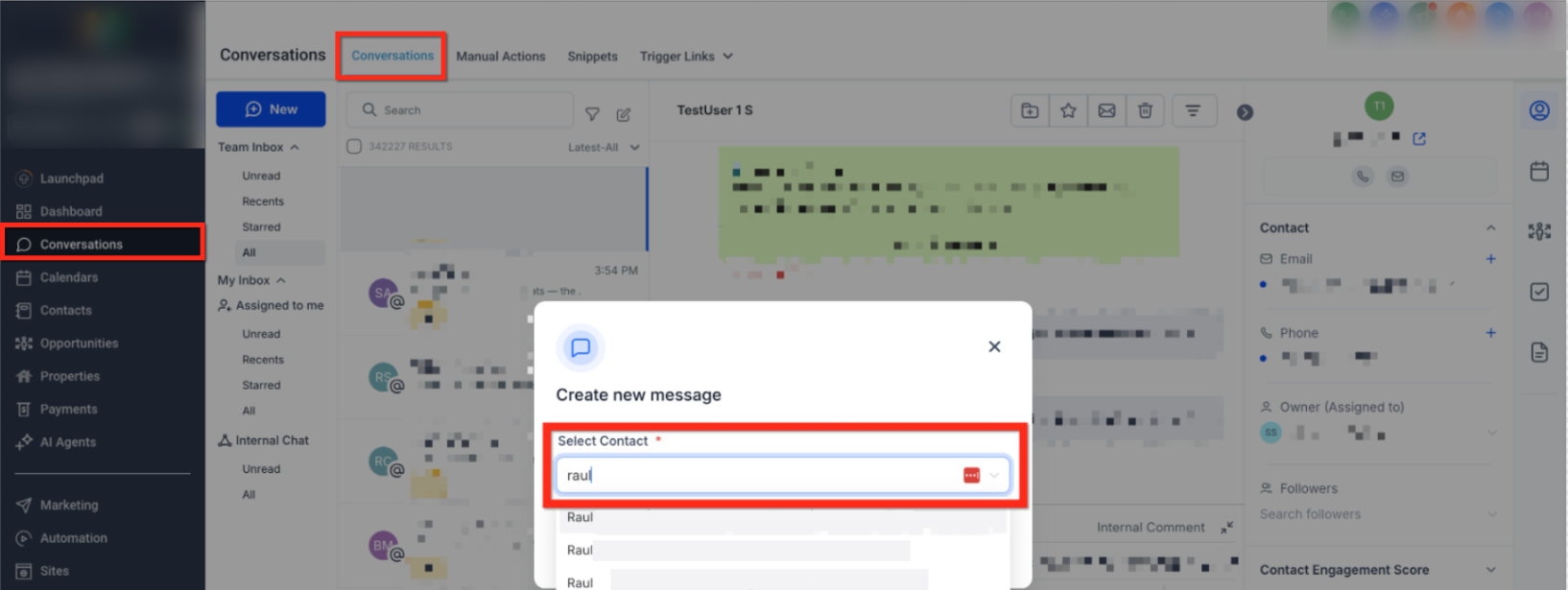
Once your inbox is connected, you can send and receive emails directly from the conversation workspace.
How to send an email using your connected inbox:
-
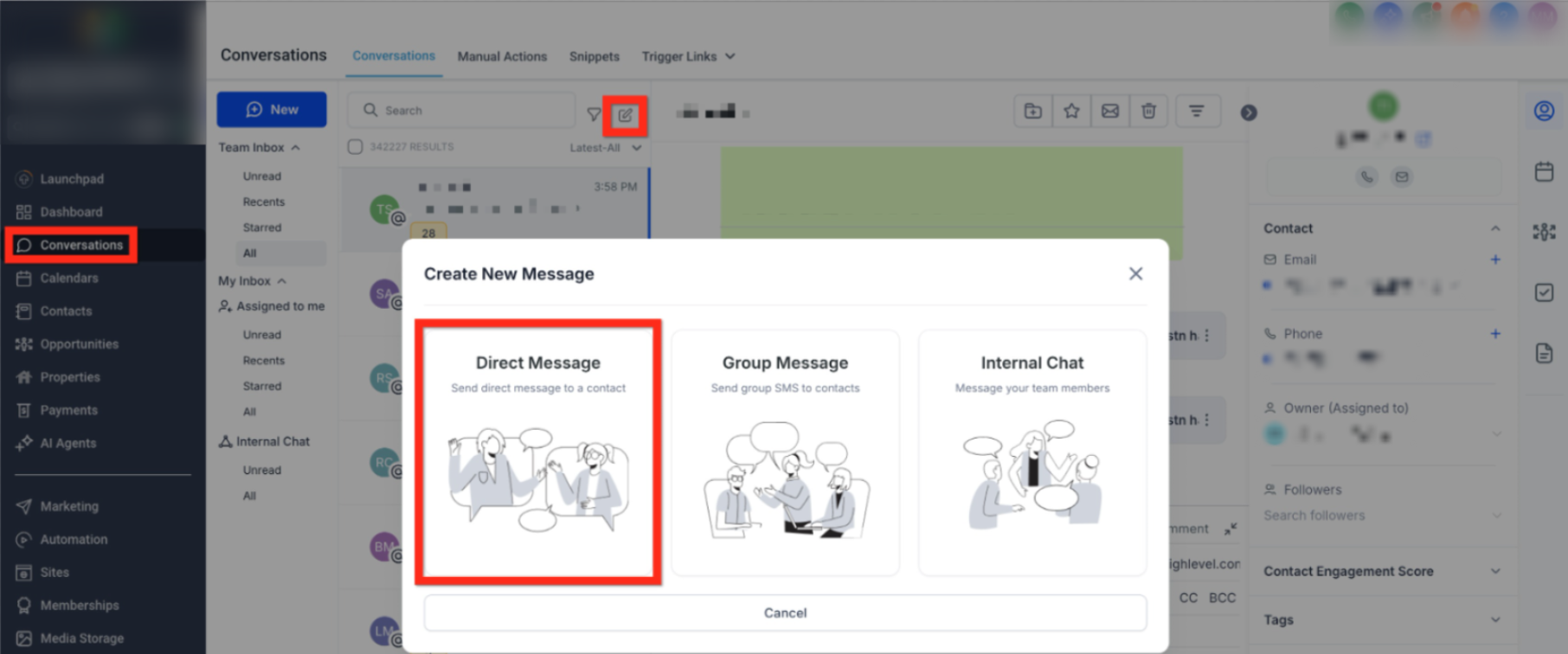
Navigate to Conversations.
-
Click Create New Message.
-
Select Direct Message.
-
Choose a contact and click Continue.
-
Select Email as the message type.
-
Compose your message and click Send.
Your connected email address automatically appears in the “From” field, and all replies sync back to your personal inbox.
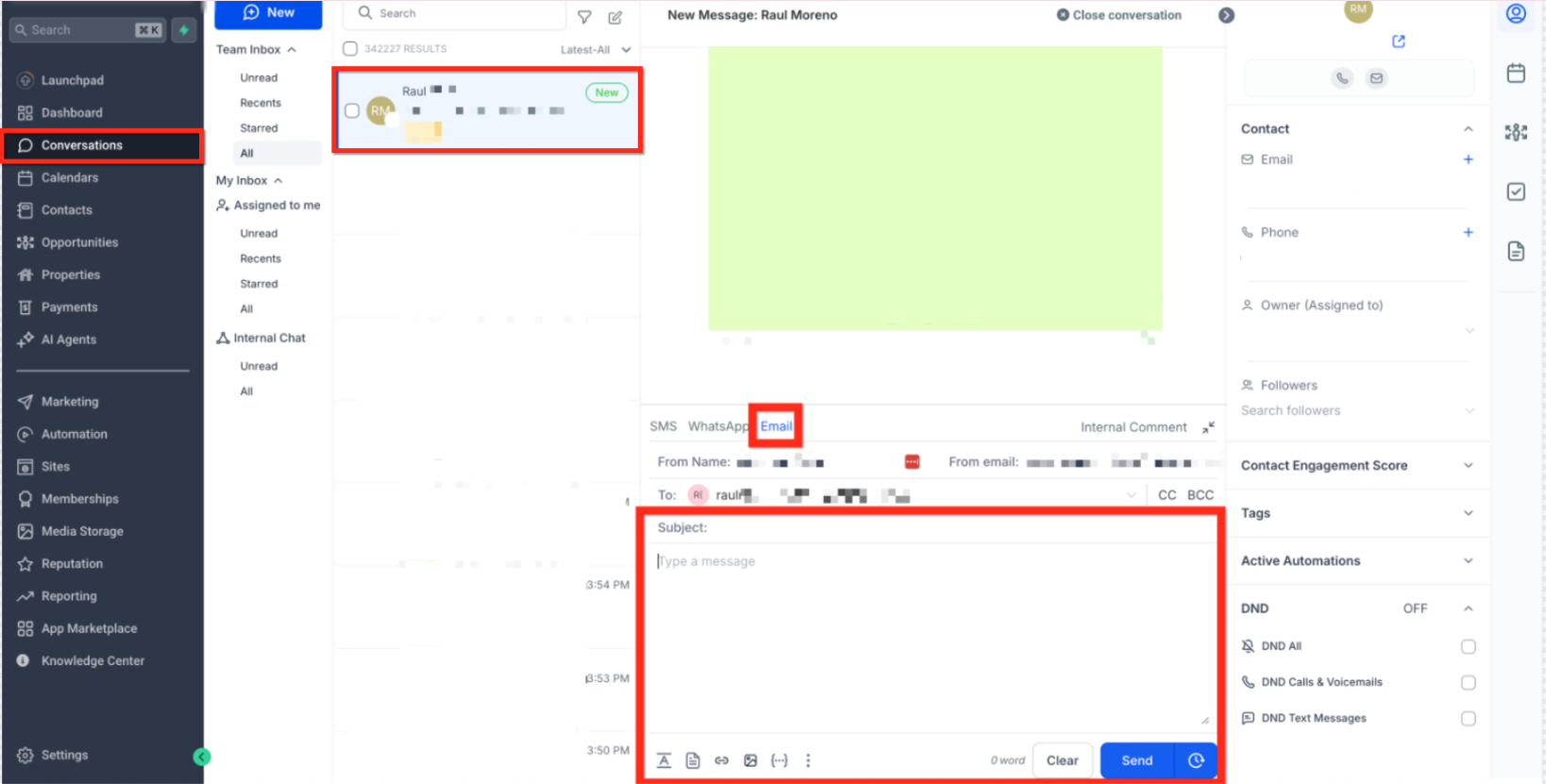
Email you exchange with existing contacts syncs both ways — from CRM to your personal inbox and back again. Email with people who are not yet contacts does not sync automatically.
Frequently Asked Questions
Q: Does two-way email sync capture replies automatically?
Yes. Replies from your personal inbox are synced back into the conversation history automatically.
Q: Can I switch between Gmail and Outlook later?
Yes. You can disconnect your current inbox and connect a different provider at any time from your profile settings.
Q: Will emails sent outside the platform still appear in conversations?
Yes. Emails sent directly from your connected Gmail or Outlook account will sync back into conversations.
Q: Is it safe to connect my email account?
Yes. The connection uses secure authorization and only accesses email data required for syncing.
Need More Help?
You can find additional guidance by searching the Venderflow Help Center using relevant keywords related to this feature.
If you need further assistance, open the Help option inside your Venderflow account to connect with Support.