
Prospecting Widgets now fully support multi-language functionality. All system-generated text — including field labels, validation messages, submit buttons, email communication, and PDF report links — automatically adapts to the user’s preferred platform language. This ensures a consistent localized experience across embedded widgets, emails, and exported reports.
TABLE OF CONTENTS
- Overview
- Accessing Prospecting Widgets
- Upgrade Requirement
- Create and Customize a Widget
- Theme Customization
- Multi-Language Support
- Embedding the Widget
- Workflow and Automation
- PDF Report Language Behavior
- Language Support Across Emails
- Frequently Asked Questions
- Related Articles
Overview
We’ve enhanced localization (i18n) support across the Prospecting Tool.
Previously, some backend-generated strings did not dynamically adapt to the user’s language preference. With this update:
- Prospecting widgets display in the visitor’s preferred platform language
- Email communication respects user language settings
- PDF report links and exported content follow platform language preferences
- No additional configuration is required
This improvement ensures consistent multilingual behavior across customer-facing components.
Accessing Prospecting Widgets
Navigate to:
View → Prospecting → Widgets
From here, you can create and manage your widgets.
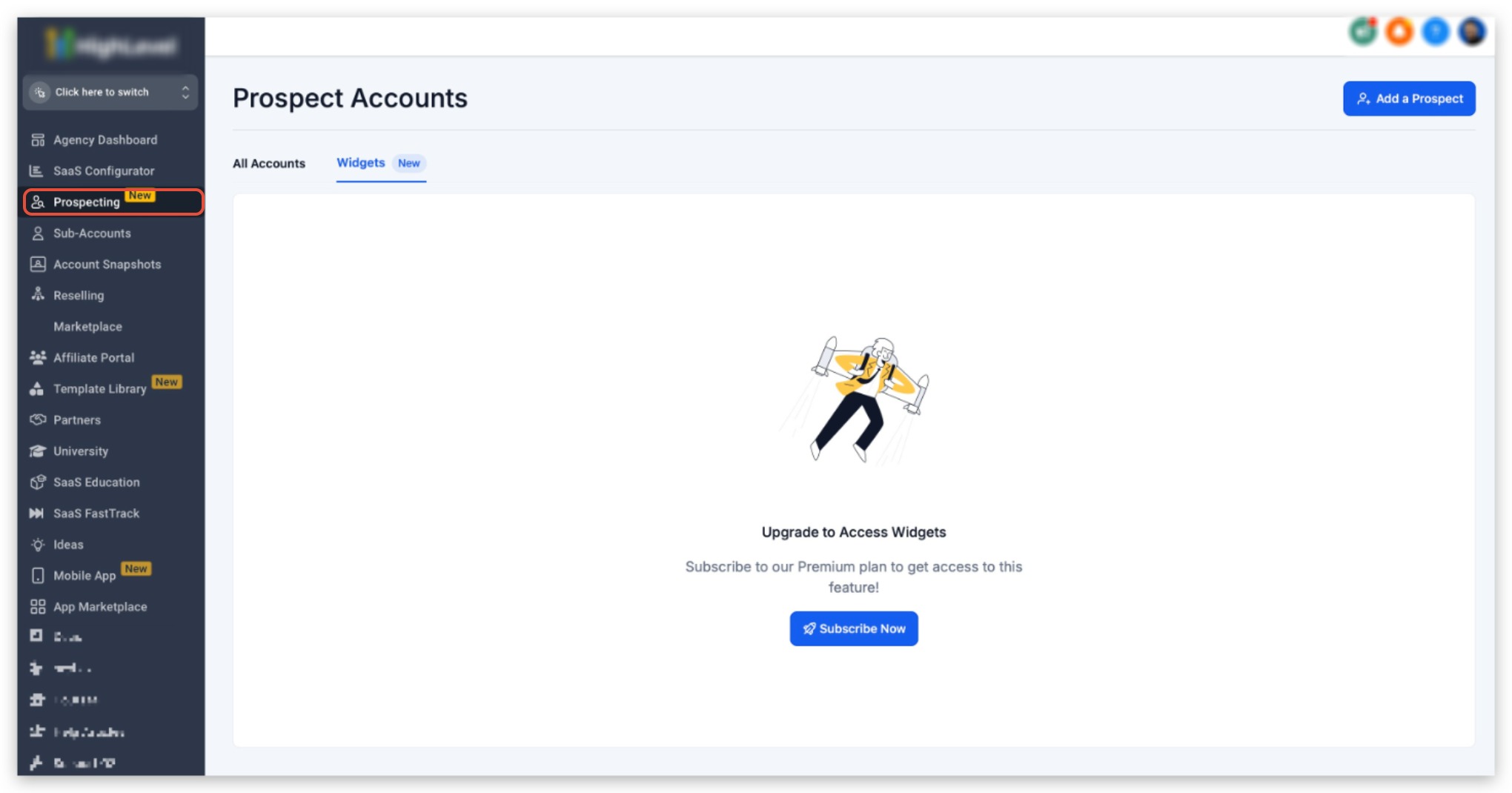
Upgrade Requirement
Prospecting Widgets require the paid version of the Prospecting Tool.
If your account is not upgraded, you will see the upgrade prompt.
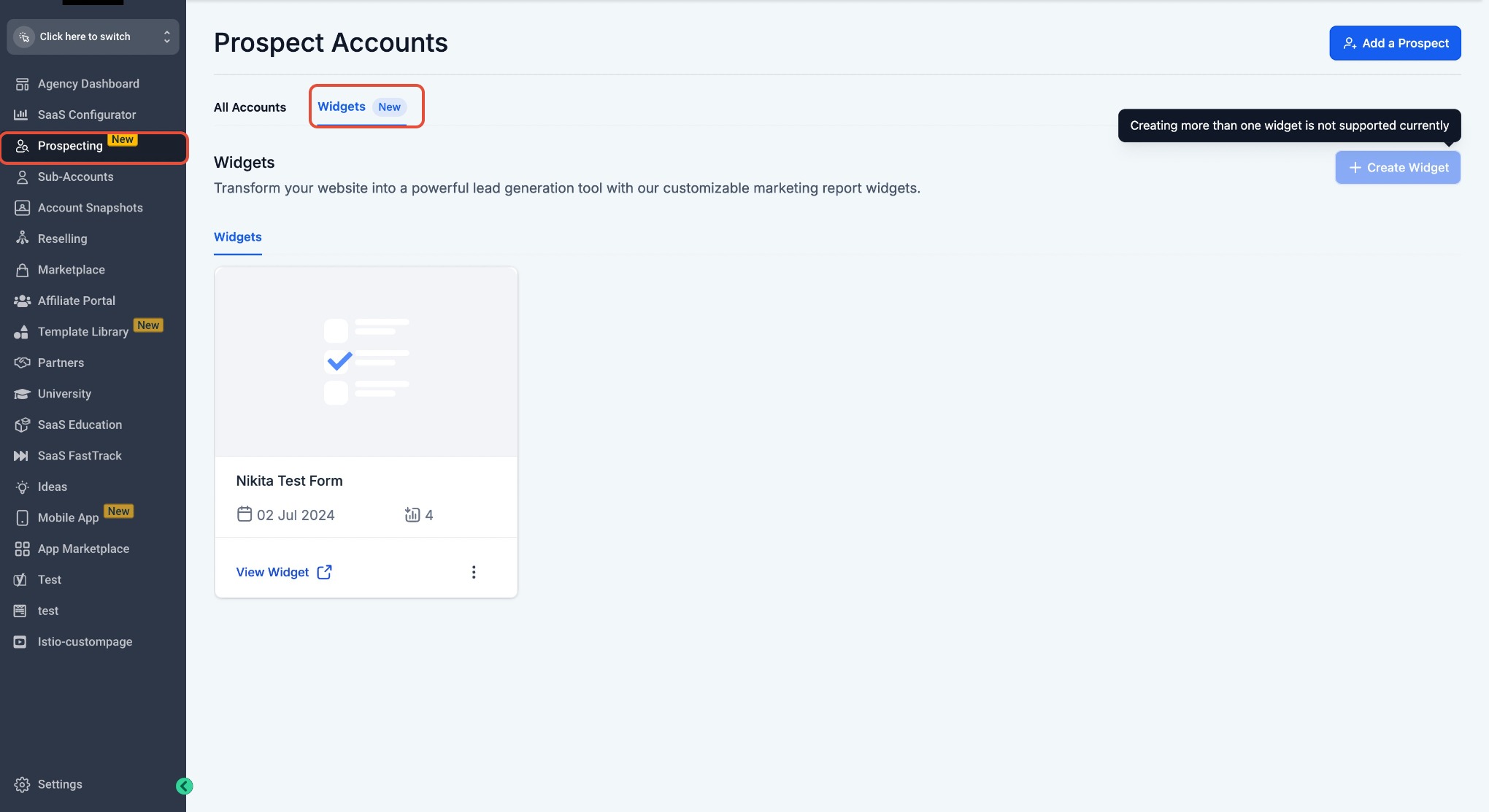
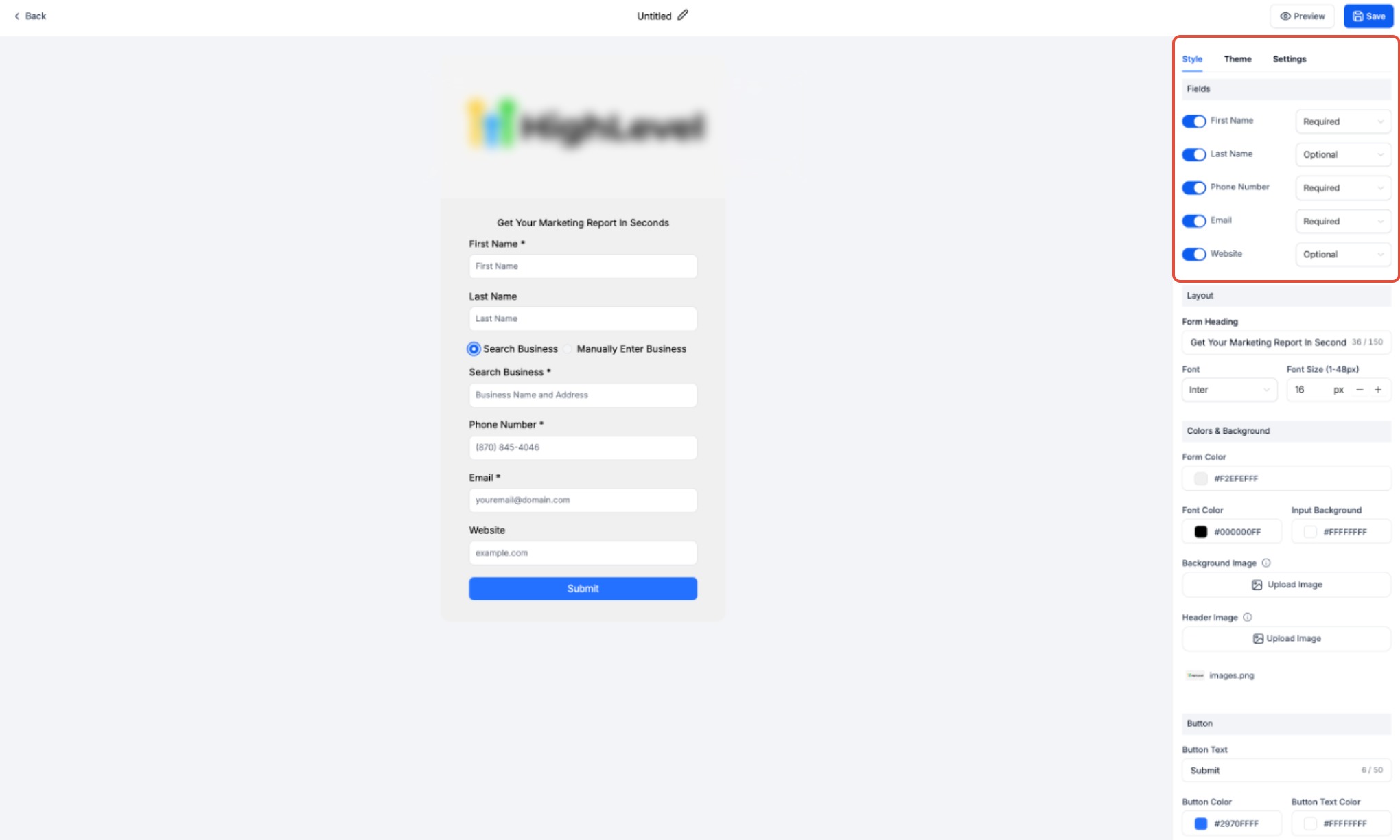
Create and Customize a Widget
After upgrading:
- Click Create Widget
- Configure fields
- Adjust styling and branding
- Save your widget
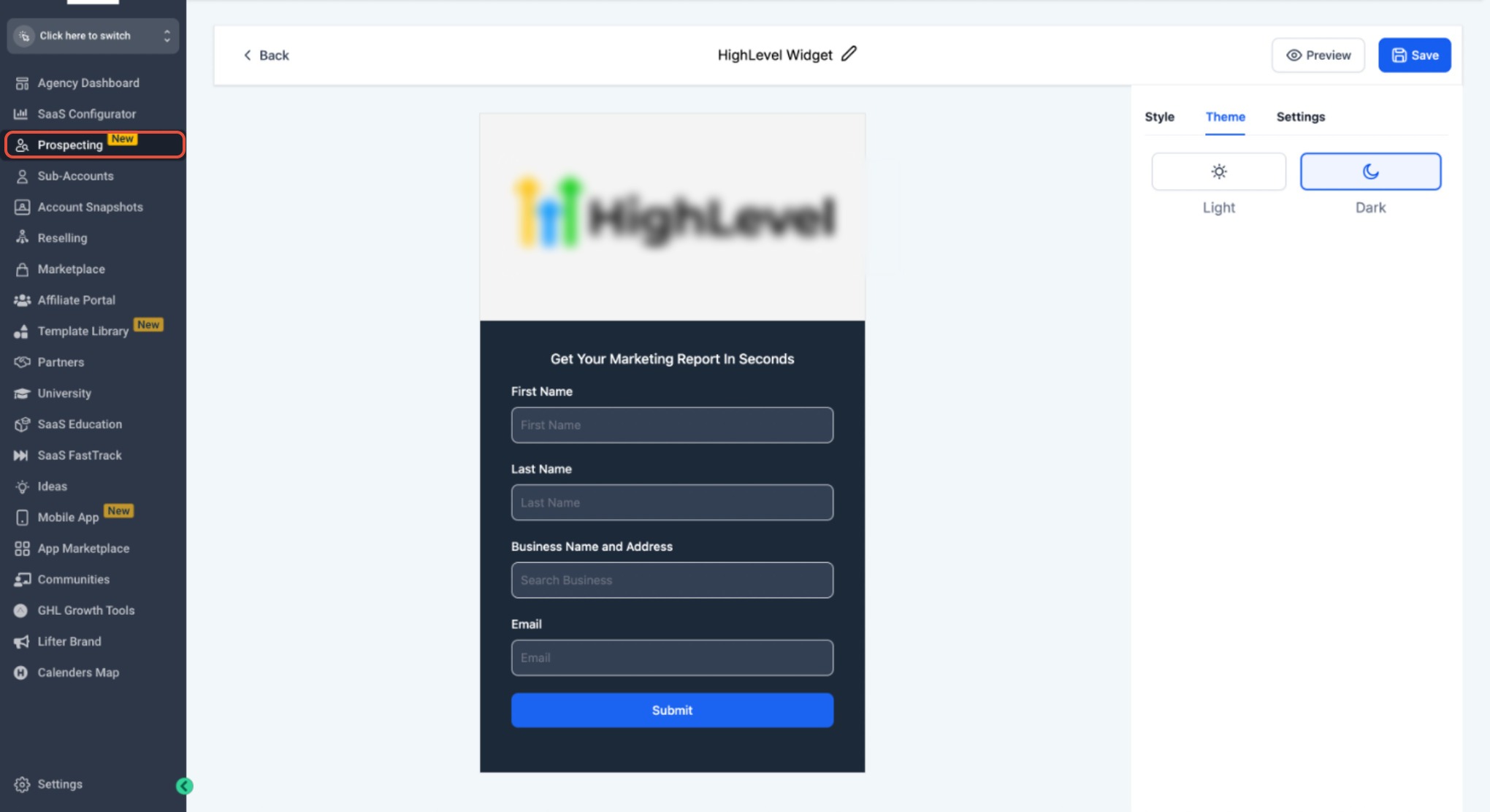
Theme Customization
Widgets support Light and Dark themes.
Multi-Language Support
Prospecting Widgets now fully support multiple languages.
All system-generated text automatically respects the user’s preferred platform language.
This includes:
- Field labels
- Validation messages
- System prompts
- Submit button text
- Error messages
- Confirmation messaging
No manual translation setup is required.
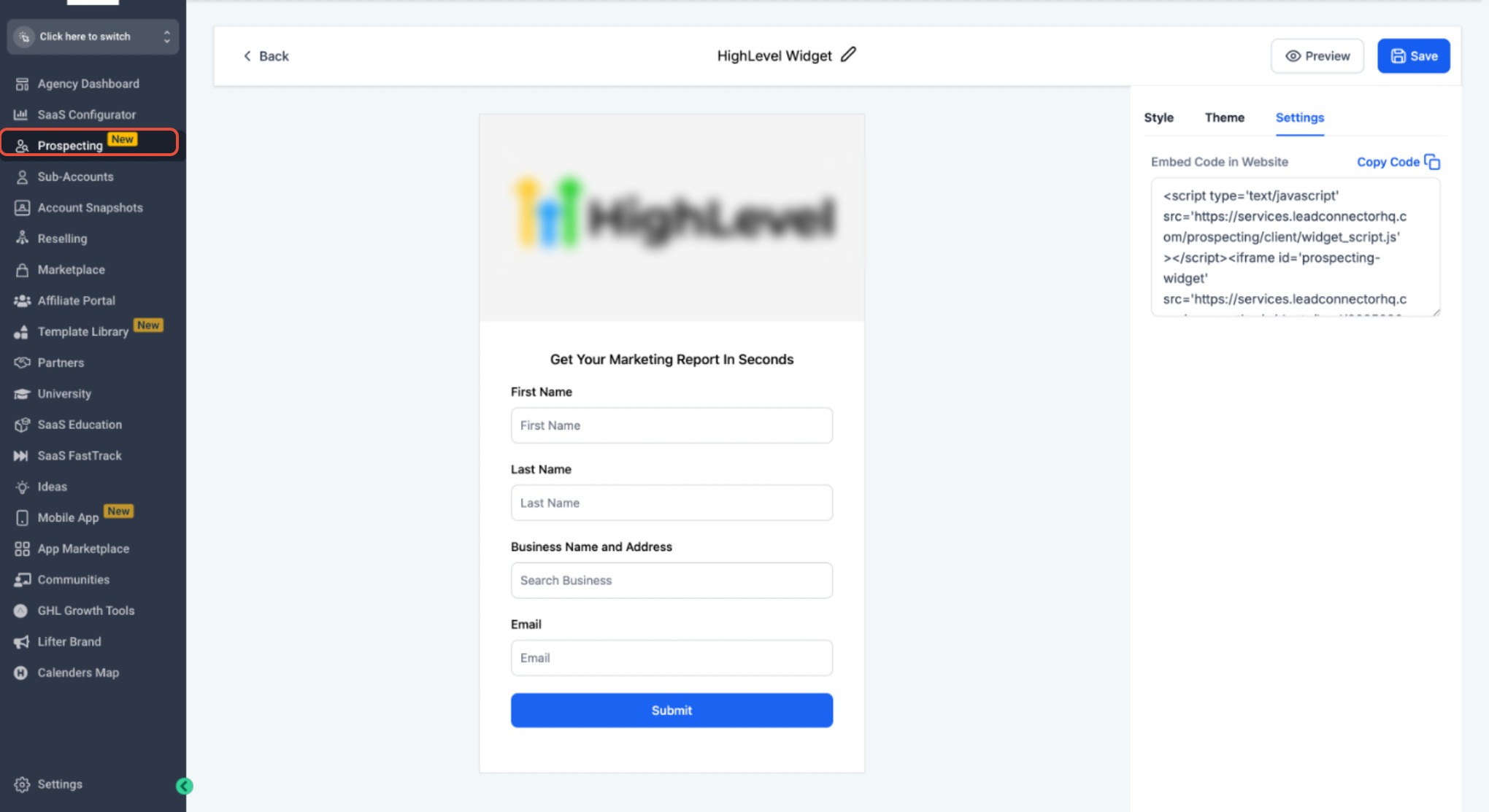
Embedding the Widget
- Navigate to the Settings tab inside the widget
- Copy the embed code
- Paste it into your website backend
After embedding, verify:
- Widget loads correctly
- Layout displays properly
- All fields function as expected
Workflow and Automation
When a prospect submits the widget:
- The contact is automatically saved
- The lead is tagged
- Workflows can be triggered
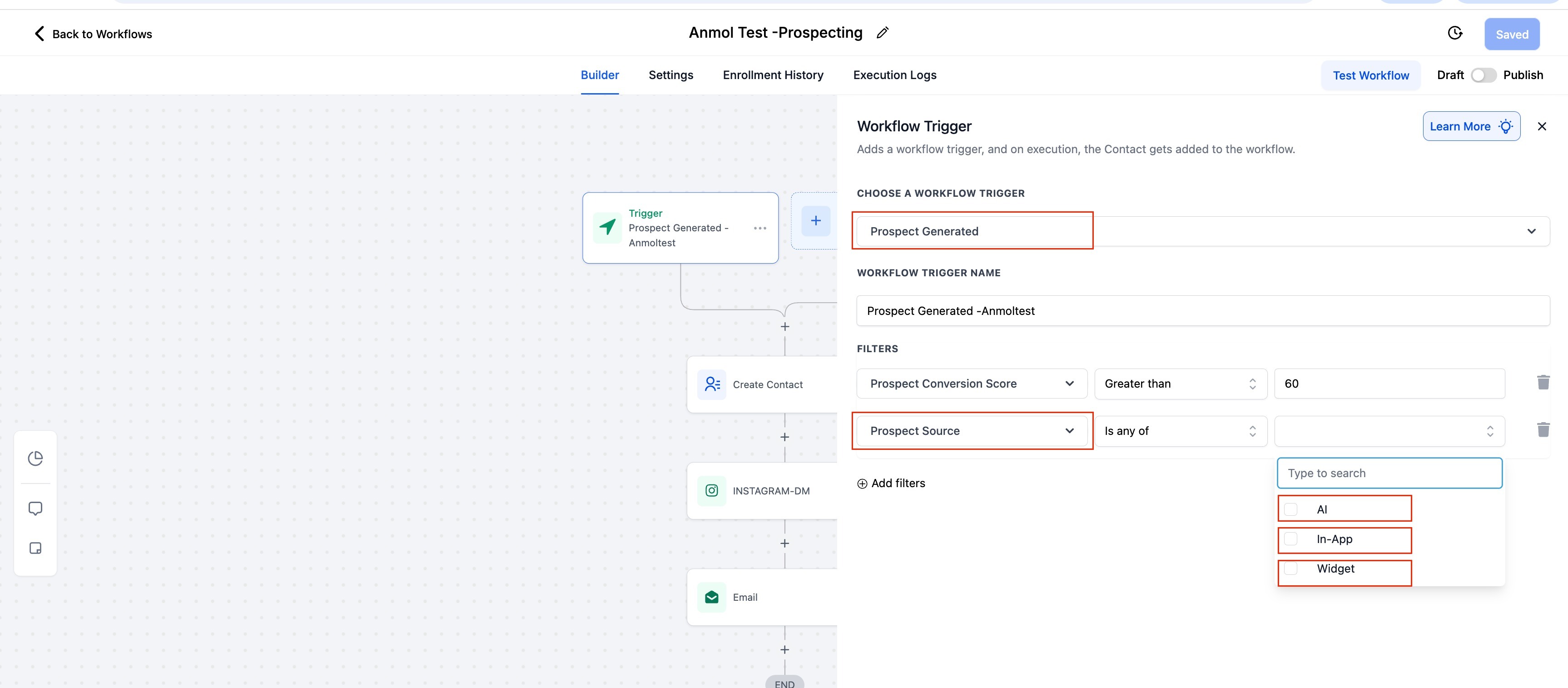
This allows you to automate:
- Welcome emails
- Pipeline assignments
- Nurture sequences
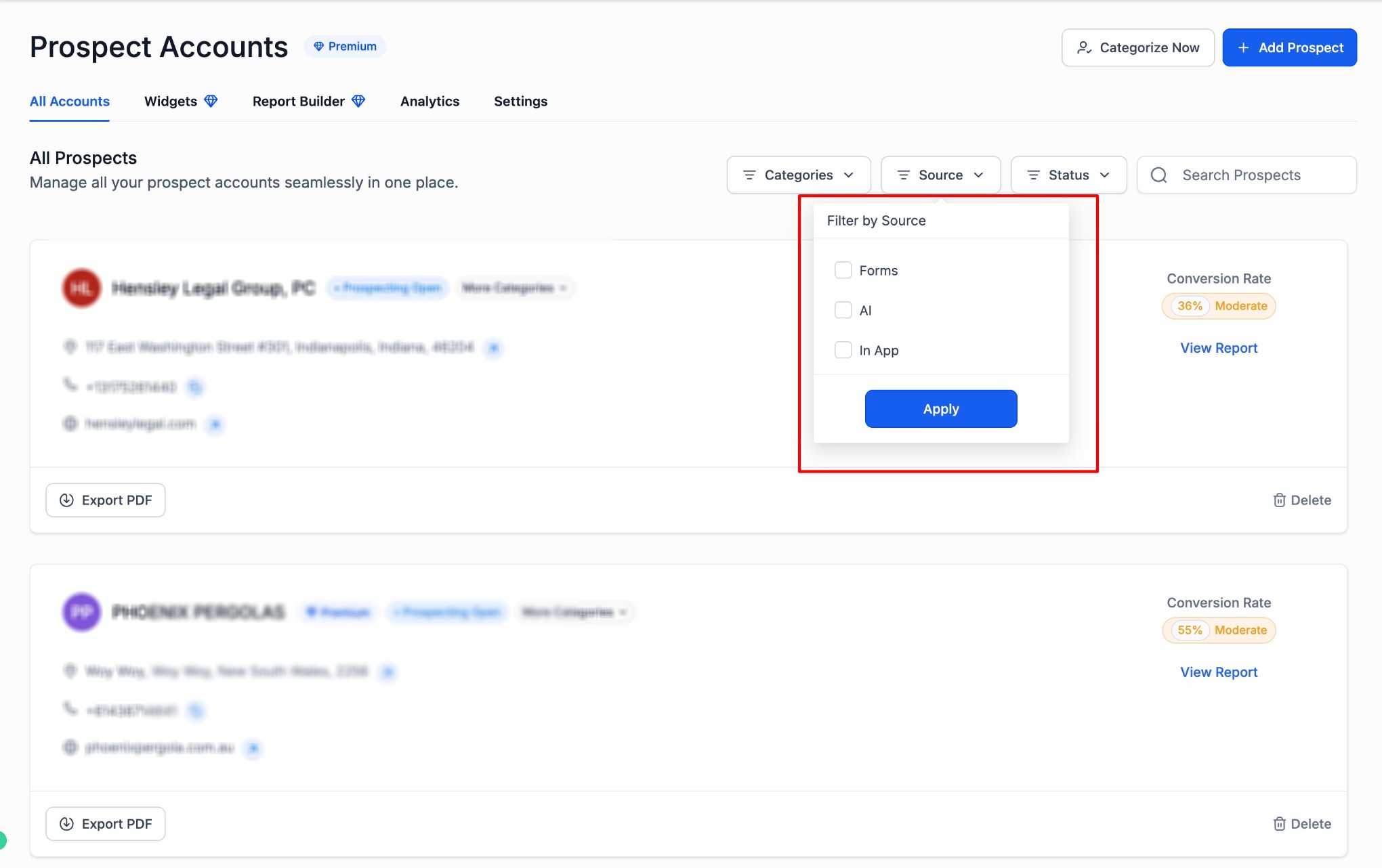
PDF Report Language Behavior
Exported PDF reports now reflect the user’s preferred platform language.
This applies to:
- Report buttons
- Link labels
- System-generated text
- Export messaging
Language Support Across Emails
System-generated emails related to Prospecting Widgets now automatically adapt to the recipient’s platform language.
This includes:
- Subject lines
- Call-to-action buttons
- System instructions
No additional configuration is required.
Frequently Asked Questions
Q: Do I need to manually enable multiple languages for widgets?
No. Widgets automatically adapt to the platform language.
Q: Does this change custom text I manually enter?
No. Only system-generated strings are localized.
Q: Are email notifications now multilingual?
Yes. System-generated emails follow the user’s preferred platform language.
Q: Do exported PDF reports change language automatically?
Yes. PDF report links and system text reflect platform language settings.
Q: Does this require upgrading the Prospecting Tool?
Yes. Widgets require the paid version.
Need More Help
If your widget isn’t showing the expected language, start by confirming your account language settings and refreshing the page where the widget is embedded. If emails or report links are not appearing in the expected language, verify the recipient’s language preference and re-send the message.
If the issue continues, open the Help Center and search for “Prospecting Widgets,” “Widget embed,” or “multi-language.” You can also contact Support and include:
-
The widget name
-
The page URL where it’s embedded
-
The language you expected vs. what you’re seeing
-
A screenshot of the issue