
Easily control how appointment times appear across your account by selecting your preferred timezone. This setting is user-specific and changes only how you view appointments—it does not affect scheduling, availability, or booking behavior.
TABLE OF CONTENTS
- What is Appointment Viewing Timezone?
- Where This Setting Applies
- How to Change Your Appointment Viewing Timezone
- How It Works
- Important Notes
- Example Scenario
- Frequently Asked Questions
- Need Help?
What is Appointment Viewing Timezone?
This feature allows each user to choose a preferred timezone for displaying appointment times across the platform. It improves clarity when working with teams or customers in different regions while keeping scheduling logic unchanged.
Key behavior:
-
Applies only to the logged-in user
-
Changes how times are displayed—not how they are scheduled
-
Does not impact availability, booking links, or confirmations
-
Can be updated anytime
Where This Setting Applies
Choosing a viewing timezone updates how appointments appear in the following areas:
-
Calendar view
-
Appointment list
-
Contact records (appointments section)
-
Conversations
This ensures consistency across all places where appointments are visible.
How to Change Your Appointment Viewing Timezone
Access Timezone Setting in Profile
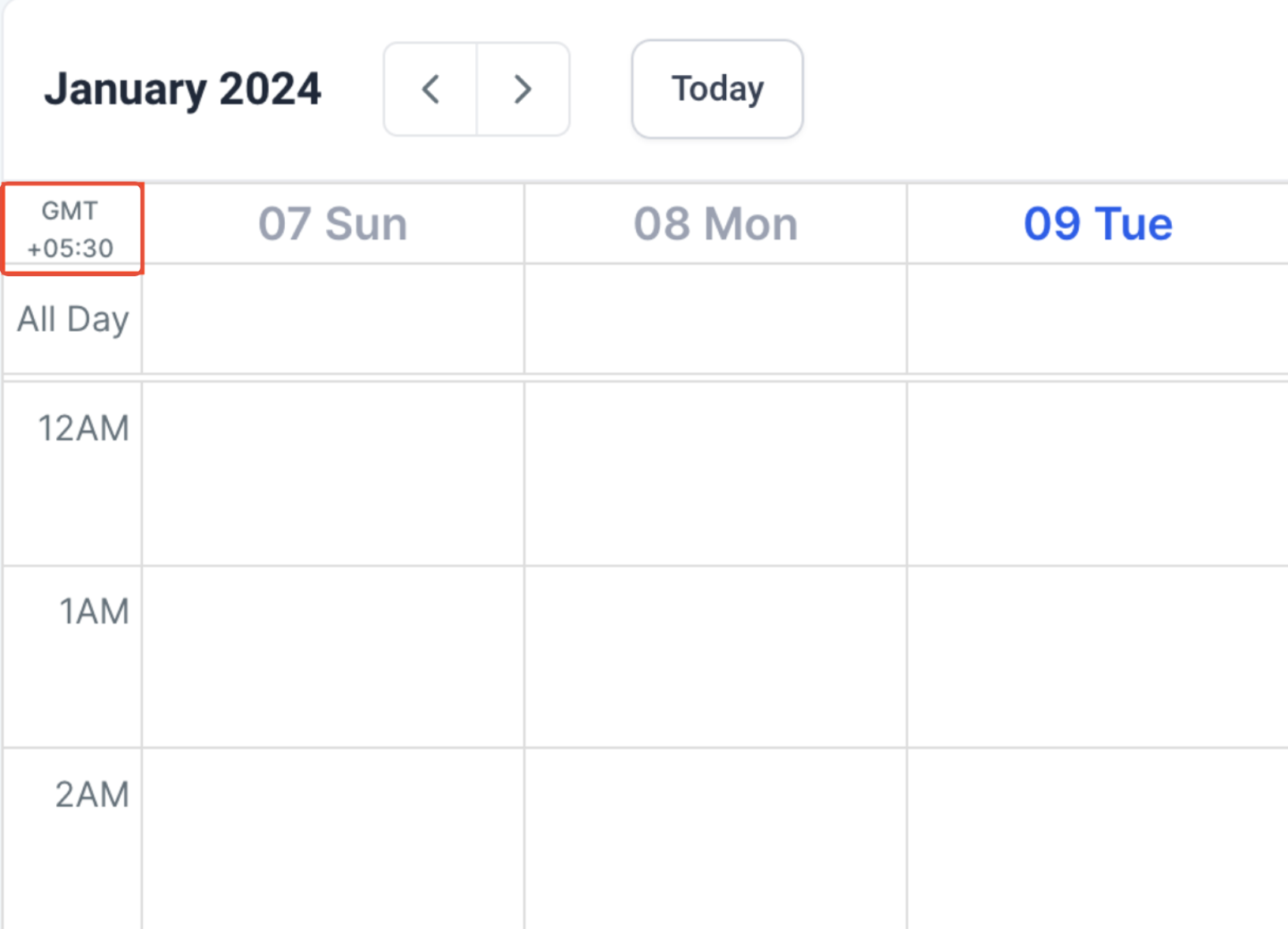
This screen shows where to locate the timezone setting under your profile.
Open your profile settings and locate the timezone field under availability or preferences. Select your preferred timezone from the dropdown.
Calendar Displays Active Timezone
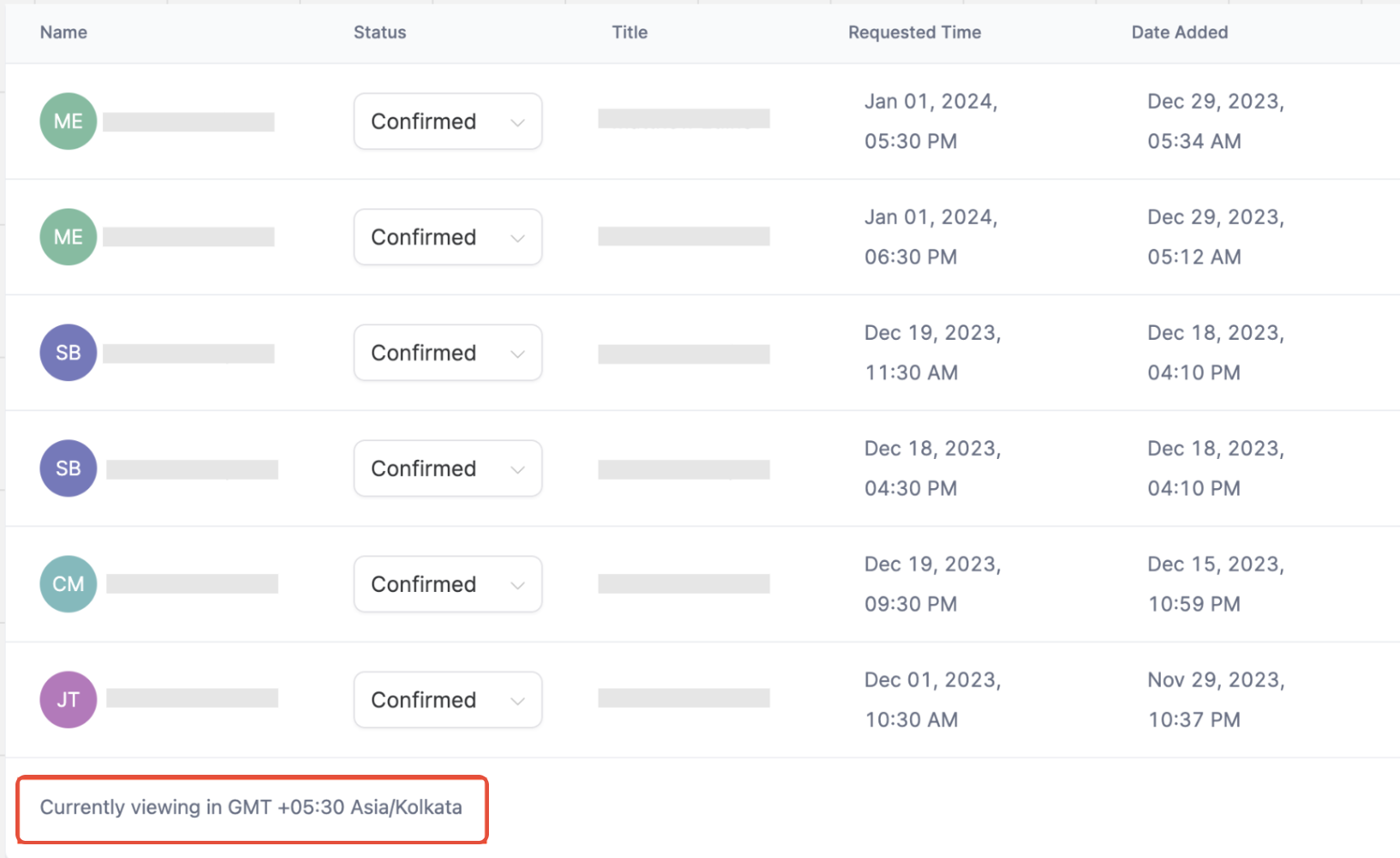
This view highlights where the active timezone appears in the calendar.
Check the calendar header to confirm the currently selected timezone. This ensures you always know which timezone you are viewing.
Appointment List Timezone Indicator
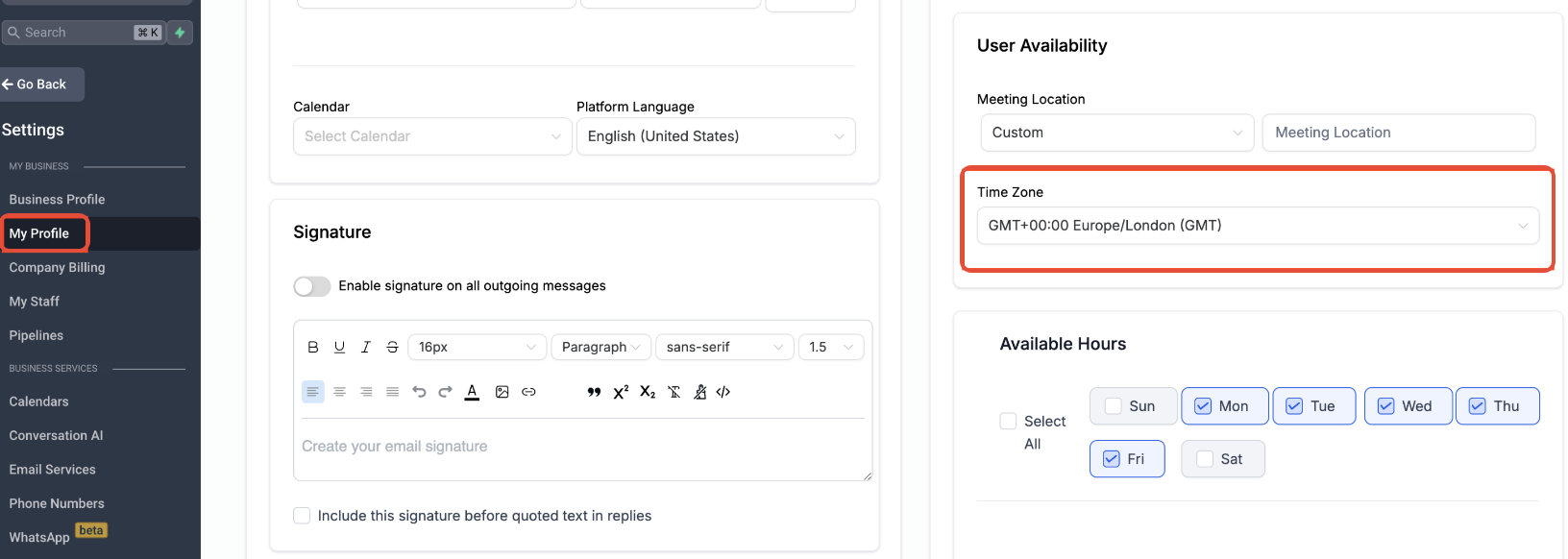
This shows how the timezone appears in the appointment list view.
Scroll to the bottom of the appointment list to see the active timezone displayed clearly.
How It Works
Once updated, all appointment times are automatically displayed in your selected timezone. No manual conversion is required.
For example:
-
One user can view appointments in GMT
-
Another can view the same appointments in EST
-
Both see correct times based on their preference
Important Notes
-
This feature only affects display, not scheduling
-
Availability settings remain unchanged
-
Booking links and confirmations are not impacted
-
Each user controls their own timezone independently
Example Scenario
If your business operates in one timezone but you are located elsewhere, you can switch your view to your local timezone. This helps avoid calculation errors and ensures accurate communication.
Frequently Asked Questions
Q: Does changing the timezone affect my availability?
No, availability settings remain unchanged. Only the display is affected.
Q: Will other users see my selected timezone?
No, this is a user-specific setting. Each user controls their own view.
Q: Can I choose any timezone?
Yes, you can select from all available timezone options.
Q: Why do my appointment times look different from another user’s view?
Each user may have selected a different viewing timezone.
Need Help?
If you’re unsure about timezone settings or need assistance, contact support or your system administrator for guidance.