
Add Guests to Calendar Bookings
This article explains how to configure and use the add guests feature for calendar bookings. You’ll learn how to enable guest additions, set attendee limits, and customize the booking experience for your contacts.
By the end of this guide, you’ll be able to streamline group appointments and ensure all relevant participants receive booking confirmations and reminders.
What is the Add Guests Feature?
The add guests feature allows your contacts to include additional attendees when booking appointments through your calendar. This functionality is particularly useful for consultations, family appointments, team meetings, or any scenario where multiple people need to attend the same scheduled event.
When enabled, contacts can add guest email addresses during the booking process. Each guest receives confirmation emails, calendar invites, and reminder notifications automatically, ensuring everyone stays informed about the appointment details.
You maintain full control over this feature by setting a maximum number of guests per booking and choosing whether to make guest additions optional or required.
Key Benefits
The add guests feature provides several advantages for both you and your contacts:
How to Enable Add Guests in Your Calendar
Follow these steps to configure the add guests feature for your calendar:
Go to Calendars in your left navigation menu, then select the specific calendar you want to configure. Click on the Settings tab to access configuration options.
Scroll down to find the Add Guests setting within your calendar configuration options.
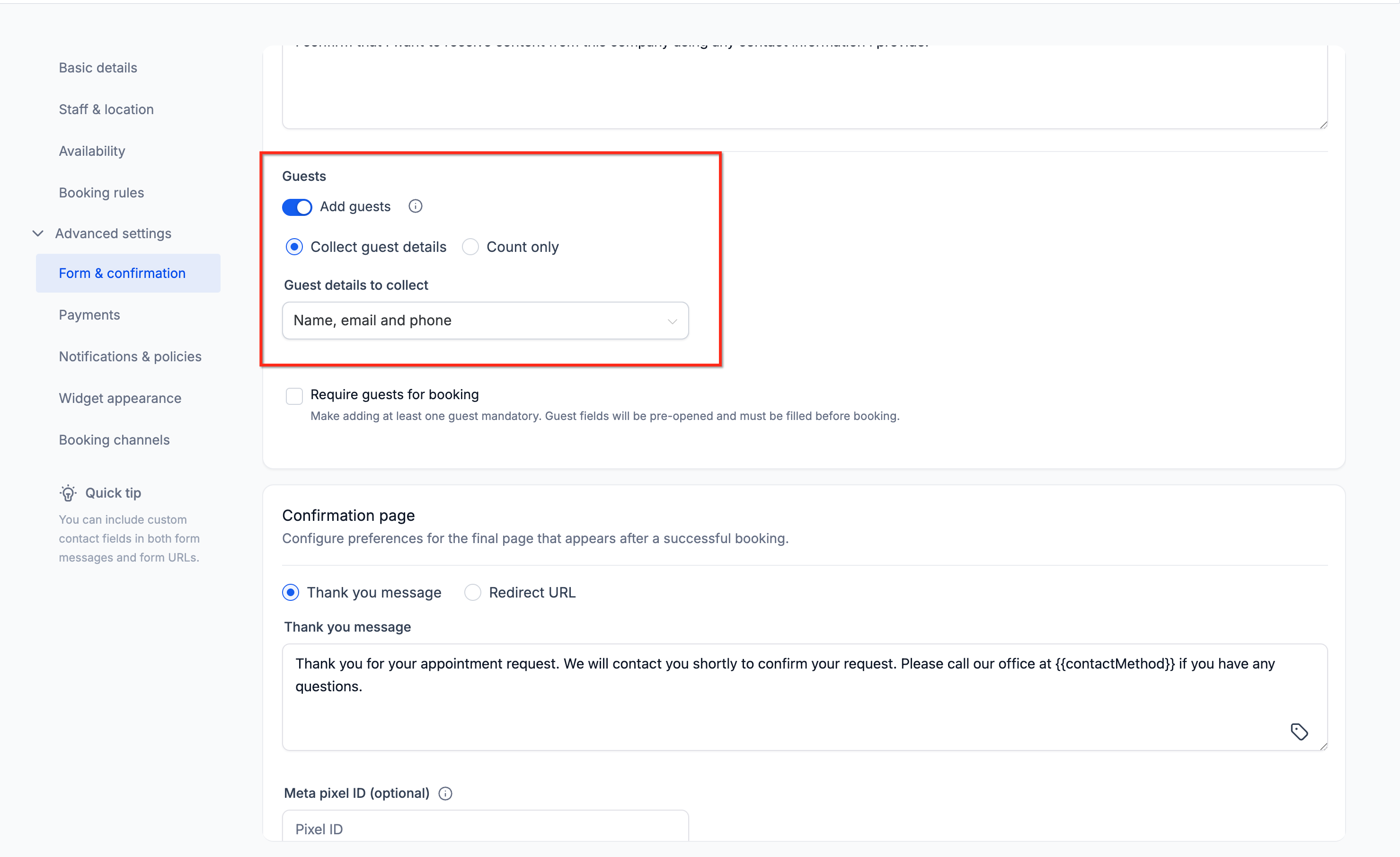
Toggle the Add Guests switch to the enabled position. This activates the guest addition functionality for your calendar.
Set the maximum number of guests allowed per booking. Enter a number between 1 and 999 based on your capacity and appointment requirements.
Click Save or Update to apply your configuration changes. The add guests feature is now active for this calendar.
Your calendar now allows contacts to add guests when booking appointments. The guest field will appear automatically in your booking form.
Understanding Guest Limit Controls
The guest limit setting determines how many additional attendees contacts can add to a single booking. This control helps you manage group sizes effectively:
You can set any number between 1 and 999 as your maximum guest count. This flexibility accommodates various appointment types from small consultations to large group sessions.
The guest field appears as an optional addition during booking. Contacts can book appointments without adding any guests if they prefer.
Set guest limits based on your actual capacity and appointment requirements. Consider factors like meeting room size, available resources, and the nature of your services when determining appropriate limits.
How Contacts Add Guests During Booking
When the add guests feature is enabled, your contacts will see the following experience during the booking process:
The guest addition field displays automatically in the booking form once enabled. Contacts see this option alongside other appointment details.
Contacts enter each guest’s email address in the provided field. They can add multiple guests up to your configured limit by entering additional email addresses.
Once the booking is confirmed, each guest receives a confirmation email and calendar invitation automatically. Guests also receive any scheduled reminder notifications before the appointment.
Guest email addresses must be valid for notifications to be delivered successfully. The system validates email format during the booking process.
Viewing and Managing Guest Information
After a booking is made with guests, you can access guest information through multiple locations in your system:
Navigate to the specific appointment in your calendar and view the appointment details. Guest email addresses appear in the appointment information section.
Guest email information is stored in the contact record under custom values. This allows you to reference guest data in workflows and automation.
Access guest email addresses through custom values in your workflows. This enables you to create automated communications or actions based on guest participation.
Create workflows that send customized follow-up messages to both the primary contact and all guests after appointments complete. This ensures comprehensive communication with all attendees.
Frequently Asked Questions
If you need assistance configuring the add guests feature or have questions about implementing group appointments, our support team is ready to help.
- Navigate to Settings → Support in your Venderflow account
- Click Contact Support to open a support ticket
- Provide details about your calendar configuration and use case for personalized assistance