
Snapshot Support for Flow-Based Voice AI Agents
Flow-Based Voice AI agents are built with a visual, node-based Flow Builder so you can design structured call experiences—greeting, qualification, routing, booking, and more—without coding. Snapshots are reusable templates that copy selected configuration assets from one account into another, allowing you to launch consistent setups quickly.
This guide explains how to include Flow-Based Voice AI agents in Snapshots, what transfers with them, and how to deploy production-ready call flows across multiple accounts without rebuilding them manually.
What is Snapshot Support for Flow-Based Voice AI Agents?
Snapshot support for Flow-Based Voice AI agents means these visually-built agents can be treated like any other Snapshot asset: they can be selected, packaged, and recreated in destination accounts with their full flow graph and connected actions intact. This removes the need to manually rebuild complex call flows for every new location.
When you include a Flow-Based Voice AI agent in a Snapshot, the entire conversation structure—nodes, branches, versions, and action connections—is automatically copied and wired to the destination account’s local asset IDs, so the agent is immediately usable once phone numbers and final details are configured.
Key Benefits
Snapshotting Flow-Based Voice AI agents gives you a repeatable, scalable way to deploy proven call flows across many accounts while preserving all the underlying logic. This helps you standardize voice experiences without sacrificing customization where it matters.
Requirements and Limitations
Understanding what is and isn’t moved with a Snapshot helps you plan smooth deployments and avoid surprises after import. Snapshots move configuration, not live telephony resources or historical data.
The source and destination accounts must have Voice AI enabled so that the imported agents can run as expected.
Voice AI agents require a compatible phone number in the destination account before they can take calls, even though the number itself is not copied by the Snapshot.
Any referenced workflows, triggers, or other connected assets should either be included in the same Snapshot or already exist in the destination account, so the flow can wire up correctly.
Assigned phone numbers for Voice AI agents are not copied via Snapshots and must be reassigned in the destination account.
Contacts, call history, call transcripts, and other live activity remain in the source account and do not move with the Snapshot.
You may need to update small details such as local phone numbers, business hours, or location-specific messages after import to fully localize the agent.
If a Snapshot is protected using Assets Protected Snapshots, recipients can use the imported Flow-Based Voice AI but may be restricted from editing or exporting certain assets, depending on your protection settings.
Voice AI Assets in Snapshots
The Voice AI asset category inside Snapshots supports both prompt-based and Flow-Based Builder agents, giving you a single place to manage every voice configuration you want to reuse.
When you create or load a Snapshot, Flow-Based Voice AI agents appear alongside other Voice AI assets. This lets you choose exactly which agents to move into new or existing accounts, whether they’re simple prompt-based agents, complex flow-driven agents, or a mix of both.
Under the Voice AI asset category, your Flow-Based agents will be listed as selectable assets.
The same agents appear under Voice AI so you can decide whether to load all or only specific agents into the target account.
You can select only Flow-Based Voice AI agents, only prompt-based Voice AI agents, or both types along with other Snapshot assets (workflows, funnels, etc.) for a full, ready-made template.
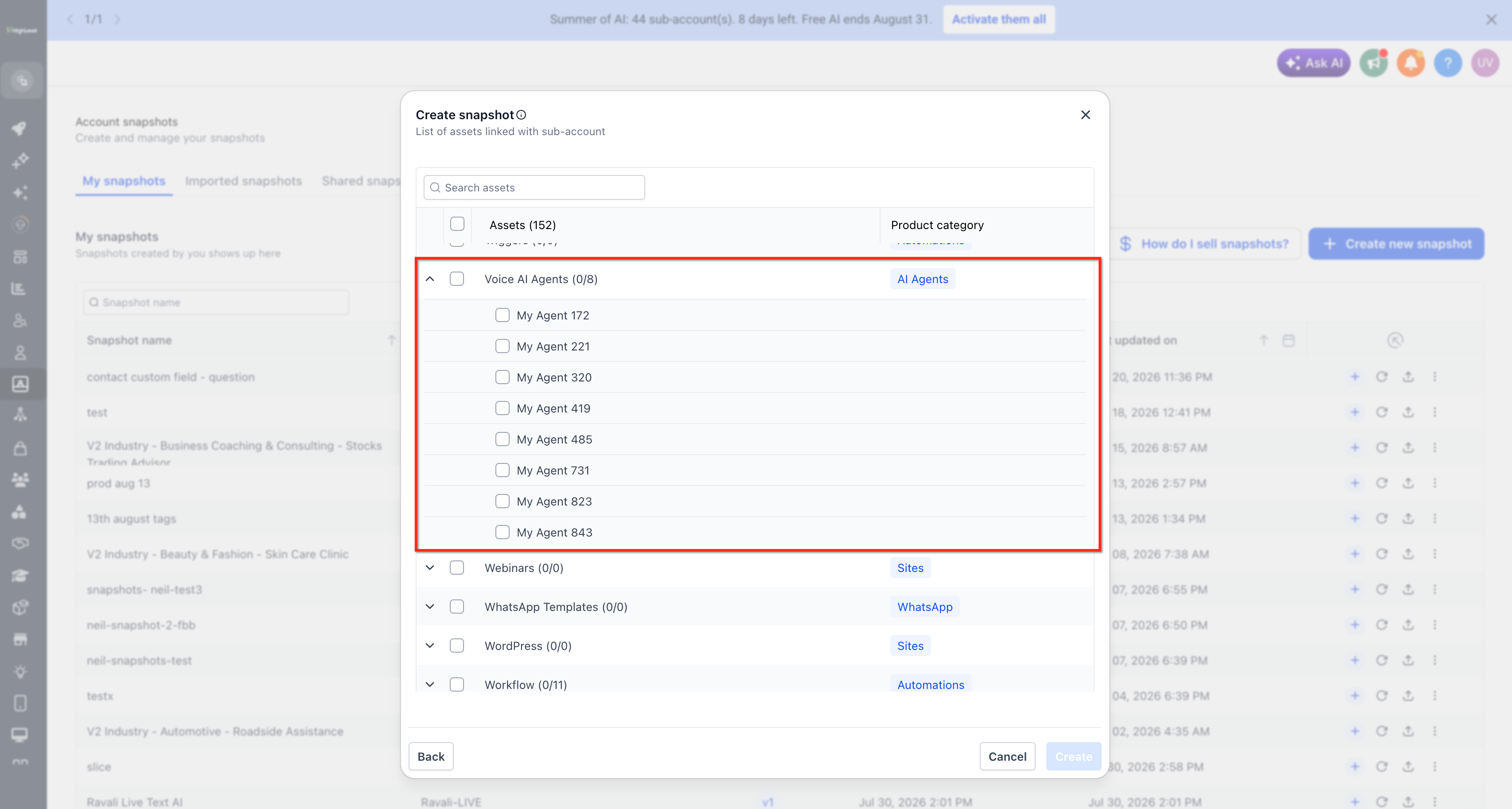
Voice AI asset selection during Snapshot creation
How Flow-Based Voice AI Builders Transfer Between Accounts
Flow-Based Voice AI agents are more than just a single prompt—they’re entire call journeys represented as graphs with nodes, branches, and action connections. When included in a Snapshot, that complete structure is recreated in the destination account using the appropriate local asset IDs, so the agent is immediately usable once numbers and final details are configured.
IDs for workflows, triggers, and calendars are mapped to the destination account’s copies where available, ensuring the imported flow uses that account’s own resources.
Any flow steps that depend on unavailable assets will need manual adjustment after import (for example, pointing to a different workflow or calendar).
How to Set Up Snapshot Support for Flow-Based Voice AI Agents
Including Flow-Based Voice AI agents in Snapshots follows the same familiar Snapshot workflow you use for other assets. The key difference is simply selecting your Flow-Based agents under the Voice AI category when creating and loading Snapshots.
- Open the account where your Flow-Based Voice AI agent currently lives.
- Go to Voice AI and open the Flow-Based Builder for the agent you want to reuse.
- Confirm that the flow is working as expected (test calls complete successfully).
- Ensure any workflows, triggers, calendars, or other connected assets are configured and active.
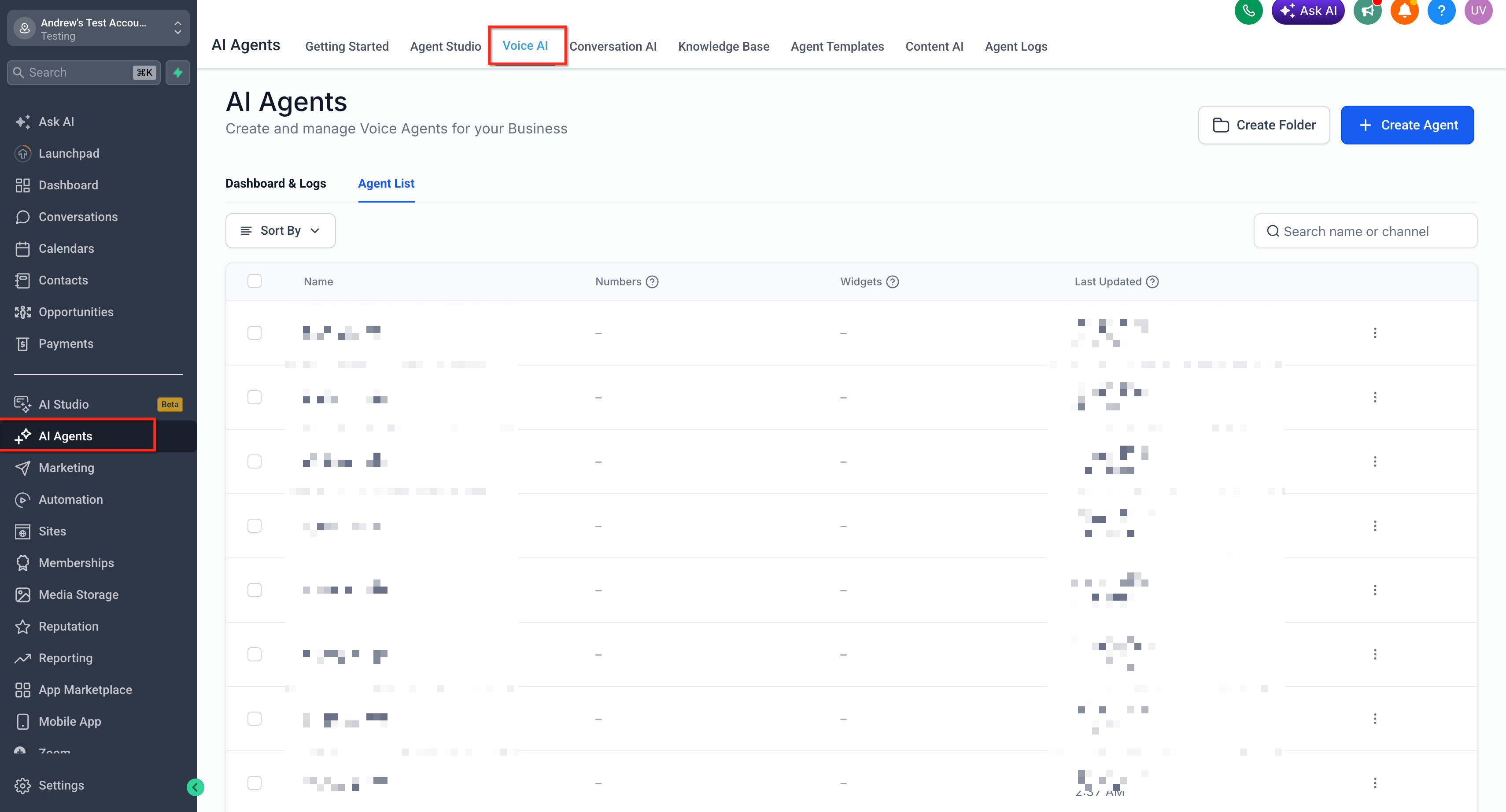
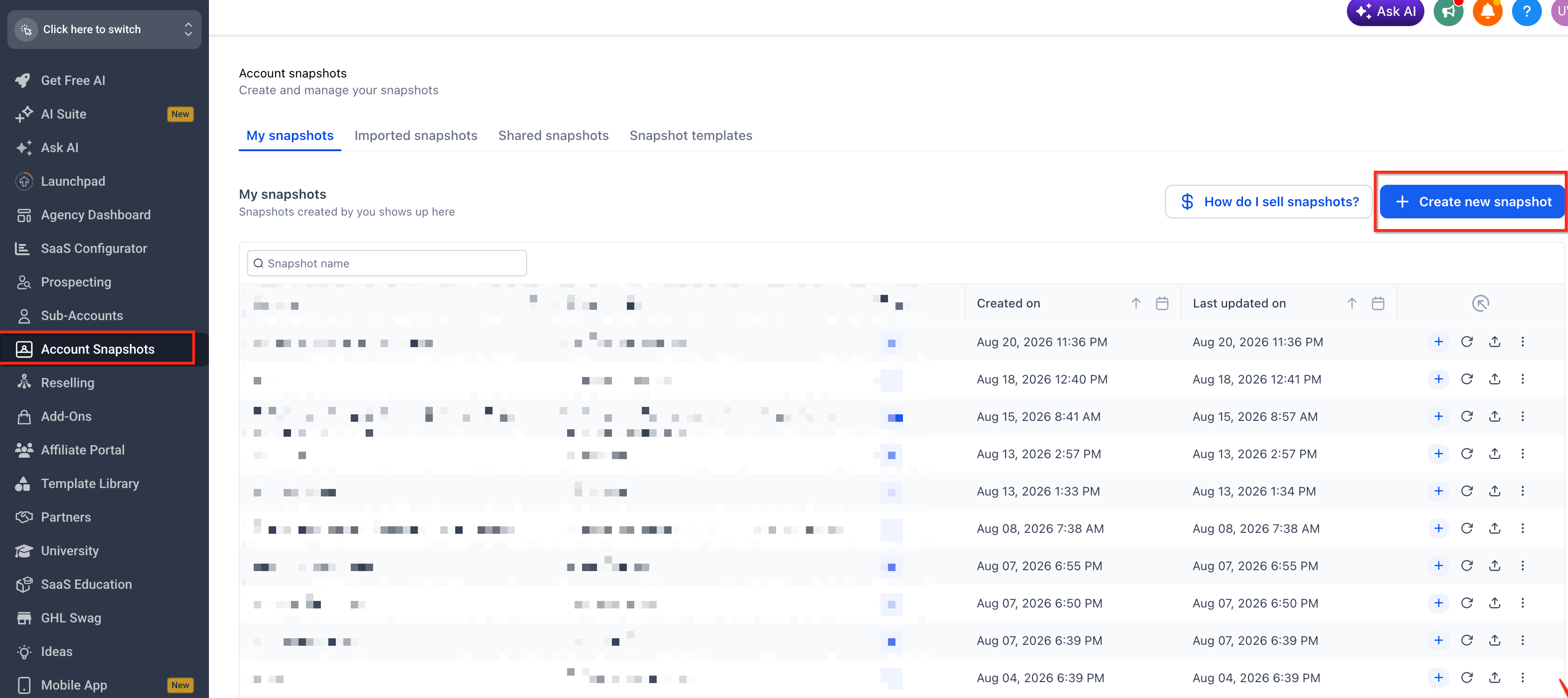
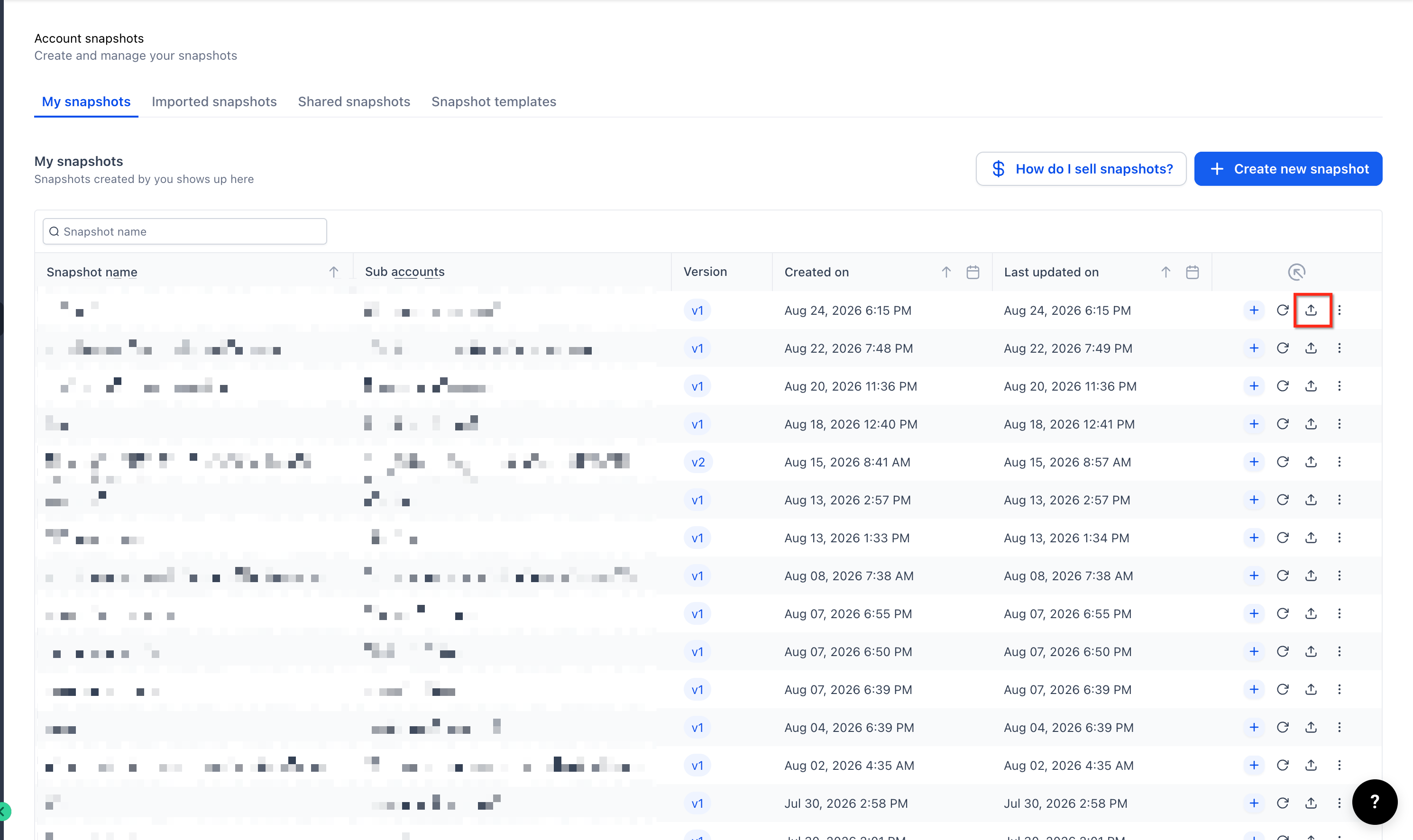
- Click Account Snapshots in the left navigation.
- Click + New Snapshot (or the equivalent “Create Snapshot” action).
- Choose the source account that contains your Flow-Based Voice AI agent.
- In the asset selection step, locate the Voice AI category.
- Expand Voice AI to see all available agents (prompt-based and Flow-Based Builder agents).
- Check the box next to each Flow-Based agent you want included.
- Optionally, include related assets like workflows, triggers, calendars, funnels, or campaigns that your flow depends on.
- Click Create or Save to finalize the Snapshot.
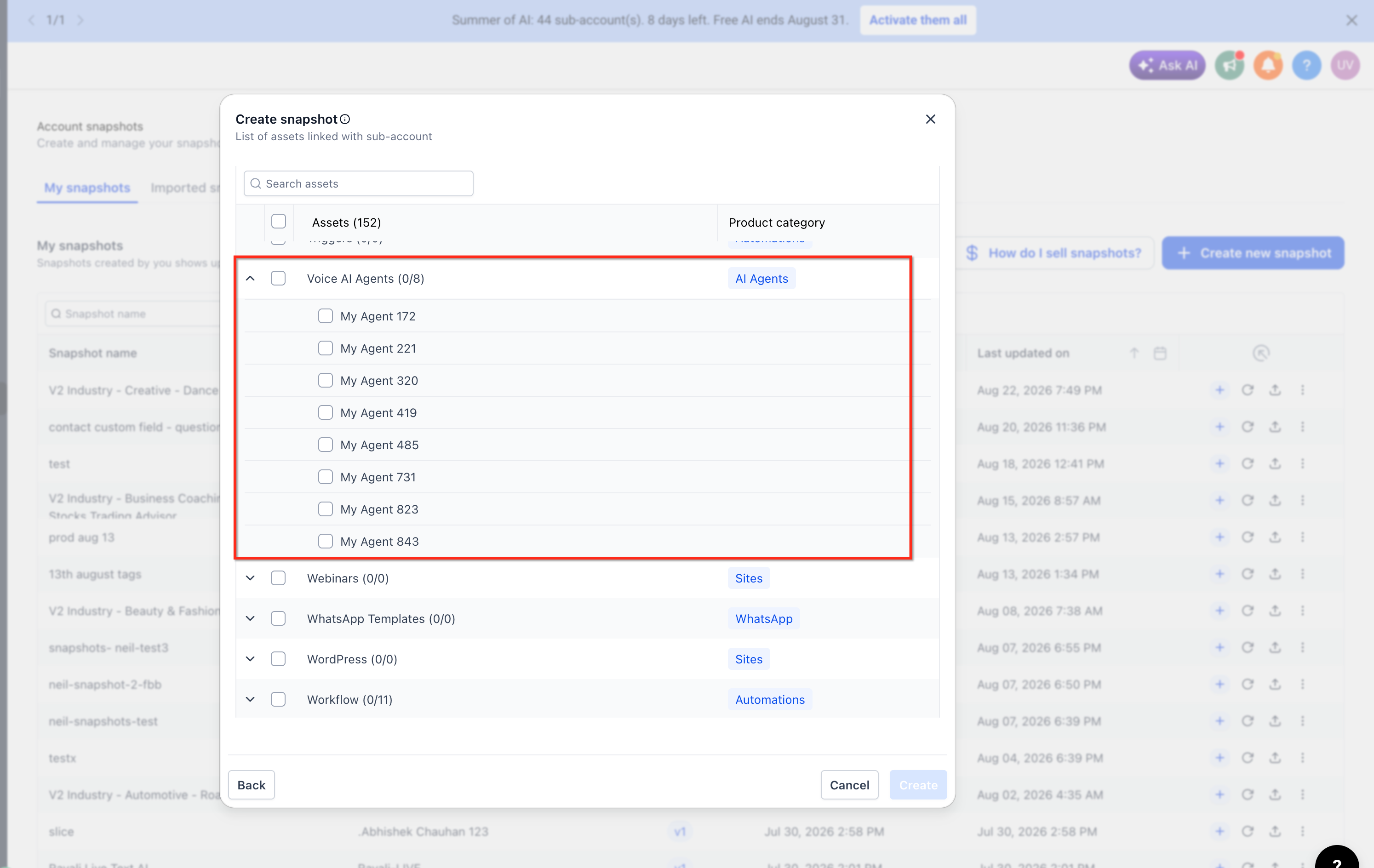
The Snapshot now includes the selected Flow-Based Voice AI agent(s).
- From Account Snapshots, locate the Snapshot you created.
- Click Load (or the equivalent import option).
- Choose the destination account.
- Review the list of assets to be loaded and ensure that Voice AI → [Your Flow-Based Agent] is selected.
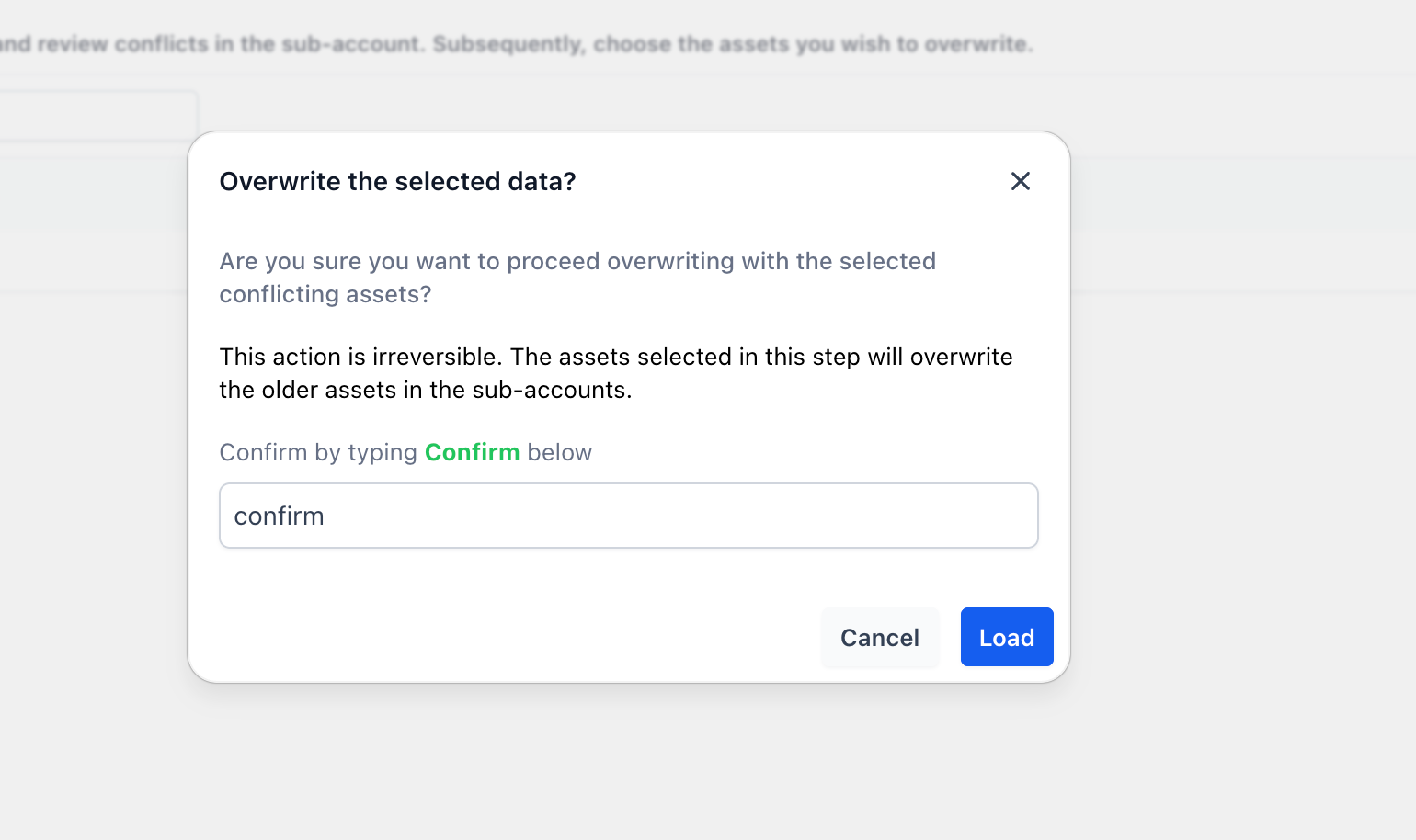
- Confirm and start the load. Venderflow recreates the Flow-Based Voice AI agent in the destination account, wiring it to that account’s local asset IDs for any included dependencies.
- Switch to the destination account.
- Open Voice AI and confirm that your Flow-Based agent appears in the list.
- Assign or verify a compatible LC Phone or Twilio number for the agent so it can place and receive calls.
- Update any location-specific details (e.g., hours, addresses, local offers) to reflect the destination account’s business.
- Place a few test calls to ensure the agent behaves as expected and that all actions trigger properly.
Best Practices
Adopting a few best practices will help you maintain clean templates, avoid conflicts, and ensure smooth imports when working with Flow-Based Voice AI agents in Snapshots.
If you encounter issues or need additional support with Flow-Based Voice AI agents in Snapshots:
- Navigate to Settings → Help & Support in Venderflow to access live chat or submit a support ticket.
- Check the Voice AI section in your account to confirm Voice AI is enabled and phone numbers are configured correctly.
- Review Account Snapshots logs to troubleshoot asset loading issues or ID mapping errors.