
Bring Managed Agent reasoning directly into Workflows with the Invoke Managed Agent action. Workflows can pass contact information, dynamic workflow context, and attachments to a published Managed Agent, then use the agent’s response in later automation steps.
This combines the predictable structure of Workflows with the flexibility of a Managed Agent. The agent can analyze information, use its configured tools and CRM capabilities, and complete tasks that benefit from AI-powered reasoning.
TABLE OF CONTENTS
- What is Invoke Managed Agent?
- Key Benefits of Invoke Managed Agent
- How Invoke Managed Agent Works
- Managed Agent Requirements
- Passing Context to the Managed Agent
- Using the Managed Agent Response in Later Workflow Steps
- Invoke Managed Agent vs. Other Workflow AI Options
- Common Use Cases for Invoke Managed Agent
- How to Set Up Invoke Managed Agent
- Frequently Asked Questions
What is Invoke Managed Agent?
Invoke Managed Agent connects Workflows with published Managed Agents so an automation can intentionally hand a task to an agent and continue after the agent completes its work.
This allows you to add AI reasoning at a specific point in a structured Workflow while keeping the surrounding automation predictable.
When a Workflow reaches the Invoke Managed Agent action, it sends the selected contact and configured context to a Managed Agent that uses the Invoked from a workflow trigger.
The agent follows its existing instructions, uses its configured tools and CRM capabilities as needed, and returns a response that later Workflow actions can use.
Managed Agents are available in Agent Studio and can combine AI reasoning with Knowledge Bases, CRM information, triggers, and supported actions.
Key Benefits of Invoke Managed Agent
Adding a Managed Agent to a Workflow allows structured automation and AI-driven reasoning to work together.
This is useful when an automation needs to understand, summarize, evaluate, or generate information instead of relying only on fixed rules.
-
AI reasoning inside Workflows: Add a Managed Agent exactly where your automation needs interpretation, analysis, or content generation.
-
Context-aware execution: Send contact information and Workflow data to the agent so it can work with the current automation context.
-
Dynamic instructions: Add dynamic values to the instruction so each execution can use different information.
-
Attachment support: Pass attachments when the agent needs files to complete its task.
-
Reusable agent configuration: Use a separately configured Managed Agent instead of rebuilding its instructions and capabilities in each Workflow.
-
Downstream automation: Use the agent’s response in later Workflow steps to update records, branch the Workflow, or populate messages.
-
CRM-enabled execution: Allow the Managed Agent to use its configured tools and supported CRM capabilities.
How Invoke Managed Agent Works
The Invoke Managed Agent action creates a handoff between two automation layers. The Workflow controls when the task runs. The Managed Agent determines how to complete the assigned task based on its configuration.
Understanding this relationship helps you decide which responsibilities should remain in the Workflow and which should be delegated to the Managed Agent.
The basic execution flow is:
-
A contact enters or progresses through a Workflow.
-
The contact reaches the Invoke Managed Agent action.
-
The Workflow sends the contact, configured Workflow context, dynamic data, and included attachments to the selected Managed Agent.
-
The Managed Agent processes the instruction using its published configuration, tools, and supported CRM capabilities.
-
The Managed Agent returns its response.
-
The Workflow continues and can use the response in later actions.
This approach keeps predictable steps, such as triggers, waits, messages, and branching, inside the Workflow while delegating tasks that benefit from AI reasoning to the Managed Agent.
Managed Agent Requirements
Only appropriately configured Managed Agents can be used with the Invoke Managed Agent action. Prepare the Managed Agent before adding it to a Workflow so it can be selected in the Workflow Builder and handle live executions.
Before adding the action:
-
Go to AI Agents → Agent Studio → Managed Agents.
-
Open the Managed Agent you want to use.
-
Add the Invoked from a workflow trigger.
-
Confirm that the agent has the instructions, tools, Knowledge Base access, and CRM capabilities required for the task.
-
Test the Managed Agent.
-
Publish the Managed Agent.
Testing before publishing helps verify that the agent behaves as expected before it handles live Workflow executions.
Passing Context to the Managed Agent
The quality of the agent’s result depends on the context it receives.
Provide the information needed to complete the task so the Managed Agent can understand the contact, interpret the current Workflow context, and produce an output that later steps can use.
The Invoke Managed Agent action can send:
-
Contact information
-
Workflow data
-
Dynamic values available when the action runs
-
Instructions describing the task
-
Attachments the agent needs as context
Dynamic data can be included directly in the instruction. This allows the same Workflow action to send different information for each contact instead of using a fixed instruction.
For example, you could ask the agent to review the contact’s current information and return an appropriate follow-up based on the data available when the Workflow reaches the action.
When writing the instruction:
-
Clearly state the task the agent should complete.
-
Include only information relevant to the requested decision or output.
-
Describe the result you expect.
-
Use dynamic values when the instruction should change for each contact or Workflow execution.
-
Include attachments when the agent needs to review a file.
Using the Managed Agent Response in Later Workflow Steps
The Managed Agent response becomes most useful when it influences what the Workflow does next.
Passing the result downstream allows the Workflow to combine AI reasoning with standard automation actions without requiring the Managed Agent to control the entire process.
After the Managed Agent completes its task, its response can be used to:
-
Update CRM records
-
Determine which Workflow branch should run next
-
Populate content for a later communication
-
Pass information into another automation step
-
Continue processing based on the agent’s result
For example, a Managed Agent could evaluate the available context and return information that a later Workflow step uses to update a record or choose a branch.
Invoke Managed Agent vs. Other Workflow AI Options
Several options can add AI capabilities to a Workflow. Each uses a different configuration model.
Choose the option based on where you want the AI logic to be created and maintained.
| Option | AI Configuration Location | Workflow Role |
|---|---|---|
| Invoke Managed Agent | Managed Agents | Calls a published Managed Agent configured with Invoked from a workflow |
| AI Agent | Workflow Builder | Creates and configures an AI execution step directly inside the Workflow |
| Invoke Agent Studio Agent | Flow-based Agent Studio | Calls an eligible published flow-based Agent Studio agent |
Invoke Managed Agent
Use Invoke Managed Agent when the agent is created and maintained separately from the Workflow. The Workflow calls the published Managed Agent when execution reaches the action.
AI Agent
Use AI Agent when the AI execution should be configured directly inside the Workflow action. Its instructions, model, tools, memory, and output behavior are configured in the Workflow Builder.
Invoke Agent Studio Agent
Use Invoke Agent Studio Agent for eligible published flow-based Agent Studio agents. Managed Agents are the current experience for creating new autonomous agents, while Agent Studio continues to support existing flow-based agents.
Common Use Cases for Invoke Managed Agent
Managed Agent invocation is useful when a Workflow reaches a point where fixed automation rules are not enough to handle the available context.
Keeping that reasoning inside a reusable Managed Agent can simplify the Workflow while allowing the surrounding automation to remain structured.
Common examples include:
-
Contact analysis: Review available contact or CRM information and return a summary or classification.
-
Workflow branching: Evaluate context and return information that helps determine which Workflow path should run next.
-
Personalized content: Generate context-aware text that a later Workflow step can use in a message or record.
-
Record processing: Interpret information before a later action updates fields, notes, or other CRM records.
-
Attachment review: Process an available attachment and return information for subsequent Workflow steps.
-
Complex task handoff: Delegate a task requiring multiple reasoning steps while keeping the rest of the process inside the Workflow.
How to Set Up Invoke Managed Agent
Configure and publish the Managed Agent first. Then connect it to the Workflow and define the task and context it
should receive.
Step 1: Configure the Managed Agent
-
Go to AI Agents → Agent Studio.
-
Open Managed Agents.
-
Create a Managed Agent or open an existing one.
-
Configure the agent’s instructions, tools, Knowledge Base access, and supported CRM capabilities.
-
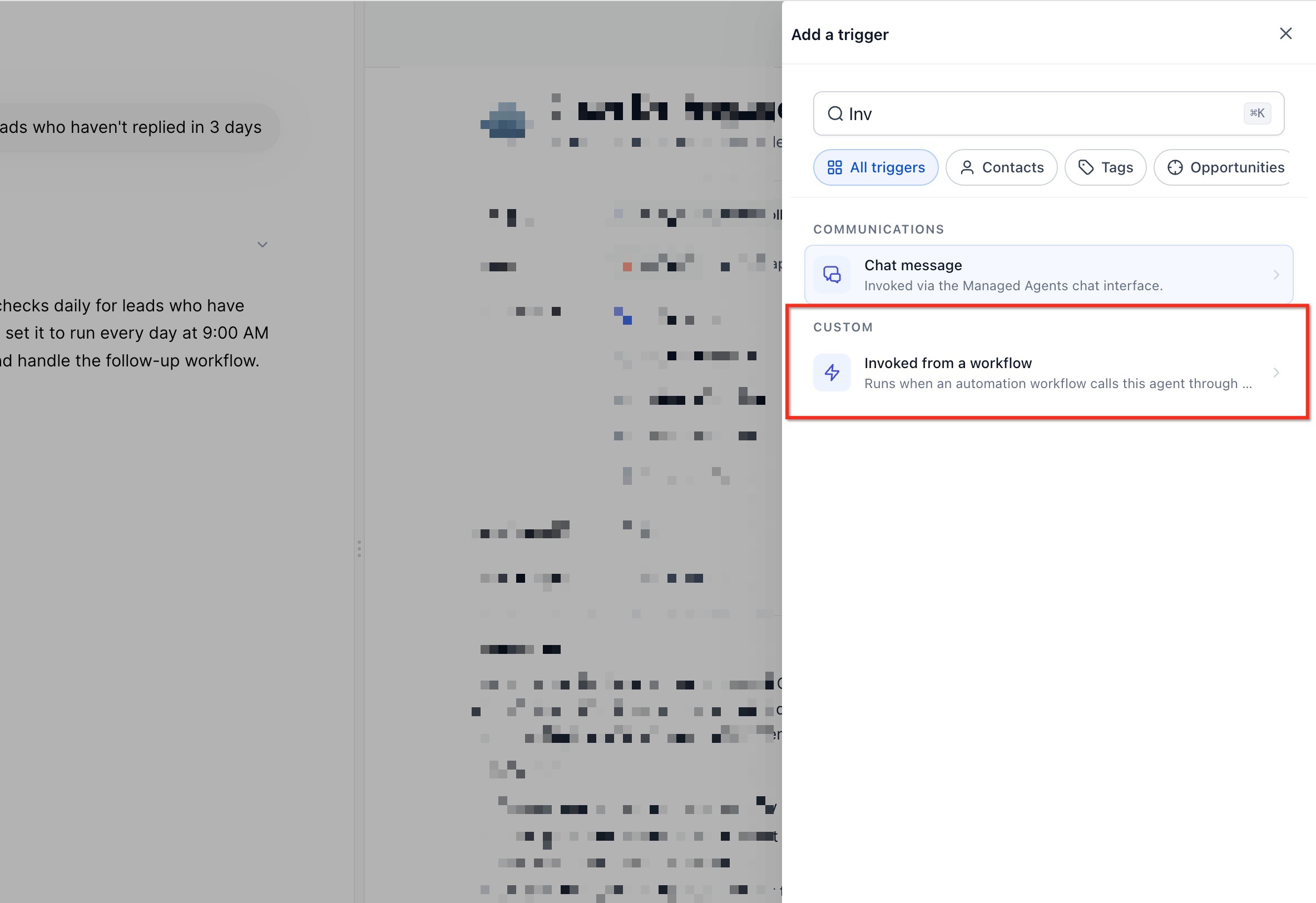
Open the agent’s trigger configuration.
-
Add the Invoked from a workflow trigger.
-
Test the Managed Agent to confirm that it behaves as expected.
-
Publish the Managed Agent.
Step 2: Add Invoke Managed Agent to the Workflow
-
Go to Automation → Workflows.
-
Create a Workflow or open an existing Workflow.
-
Go to the point where you want the Managed Agent to run.
-
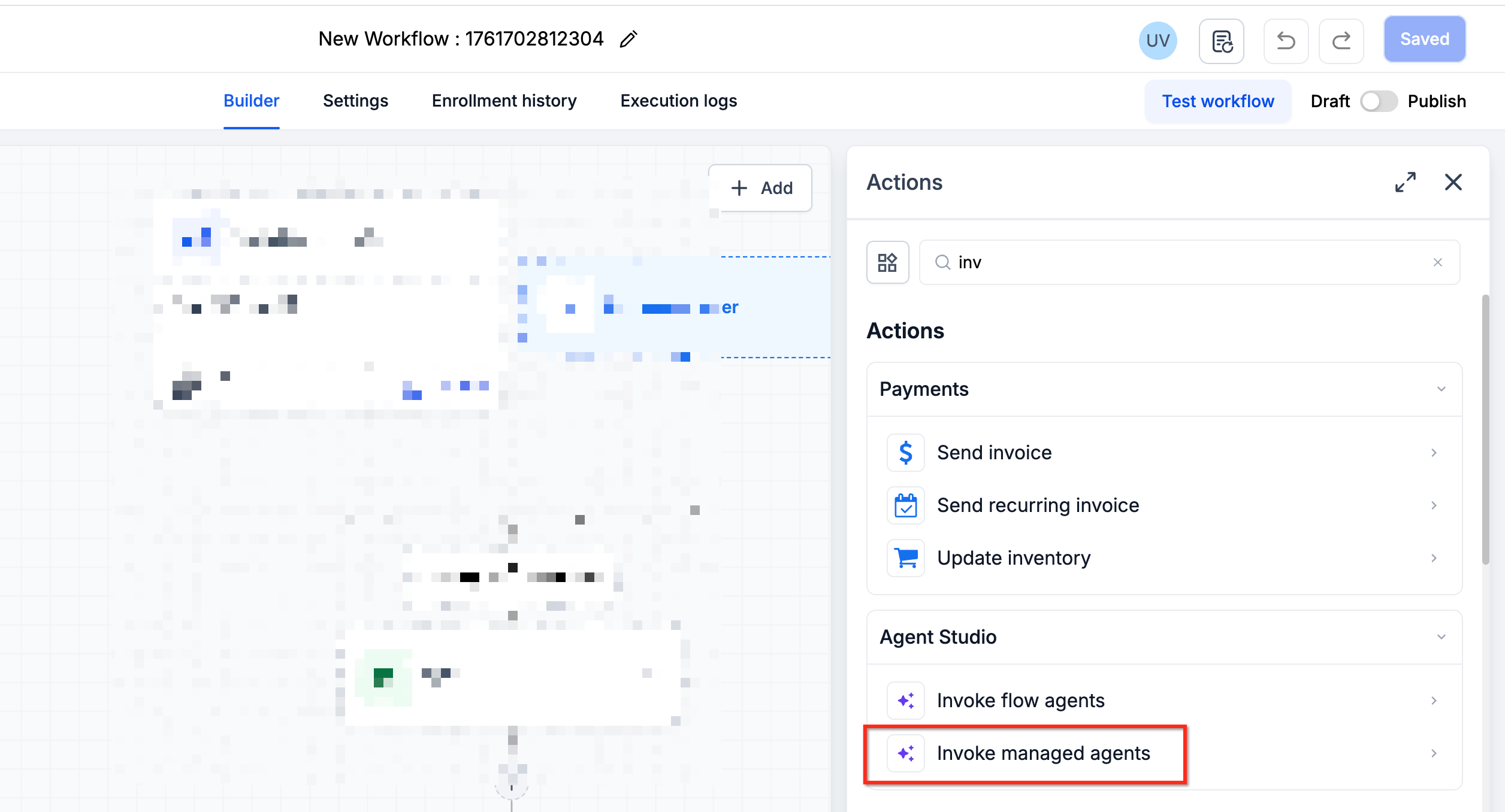
Click + Add Action.
-
Select Invoke Managed Agent.
-
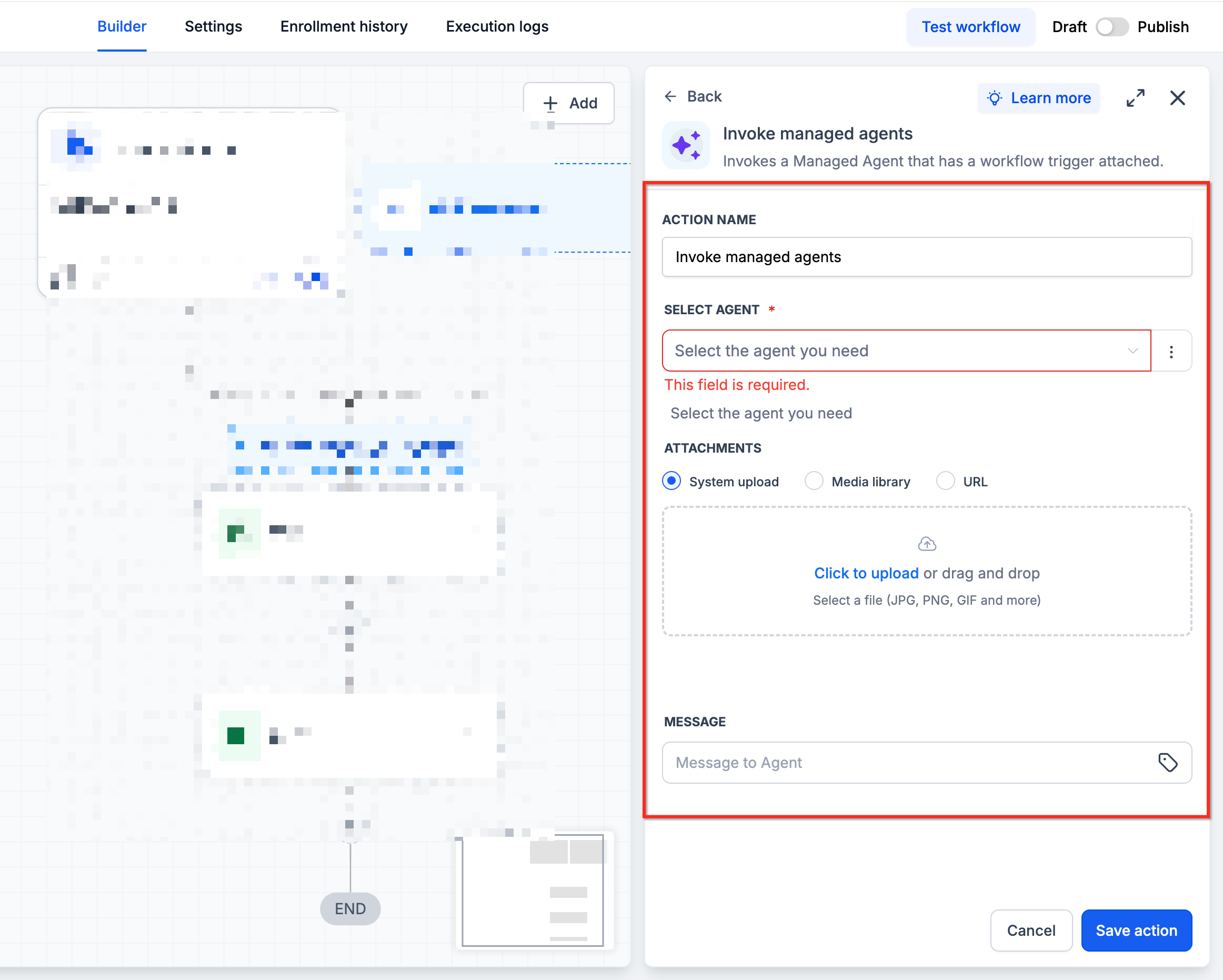
Select the published Managed Agent you configured in Step 1.
If the Managed Agent does not appear, confirm that it has the Invoked from a workflow trigger and is published.
Step 3: Write the Agent Instruction
-
Enter an instruction describing what the Managed Agent should do.
-
Add dynamic contact or Workflow data when the task depends on information that changes between executions.
-
Include enough context for the agent to understand the desired outcome.
-
Add attachment context when the agent needs to work with a file provided through the Workflow.
-
Review the instruction for clarity before saving the action.
A useful instruction identifies the task, relevant context, and expected result.
Example instruction:
Review the available contact information and recent context provided by this Workflow. Determine the most relevant next action for this contact and return a concise explanation that the following Workflow steps can use.
Step 4: Use the Response in Later Actions
-
Add the Workflow action that should run after the Managed Agent.
-
Open the dynamic-value selector where applicable.
-
Select the available response from the Invoke Managed Agent step.
-
Use the response in the downstream action.
-
Add branching or record-update logic if the result should influence the remainder of the Workflow.
Possible downstream actions include updating a record, branching based on the result, or using returned content in a message.
Step 5: Save, Test, and Publish the Workflow
-
Save the Invoke Managed Agent action.
-
Review the complete Workflow sequence.
-
Test the Workflow with representative contact data and context.
-
Confirm that the Managed Agent receives the expected information.
-
Verify that later actions use the returned response correctly.
-
Publish the Workflow after testing is complete.
Testing both the Managed Agent and the surrounding Workflow helps verify that the AI task and structured automation work together as intended.
Frequently Asked Questions
Why does my Managed Agent not appear in the Workflow action?
Confirm that the Managed Agent has the Invoked from a workflow trigger and is published.
Only eligible published Managed Agents configured with this trigger can be selected for workflow invocation.
Is Invoke Managed Agent the same as Invoke Agent Studio Agent?
No. They are separate workflow actions.
Invoke Managed Agent is designed for Managed Agents configured with the Invoked from a workflow trigger.
Invoke Agent Studio Agent applies to eligible flow-based Agent Studio agents and uses its own workflow-trigger configuration.
Does Invoke Managed Agent replace normal Workflow actions?
No. It works alongside standard Workflow actions.
Use the Managed Agent when the process benefits from reasoning, interpretation, generation, or flexible task execution. Continue with standard Workflow actions for the rest of the automation.
Can the Managed Agent make CRM changes when a Workflow invokes it?
A Managed Agent can use the supported CRM capabilities and tools configured for that agent.
Review the agent’s configured actions and instructions before publishing it to make sure it has only the capabilities needed for its task.
Should the Workflow or Managed Agent handle fixed rules?
Keep predictable sequencing and fixed conditions in the Workflow when possible.
Use the Managed Agent for tasks requiring interpretation, reasoning, content generation, or flexible action based on context.
How detailed should the Workflow instruction be?
Provide enough information for the Managed Agent to understand the immediate task, relevant context, and expected result.
Keep the agent’s reusable role, behavior, and capabilities in its Managed Agent configuration instead of recreating them in every Workflow instruction.
Can the same Managed Agent use other triggers?
A Managed Agent can use multiple supported triggers where appropriate.
Adding the Invoked from a workflow trigger allows a Workflow to start the agent without requiring you to remove other supported triggers already configured for it.