
API Call actions allow Conversation AI agents to retrieve information from external systems during customer conversations. Connect order management systems, inventory databases, booking platforms, or custom applications to deliver accurate, personalized responses without manually looking up information.
TABLE OF CONTENTS
- What is API Call for Conversation AI?
- Key Benefits of API Call for Conversation AI
- API Call Trigger Conditions
- HTTP Request Configuration and Dynamic Variables
- Authentication and Credential Security
- Output Fields and Post-Action Prompts
- Testing and Monitoring API Calls
- Managing API Call Actions Through the Public API
- How to Set Up API Call for Conversation AI
- Frequently Asked Questions
- Related Articles
What is API Call for Conversation AI?
API Call is an action that connects Conversation AI agents to external systems through HTTPS requests. When a customer asks a question that meets the configured trigger condition, the agent can request information from the connected system and incorporate the results into its response.
For example, a customer might provide an order number and ask for a delivery update. The agent can use an API Call to retrieve the order’s current status and respond with the available details.
Key Benefits of API Call for Conversation AI
API Call actions extend what Conversation AI agents can do by providing access to information from connected systems.
-
Real-Time Information: Access current order statuses, inventory availability, booking information, and other relevant records.
-
Automated Lookups: Retrieve information during conversations without requiring manual intervention.
-
Dynamic Parameters: Use information provided by customers to complete API requests.
-
Secure Authentication: Configure credentials that remain protected after saving.
-
Custom Responses: Choose the returned information the agent should reference when replying.
-
Testing and Monitoring: Verify API behavior and inspect action activity through available conversation and reporting tools.
API Call Trigger Conditions
Trigger conditions define the circumstances in which an agent executes an API Call. Write clear instructions that identify the customer’s intent and the information required before executing the request.
Example Trigger Condition:
“Use this action when a customer asks about an existing order and provides an order number. Retrieve the latest order status using the provided number.”
For reliable execution, describe both when to invoke the action and what data the agent must collect.
HTTP Request Configuration and Dynamic Variables
Configure API Call actions to communicate with an external HTTPS endpoint. The request configuration supports:
-
HTTPS endpoints
-
Request headers
-
Query parameters
-
Request body templates
-
Dynamic variables
Dynamic variables use the {{variable}} format to insert information collected during a conversation.
Example Request Body:
{
  "order_id": "{{order_id}}",
  "email": "{{customer_email}}"
}
For example, when a customer provides order number 12345, the agent can place that value into the {{order_id}} parameter before sending the request. Define parameters according to the requirements of the external API.
Authentication and Credential Security
Authentication helps protect communication between Conversation AI and external applications.
Each API Call action maintains its own authentication configuration. Authentication secrets are stored as write-only values.
After saving a secret, you cannot retrieve or display its original value. When configuring authentication:
-
Use credentials with only the permissions necessary for the integration.
-
Avoid including credentials or sensitive information in agent prompts.
-
Limit exposed response fields to information required by the agent.
Output Fields and Post-Action Prompts
Output fields control the information an agent can access from an API response. Post-action prompts determine how the agent should incorporate that information into its customer-facing response.
Example API Response:
{
  "status": "Shipped",
  "estimated_delivery": "October 25, 2026"
}
Select the output fields required for the response.
Example Post-Action Prompt:
“Provide a friendly order update using the returned status and estimated delivery date. Do not invent missing information.”
Example Customer Response:
“Your order has shipped! The estimated delivery date is October 25.”
This configuration helps the agent deliver relevant responses based on the data returned by the connected API.
Testing and Monitoring API Calls
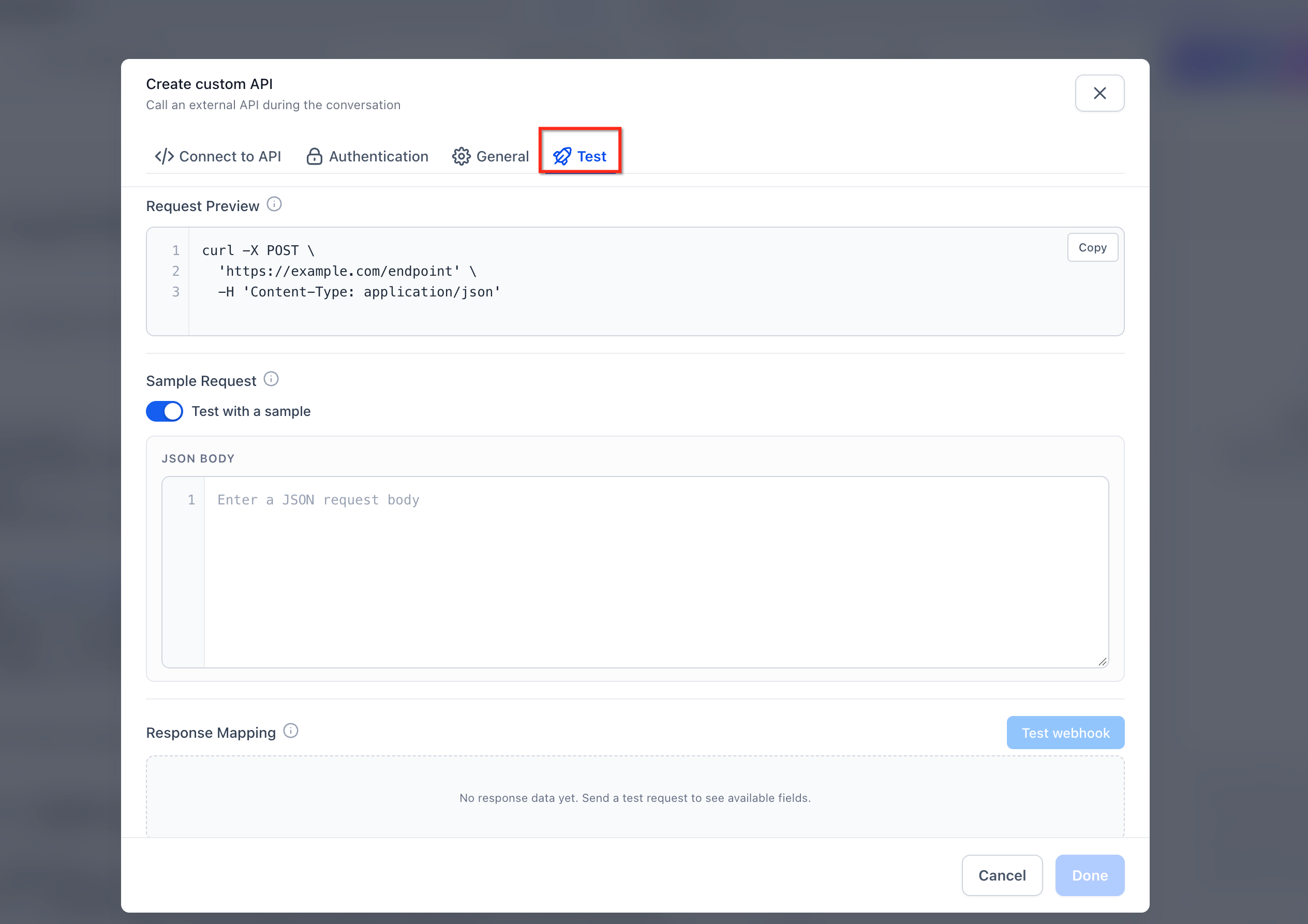
Test an API Call action before using it in customer conversations. The Test tab allows you to run a configured request and save a sample response.
The saved response provides an example of the expected data structure in the agent’s prompt context. API Call actions also support configurable request timeouts of up to 60 seconds.
You can monitor API Call activity using:
-
Conversation action pills: Identify executed actions within conversations.
-
AI Response Info drawer: Review details associated with AI responses.
-
API Calls card on the AI Employees dashboard: Review API Call activity through dashboard reporting.
Managing API Call Actions Through the Public API
The Conversation AI Public API allows developers to manage API Call actions programmatically. Available operations include:
-
Create: Configure an action with its trigger condition and HTTP request settings.
-
Update: Modify an existing action by submitting only the fields that need to change.
These capabilities allow developers to maintain agent action configurations through external systems.
How to Set Up API Call for Conversation AI
Follow these steps to configure an API Call action for a Conversation AI agent.
Step 1: Open Conversation AI
-
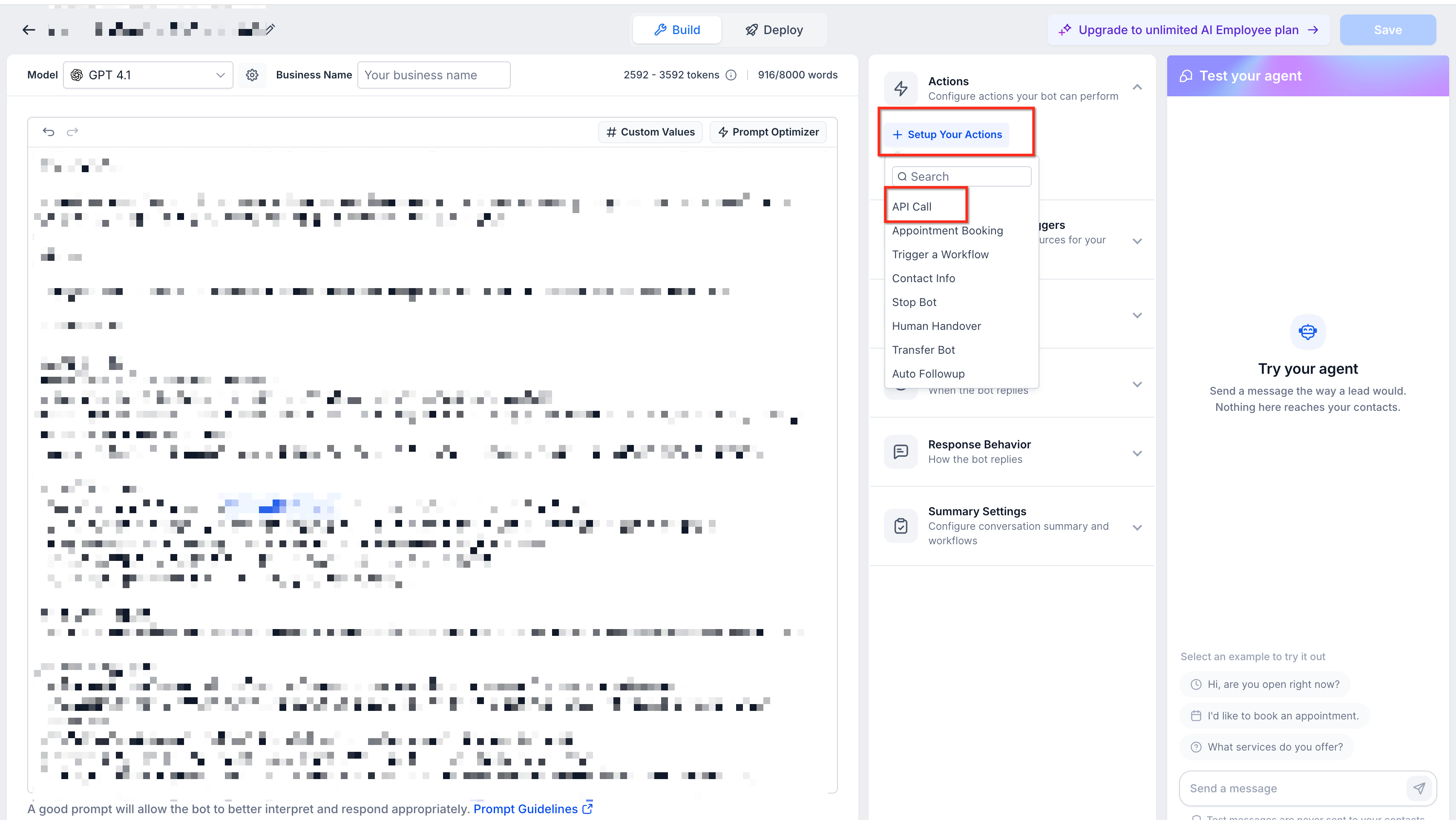
Navigate to AI Agents → Conversation AI.
-
Open the agent you want to configure in Agent Builder.
Step 2: Add an API Call Action
-
Open Actions.
-
Select API Call.
Step 3: Set the Trigger Condition
Describe when the agent should perform the API request. Include the customer intent and the information required to execute the action.
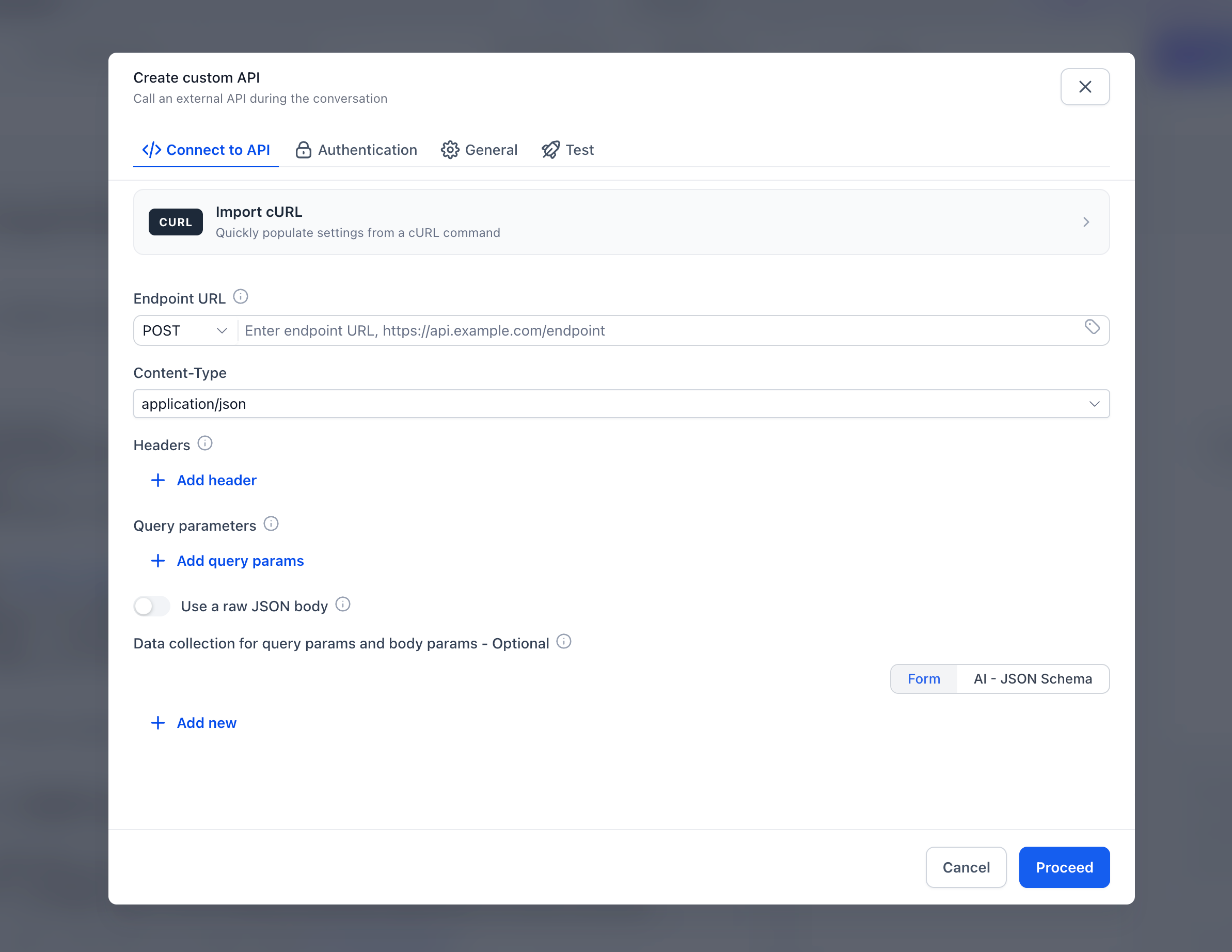
Step 4: Configure the HTTP Request
Enter the external HTTPS endpoint. Configure the required:
-
Headers
-
Query parameters
-
Request body template
Ensure the request configuration follows the connected API’s requirements.
Step 5: Define Parameters
Create parameters for information the agent must collect during the conversation. Reference the parameters in the request configuration using {{variable}} placeholders.
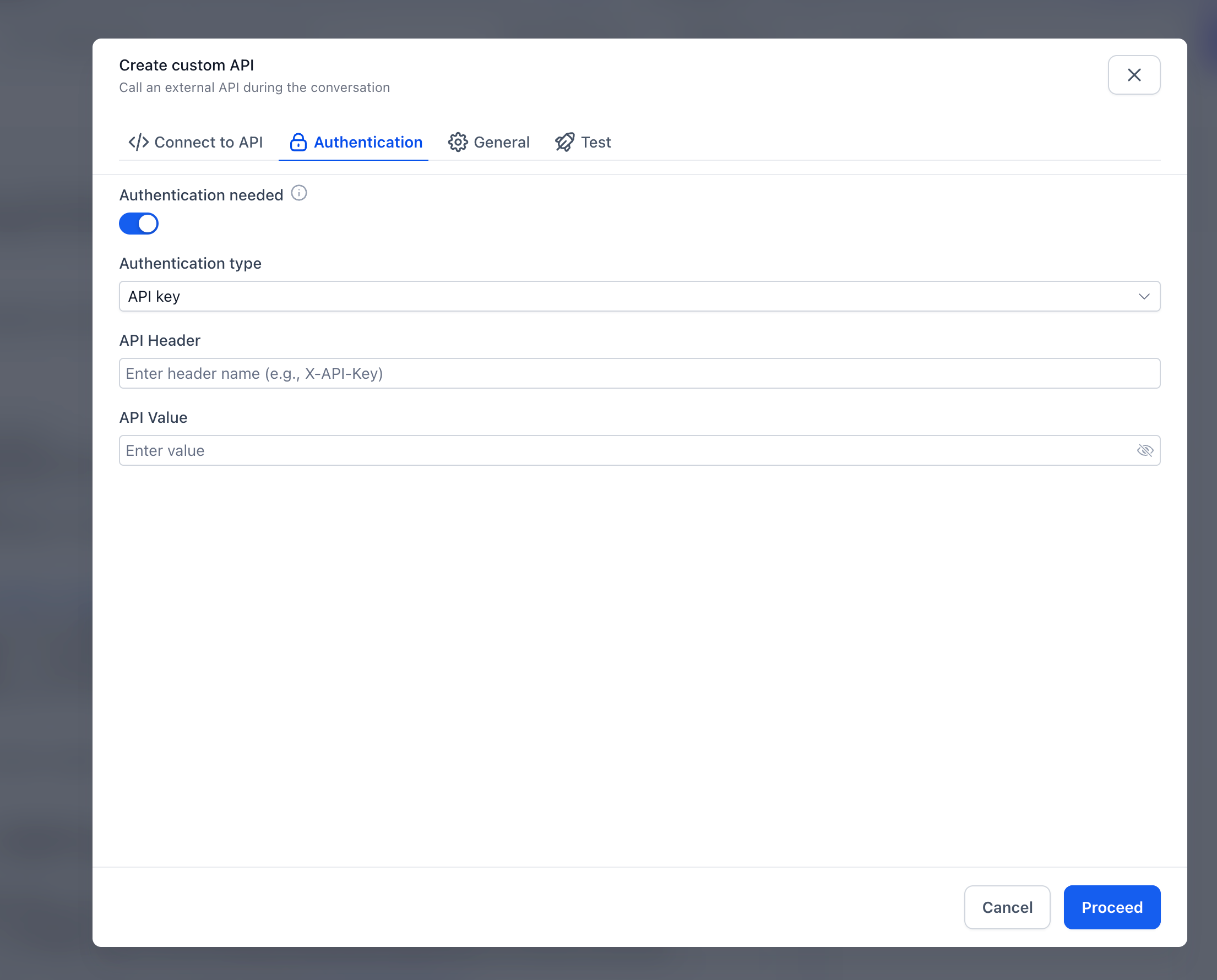
Step 6: Set Authentication
Configure the authentication credentials required by the external API.
Important: Authentication secrets are write-only and cannot be viewed after saving.
Step 7: Select Output Fields
Choose which fields from the API response should be available to the agent. Include only the information needed to complete the requested action.
Step 8: Add a Post-Action Prompt
Provide instructions describing how the agent should use the returned information. Specify how the agent should communicate results and handle missing information.
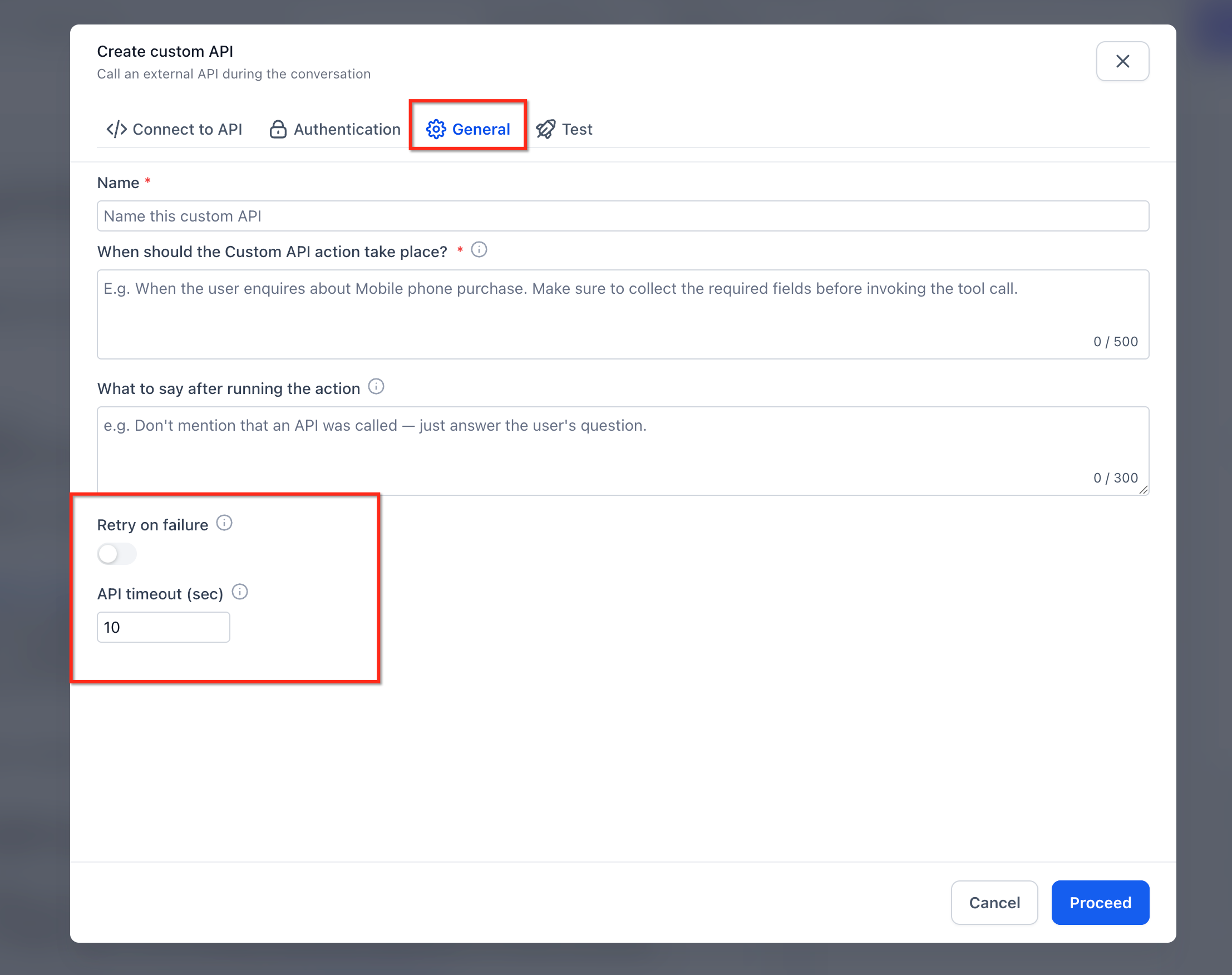
Step 9: Configure the Timeout
Set the request timeout according to the needs of your integration. API Call actions support a maximum timeout of 60 seconds.
Step 10: Test and Save
Open the Test tab. Execute a test request. Save a sample response. Test the agent through a conversation before using it with customers.
Frequently Asked Questions
Q: Can I connect Conversation AI to a custom backend?
Yes. You can connect API Call actions to custom applications that expose compatible HTTPS endpoints.
Q: Can API requests include information provided by customers?
Yes. Dynamic variables allow the agent to insert information gathered during conversations into configured API request parameters.
Q: Can I view authentication credentials after saving them?
No. Authentication secrets are write-only and cannot be displayed after they are saved.
Q: What happens if an API request takes too long?
API Call actions support configurable timeouts of up to 60 seconds. Test the configured timeout to understand how the action behaves when a request exceeds that limit.
Q: How does the agent determine which API response fields to use?
Configure the output fields and provide post-action prompts that instruct the agent how to use the returned information.
Q: Where can I monitor API Call activity?
You can review action activity through conversation action pills, the AI Response Info drawer, and the API Calls card on the AI Employees dashboard.
Q: Can I manage API Call actions programmatically?
Yes. The Conversation AI Public API supports creating and updating API Call actions.