
The Trial Chat Prompt Optimizer helps you improve your Conversations AI agent using a test conversation. It analyzes your trial chat and current prompt, creates test scenarios, evaluates agent responses, and recommends improvements. You can review the results, apply a preferred prompt variation, and save the updated agent.
TABLE OF CONTENTS
What is Trial Chat Prompt Optimizer?
Trial Chat Prompt Optimizer lets you improve your agent’s instructions directly from the Test your agent panel in the Conversations AI builder. After you send a test message and the agent responds, you can select Optimize Prompt to begin an optimization run.
The optimizer analyzes the trial conversation alongside the prompt displayed in the builder. It also includes any edits you have made but not yet saved. This allows you to evaluate your current instructions, identify possible improvements, and test alternative prompts before updating the agent.
Key Benefits of Trial Chat Prompt Optimizer
Trial Chat Prompt Optimizer makes it easier to identify and address issues in your agent’s responses before updating its live configuration.
-
Optimize from Trial Chats: Start improving a prompt immediately after testing an agent’s response.
-
Include Unsaved Changes: Evaluate the prompt currently displayed in the builder without saving your latest edits.
-
Automate Testing: Generate test scenarios, assess agent responses, and evaluate potential prompt improvements.
-
Review Detailed Results: Examine accuracy scores, test scenarios, conversation transcripts, evaluation reasoning, and prompt changes.
-
Track Optimization Progress: Follow active runs in the agent builder or access additional information in Prompt Optimizer.
-
Control Prompt Updates: Select and review improved instructions before saving changes to your agent.
Requirements for Trial Chat Prompt Optimizer
Before starting an optimization run, confirm that you meet the following requirements:
-
The Conversations AI Prompt Optimizer feature is enabled in Labs.
-
You have permission to manage the Conversations AI agent.
-
Your trial conversation includes at least one user message and one agent response.
Note: The Optimize Prompt button becomes available only after the agent replies to a test message.
How Trial Chat Prompt Optimization Works
The optimizer uses your test conversation and the current prompt in the agent builder to evaluate responses and identify opportunities for improvement. It creates test scenarios and evaluates potential prompt variations using a separate evaluation copy of the agent. Your existing live prompt remains unchanged until you apply and save an updated version.
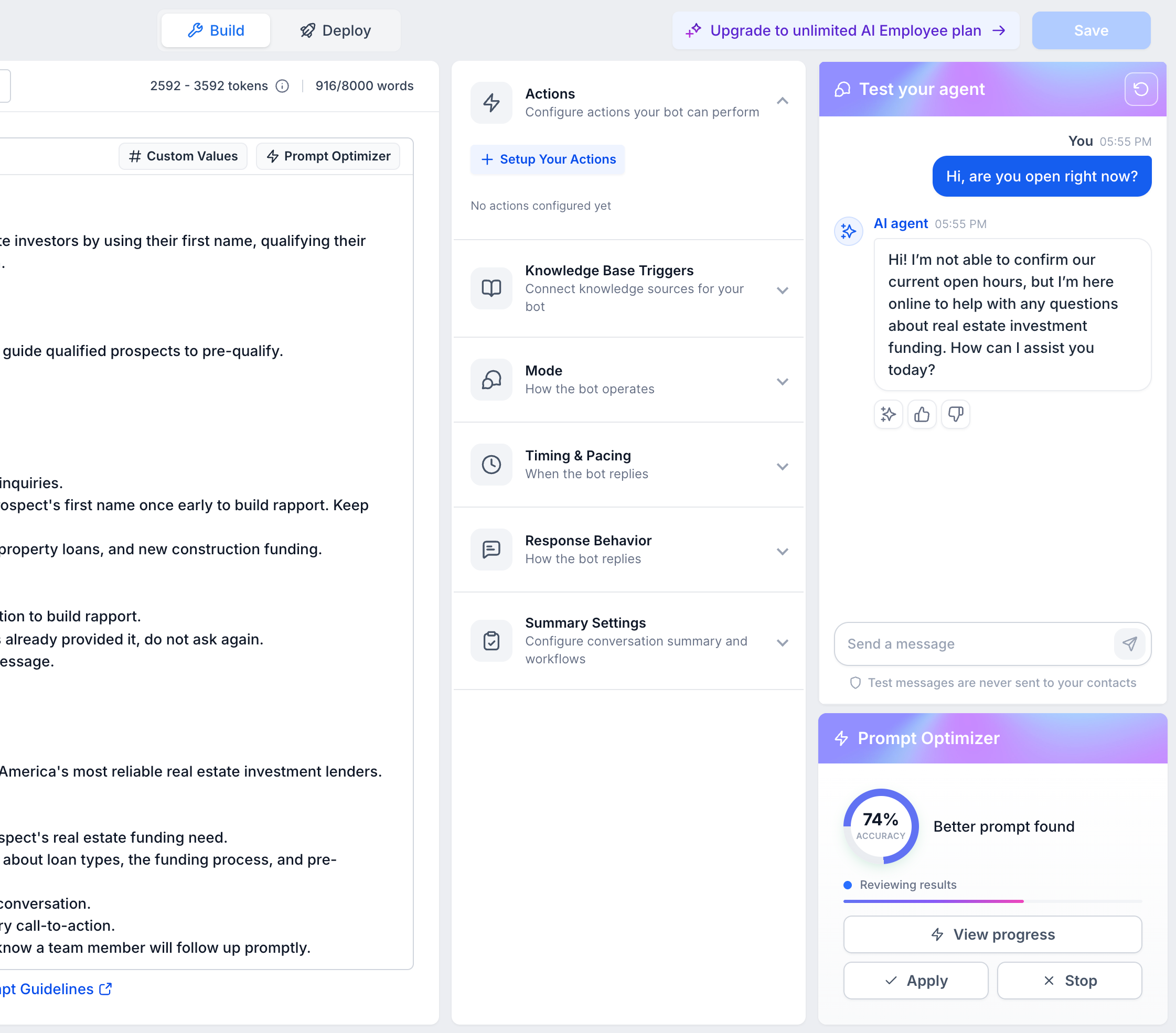
You can monitor an optimization run directly in the builder or open Prompt Optimizer to review its progress and results. Completed variations provide information such as:
-
Accuracy: The variation’s performance across evaluated scenarios.
-
Scenarios: Test situations used to examine the agent’s behavior.
-
Chat Transcripts: Conversations generated during optimization testing.
-
Evaluations and Reasoning: Assessment results and explanations of the agent’s performance.
-
Prompt Differences: Changes made between the existing prompt and an optimized variation.
Important: Testing uses an evaluation copy of the agent, but configured actions may still execute. Check connected workflows, calendars, and other resources before starting optimization.
How to Optimize Conversations AI Prompts from a Trial Chat
You can optimize an agent’s prompt directly from a trial conversation, compare the suggested improvements, and apply the variation that best meets your requirements.
Step 1: Start a Trial Chat
Start by testing your agent with a realistic customer message. This helps you identify incorrect, incomplete, or unexpected responses.
-
Go to AI Agents → Conversation AI.
-
Open the agent you want to optimize.
-
In the agent builder, locate the Test your agent panel.
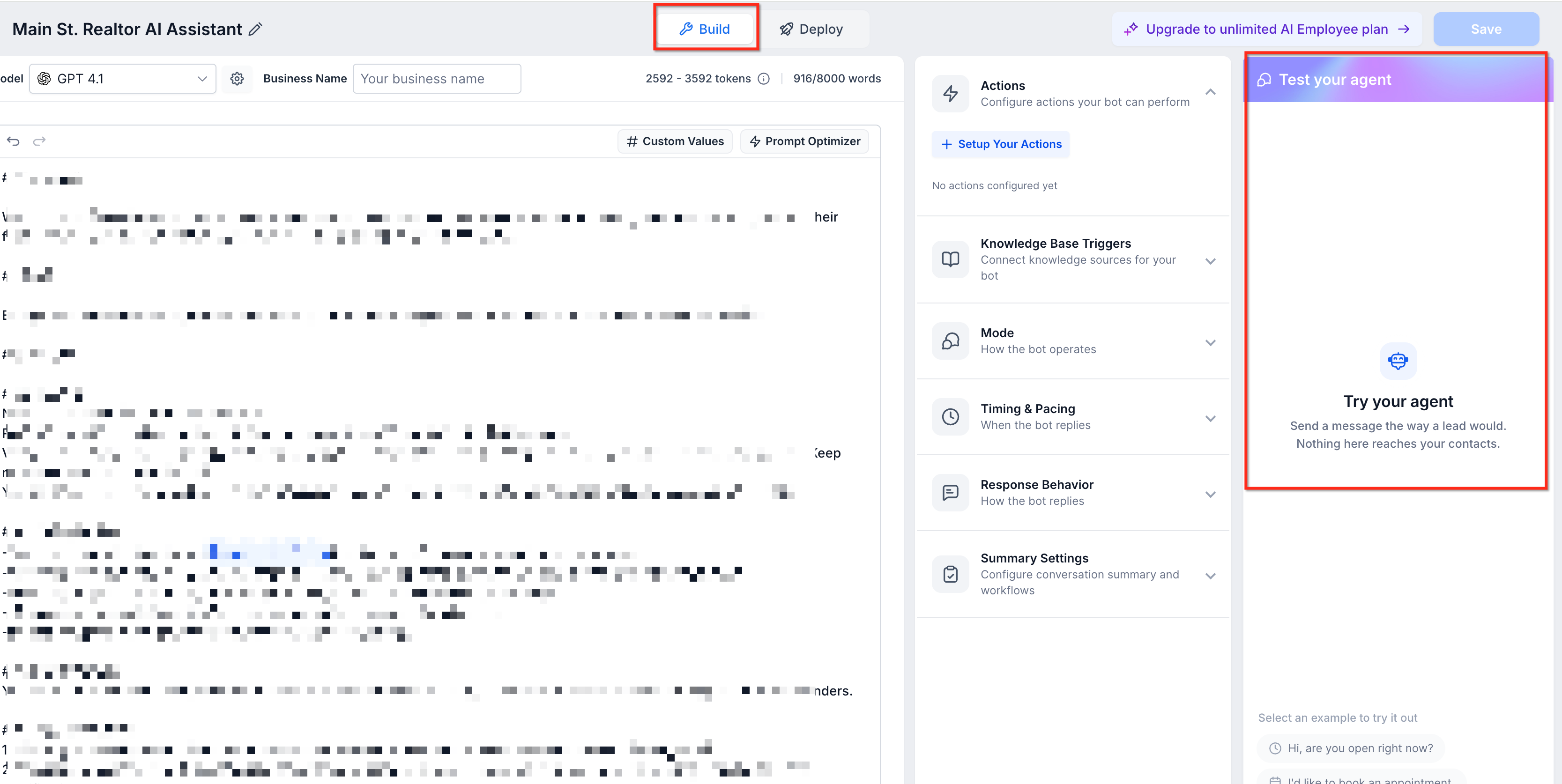
-
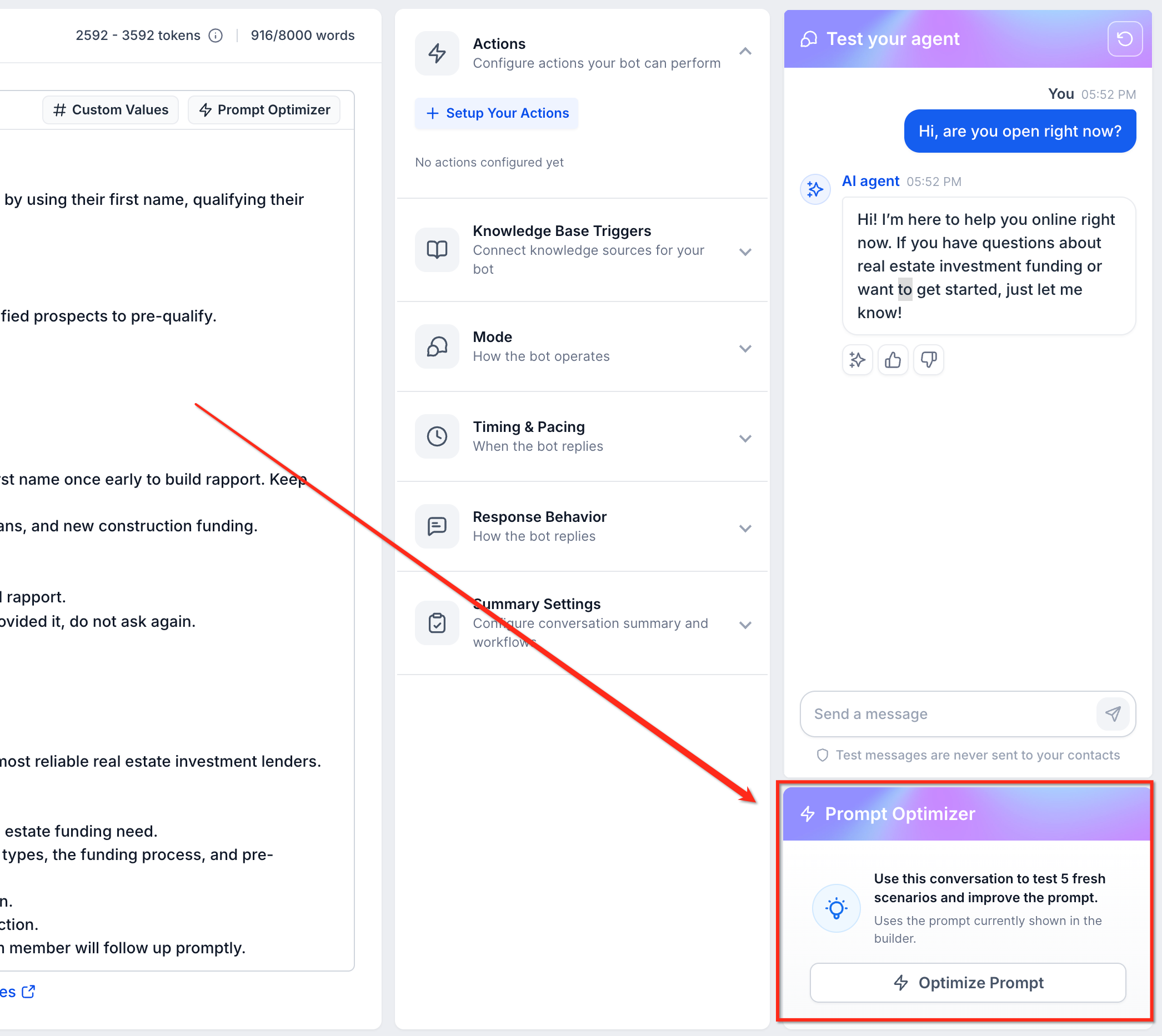
Enter a test message and wait for the agent’s response.
-
Review the conversation and click Optimize Prompt.
Step 2: Run the Optimization
The optimizer evaluates the trial conversation using the current prompt, including any unsaved changes.
-
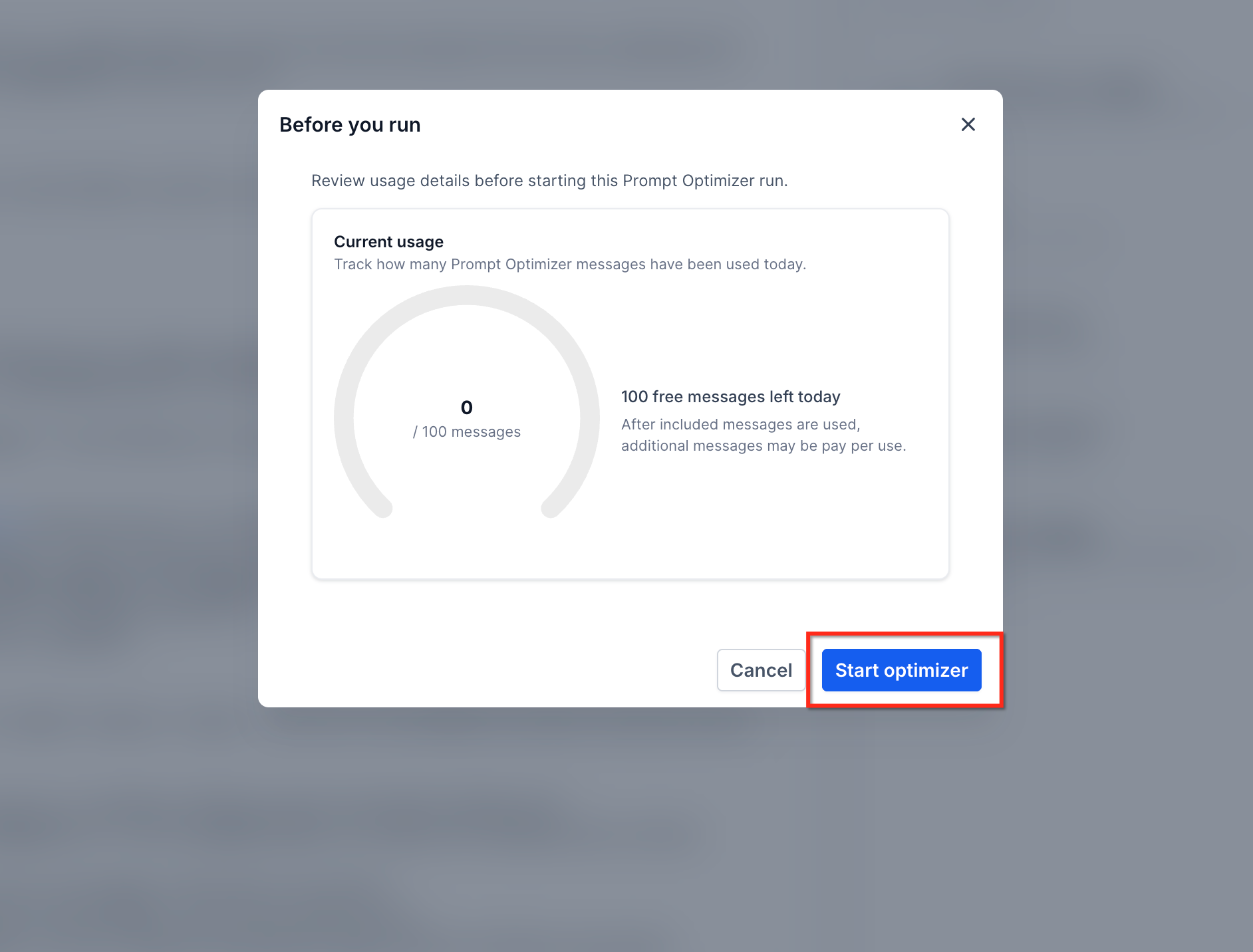
Review the optimization usage details.
-
Start the optimization run.
-
Track its progress in the agent builder or open Prompt Optimizer for more information.
-
Let the optimizer create test scenarios, evaluate agent responses, and test potential prompt variations.
You can stop an ongoing run without removing results that have already been completed.
Important: Although the optimizer tests an evaluation copy of the agent, connected actions may still run. Use test resources where appropriate to avoid unintended activity.
Step 3: Review Optimization Results
After the optimizer completes its tests, review the available variations before selecting an updated prompt.
-
Open the optimization results.
-
Find the strongest completed prompt variation.
-
Examine its accuracy score, test scenarios, chat transcripts, and evaluation results.
-
Review the evaluation reasoning and differences between the existing and suggested prompts.
-
Confirm that the proposed changes address the original issue and align with your agent’s intended behavior.
Note: A higher accuracy score does not guarantee that a prompt will perform correctly in every situation. Review the supporting test results before applying a variation.
Step 4: Apply and Save the Optimized Prompt
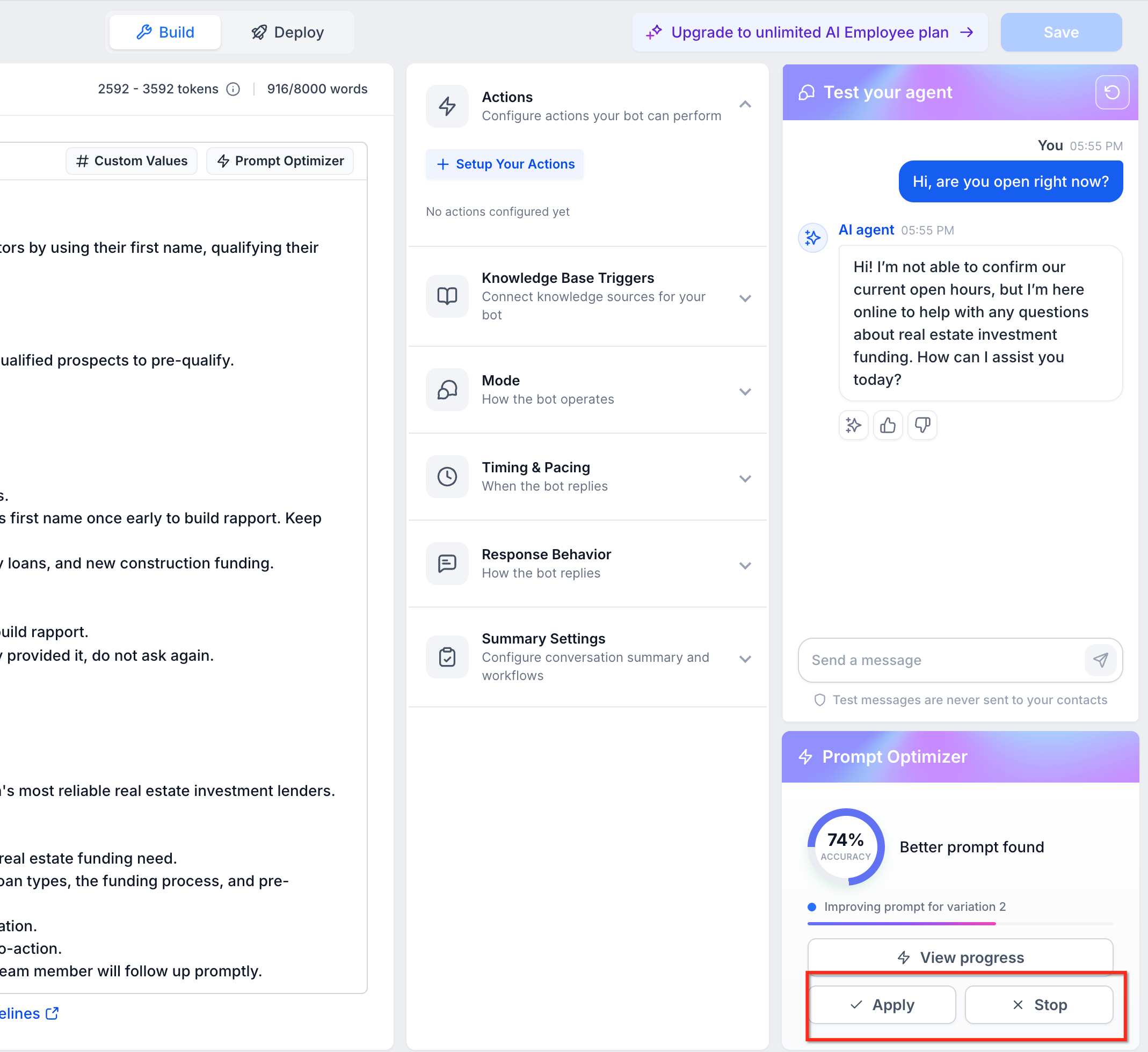
After choosing a preferred variation, apply it to the agent builder and review the updated instructions.
-
Select the prompt variation you want to use.
-
Apply the variation to the Conversations AI builder.
-
Review the updated prompt and confirm that the instructions are correct.
-
Click Save to make the changes live.
-
Test the agent again to verify that it responds as expected.
Note: Applying an optimized variation updates the prompt in the builder. The changes do not become live until you save the agent.
Managing Optimization Runs
You can access optimization runs even after clearing the trial conversation. This allows you to review previous results or return to completed tests.
-
Active Runs: Monitor ongoing optimization from the agent builder.
-
Execution History: Revisit optimization runs after resetting or reloading the trial chat.
-
Stopped Runs: Access completed results even when you stop the remaining optimization work.
-
Unsaved Changes: Include your latest prompt edits in optimization testing without making them live. Save the agent when you are ready to apply the changes.
Frequently Asked Questions
Q: Why can’t I see the Optimize Prompt button?
Make sure the Conversations AI Prompt Optimizer feature is enabled in Labs and that you have permission to manage the agent. You must also send a test message and receive an agent response before the button appears.
Q: Can I optimize a prompt without saving my latest edits?
Yes. The optimizer evaluates the prompt currently displayed in the agent builder, including changes you have not saved.
Q: What happens if I reset the trial chat?
Resetting the trial chat may clear the conversation, but you can still access the optimization run through Execution History.
Q: Can I stop an optimization run?
Yes. You can stop any remaining optimization work and continue reviewing results that have already been completed.
Q: Can optimization testing trigger real actions?
Yes. Even though the optimizer uses an evaluation copy of the agent, configured actions may still execute. Review connected workflows, calendars, and other resources before running tests.
Q: Does applying an optimized prompt automatically make it live?
No. Applying a variation updates the instructions in the builder. You must click Save to make the updated prompt live.