
Selling online becomes simple when your products, funnel, and checkout are properly connected. This guide walks through creating a product, making it available inside a funnel, and setting up an order form for seamless purchases. Following these steps ensures customers can easily view, select, and complete their orders without friction.
TABLE OF CONTENTS
- What is Product + Funnel Checkout Setup?
- Key Benefits of This Setup
- Create a Product
- Make Product Available in a Funnel
- Add a Funnel Step (If Needed)
- Add Order Element to Checkout Page
- Attach Product to Order Form
- How To Setup Product Sales in Funnels
- Frequently Asked Questions
- Need More Help?
What is Product + Funnel Checkout Setup?
A product and funnel checkout setup connects what you’re selling with where customers buy it. Products store pricing and details, while funnels guide customers through a structured buying journey. When combined with an order form, this setup enables secure and smooth transactions.
Key Benefits of This Setup
Creating a structured sales flow improves both conversions and user experience.
-
Streamlined Selling (bold): Connect products directly to checkout pages
-
Faster Setup (bold): Quickly create and publish sellable items
-
Improved Conversions (bold): Guide customers through a clear buying journey
-
Flexible Selling (bold): Support physical, digital, or service-based products
-
Seamless Checkout (bold): Provide a smooth and secure purchase experience
Create a Product
Adding a product is the first step in making something available for purchase.
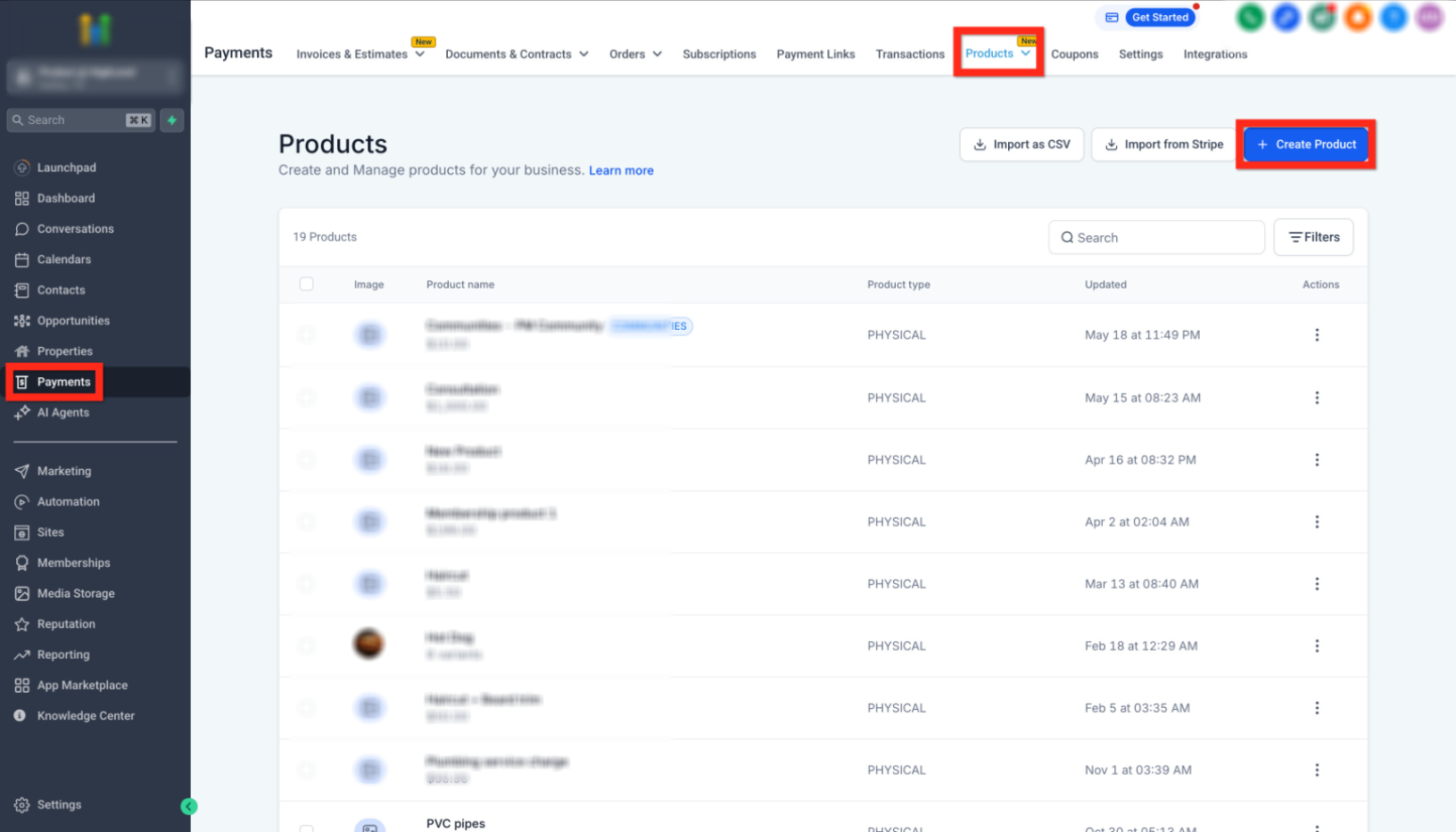
Click into the payments section and select Products to access your product list.
Click Create Product to begin adding a new item.
What to do:
-
Enter product name
-
Add pricing details
-
Include descriptions and images (optional)
-
Click Save
Make Product Available in a Funnel
After creating a product, it must be connected to a funnel so customers can access it.
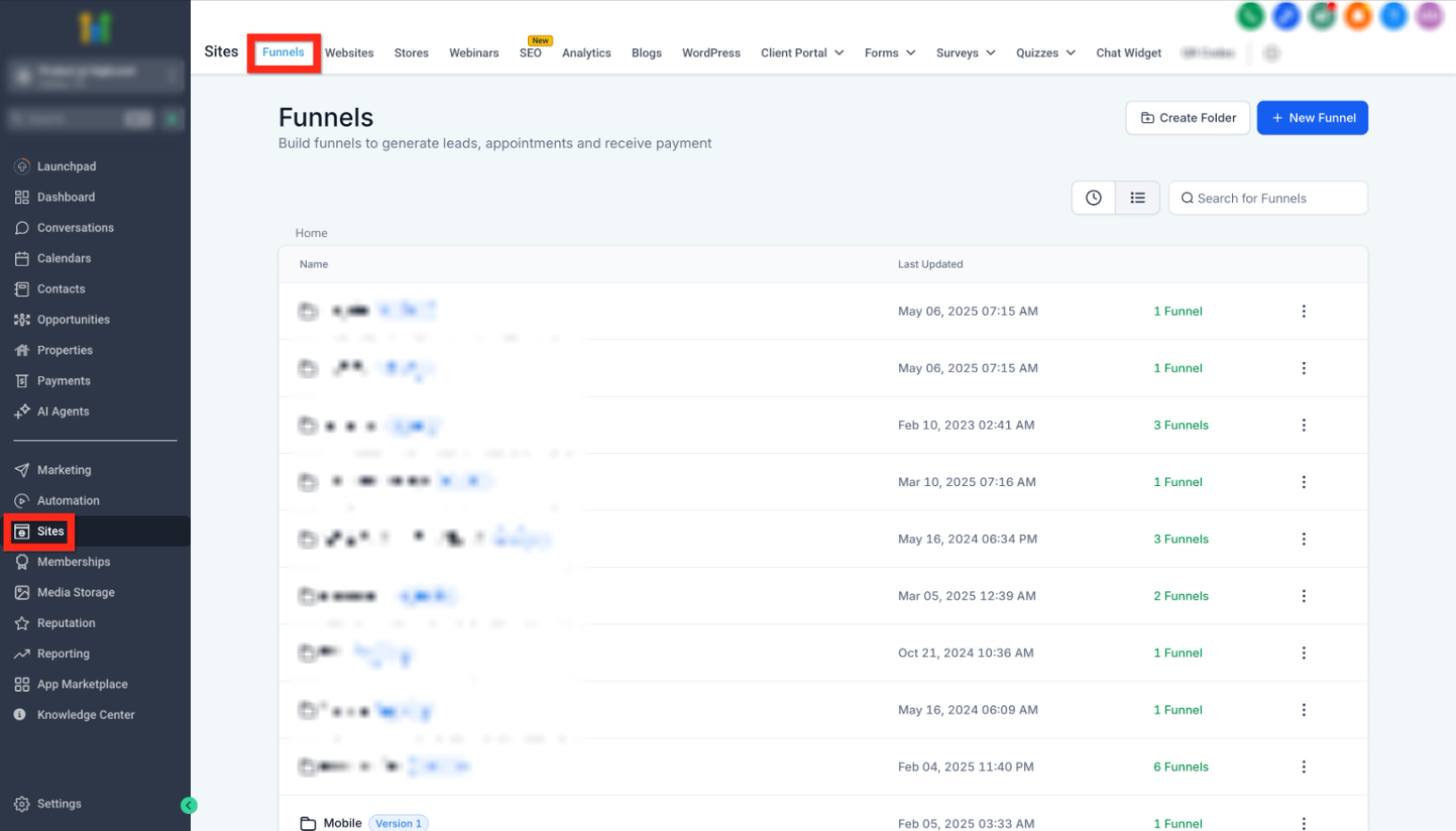
Go to the Sites section and click Funnels to choose where your product will be sold.
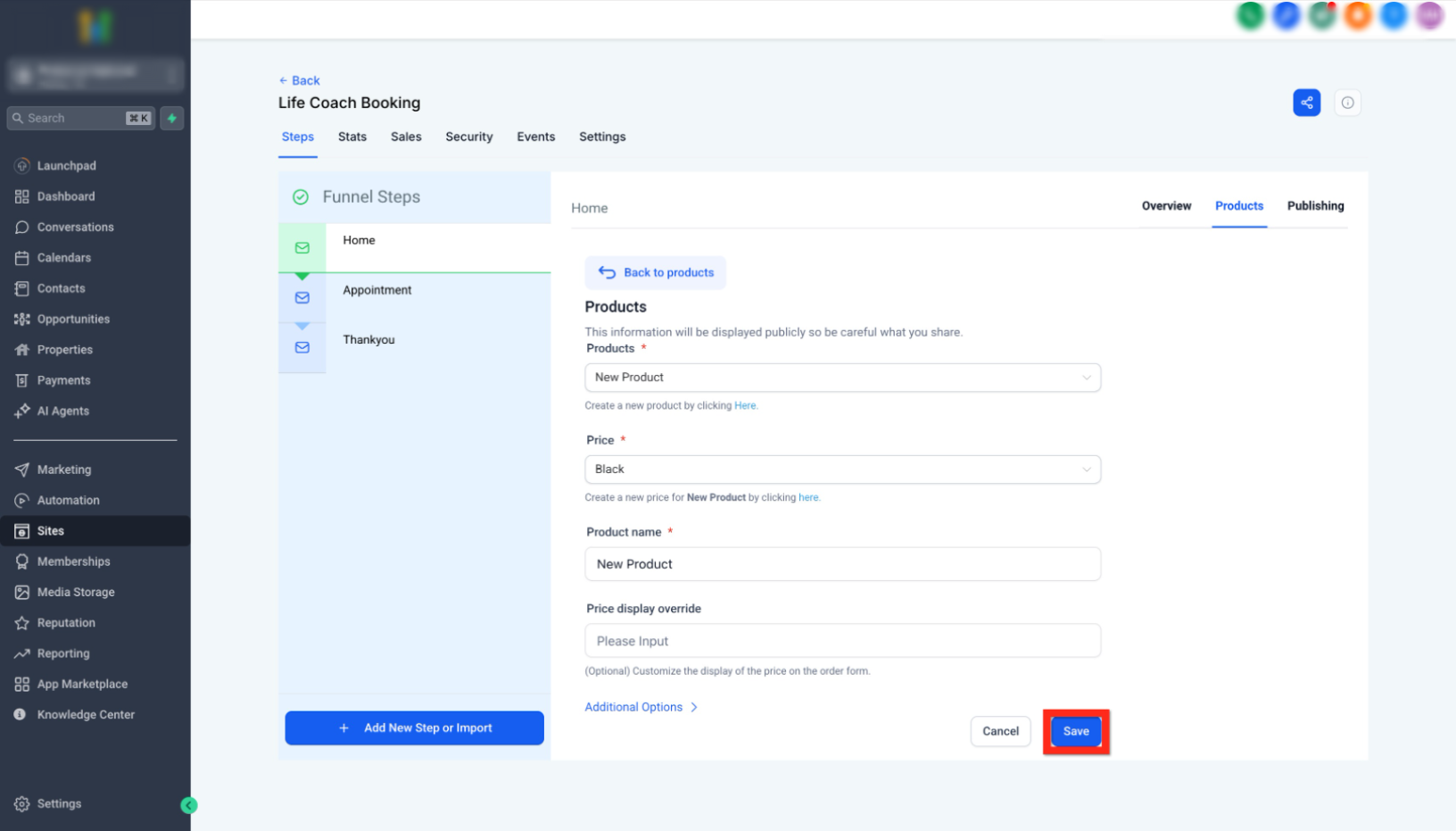
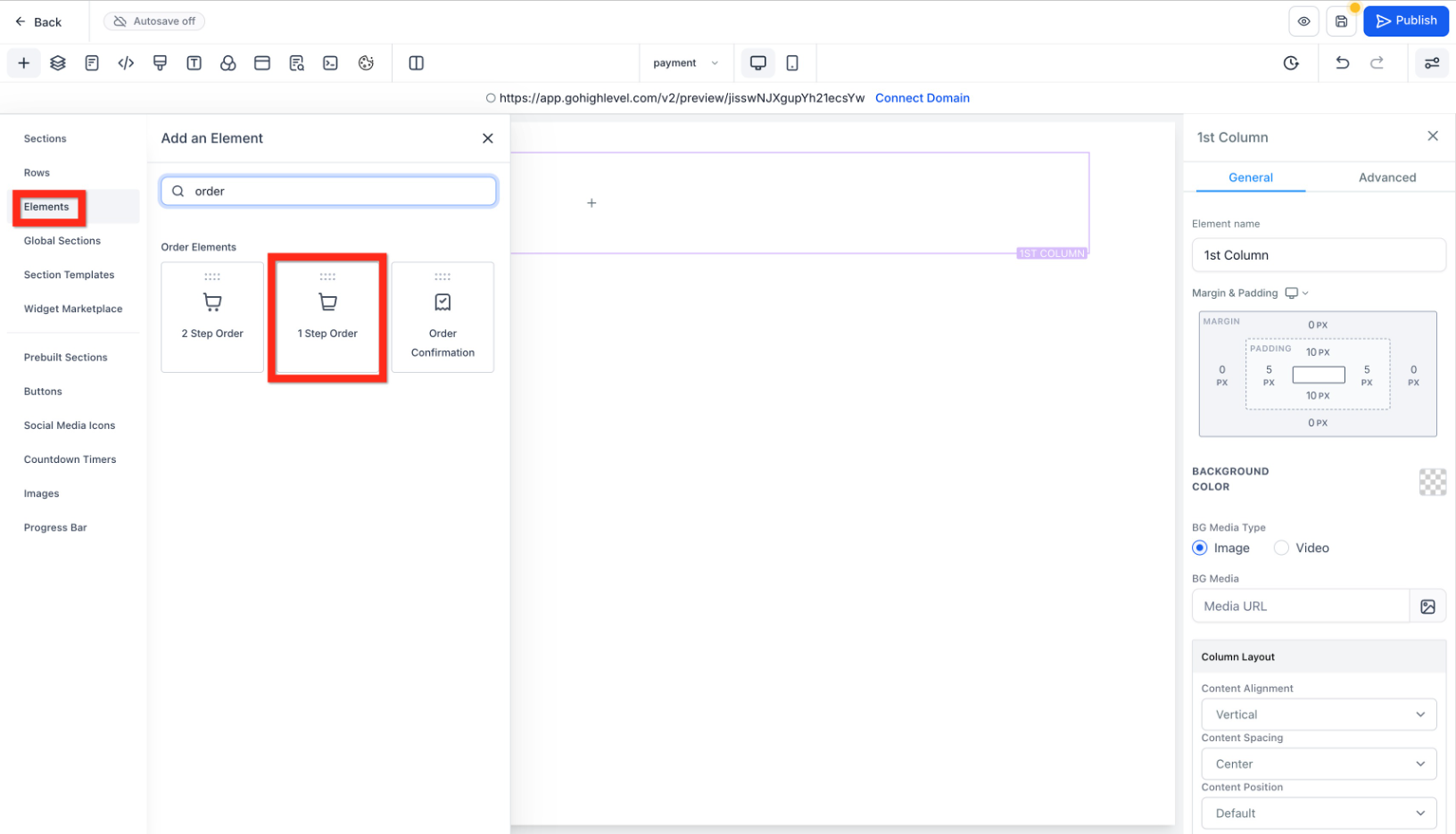
Select a funnel step and open the Products tab, then:
-
Choose your product
-
Select pricing
-
Click Save
Add a Funnel Step (If Needed)
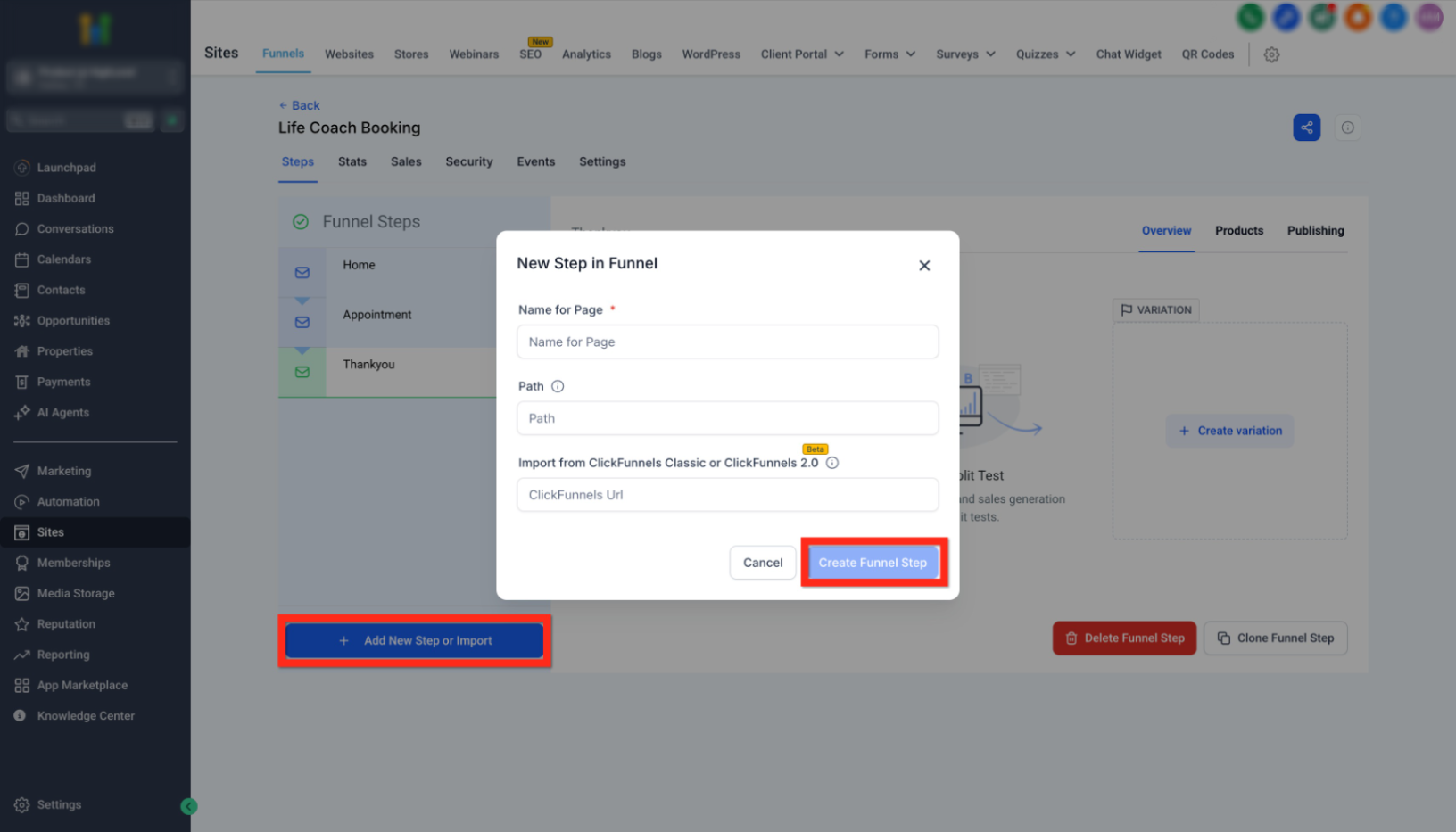
If a checkout page does not exist, create one before adding your order form.
Click Add New Step, enter a page name, and confirm by clicking Create Funnel Step.
Add Order Element to Checkout Page
The order form allows customers to complete purchases directly within the funnel.
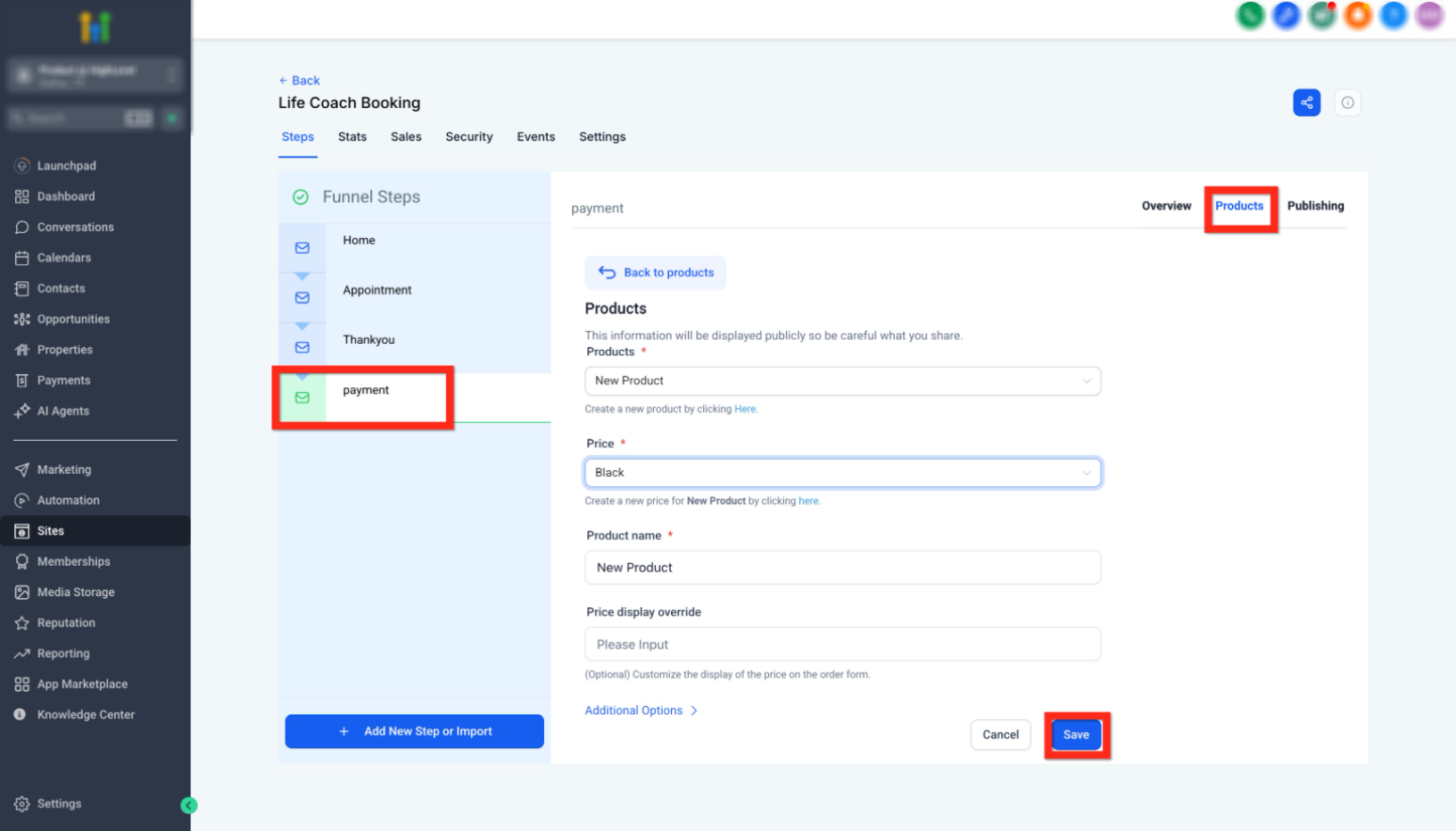
Inside the page builder:
-
Click Elements
-
Search for “order”
-
Select 1 Step Order (or 2-step if preferred)
Attach Product to Order Form
Ensure the order form is linked to the correct product so customers can purchase it.
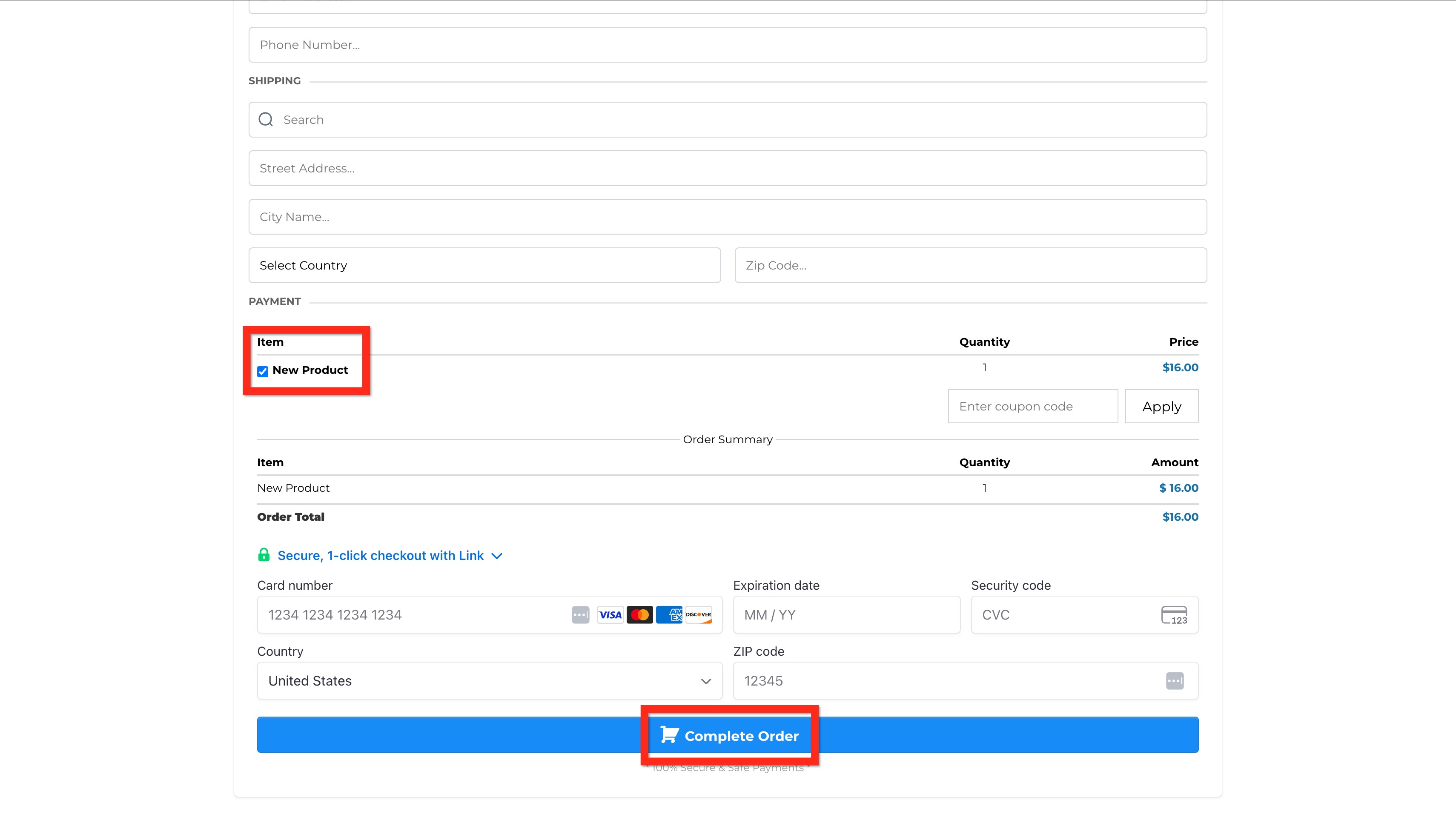
Verify that the product appears in the order summary and is selectable before completing the setup.
What to do:
-
Confirm product is listed
-
Check pricing accuracy
-
Save and publish the page
How To Setup Product Sales in Funnels
Setting everything up correctly ensures customers can successfully complete purchases.
-
Create a product with pricing and details
-
Open a funnel and select a step
-
Add the product under the Products tab
-
Create a checkout page if needed
-
Add an order form element
-
Link the product to the order form
-
Save and publish
Frequently Asked Questions
Q: Why is my product not showing in the funnel?
Make sure the product is added under the funnel step’s Products tab and saved.
Q: Can I sell multiple products in one funnel?
Yes, you can add multiple products and offer different pricing options.
Q: What’s the difference between one-step and two-step order forms?
One-step collects all details at once, while two-step separates contact and payment information.
Q: Do I need a funnel step before adding an order form?
Yes, the order form must be placed inside a funnel page.
Q: Can I edit a product after creating it?
Yes, products can be updated anytime, and changes will reflect in connected funnels.
Need More Help?
If you need assistance setting up products, funnels, or checkout pages, explore additional help resources or contact support. Proper configuration ensures a smooth and successful selling experience.