
AI Message Details provide full visibility into how AI-generated responses are created within conversations. This feature allows you to view prompts, knowledge sources, intent, and actions executed by the AI in real time. With the ability to edit data directly, you can quickly improve response accuracy and optimize performance. This level of transparency helps you better understand and control your AI interactions.
TABLE OF CONTENTS
- What are AI Message Details?
- Key Benefits of AI Message Details
- Where to Access AI Message Details
- AI Response Overview
- Understanding Prompt and Intent
- Viewing Knowledge Sources (Knowledge Chunks)
- Editing Knowledge Base Data
- Chat History Context
- Actions Executed by AI
- Example: Calendar and Appointment Actions
- How To Use AI Message Details Effectively
- Frequently Asked Questions
- Need More Help?
What are AI Message Details?
AI Message Details give you a complete breakdown of how each AI response is generated, including the data, logic, and history used to produce it. This helps identify why the AI responded a certain way and allows quick adjustments to improve future responses.
Key Benefits of AI Message Details
Understanding AI behavior at a deeper level helps improve performance, accuracy, and control across conversations.
-
Full Transparency: See exactly how each AI response is generated
-
Real-Time Editing: Update knowledge sources directly from conversations
-
Improved Accuracy: Quickly fix incorrect or outdated information
-
Better Debugging: Identify issues with prompts, intent, or data sources
-
Workflow Visibility: Track actions executed during AI interactions
Where to Access AI Message Details
AI Message Details are accessible directly within the conversation view, allowing you to inspect responses without leaving the chat interface.
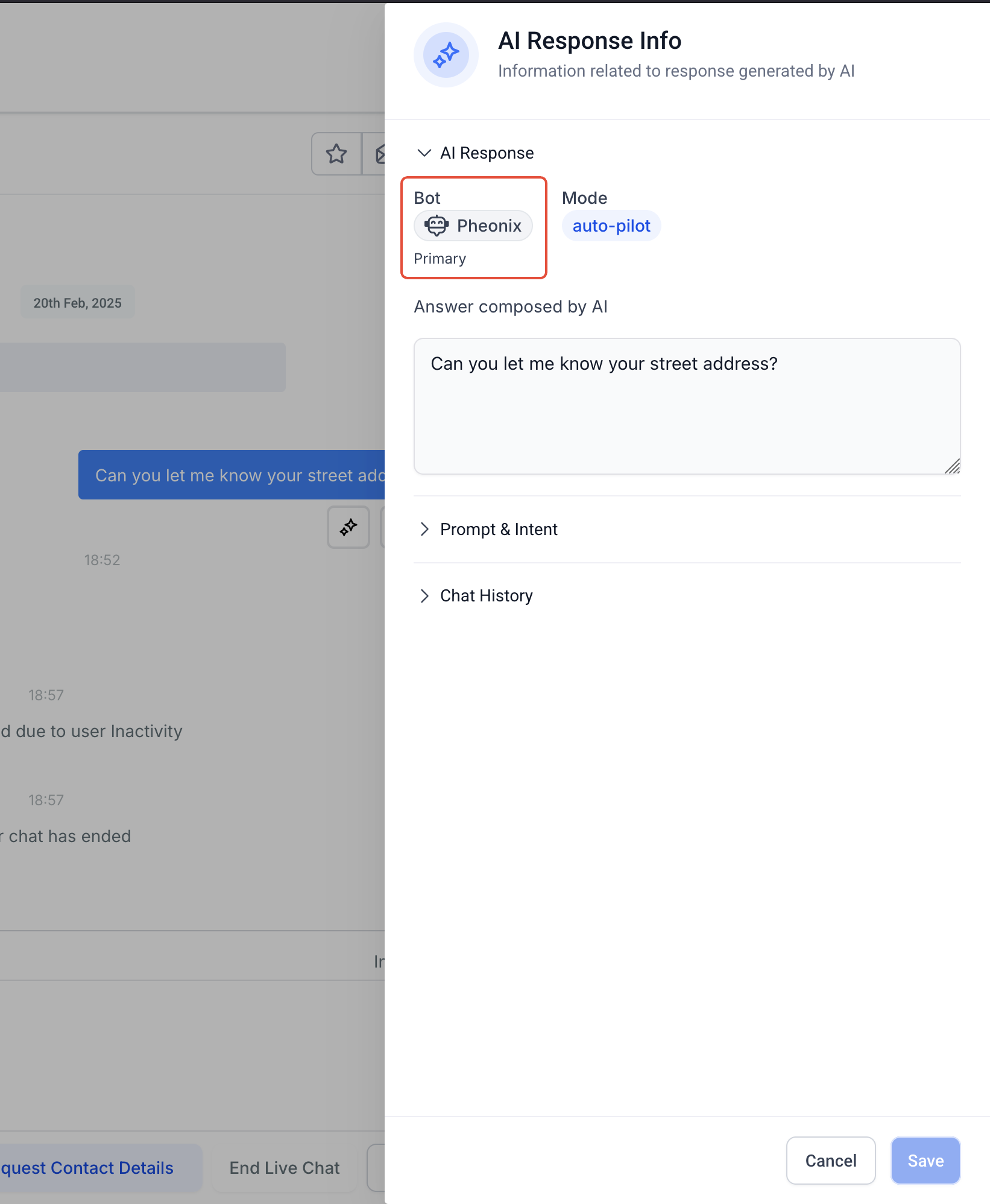
Click the sparkle/AI icon next to an AI-generated message to open the details panel. This reveals the full breakdown of how the response was created.
AI Response Overview
The AI Response section displays the exact message sent to the contact, along with details about the bot and mode used.
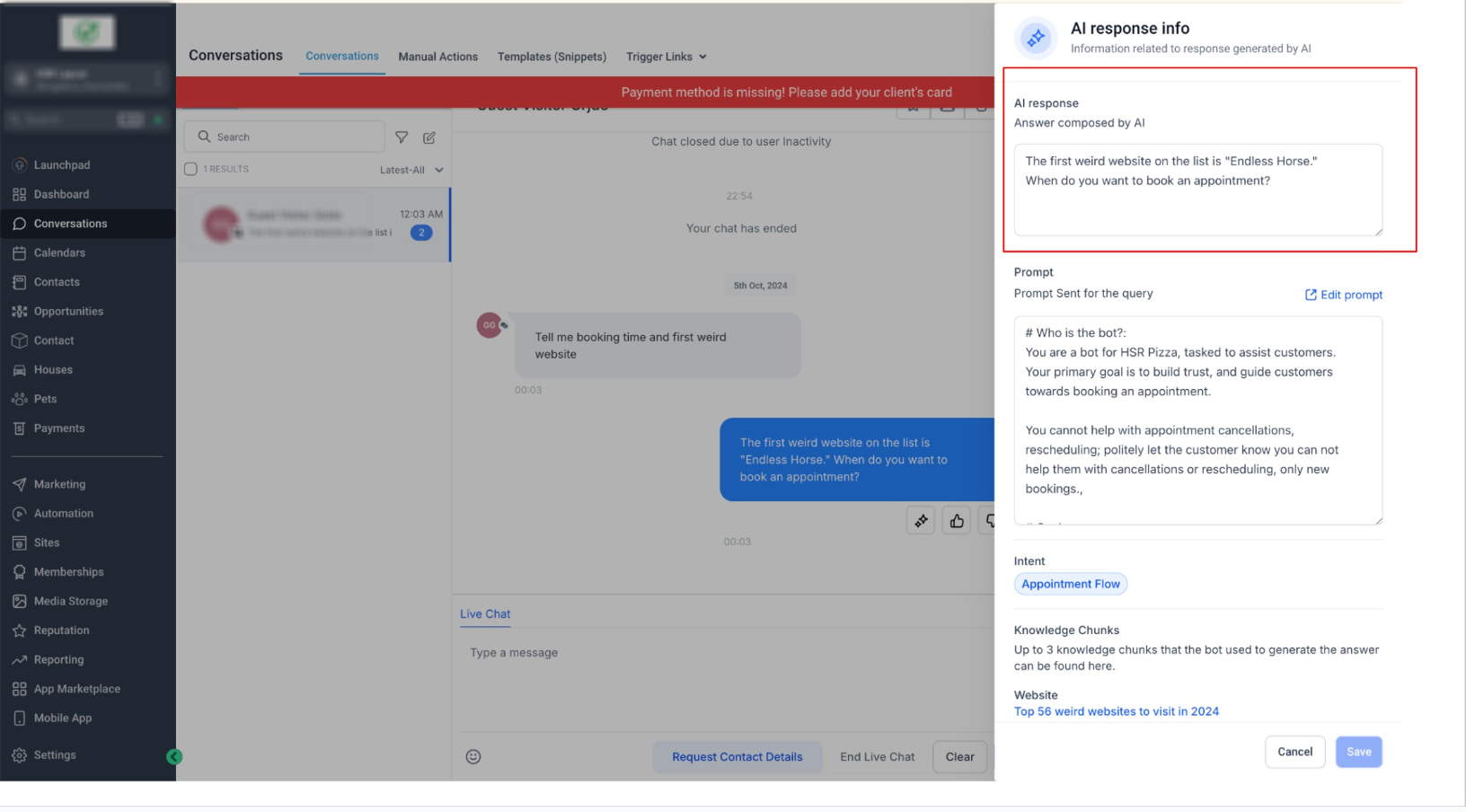
View the generated response along with the assigned bot and mode (such as auto-pilot). This confirms which bot handled the interaction.
Understanding Prompt and Intent
The prompt and intent define how the AI interprets and responds to user messages. Reviewing this helps ensure responses align with your goals.
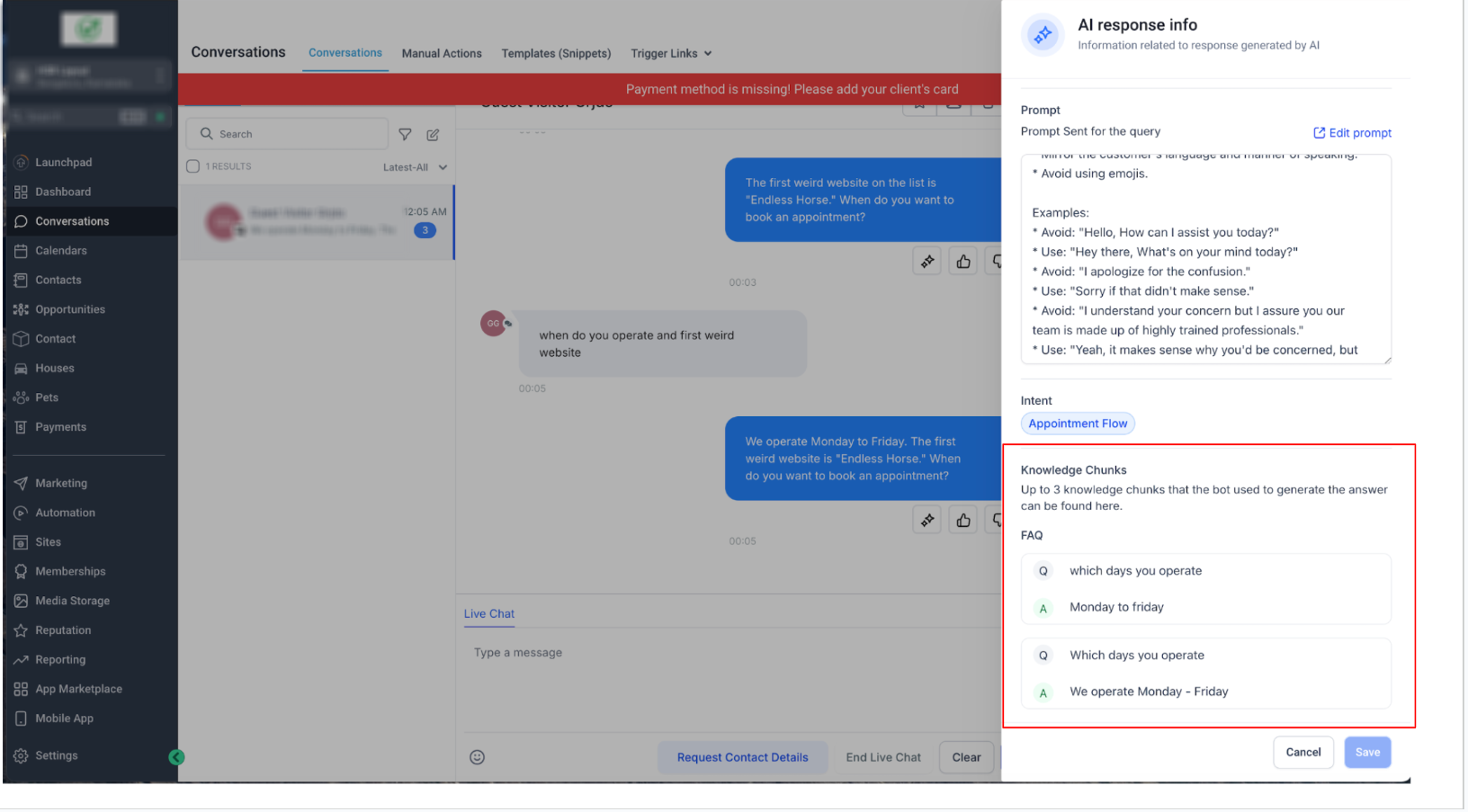
Expand the prompt section to see the instructions and intent used. You can also edit the prompt to refine future responses.
Viewing Knowledge Sources (Knowledge Chunks)
Knowledge chunks show the data sources the AI used to generate its response, such as FAQs or website content.
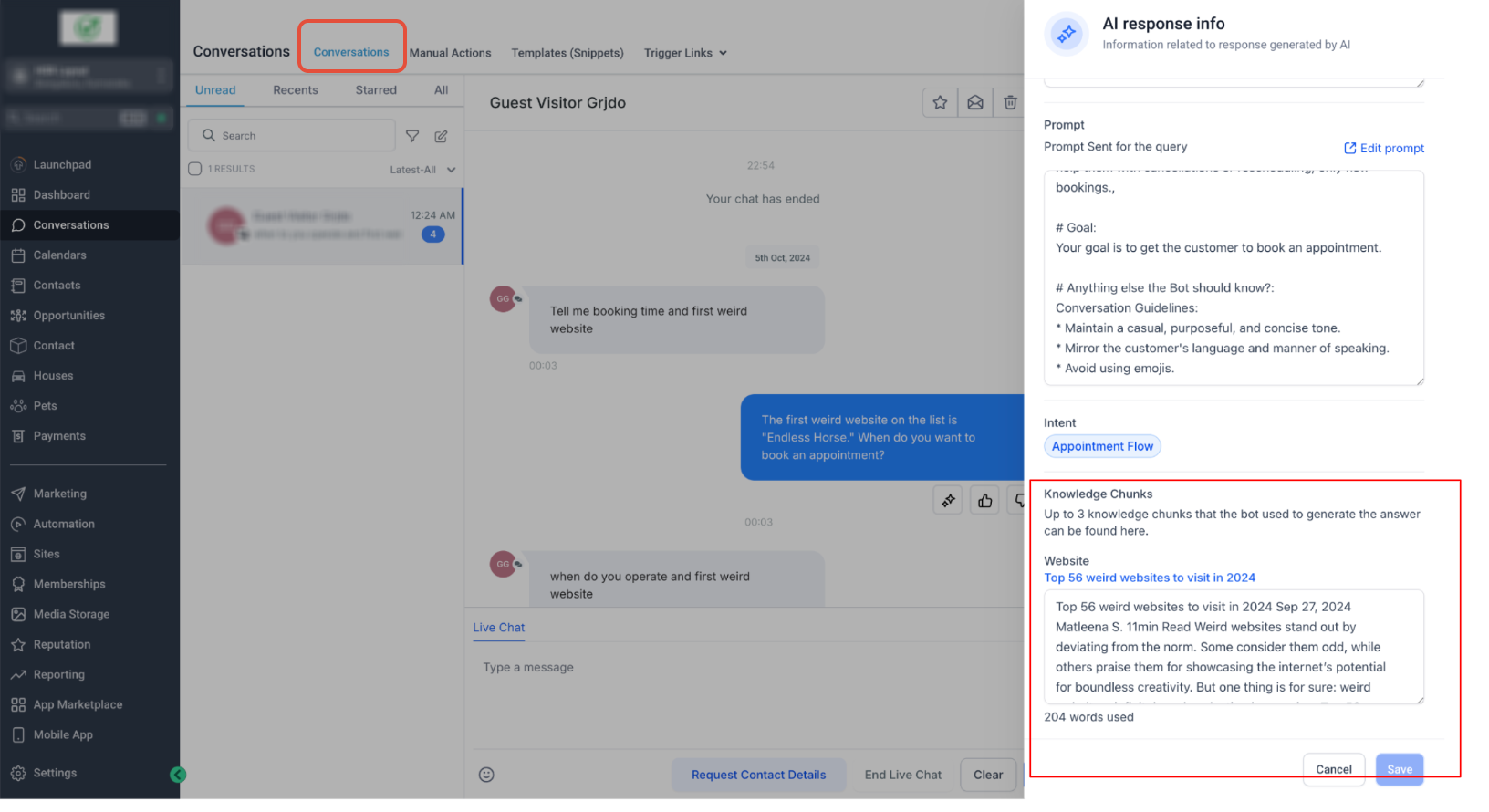
Review up to three data sources used in the response. These may include FAQs or website content that influenced the answer.
Editing Knowledge Base Data
You can update incorrect or outdated information directly from the conversation to improve future AI responses.
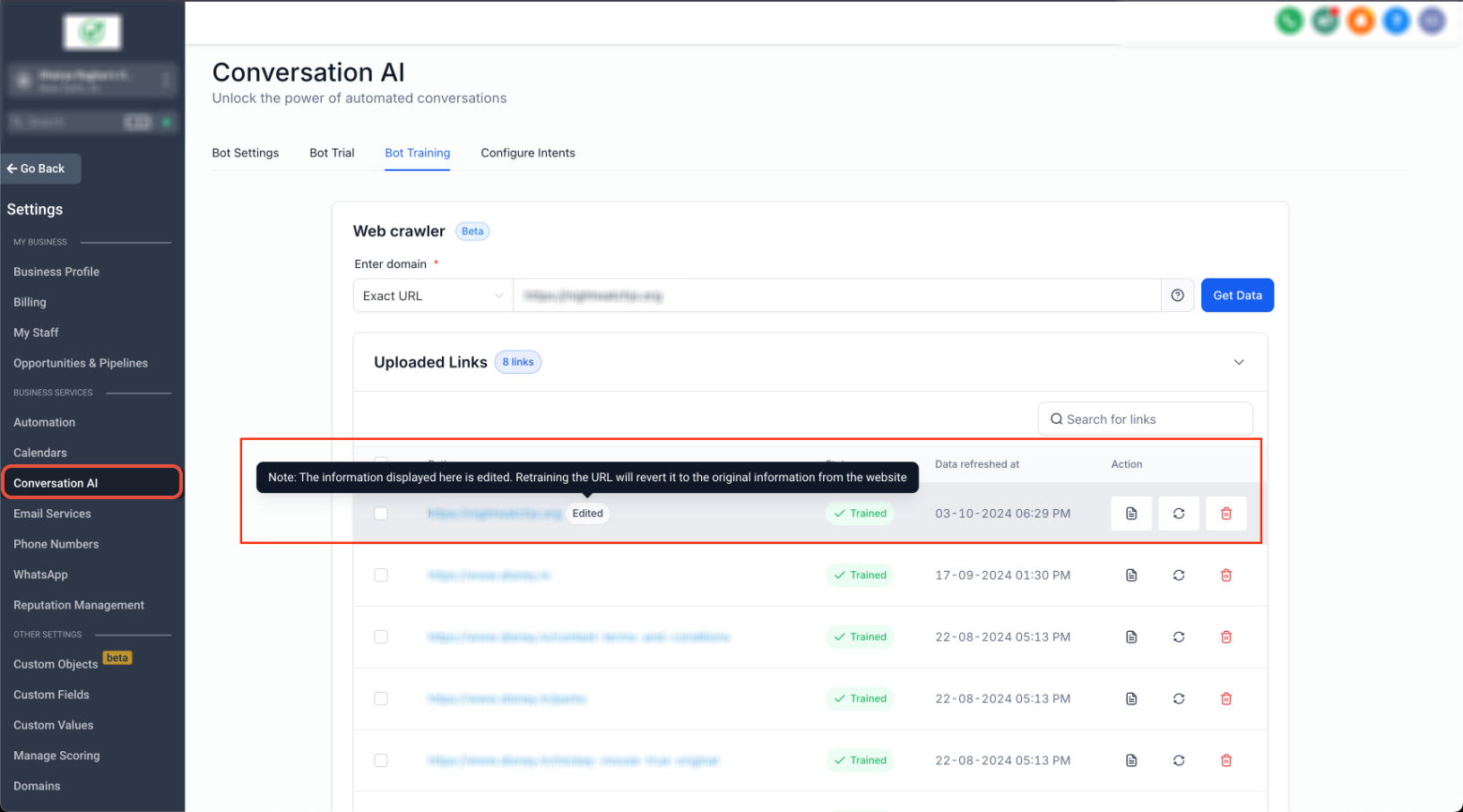
Click on a knowledge chunk to edit the content. Save changes to immediately update the AI’s knowledge base.
Chat History Context
Chat history shows previous messages that influenced the AI response, helping you understand context.
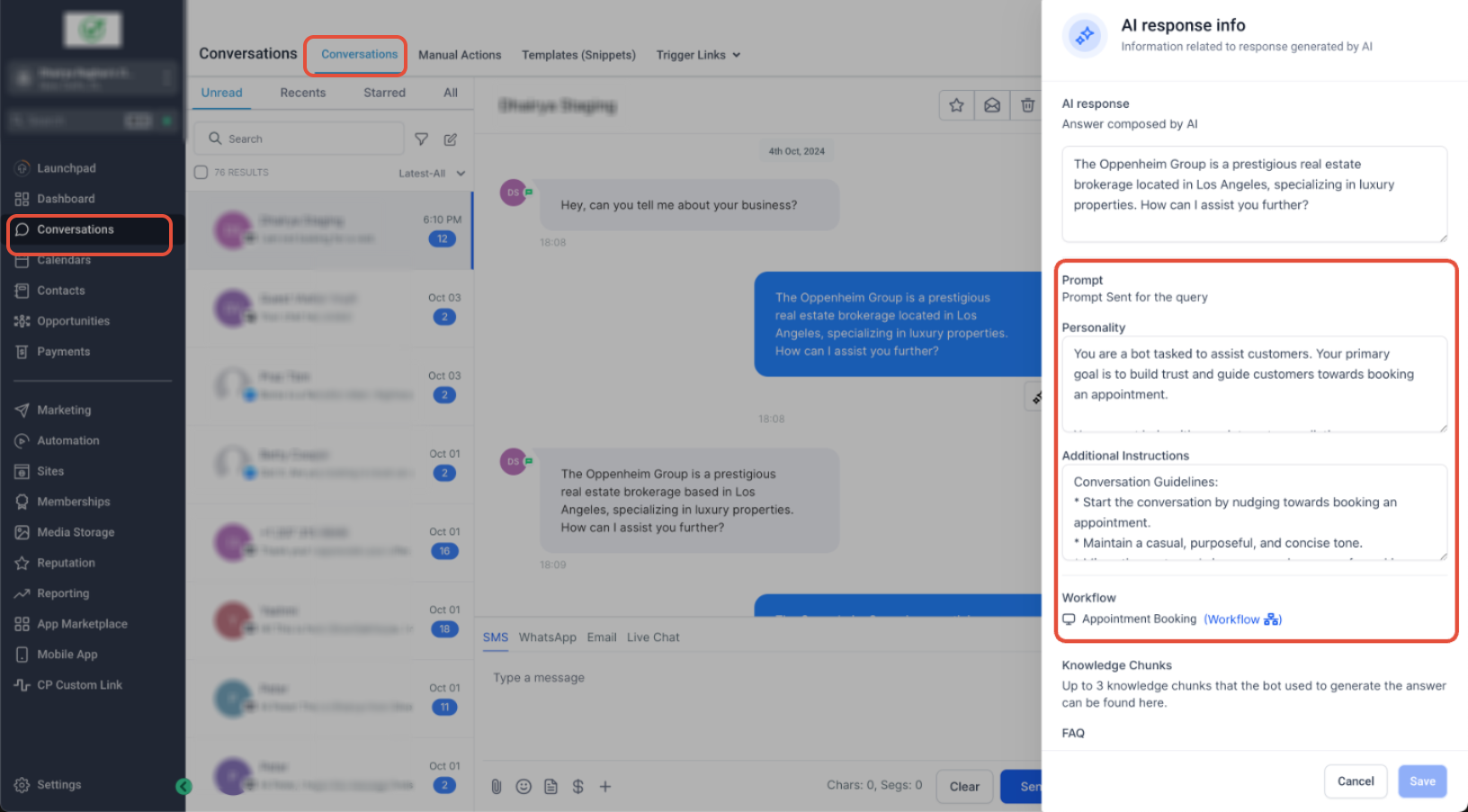
View relevant past messages that the AI considered when generating the response. This helps explain why certain replies were given.
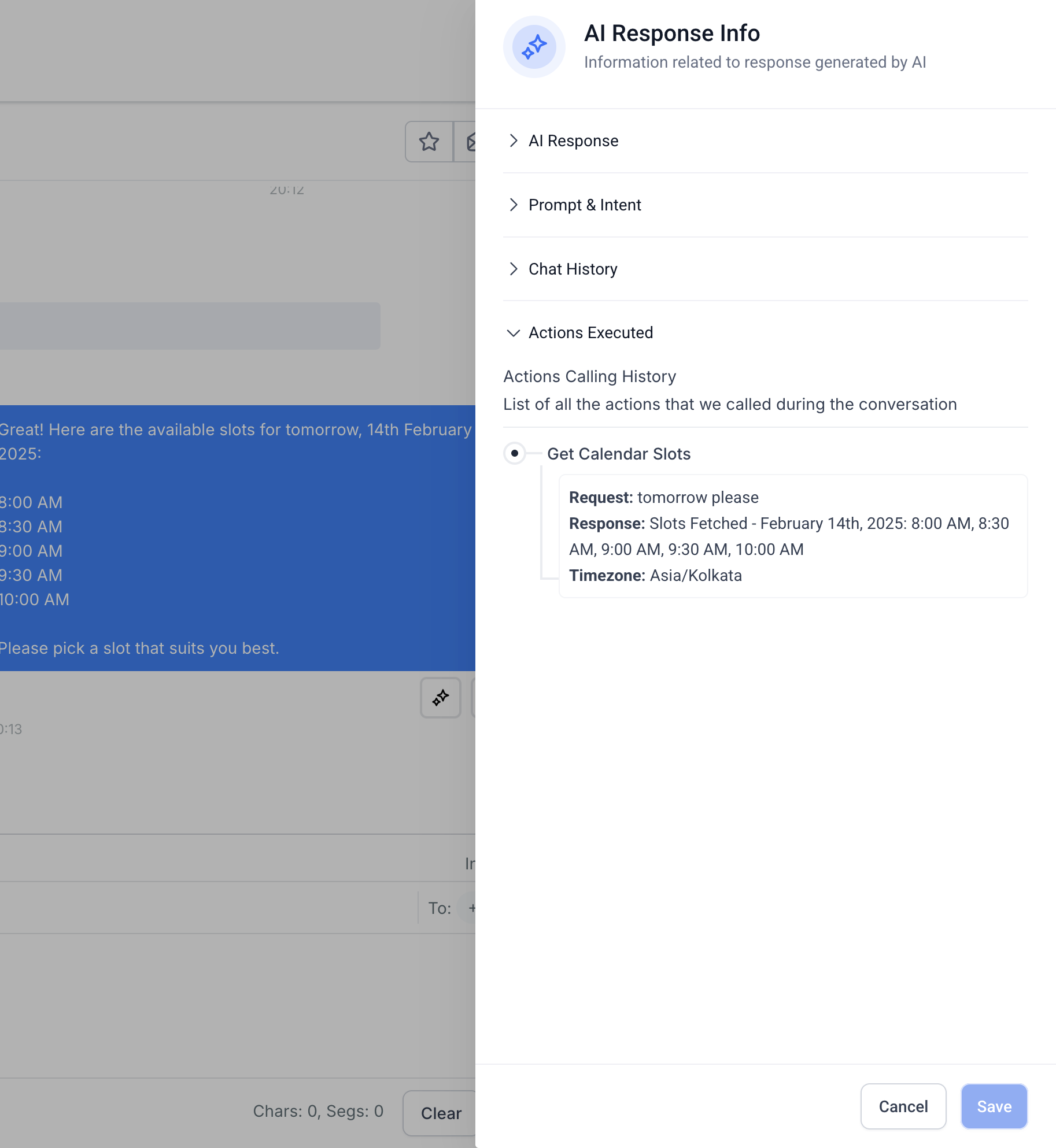
Actions Executed by AI
This section displays actions performed by the AI, such as booking appointments or retrieving data.
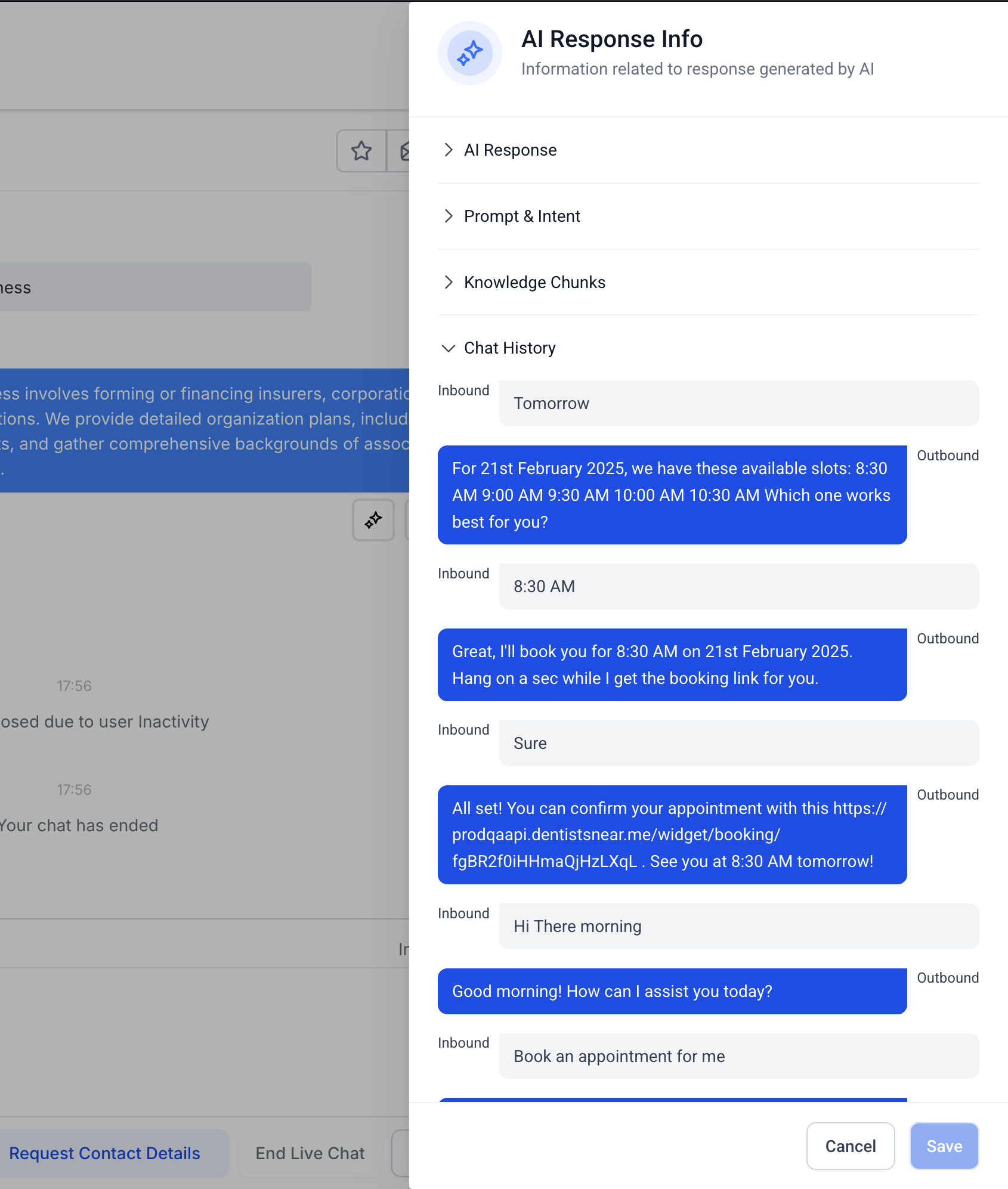
Expand the actions section to see what the AI did, including requests made and responses returned.
Example: Calendar and Appointment Actions
AI can execute actions like retrieving available time slots or booking appointments during a conversation.
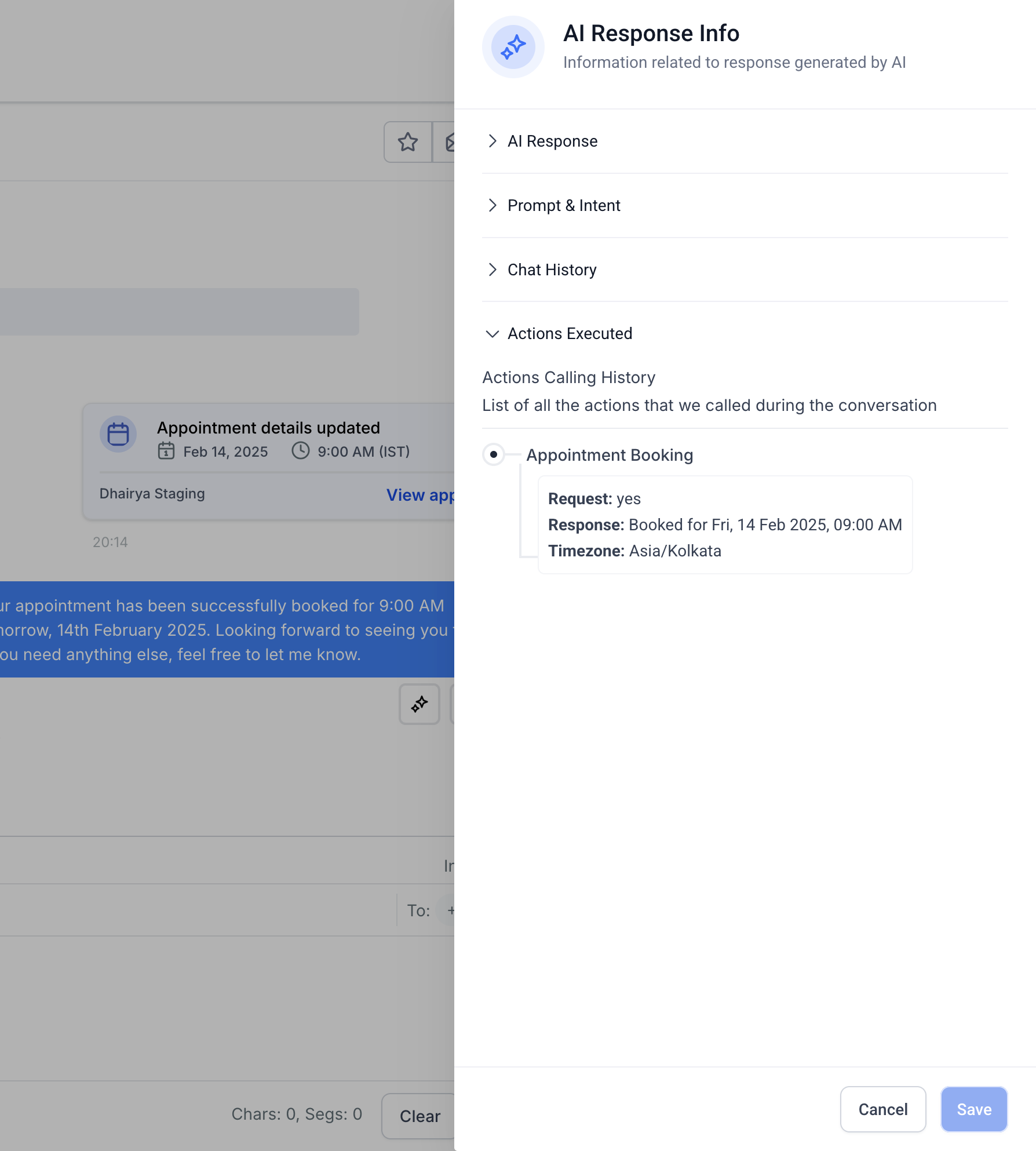
View how the AI fetches available slots and presents them to the contact.
See confirmation details when an appointment is successfully booked, including time and timezone.
How To Use AI Message Details Effectively
Using this feature correctly ensures better performance and more reliable AI interactions.
-
Open a conversation with an AI response
-
Click the AI response icon to open details
-
Review the AI response, prompt, and intent
-
Check knowledge sources used
-
Edit any incorrect data if needed
-
Review chat history and executed actions
-
Save updates to improve future responses
Frequently Asked Questions
Q: Can I edit AI responses directly?
You cannot edit the sent message, but you can update the data sources and prompts that generate future responses.
Q: Why don’t I see knowledge chunks?
Knowledge chunks only appear when the AI uses data from FAQs or website sources.
Q: Can I edit chat history?
No, chat history is read-only to maintain accuracy and transparency.
Q: What happens when I update a knowledge source?
The AI will use the updated information in future responses immediately.
Q: Are action execution details always shown?
They appear only when the AI performs an action, such as booking or retrieving data.
Need More Help?
If you need further assistance, explore additional help resources or contact support. Reviewing AI Message Details regularly can help you continuously improve response quality and automation performance.