
Connect workflows with Apify to automate web scraping, run actors, and process external data in real time—without third-party tools. This guide explains what the integration is, key benefits, setup, and best practices so your CRM workflows can leverage external data seamlessly.
What is Apify Actions & Triggers in Workflows?
Apify actions and triggers connect workflows with Apify’s automation platform.
Triggers listen for events in Apify (like completed actor or task runs) and start workflows . Actions allow workflows to execute Apify actors, scrape websites, and retrieve structured data.
Key Benefits of Apify Actions & Triggers
-
Automated data extraction from websites
-
Real-time enrichment of contacts and opportunities
-
No-code scraping using prebuilt actors
Connecting Your Apify Account
-
Go to Automation → Workflows
-
Add an Apify action or trigger
-
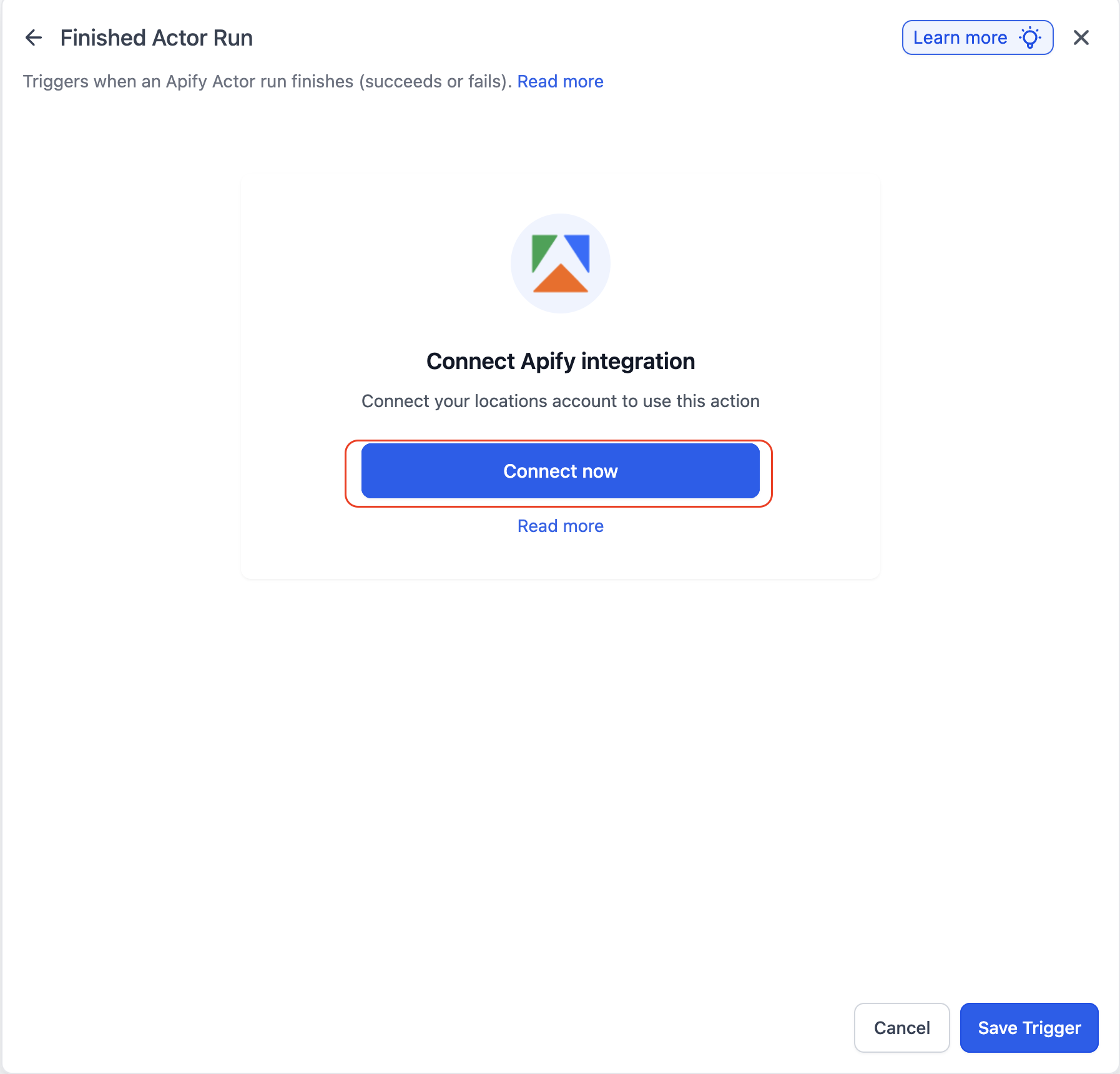
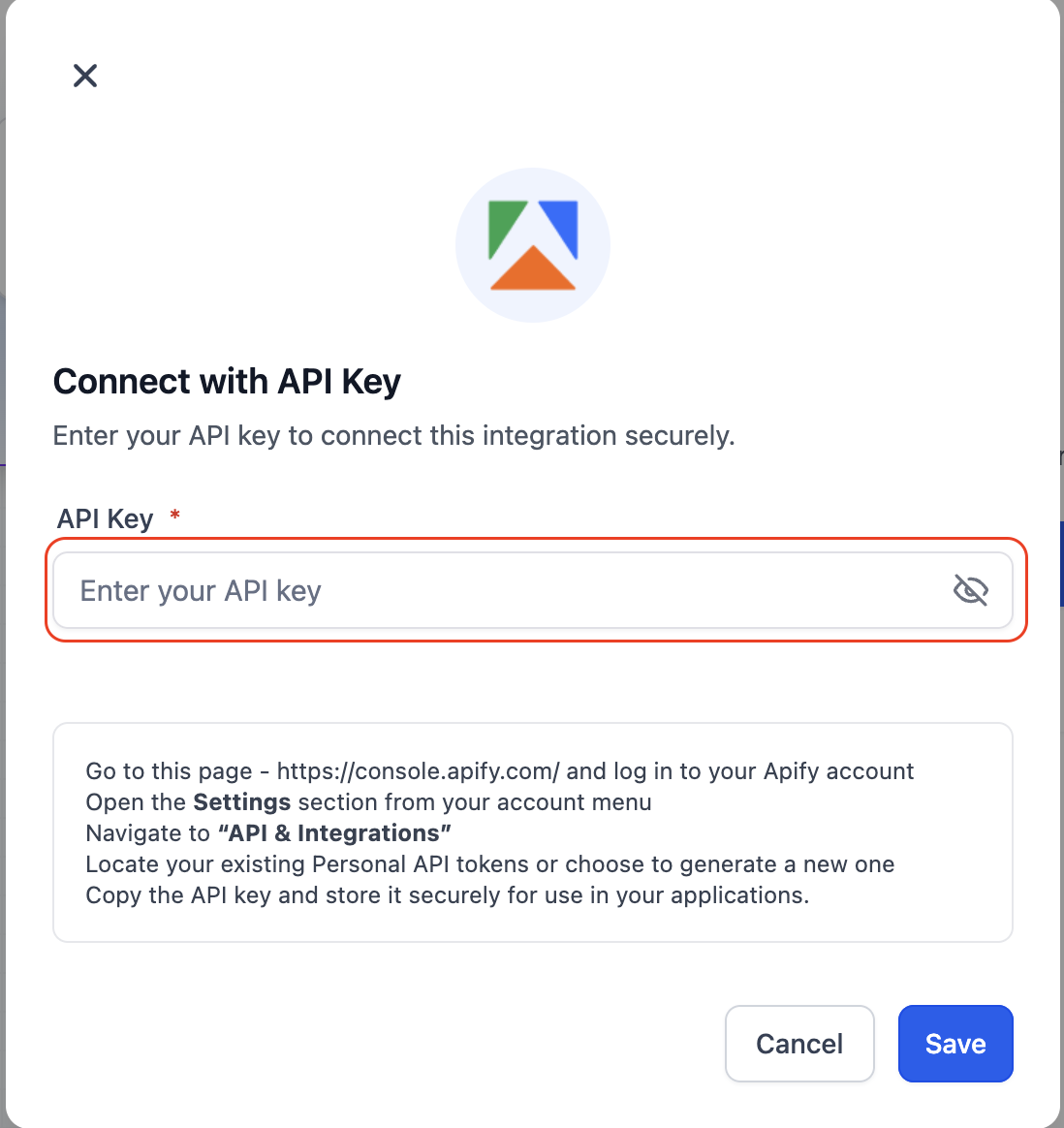
Click Connect Now and authenticate
-
Save the connection
Alternate path: Settings → Integrations → Apify → Connect
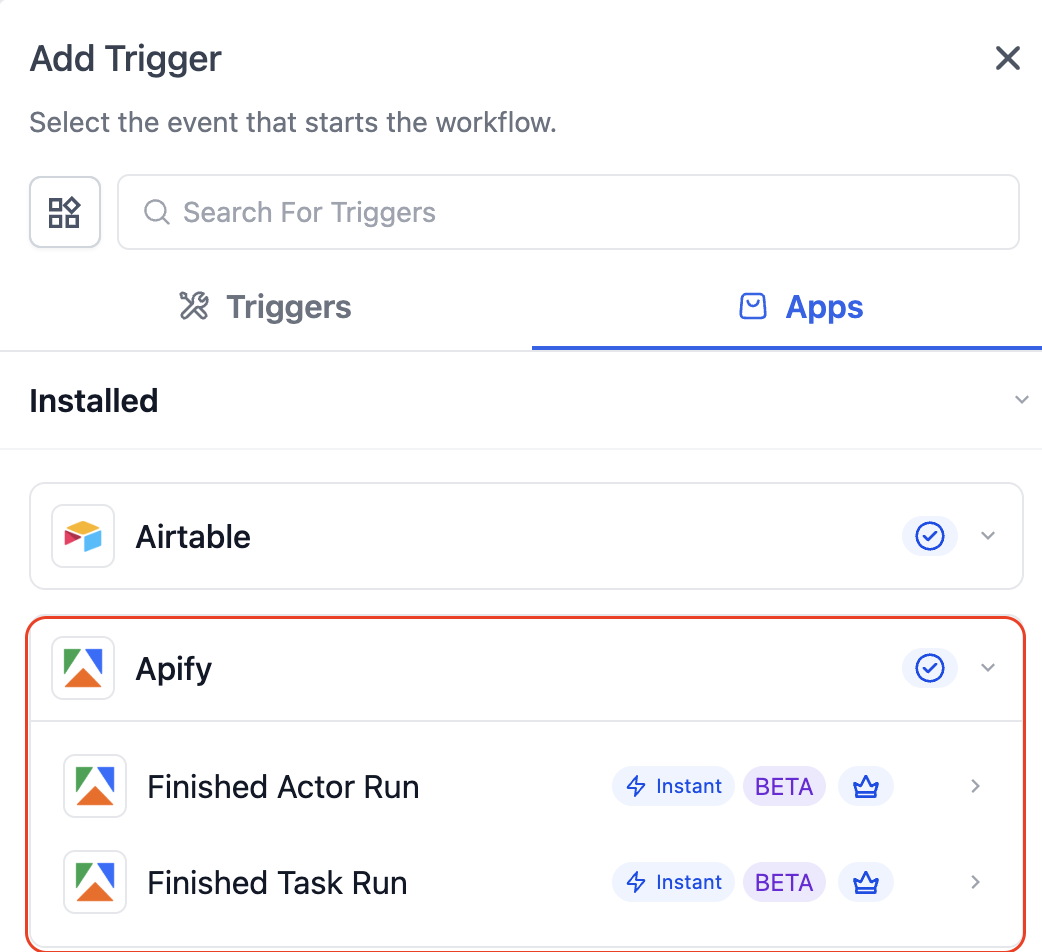
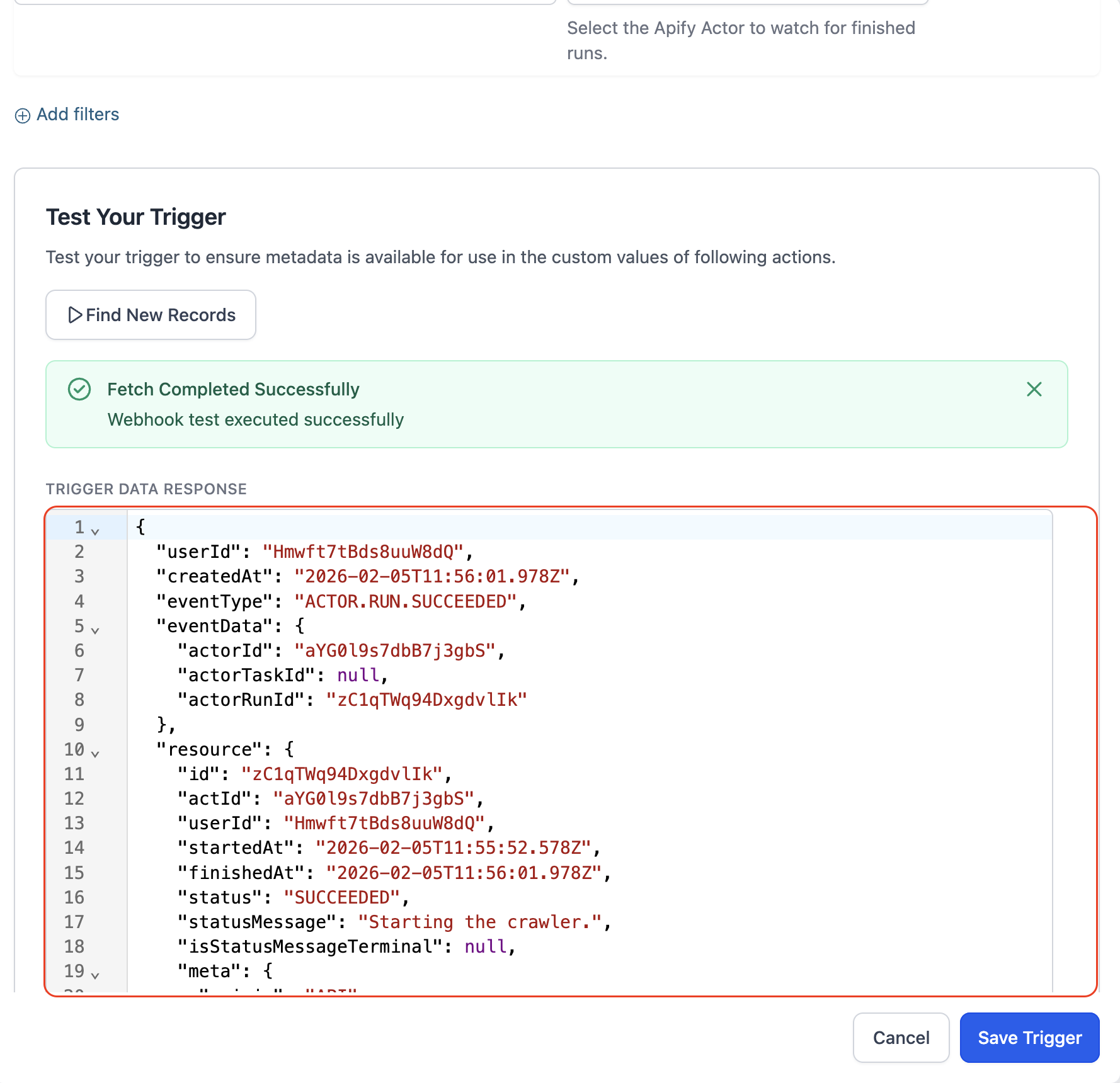
Available Triggers (Apify → Workflows)
| Trigger | What it does |
|---|---|
| Finished Actor Run | Fires when an Apify actor completes execution |
| Finished Task Run | Fires when an Apify task finishes execution |
Available Actions (Workflows → Apify)
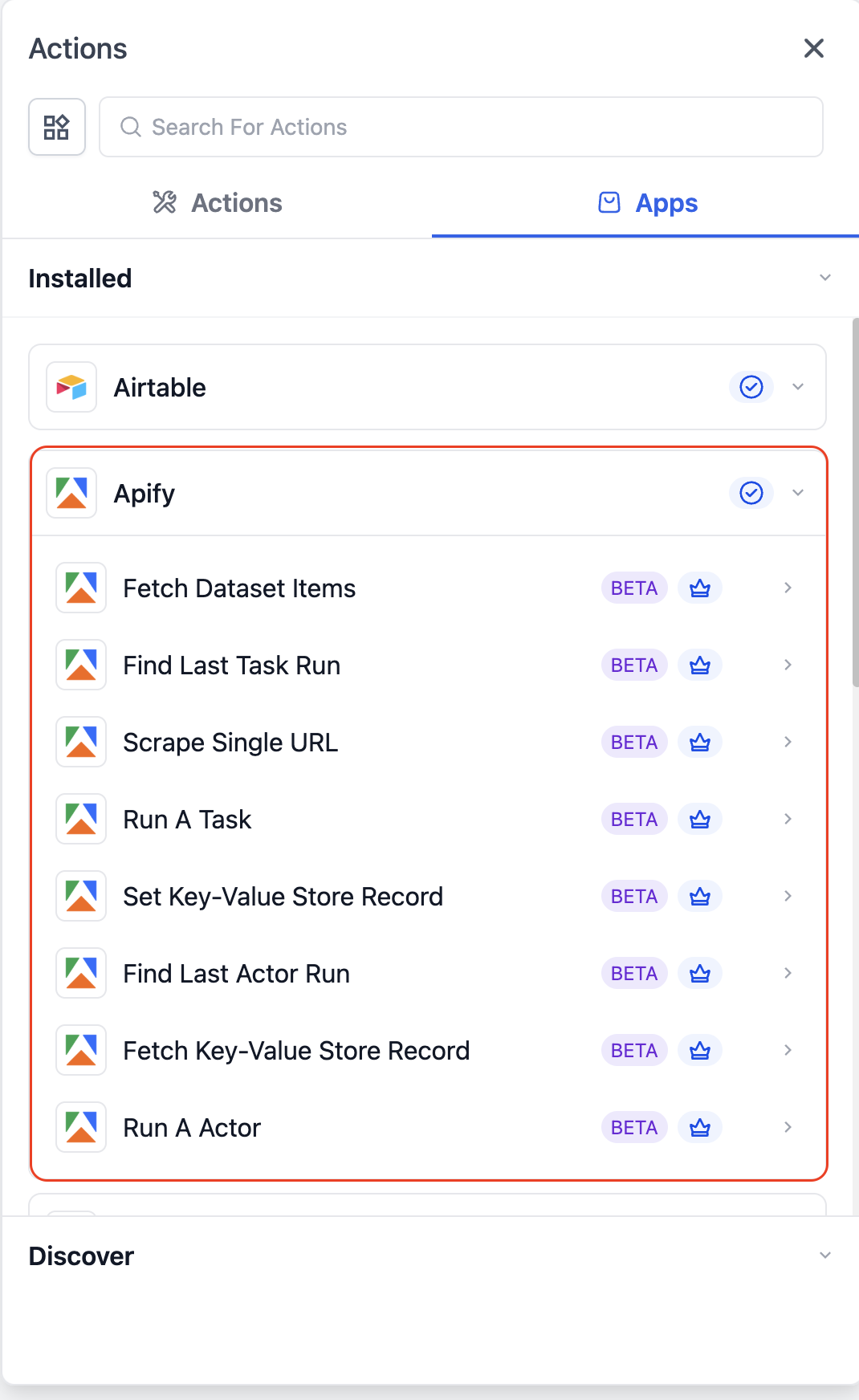
Core Actions
| Action | Purpose |
|---|---|
| Run A Task | Executes a predefined Apify task |
| Run An Actor | Runs an Apify actor with custom input |
| Scrape Single URL | Extract structured data from a URL |
Data Retrieval Actions
| Action | Purpose |
|---|---|
| Fetch Dataset Items | Retrieve dataset output |
| Find Last Task Run | Get latest task execution details |
| Find Last Actor Run | Get latest actor execution detail |
Storage Actions
| Action | Purpose |
|---|---|
| Set Key-Value Store Record | Store data in Apify |
| Fetch Key-Value Store Record | Retrieve stored data |
How To Setup Apify Actions & Triggers
-
Open a workflow
-
Connect Apify
-
Choose trigger or action
-
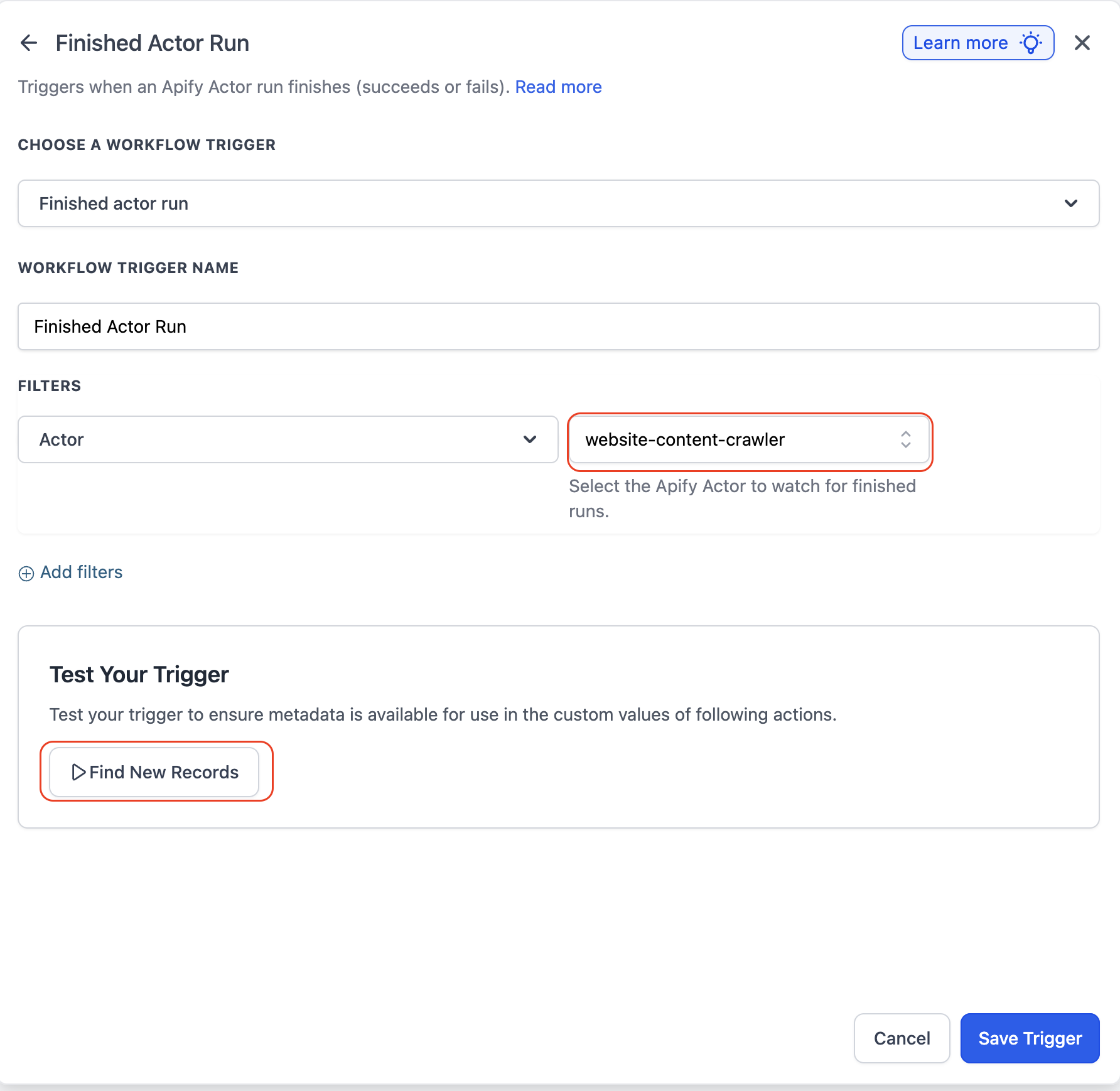
Configure fields
-
Test action or trigger
-
Test workflow
-
Publish
Common Use Cases
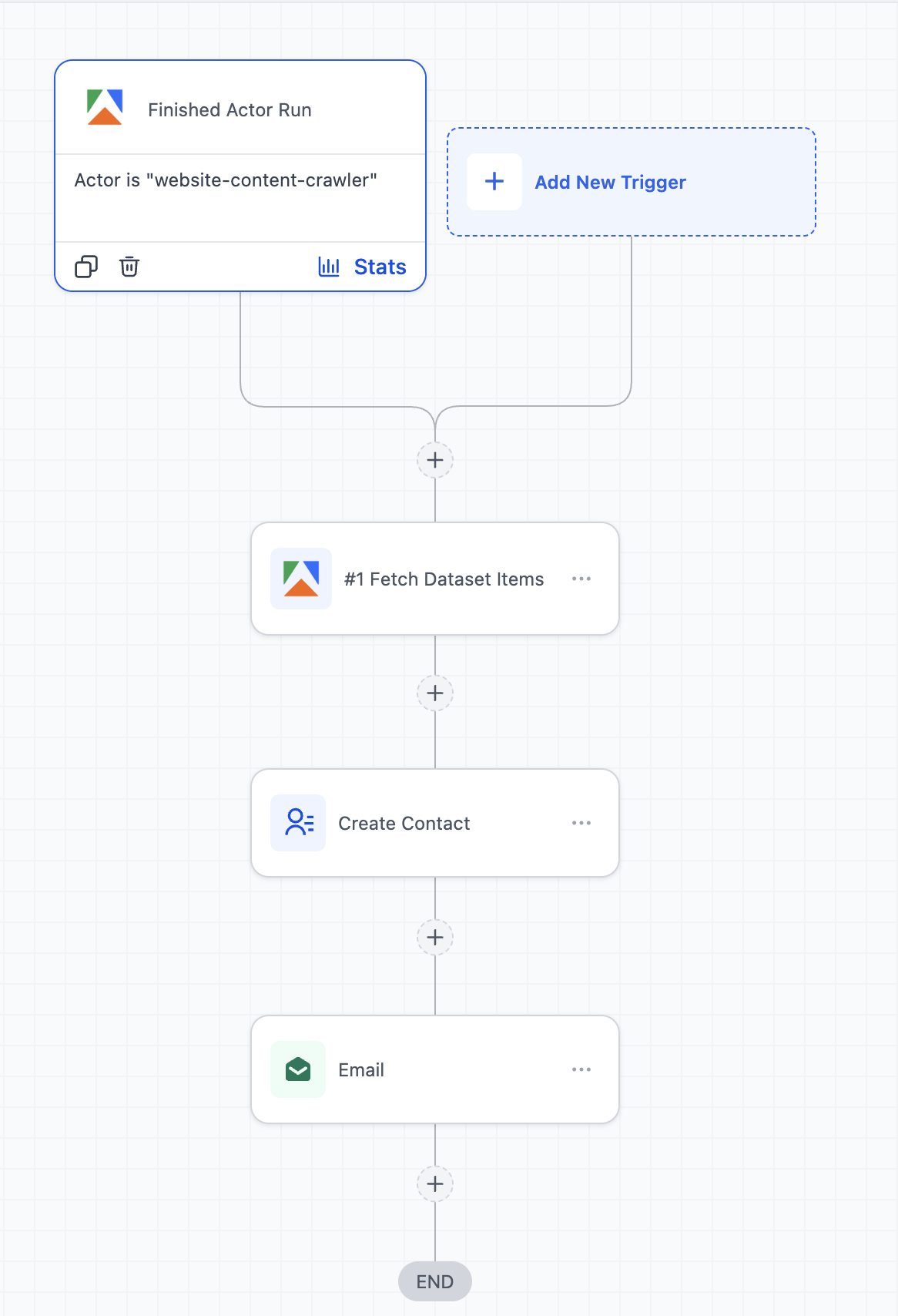
Use Case 1: Local Business Lead Generation from Google Maps
Goal: Automatically generate local leads for outreach campaigns
Workflow Setup:
- Trigger: Finished Actor Run (Google Maps scraper in Apify)
- Action: Fetch Dataset Items
- Action: Create/Update Contact
- Action: Add to Workflow (Email/SMS campaign)
Example:
A marketer runs an Apify actor to scrape dentists in a city → once completed, leads are automatically added → each lead is enrolled into a cold outreach campaign with email and SMS follow-ups.
Use Case 2: Competitor Monitoring & Instant Alerts
Goal: Track competitor updates and react quickly
Workflow Setup:
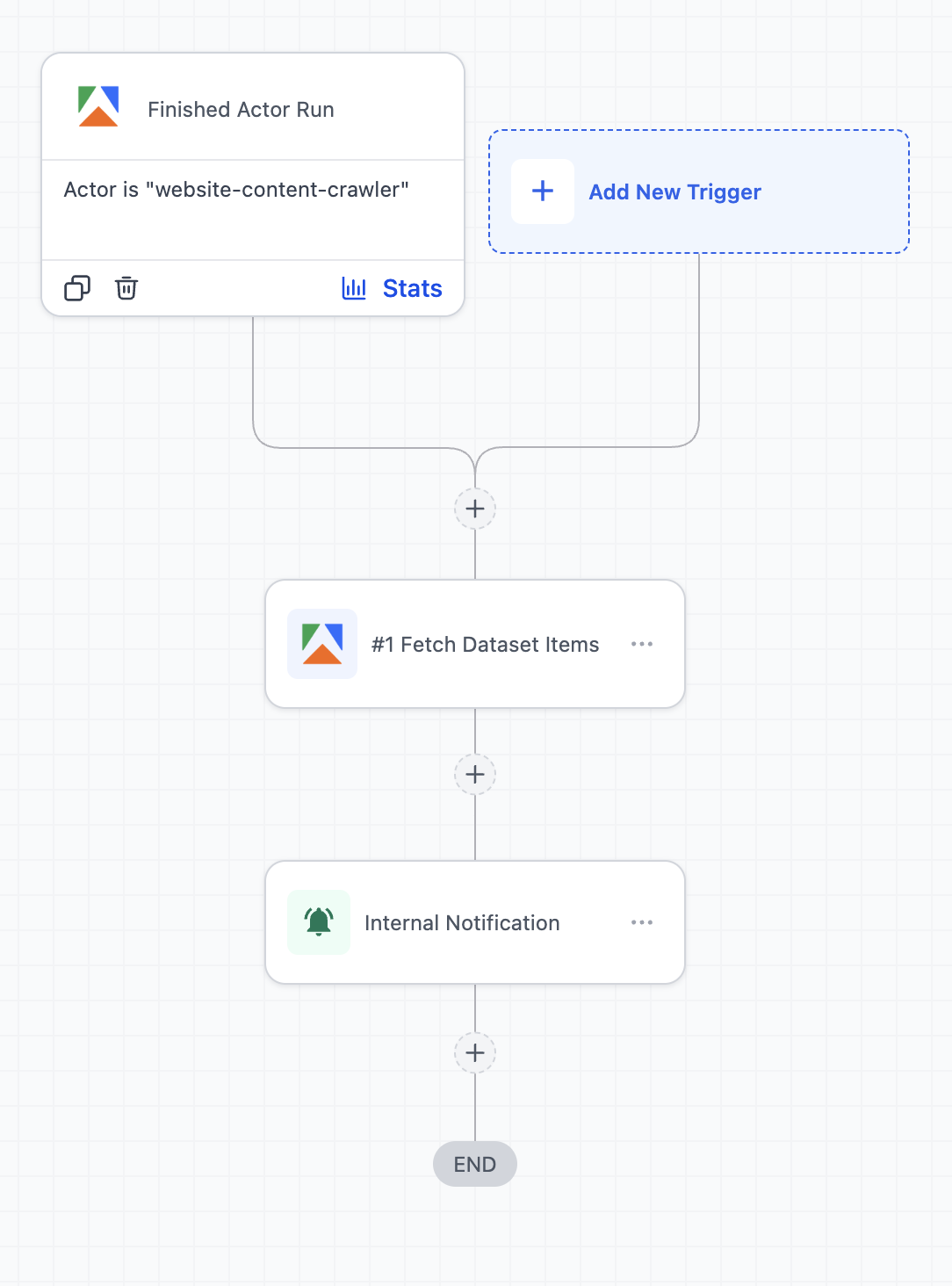
- Trigger: Finished Task Run (website/product scraper)
- Action: Fetch Dataset Items
- Action: Send Internal Notification
- Action: Create Task (Workflows)
Example:
An Apify task monitors competitor websites or pricing pages → when changes are detected, the workflow triggers → the marketing team gets notified and a task is created to respond (e.g., update ads or pricing strategy).
Frequently Asked Questions
Q: How do I handle large datasets?
Use Fetch Dataset Items and process data with array action.
Q: Are there any charges for using Apify actions and triggers?
Yes, usage is based on Apify pricing (compute and storage) and premium workflow usage, as applicable.