
Managing conversations at scale requires the right automation in place. This guide explains how to use workflow actions to assign and control AI bots for contacts based on triggers, conditions, and behaviors. By automating bot assignment and status updates, you can deliver more relevant, timely, and efficient interactions without manual effort.
TABLE OF CONTENTS
- What is Update Conversation AI Bot and Status?
- Key Benefits of Update Conversation AI Bot and Status
- Action Details
- How To Setup Update Conversation AI Bot and Status
- Where to View Assigned Bot on a Contact
- Example & Scenarios
- Key Notes
- Frequently Asked Questions
- Need More Help?
What is Update Conversation AI Bot and Status?
Assigning the right AI bot to the right contact ensures conversations stay relevant and aligned with your business goals. This action allows you to dynamically control which bot interacts with a contact and whether that bot is active or inactive.
The Update Conversation AI Bot and Status action works inside workflows to automatically assign bots and manage their availability. This enables personalized communication based on events such as replies, tags, or payments.
Key Benefits of Update Conversation AI Bot and Status
Automating bot assignment improves efficiency and ensures contacts always receive the right responses.
-
Automated Assignment: Assign bots without manual intervention
-
Personalized Experiences: Match bots to contact behavior or lifecycle stage
-
Channel Optimization: Route conversations to the correct bot per channel
-
Improved Efficiency: Reduce manual management of conversations
-
Scalable Automation: Handle large volumes of interactions seamlessly
Action Details
Understanding how each setting functions helps ensure accurate and effective automation.
-
Action Name: Update Conversation AI Bot and Status
-
Bot Assignment: Select a specific bot or keep the current one
-
Status Control: Set the bot to Active or Inactive
-
Keep Same Option: Leaves the current bot unchanged
How To Setup Update Conversation AI Bot and Status
Setting up this action correctly ensures your workflows assign bots exactly when needed.
Step 1: Add the Workflow Action
This image shows where the action is configured inside the workflow builder.
-
Open your workflow
-
Click to add a new action
-
Select Update Conversation AI Bot and Status
Step 2: Configure Action Settings
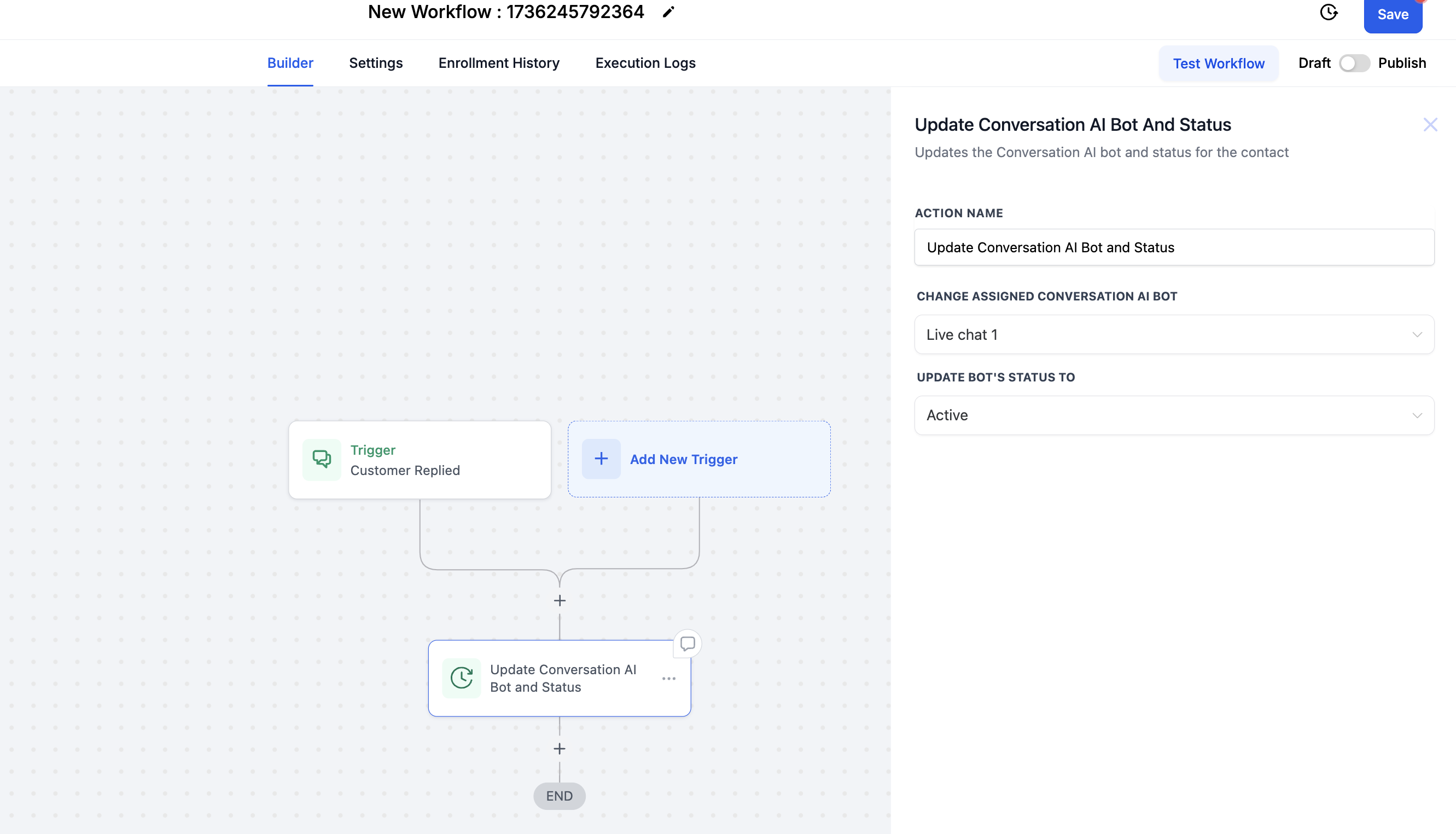
This image shows the full configuration panel for the action.
-
Enter or confirm the action name
-
Locate bot assignment and status fields
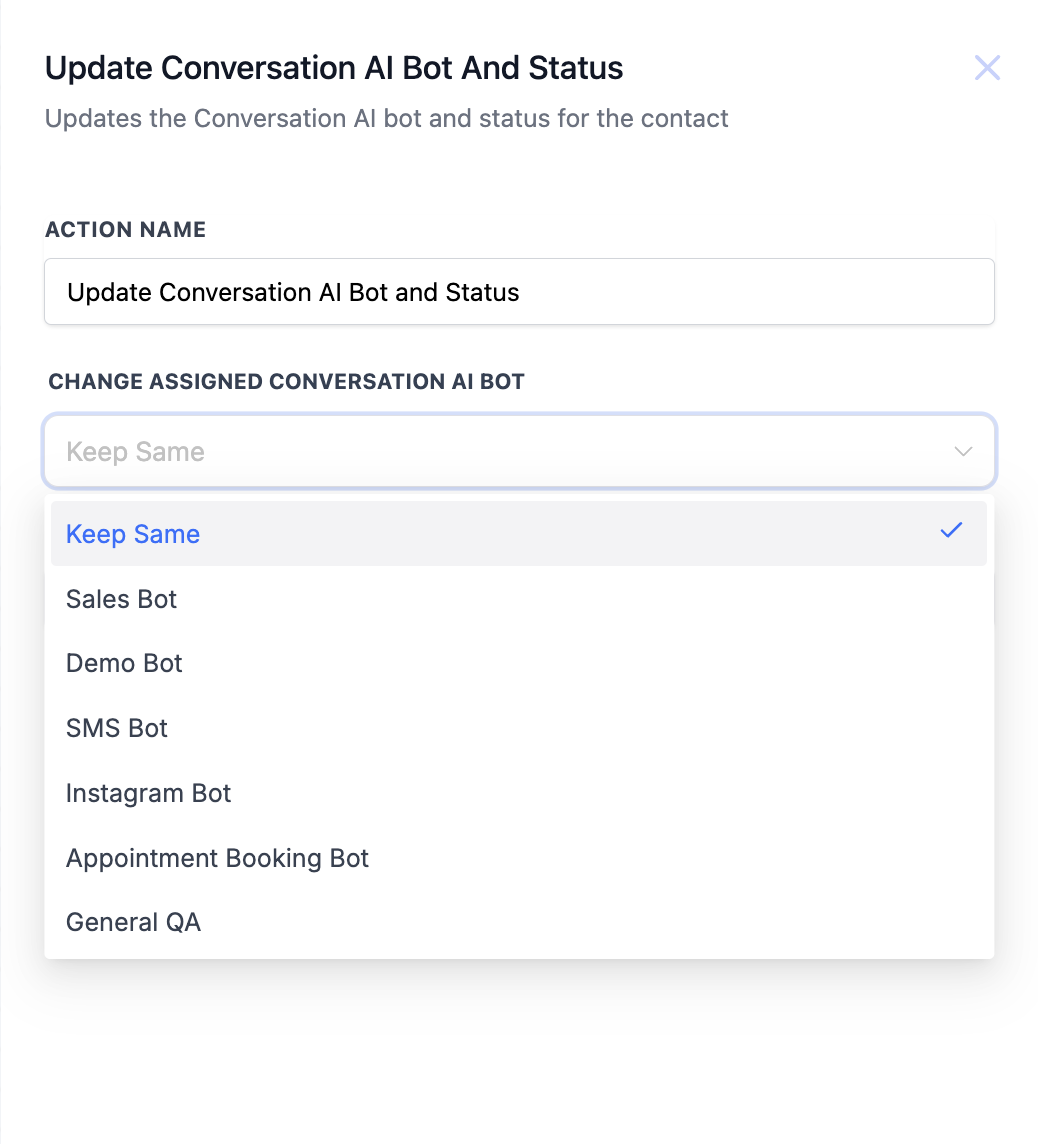
Step 3: Choose Bot Assignment Option
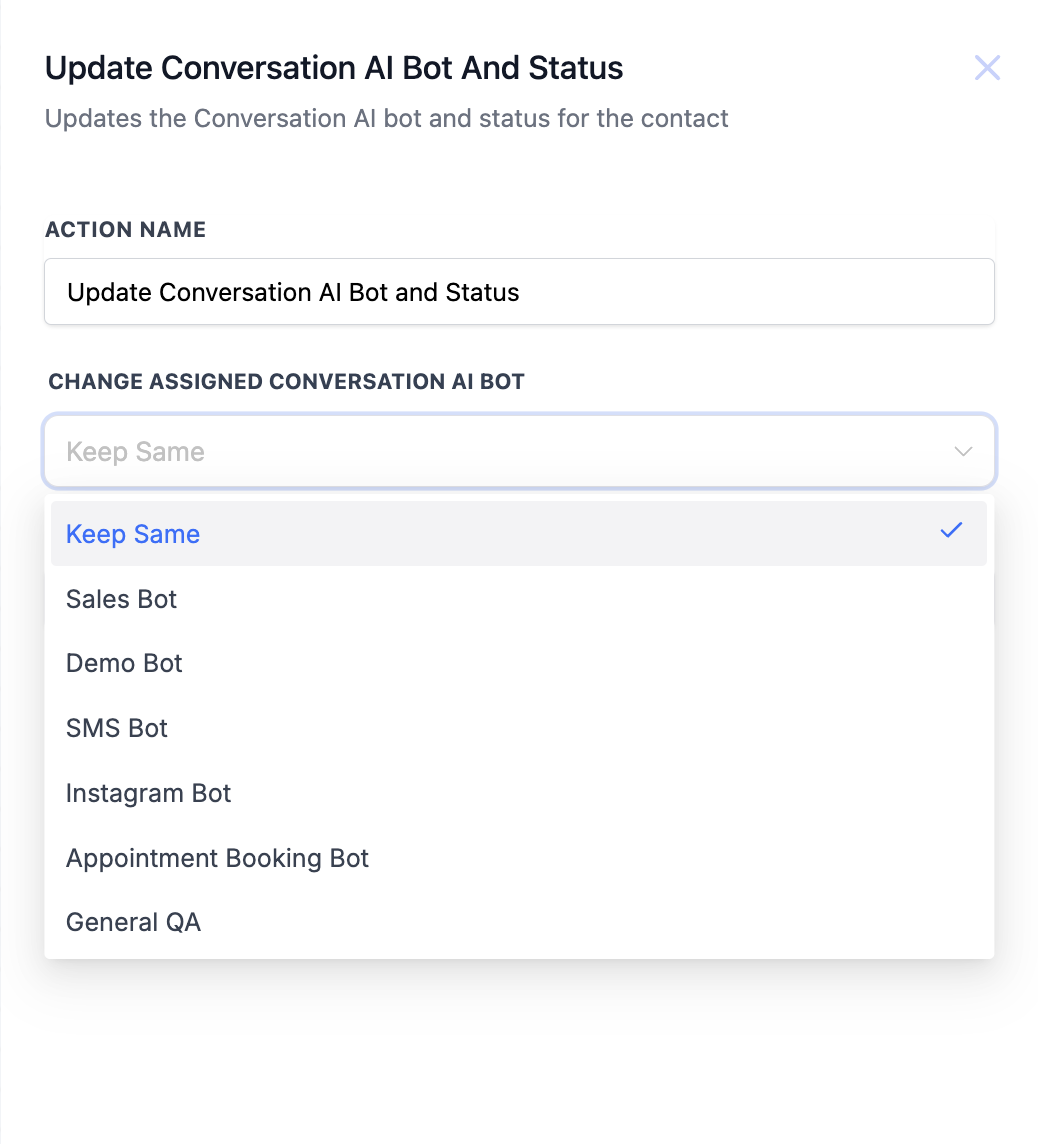
This image shows the dropdown where available bots can be selected.
-
Select a specific bot from the list
-
Or choose Keep Same to retain the current bot
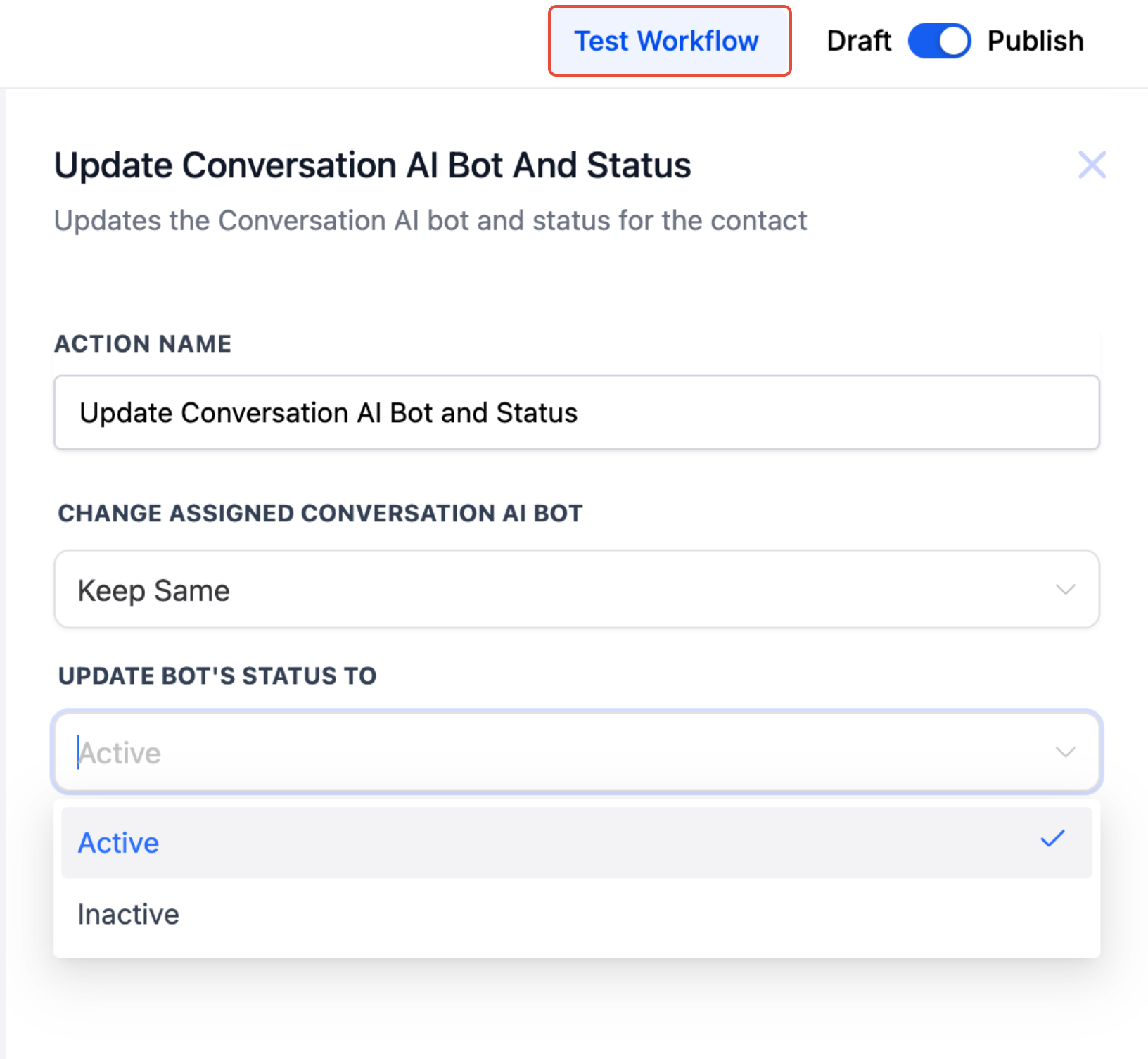
Step 4: Set Bot Status
This image shows how to set the bot’s status.
-
Choose Active to enable the bot
-
Choose Inactive to disable the bot
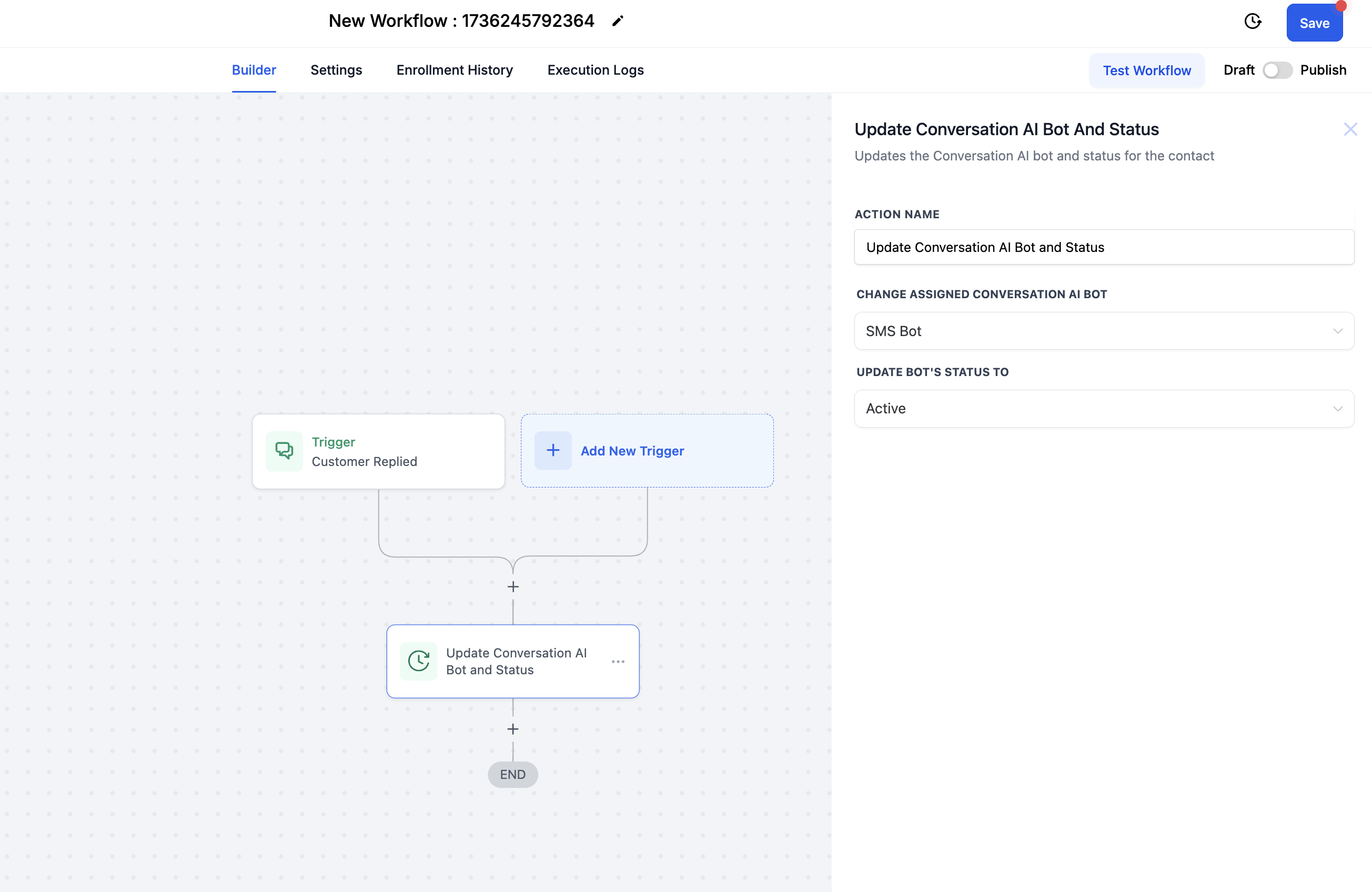
Step 5: Save and Apply Workflow
This image shows the action placed and connected within a workflow.
-
Click Save
-
Publish the workflow to activate automation
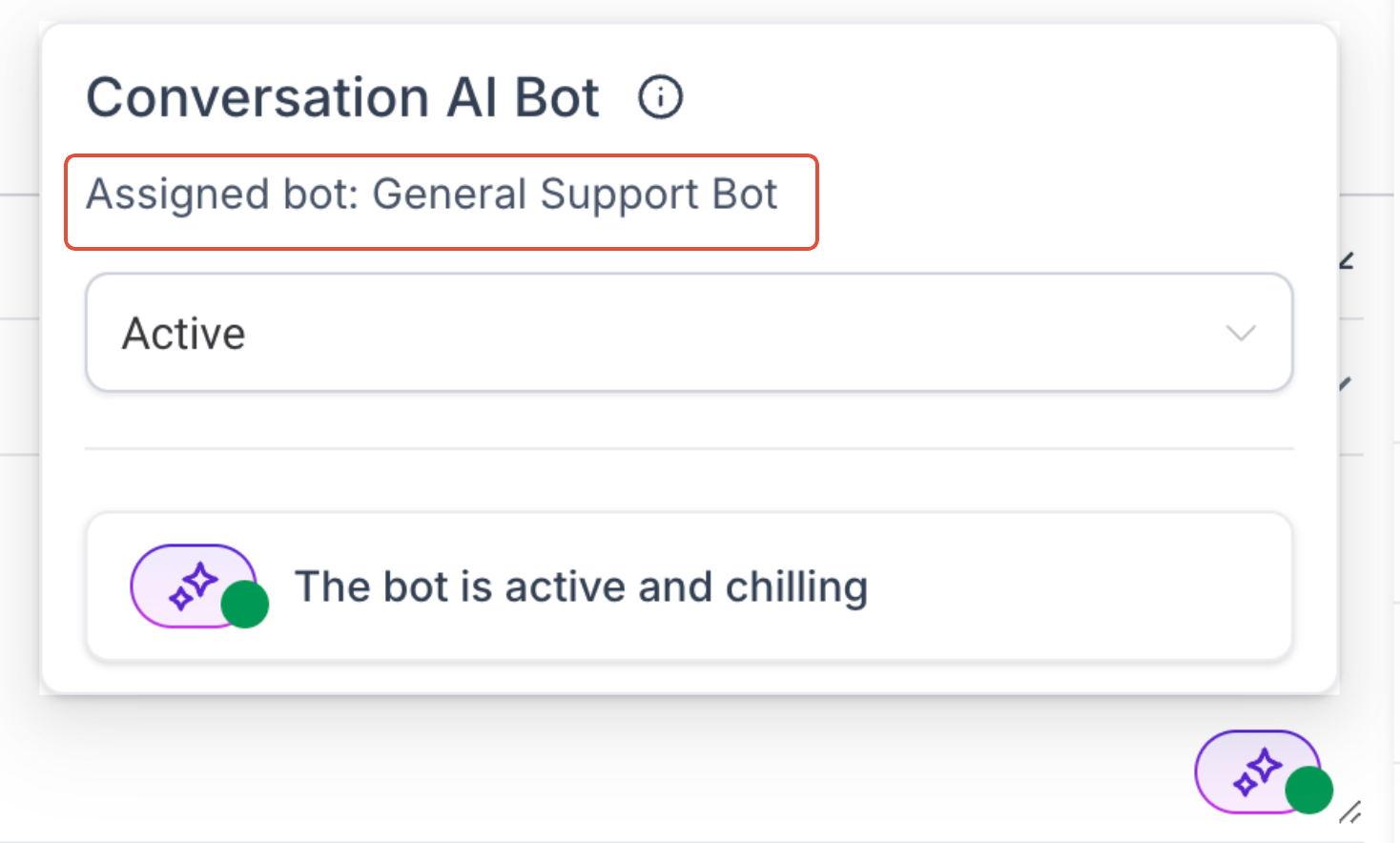
Where to View Assigned Bot on a Contact
This image shows where the assigned bot appears within a contact’s conversation.
-
Open a contact record
-
Navigate to the conversation view
-
View assigned bot and status
Example & Scenarios
These examples show how to apply this action in real-world automation.
Example 1: Assign Bot Based on Communication Channel
Different channels may require different bots for optimal responses.
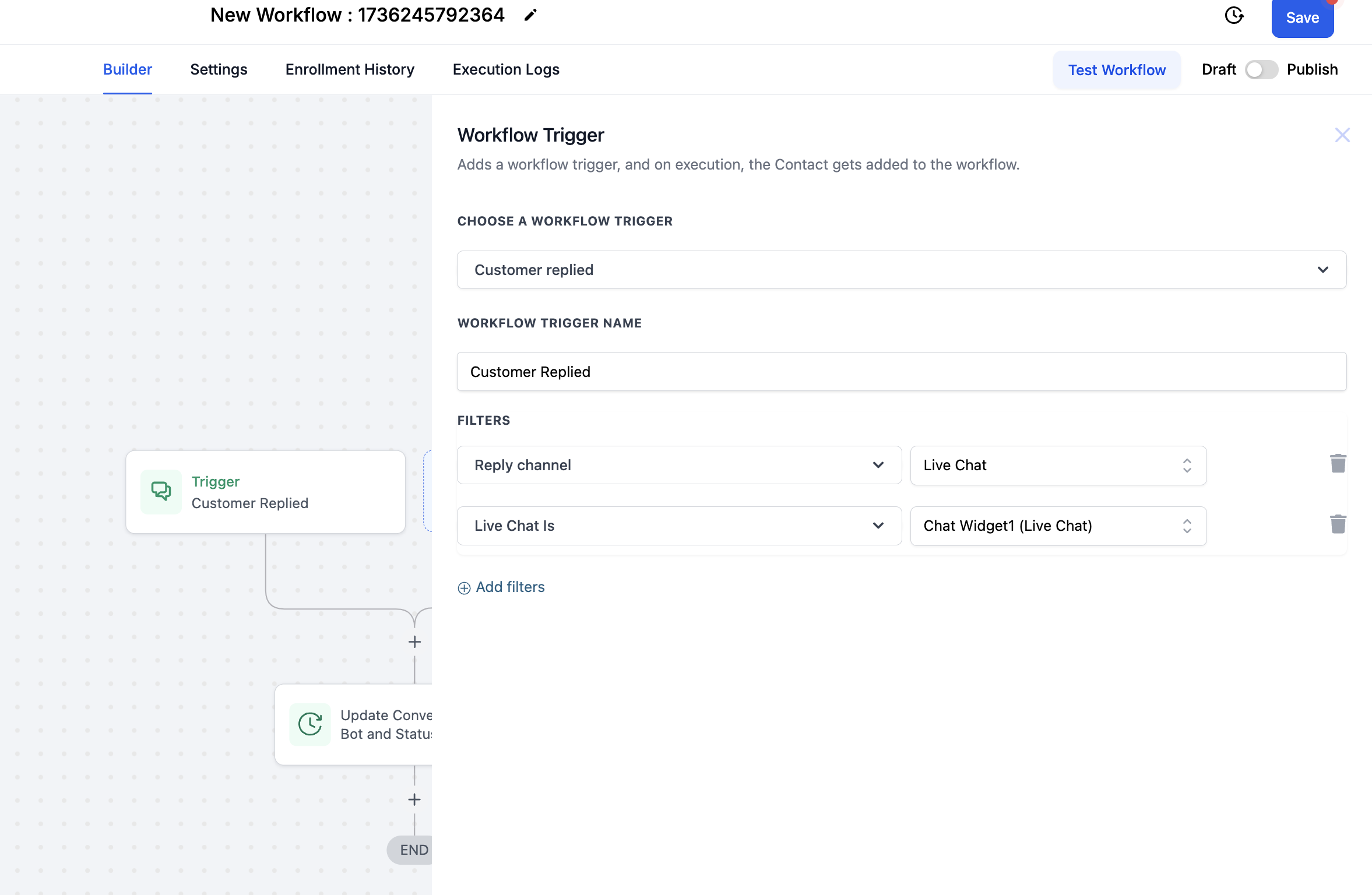
This image shows a workflow triggered by a contact reply.
-
Trigger workflow when a contact replies via a channel
-
Assign a channel-specific bot
-
Set status to Active
Example 2: Assign Bot Based on Tags
Tags help segment contacts for more personalized interactions.
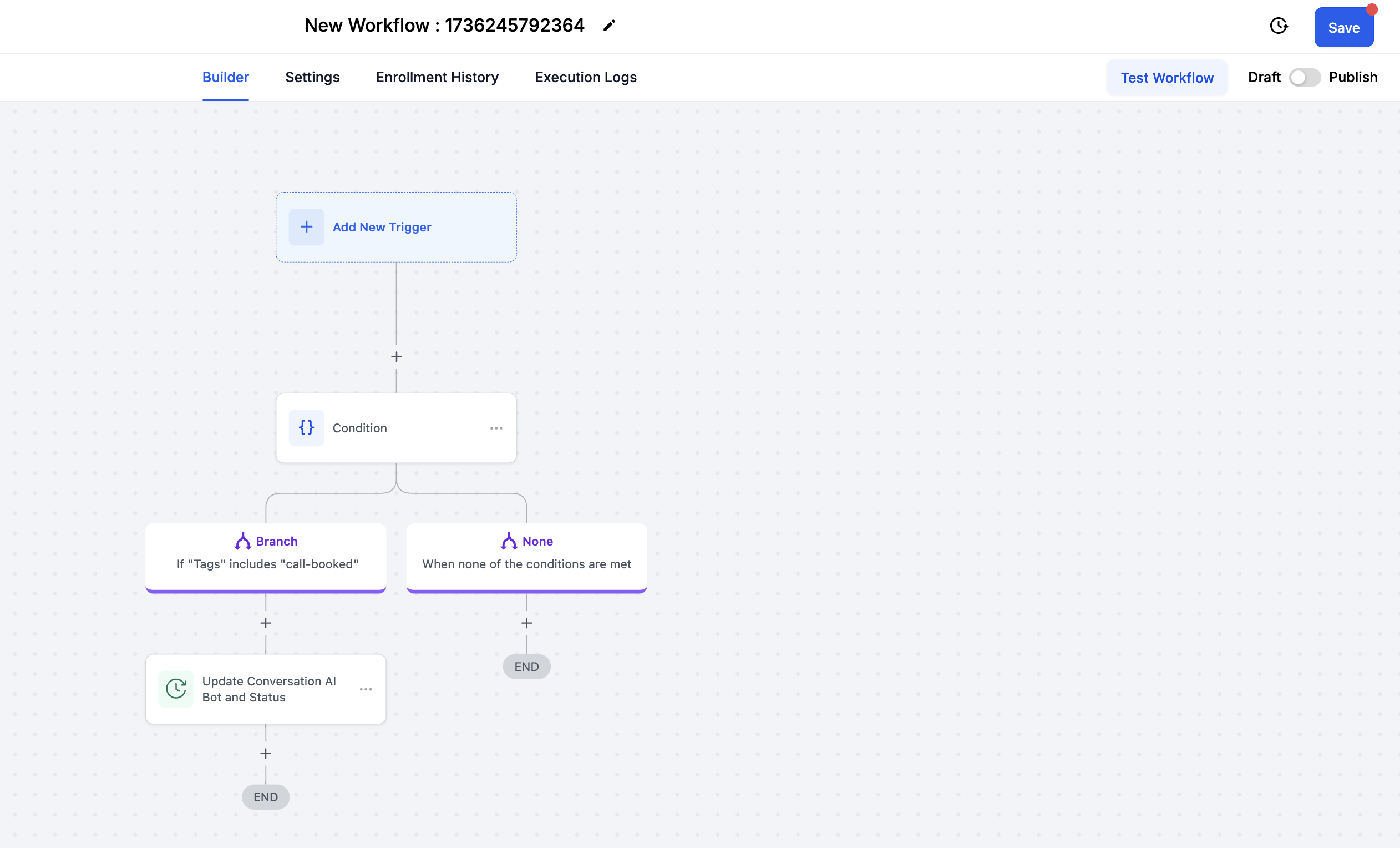
This image shows a workflow using conditional logic with tags.
-
Trigger workflow when a tag is added
-
Assign a relevant bot
-
Activate the bot
Example 3: Activate Bot After Payment
Automation can ensure only qualified contacts receive specific bot interactions.
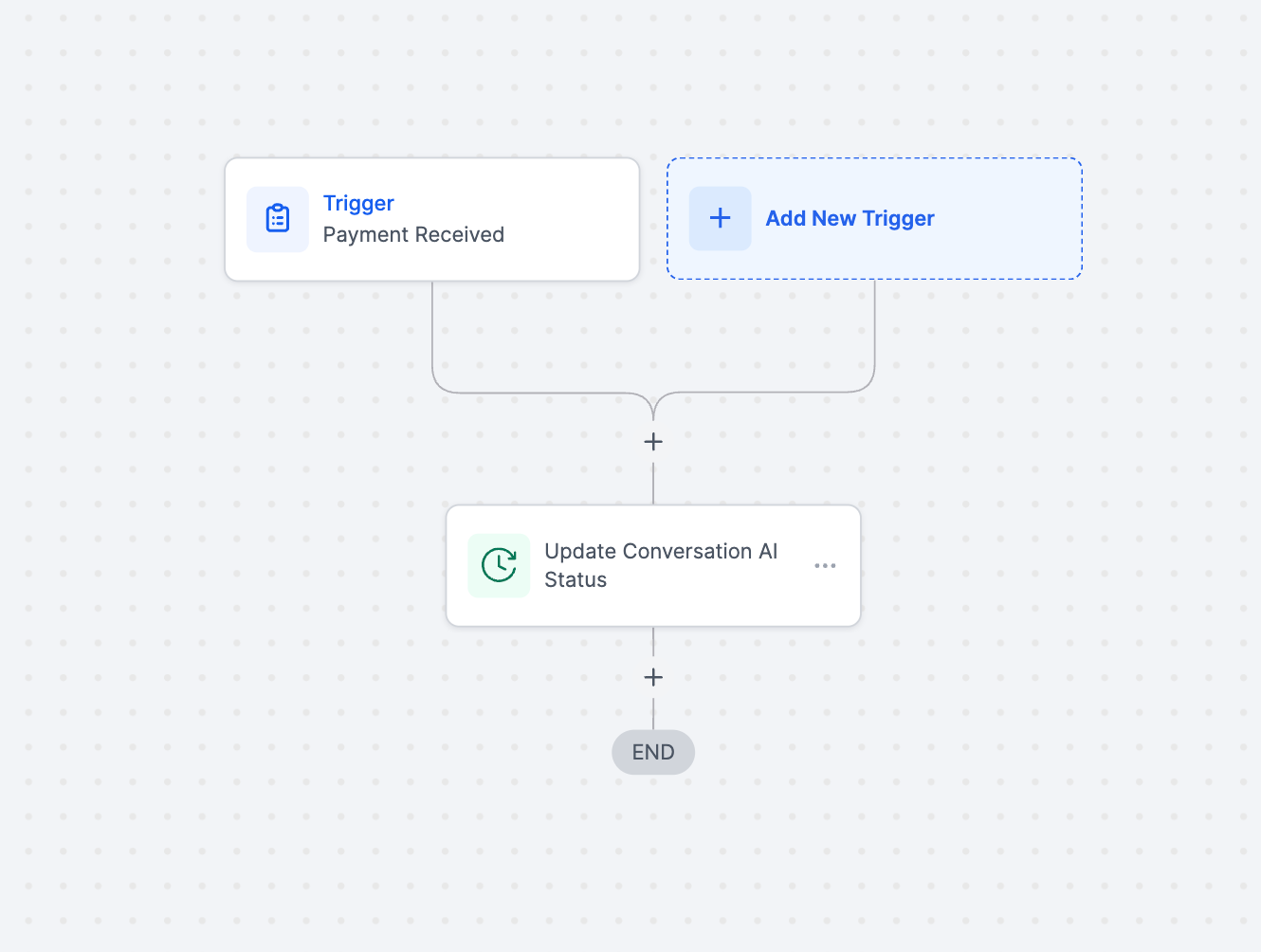
This image shows a workflow triggered after a payment is received.
-
Trigger workflow on payment event
-
Assign a sales or onboarding bot
-
Set status to Active
Key Notes
Keeping these considerations in mind ensures smooth automation performance.
-
Bots must support the channel they are assigned to
-
The action executes immediately when triggered
-
It does not wait for conversations to complete
-
Multiple workflows can assign different bots dynamically
Frequently Asked Questions
Q: What does “Keep Same” do?
It keeps the currently assigned bot unchanged.
Q: Can I assign different bots for different channels?
Yes, workflows can assign bots based on channel-specific triggers.
Q: Why is my bot not responding?
Check that the bot is set to Active and supports the selected channel.
Q: Can bot assignments change automatically?
Yes, workflows can update bots dynamically based on conditions.
Q: Does this affect existing conversations?
It applies immediately to the contact for future interactions.
Need More Help?
If you need help setting up bot automation or troubleshooting workflows, open the Help Center or contact support for further assistance.