
Migrating your WordPress website is easier with LC Migrator. Instead of manually creating backups and transferring large files, you can migrate your website through a streamlined process. LC Migrator transfers your website files, database, and settings while keeping your original site accessible during migration.
TABLE OF CONTENTS
- What is LC Migrator?
- Key Benefits of LC Migrator
- Migration Progress Tracking
- How to Set Up and Use LC Migrator
- Frequently Asked Questions
- Related Articles
What is LC Migrator?
LC Migrator is a WordPress plugin that simplifies transferring existing WordPress websites to your WordPress hosting environment. It automates the migration process, reducing manual work and helping you move websites more efficiently.
The plugin allows you to initiate and monitor website migrations without manually exporting and importing website files.
Key Benefits of LC Migrator
LC Migrator simplifies website transfers while providing visibility into migration progress and reducing the need for manual file management.
-
Easy Migration: Transfer websites without manually downloading and uploading backups.
-
Minimal Downtime: Keep your original website live during migration.
-
Complete Transfer: Migrate website files, database, and settings.
-
Progress Tracking: Monitor migration progress through the plugin.
-
No Plugin File-Size Limit: Migrate larger websites, subject to your hosting environment’s available resources.
Migration Progress Tracking
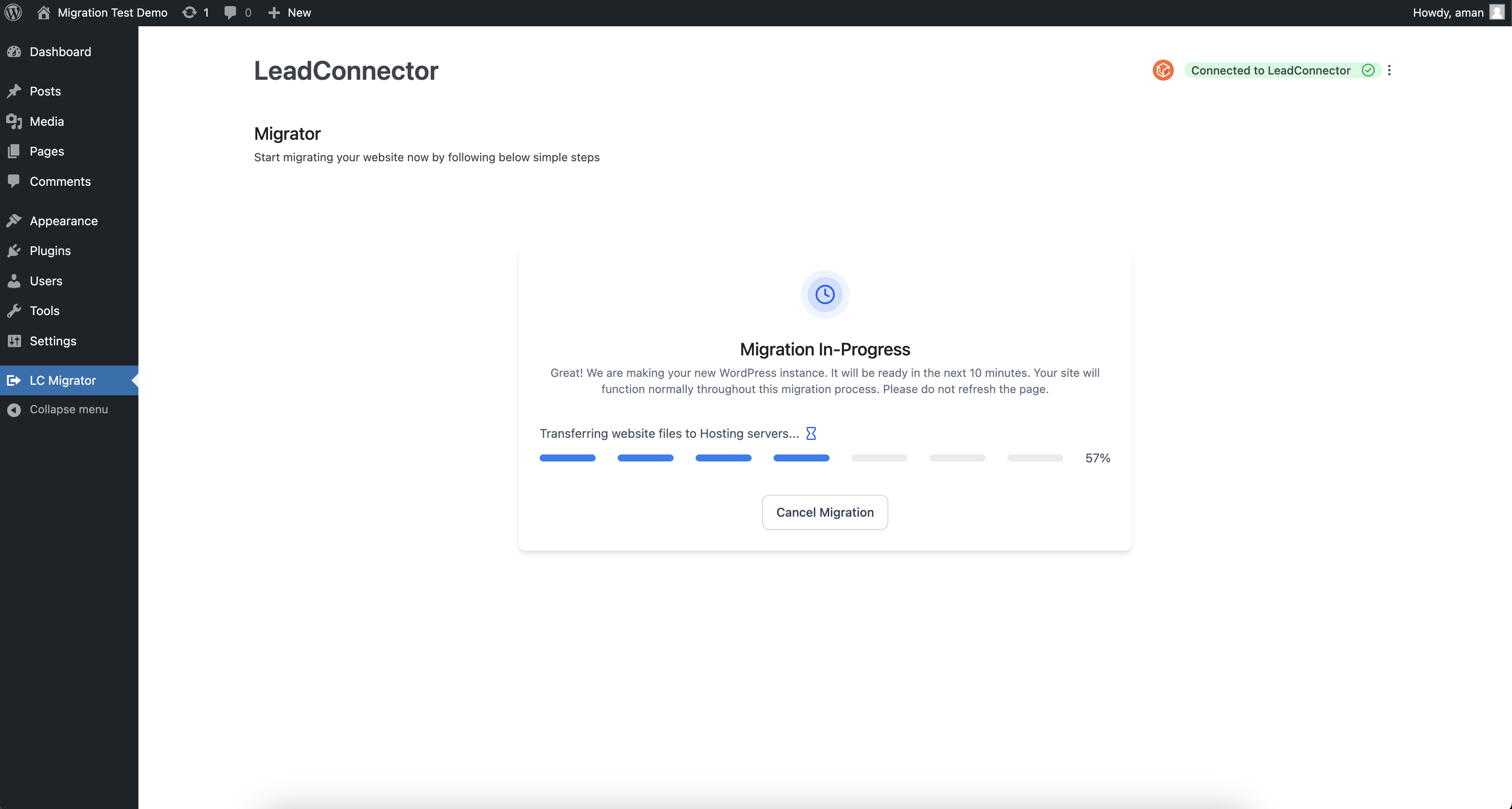
LC Migrator displays migration progress so you can monitor the transfer and identify when your website is ready for review.
-
View migration progress through the plugin.
-
Monitor the transfer using the progress indicator.
-
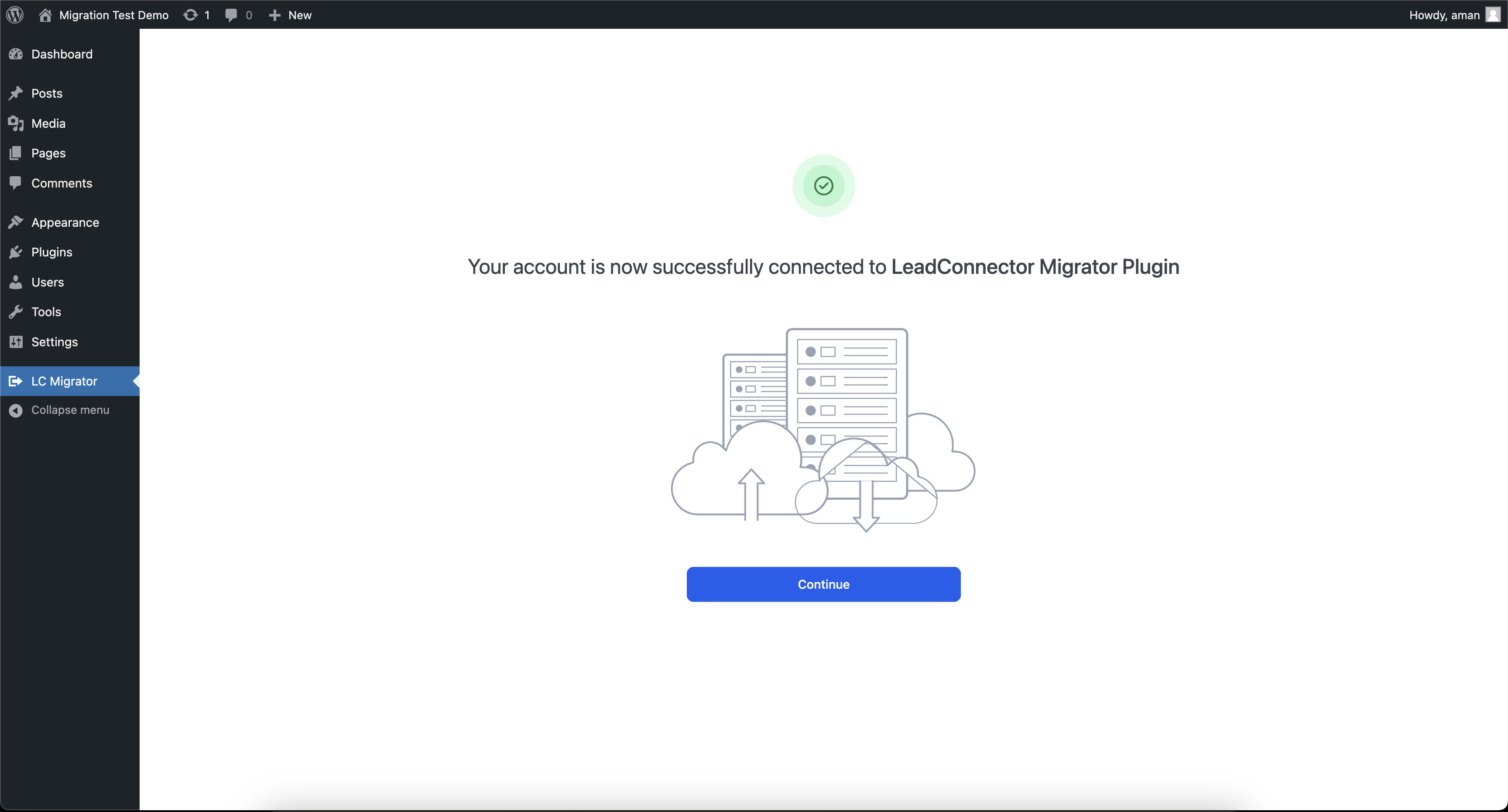
Open the migrated website using View Your New Website after completion.
How to Set Up and Use LC Migrator
Proper setup helps ensure your WordPress website transfers to the correct hosting environment. Before you begin, make sure you have:
-
Administrator access to your existing WordPress website.
-
Access to your WordPress hosting environment.
-
A destination WordPress website for the migration.
Step 1: Download LC Migrator
-
Open the Venderflow WordPress Plugin Hub.
-
Locate the Venderflow Migrator plugin.
-
Download the plugin as a
.zipfile.
Keep the downloaded file in ZIP format for installation.
Step 2: Install the Plugin
-
Log in to your original WordPress website.
-
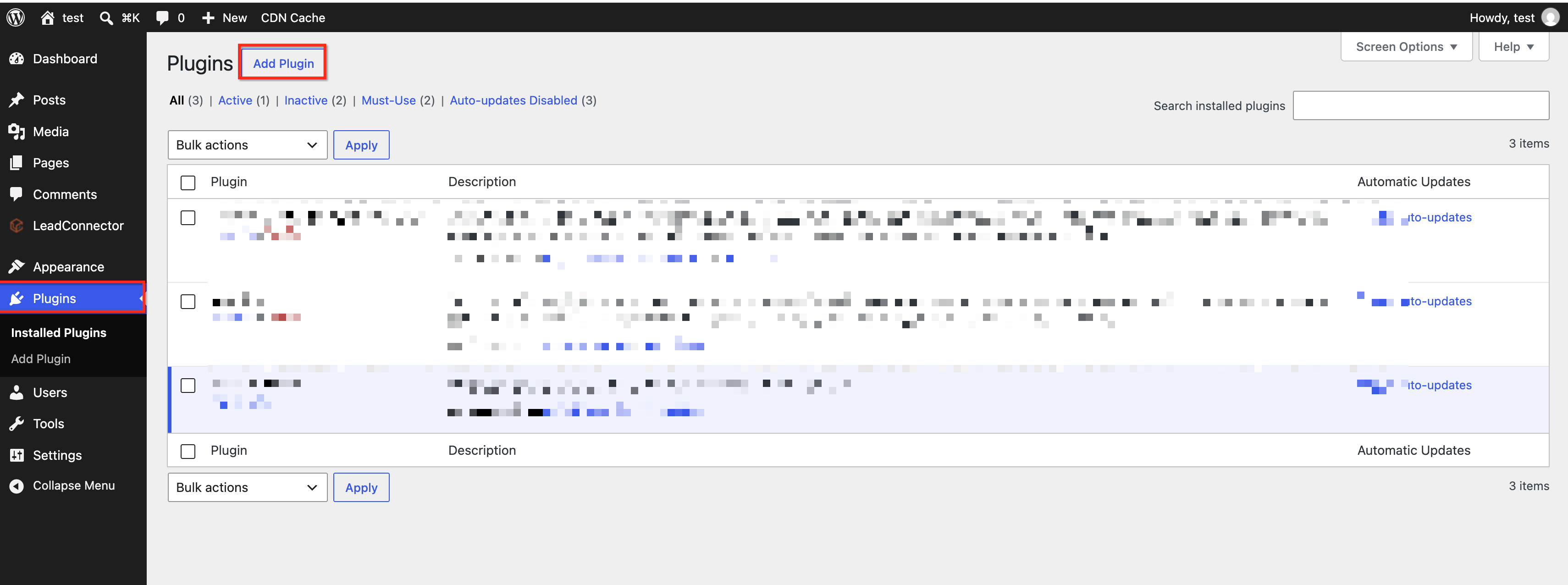
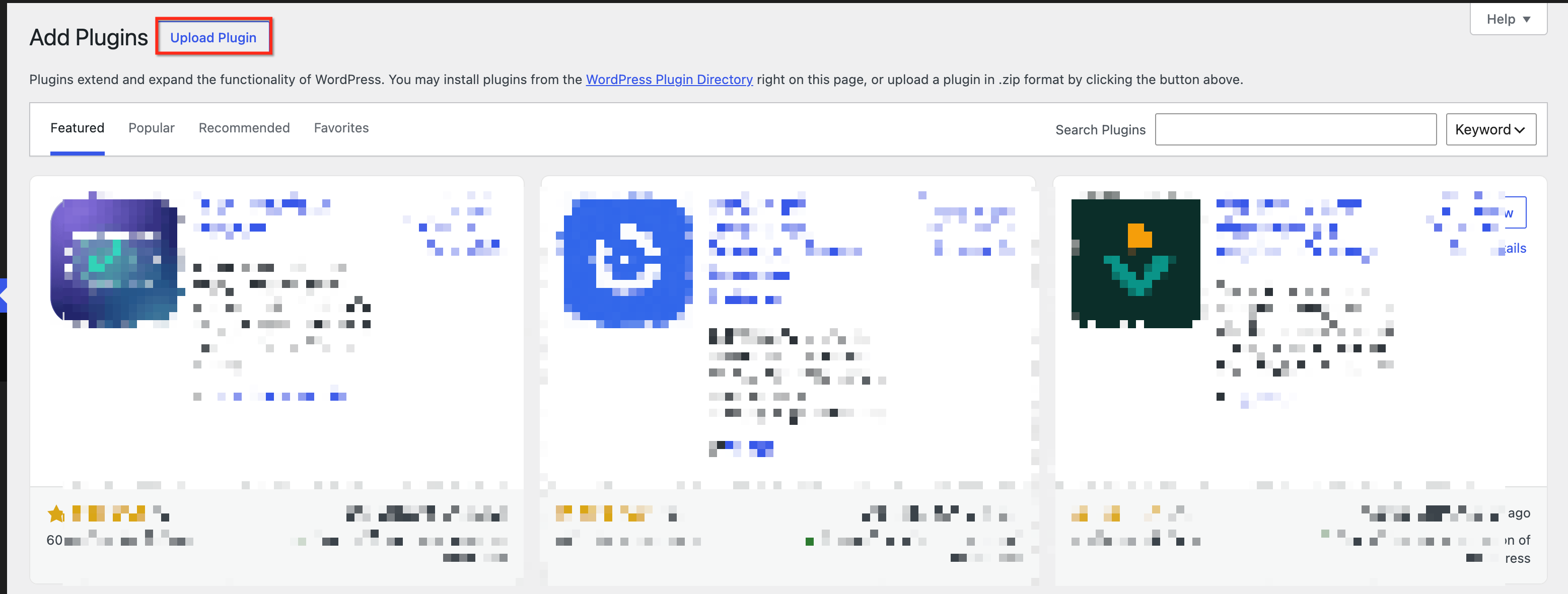
Navigate to Plugins → Add Plugin → Upload Plugin.
-
Select the downloaded LC Migrator
.zipfile. -
Click Install Now.
-
Once installation finishes, click Activate Plugin.
Step 3: Start the Migration
-
Open LC Migrator from the WordPress dashboard.
-
Sign in using your hosting credentials when prompted.
-
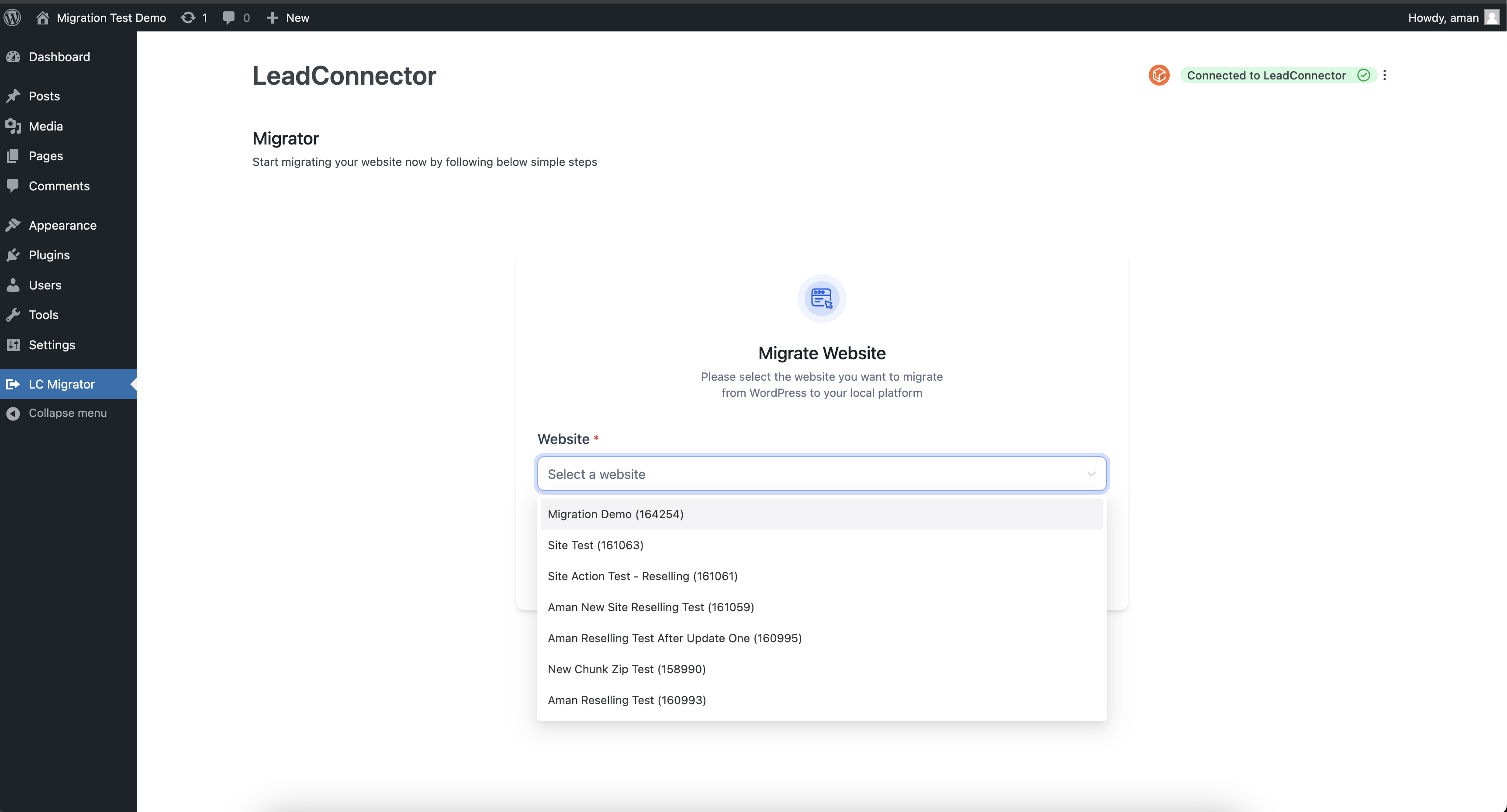
Select the destination WordPress site.
-
Follow the prompts to confirm your destination.
-
Review the confirmation that existing content on the destination website will be replaced.
-
Click Start Migration.
-
Monitor the progress bar until the transfer finishes.
Important: Migrating to an existing destination website replaces its current content. Confirm that you selected the correct destination before starting the migration.
Step 4: Verify Your Website
After migration finishes:
-
Click View Your New Website.
-
Check your pages, images, navigation, and links.
-
Test forms, plugins, and other important functionality.
-
Configure your domain and SSL settings if needed.
Important: Keep your original website accessible until you have verified the migrated website. DNS changes are separate from the migration process.
Frequently Asked Questions
Does LC Migrator have a file-size limit?
No. The plugin does not impose a migration file-size limit, but your hosting environment’s storage and resource limits still apply.
Will my original WordPress website remain live during migration?
Yes. The original website remains available during the transfer. Domain changes may require separate configuration.
Does LC Migrator automatically transfer my domain?
No. Website migration and domain configuration are separate processes.
What happens if my migration fails?
If your migration fails, contact your support provider for assistance.
Is LC Migrator the same as the Venderflow WordPress plugin?
No. LC Migrator transfers WordPress websites, while the standard Venderflow WordPress plugin integrates WordPress with CRM features.
Can I migrate a large WordPress website?
Yes. LC Migrator does not impose a file-size limit on migrations. However, your hosting environment must have sufficient resources to accommodate the transferred website.
Can I cancel a migration after starting it?
You can cancel a migration before it reaches the final stage. Cancellation is not available during the final stage.
What should I check after migration?
Review your website’s pages, images, navigation, links, forms, plugins, and other important functionality. Verify your domain and SSL configuration before directing visitors to the migrated website.