
The Manus integration allows you to connect AI-powered task automation directly to your workflows. This enables you to create, manage, update, and continue AI-driven tasks automatically based on CRM activity such as form submissions, opportunity stage changes, or other workflow triggers.
With this integration, workflows can initiate AI tasks, retrieve outputs, and respond to task lifecycle events. This makes it possible to build structured, multi-step automation that combines CRM data with AI-generated results, reducing manual effort and improving operational efficiency.
TABLE OF CONTENTS
- What Is Manus in Workflows?
- Available Triggers
- Available Actions
- Connecting Your Manus Account
- Getting Your API Key
- How to Use Manus in a Workflow
- Best Practice: Storing Task IDs
- Example Use Cases
- Frequently Asked Questions
- Need Help?
What Is Manus in Workflows?
Manus is a task-based AI system. Each task begins with an initial prompt, processes structured AI logic, returns an output or response, and can be continued with additional prompts.
When integrated with workflows, your system can both send instructions to Manus and react to task events such as creation or completion. This enables automated AI-powered processes that operate directly within your CRM environment.
Available Triggers
The integration provides triggers that allow workflows to respond to AI task events.
New Task Created
Fires when a new task is created through a workflow action.
Task Stopped
Fires when a task is stopped or completed.
These triggers activate only for tasks created through workflow actions. Tasks created directly inside the Manus application will not trigger workflows.
Available Actions
Workflows can perform the following task operations:
Create Task
Creates a new AI task using a defined prompt.
Get Task
Retrieves details and current status of a task.
Update Task
Modifies task metadata or parameters.
Fetch Tasks
Retrieves a list of tasks.
Delete Task
Removes an existing task.
Continue Task With Prompt
Adds a follow-up prompt to an active task.
These actions allow full lifecycle control of AI tasks directly inside your automation.
Connecting Your Manus Account
You can connect your account from either the Workflow Builder or the Integrations page.
Select Manus Trigger from the Apps Tab
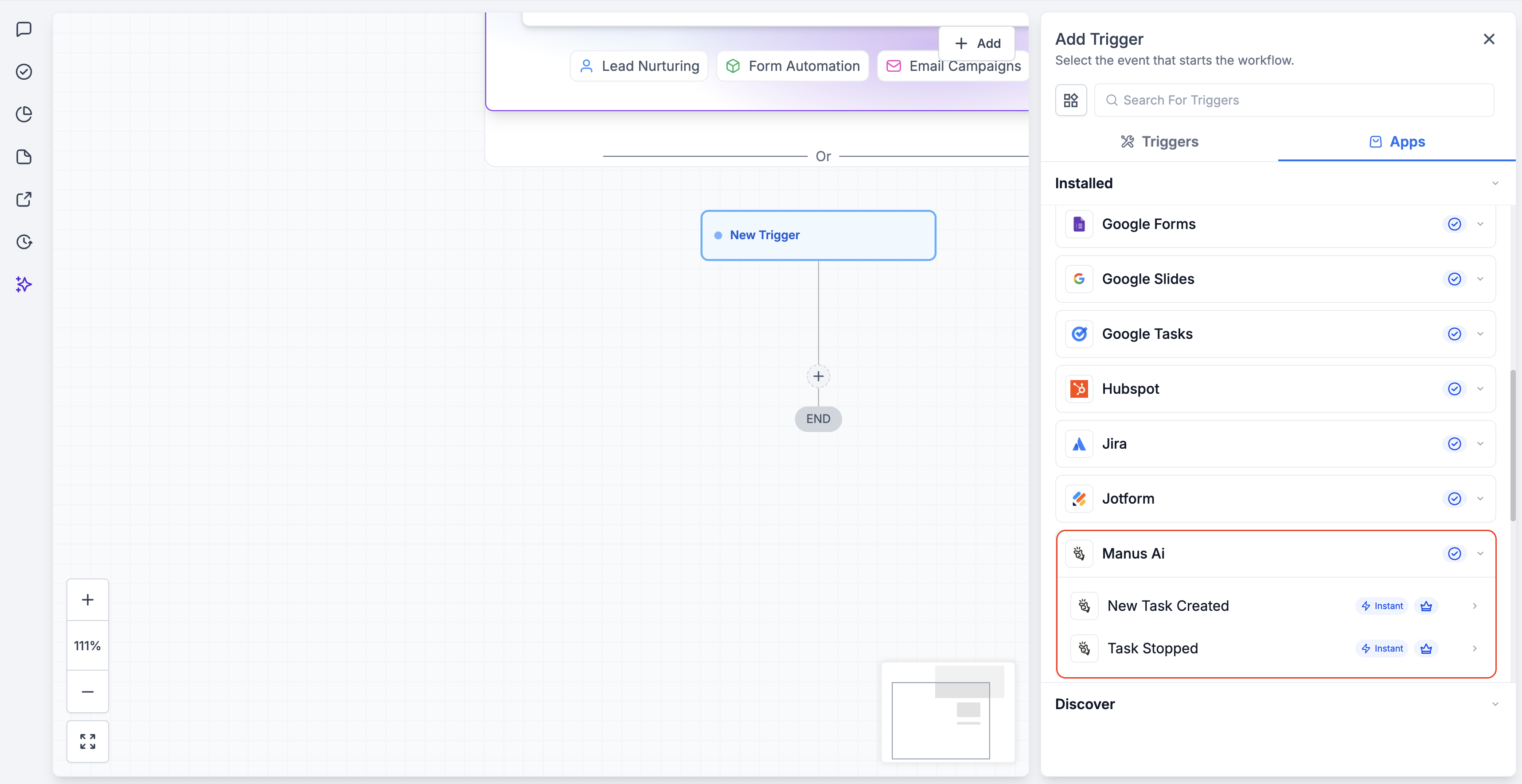
In Automation → Workflows, click Add New Trigger, switch to the Apps tab, and select Manus AI from the installed apps list. Then choose either “New Task Created” or “Task Stopped.”
This allows your workflow to react to AI task lifecycle events.
Add a Manus Action Inside a Workflow
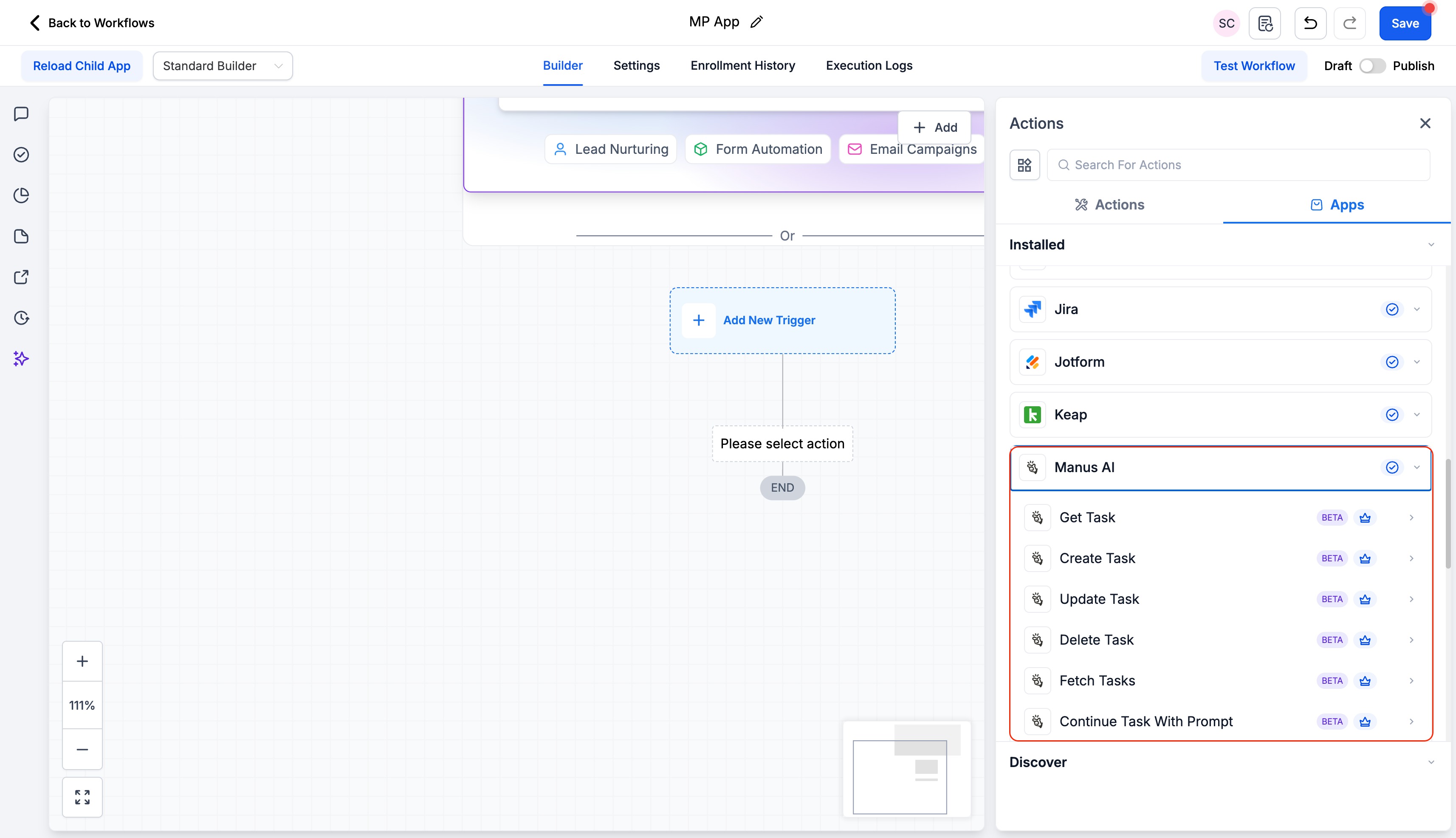
Inside the workflow builder, click the + icon to add an action, open the Apps tab, and select Manus AI. Choose from available actions such as Create Task, Get Task, Update Task, Delete Task, Fetch Tasks, or Continue Task With Prompt.
This enables your workflow to send instructions to Manus.
Connect Manus from the Integrations Page
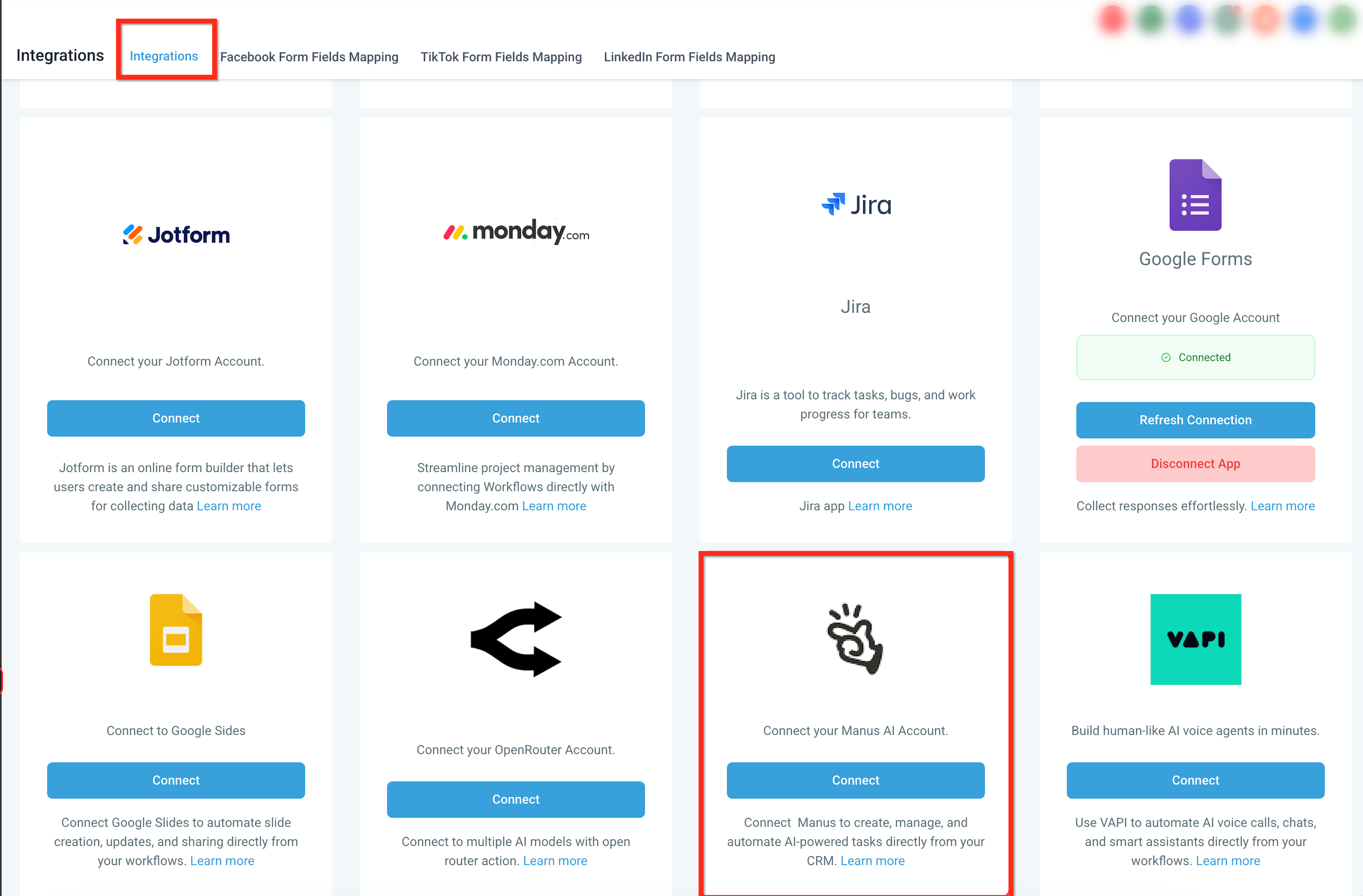
Go to Settings → Integrations, locate Manus, and click Connect to authorize your account using your API key.
After successful authentication, Manus triggers and actions become available inside workflows.
Getting Your API Key
To connect your account, you will need an API key.
-
Log into your Manus account
-
Navigate to API settings
-
Click Create New API Key
-
Copy the generated key
-
Paste it when prompted during connection
Keep your API key secure and do not share it publicly.
How to Use Manus in a Workflow
Manus can be incorporated into nearly any workflow.
Basic Setup Example
-
Create or open a workflow
-
Choose a trigger (Form Submitted, Stage Changed, etc.)
-
Add a Create Task action
-
Enter your AI prompt
-
Store the returned Task ID (recommended)
-
Add a Wait step if needed
-
Use Get Task to retrieve the result
-
Add follow-up actions
-
Test and publish
You may dynamically map merge fields such as:
-
{{contact.first_name}}
-
{{contact.email}}
-
{{opportunity.name}}
-
{{custom_values}}
This allows tasks to personalize outputs automatically.
Best Practice: Storing Task IDs
After creating a task, store the returned Task ID in a custom field.
This allows you to later:
-
Retrieve task results
-
Continue the task with additional prompts
-
Update the task
-
Delete the task
Storing Task IDs enables multi-step AI workflows and more advanced automation patterns.
Example Use Cases
Proposal Generation
Trigger: Opportunity moves to “Proposal Requested”
Workflow:
-
Create Task → Generate proposal draft
-
Store Task ID
-
Wait
-
Get Task
-
Create internal note
-
Notify sales representative
Outcome: A ready-to-review proposal draft is generated automatically.
Lead Research Automation
Trigger: Form Submitted
Workflow:
-
Create Task → Research company
-
Store Task ID
-
Wait
-
Get Task
-
Add research summary to record
-
Notify assigned user
Outcome: Sales representatives receive AI-generated lead insights before outreach.
Website Research for Prospecting
Trigger: Opportunity Created or Stage Changed
Workflow:
-
Create Task → Analyze website and draft personalized outreach
-
Store Task ID
-
Wait
-
Get Task
-
Send generated email or log internally
Outcome: Personalized prospecting at scale with reduced manual effort.
Competitor Research and Content Generation
Trigger: Opportunity enters Content Strategy stage
Workflow:
-
Create Task → Analyze competitor messaging
-
Store Task ID
-
Wait
-
Get Task
-
Generate differentiated content
-
Notify marketing team
Outcome: AI-driven competitive research and content production.
Frequently Asked Questions
Q: Where can I view the full output of a Manus task?
Full task history and prompt iterations are available inside the Manus dashboard. Workflow logs confirm task creation and return the Task ID.
Q: How do I retrieve task output inside a workflow?
Use the Get Task action and reference the stored Task ID.
Q: What are common reasons a task might fail?
Common causes include disconnected integration, invalid API key, incorrect Task ID, or missing prompt input. Review workflow execution logs for details.
Q: Can I continue a task multiple times?
Yes, as long as the task remains active.
Q: Are Manus actions subject to premium workflow billing rules?
Yes. Manus actions follow standard premium workflow usage rules.
Q: Does the CRM include AI usage credits for Manus?
No. AI usage is billed separately according to your Manus subscription plan.
Need Help?
If the integration is not functioning as expected:
-
Confirm your API key is valid
-
Ensure the integration shows as connected
-
Verify Task IDs are stored correctly
-
Review workflow execution logs